A Vim plugin for executing pathaction, the universal Makefile for the entire filesystem

The vim-pathaction Vim plugin provides an interface for executing .pathaction.yaml rules directly from Vim through the pathaction cli, a flexible tool for running commands on files and directories.

Think of pathaction like a Makefile for any file or directory in the filesystem. It uses a .pathaction.yaml file to figure out which command to run, and you can even use Jinja2 templating to make those commands dynamic. You can also use tags to define multiple actions for the exact same file type, like setting up one tag to run a script, and another to debug it.

This tool is for software developers who manage multiple projects across diverse ecosystems and want to eliminate the cognitive load of switching between different build tools, environment configurations, and deployment methods. Just run one single command on any file and trust that it gets handled correctly.

If this package helps your workflow, please show your support by ⭐ starring pathaction.el on GitHub to help more software developers discover its benefits.

Usage

Keybindings

Below are two examples of key bindings (<leader>ee to execute the “main” tag and <leader>ei to execute the “install” tag):

nnoremap <leader>ee :call pathaction#run("main")<CR>
nnoremap <leader>ei :call pathaction#run("install")<CR>
nnoremap <leader>ed :call pathaction#run("debug")<CR>

Allow the directory explicitly

By default, pathaction does not read rule-set files such as .pathaction.yaml from arbitrary directories. The target directory must be explicitly permitted.

For example, to allow Pathaction to load .pathaction.yaml rules from ~/projects and its subdirectories, run the following command:

pathaction --allow-dir ~/projects

Author and license

Copyright (C) 2021-2026 James Cherti.

Distributed under terms of the MIT license.

Installation

Installation with Vim’s built-in package manager (Vim 8 and above)

mkdir -p ~/.vim/pack/jamescherti/start
cd ~/.vim/pack/jamescherti/start
git clone --depth 1 https://github.com/jamescherti/vim-pathaction
vim -u NONE -c "helptags vim-pathaction/doc" -c q

Installation with a third-party plugin manager

You can also install this Vim plugin with any third-party plugin manager such as Pathogen or Vundle.

Links

  • vim-pathaction, a Vim plugin that allows executing the pathaction command-line tool directly from Vim.
  • The pathaction command-line tool (requirement): pathaction cli
  • For Emacs users: pathaction.el, an Emacs package that allows executing the pathaction command-line tool directly from Emacs.

Lightvim – The Efficient Minimal Vim/Neovim Configuration

License

The Lightvim project is a Vim configuration that is intended to serve as a solid foundation for a Vim configuration.

The author began developing this configuration upon first adopting Vim and has continuously refined it over 25 years of research and testing to identify the most effective parameters and optimizations for a Vim configuration file.

This Vim configuration does not install any plugins. It lets you choose exactly which plugins to use, giving you the freedom to build a setup suited to your specific needs without unnecessary dependencies or bloat.

Installation

Clone the repository into ~/.lightvim:

git clone https://github.com/jamescherti/lightvim ~/.lightvim

Create symbolic links for Vim:

ln -sf ~/.lightvim/lightvim.vim ~/.vimrc

Create symbolic links for Neovim:

mkdir -p ~/.config/nvim
ln -sf ~/.lightvim/lightvim.vim ~/.config/nvim/init.vim

Update

To update lightvim with the latest changes from the repository, execute the following command:

git -C ~/.lightvim pull

Key bindings

  • The default <Leader>: ,

Miscellaneous

Normal mode:

  • Toggle wrap: <Leader>wr
  • Previous buffer: A-o
  • Next buffer: A-i
  • Change the current working directory to the directory of the current buffer: <Leader>cd
  • Open the directory of the current file: -
  • Search forward using the current word: *
  • Search backward using the current word: #

Visual mode:

  • Search forward for the current selection: // or *
  • Search backward for the current selection: #

Visual, normal, and insert mode:

  • Redraw the screen and clears search highlights: <C-l>

Clipboard:

Normal mode:

  • Select pasted text: gp

Visual mode:

  • Copy: C-c
  • Cut: C-x

Insert mode:

  • Paste: C-v

Files:

Grep:

  • Run grep (or rg, if available): <leader>gr (normal mode)

Tabs

Normal mode:

  • Create a tab: <Leader>t

Insert mode, visual mode, and normal mode:

  • Previous tab: C-k
  • Next tab: C-j
  • Move tab to the left: <C-S-K>
  • Move tab to the right: <C-S-J>

Visual and normal mode:

  • Close window/split (or tab if there is one window in the current tab): C-w c

GUI

Normal and insert mode:

  • Increase font size: Ctrl + + (or Ctrl + Mouse Wheel Up)
  • Decrease font size: Ctrl + - (or Ctrl + Mouse Wheel Down)

External plugins

Normal mode:

  • Run MRU (requires mru.vim): <Leader>m or <Leader>b
  • Run fzf (requires fzf.vim): C-p

Paths

Lightvim Directory Structure

Lightvim isolates all configuration, cache, and runtime data under its own directory tree, independent from the default ~/.vim structure. This ensures a clean, self-contained Vim environment.

Configuration Files

  • ~/.lightvim.d/before.vim: Executed before the main configuration is loaded. Used for early initialization or plugin path setup.

  • ~/.lightvim.d/after.vim: Executed after all configuration and plugins have been loaded. Used for post-configuration customization.

Runtime Data Directories

  • ~/.lightvim.d/var/undo/: Stores persistent undo history files.

  • ~/.lightvim.d/var/backup/: Stores backup files created before saving modifications.

  • ~/.lightvim.d/var/swap/: Stores swap files for open buffers.

  • ~/.lightvim.d/var/spell/: Stores custom spell dictionaries. Each file is created dynamically according to the active language and encoding.

Runtime and Package Paths

Lightvim adds its root directory to both runtimepath and packpath so that all plugins, syntax files, and configuration scripts are discovered exclusively from the Lightvim directory tree ~/.lightvim.d/.

Features

This vimrc enhances defaults that improve the editing experience with Vim, based on extensive research and testing.

  1. Miscellaneous enhancements:
  • Automatically remove unnecessary whitespace before saving files.
  • Disables compatibility with Vi and uses Vim-specific settings.
  • Prevents loading the configuration multiple times.
  1. Encoding and File Handling:
  • Sets global encoding, file encodings, and script encoding to UTF-8.
  • Allows loading an optional pre-configuration script (~/.vim/before.vim).
  • Allows loading an optional post-configuration script (~/.vim/after.vim).
  1. Font Settings:
  • Configures default font and size (DejaVu Sans Mono at size 14).
  • Offers a method to scale the GUI font size within a defined range (6-30).
  1. Session Management:
  • Defines options for Vim sessions and view settings (e.g., folds, current directory, cursor position).
  • Restore the cursor position when editing a file, except for Git commit files such as COMMIT_EDITMSG.
  1. GUI and Console Configuration:
  • Customizes GUI-specific settings, including window size, font rendering, cursor behavior, and disabling unnecessary UI elements.
  • Improves color handling and terminal display with 256-color support and true color.
  1. Syntax, Indentation, and Formatting:
  • Enables syntax highlighting and filetype-based indentation plugins.
  • Configures indentation style (spaces instead of tabs, 4 spaces per indentation level).
  • Automatically wraps comments and disables smart indenting features for better manual control.
  1. Status Line:
  • Customizes the status line to show relevant information such as paste mode, wrap status, filename, line/column number, and current Git branch.
  1. Window and Layout Settings:
  • Sets split window behavior (e.g., splits right and below).
  • Configures window size and scrolling behavior.
  1. Backup and Undo Settings:
  • Disables backup files and sets undo options (e.g., persistent undo with undo files).
  1. Key Mappings and Shortcuts:
  • Assigns useful key mappings (e.g., tabs, grep, for writing files, changing directories, adjusting font size).
  • Custom leader key (,), allowing for personalized shortcuts.
  1. Search Settings:
  • Configures incremental search, case-sensitive search (smartcase), and disables search wrapping.
  1. Language and Spell Check:
  • Configures spell checking and defines custom dictionary and thesaurus files.
  1. Clipboard Integration:
  • Supports clipboard integration (copy/paste between Vim and external applications) when available.
  1. File Type Specific Settings:
  • Defines custom settings for specific file types (e.g., Dockerfile, YAML, Python, Shell, Vim).
  1. Autocommands:
  • Uses autocommands to automate behaviors like adjusting settings when a file type is detected or resizing windows on Vim resize events.
  1. Mouse Configuration:
  • Configures mouse support in various modes, including the ability to drag and select text within Vim without switching to visual mode.
  1. Optimization Settings:
  • Includes optimizations for smooth scrolling and fast terminal connections, including reducing screen redraw times.
  1. Smart Write Function:
  • Defines a function (smart_write) to save files intelligently, ensuring proper handling of modified and non-modified files.
  1. Better tabline:
  • Enhance the visual clarity of the tabline by displaying solely the filename and removing unnecessary information.
  1. Useful functions:
  • Select pasted text
  • Search the current selection using //, *, or #.

Author and license

Copyright (C) 2000-2026 James Cherti.

Distributed under terms of the MIT license.

Links

Set up Vim to use Fasd for quickly jumping to directories

Fasd is a command-line tool that enhances productivity by providing quick access to files and directories. It is inspired by autojump, z and v.

By using the code provided below, you can configure Vim to leverage Fasd for swiftly jumping to directories:

" Language: Vim script
" Description: Vim Fasd integration
" Usage: Execute the command: 
"        :Fasd <QUERY>
" License: MIT
" Author: James Cherti
" URL: https://www.jamescherti.com/vim-fasd-integration

function! Fasd(query)
  " -d: Match directories only.
  " -l: List paths without scores.
  let l:cmd = 'fasd -d -l ' . shellescape(a:query)
  let l:result = systemlist(l:cmd)
  if v:shell_error !=# 0
    echoerr 'Fasd error: ' . join(l:result, "\n")
    return
  endif

  if len(l:result) ==# 0 || !isdirectory(l:result[0])
    echo 'Fasd has not found anything for: ' . a:query
    return
  endif

  let l:path = l:result[0]
  exec 'edit ' . fnameescape(l:path)
  exec 'lcd ' . fnameescape(l:path)
  echo l:path
endfunction

command! -bar -nargs=1 Fasd call Fasd(<f-args>)
Code language: Vim Script (vim)

Vim: Quickly replace the word that is under the cursor

" Language: Vim script
" Description: Quickly replace the word that is under the cursor.
" Usage: Press the keys '<Leader>rr', type the new word, and 
"        then leave insert mode (<Esc>).
" License: MIT
" Author: James Cherti
" URL: https://www.jamescherti.com/vim-quickly-replace-word-under-cursor/

function! s:replace_word_under_cursor(...) abort
  let l:action = 'main'
  if len(a:000) > 0
    let l:action = a:000[0]
  endif
  
  "
  " Main action
  "
  if l:action ==# 'main'
    let b:replace_word_data = {}
    let b:replace_word_data['changenr'] = changenr()

    let l:regex_prefix = ''
    let l:regex_suffix = ''
    if mode() ==# 'n'
      normal! diw
      let l:regex_prefix = '\<'
      let l:regex_suffix = '\>'
    else
      echoerr 'Unsupported mode: ' . mode()
      return
    endif

    let b:replace_word_data['string'] = substitute(@@, '\v\n+$', '', 'g')
    let b:replace_word_data['escaped_string'] =
        \ '\V' . l:regex_prefix . 
        \ escape(b:replace_word_data['string'], '/\') . 
        \ l:regex_suffix
    startinsert

    augroup ReplaceString
      autocmd!
      autocmd InsertLeave * call s:replace_word_under_cursor('insert_leave')
    augroup END

    return
  endif

  
  "
  " Insert Leave
  "
  if l:action ==# 'insert_leave'
    autocmd! ReplaceString InsertLeave
    
    let l:new_string = expand('<cword>')
    if empty(l:new_string) 
      execute 'undo ' . b:replace_word_data['changenr']
      return
    endif
    
    let l:cursor_pos = getpos('.')
    execute 'keeppatterns silent! %substitute/' . 
        \ b:replace_word_data['escaped_string'] . '/' . 
        \ escape(l:new_string, '/\') . '/g'
    call setpos('.', l:cursor_pos)
    
    echo 'Replace: ' . b:replace_word_data['string'] . ' -> ' . l:new_string
    
    unlet b:replace_word_data
    return
  endif
endfunction

nnoremap <Leader>rr :call <SID>replace_word_under_cursor()<CR>Code language: Vim Script (vim)

How to make Vim edit/diff files from outside of Vim? (e.g. from a shell like Bash, Zsh, Fish..)

License

The vim-client command-line tools vim-client-edit, vim-client-diff and the Python module vim_client will allow you to connect to a Vim server and make it:

  • Edit files or directories in new tabs,
  • Compare files (similar to vimdiff),
  • Evaluate expressions and return their result,
  • Send commands to Vim.

It will allow you, for example, to make Vim edit or diff files from outside of Vim (e.g. from a shell like Bash, Zsh, etc.).

License

Copyright (C) 2022-2026 James Cherti.

Distributed under terms of the MIT license.

Requirements

  • Python >= 3.0
  • The Vim editor (‘vim’ or ‘gvim’ in $PATH. Vim must be compiled with |+clientserver|, which is the case of most Vim distributions, because the Python module vim_client uses command-line arguments vim --remote-*)

Installation

sudo pip install vim-client

The ‘vim-client-*’ command-line tools

Edit a file in the current window/tab:

vim-client-edit file1

Edit multiple files/directories in separate tabs:

vim-client-edit --tab file1 file2 file3

Edit multiple files/directories in stacked horizontal splits:

vim-client-edit --split file1 file2

Edit multiple files/directories in side-by-side vertical splits (To open vertical splits on the right of the current window, use the Vim option set splitright):

vim-client-edit --vsplit file1 file2

Edit and compare up to eight files in a new tab:

vim-client-diff --tab file1 file2

Recommendations

Add aliases to ~/.bashrc

It is recommended to add the following aliases to your ~/.bashrc:

alias gvim='vim-client-edit --tab'
alias vim='vim-client-edit --tab'
alias vi='vim-client-edit --tab'
alias vimdiff='vim-client-diff --tab'

Start diff mode with vertical splits (vim-client-diff)

Add the following line to your ~/.vimrc:

set diffopt+=vertical

Create desktop launchers

File: /usr/local/share/applications/vim-client-edit.desktop

[Desktop Entry]
Name=vim-client-edit
GenericName=Vim Client Edit
Comment=Vim Client Edit
Exec=vim-client-edit --tab %F
Terminal=false
Type=Application
Keywords=Text;editor;
Icon=gvim
Categories=Utility;TextEditor;
StartupNotify=false
MimeType=text/english;text/plain;text/x-makefile;text/x-c++hdr;text/x-c++src;text/x-chdr;text/x-csrc;text/x-java;text/x-moc;text/x-pascal;text/x-tcl;text/x-tex;application/x-shellscript;text/x-c;text/x-c++;

File: /usr/local/share/applications/vim-client-diff.desktop

[Desktop Entry]
Name=vim-client-diff
GenericName=Vim Client Diff
Comment=Vim Client Diff
Exec=vim-client-diff --tab %F
Terminal=false
Type=Application
Keywords=Text;editor;
Icon=gvim
Categories=Utility;TextEditor;
StartupNotify=false
MimeType=text/english;text/plain;text/x-makefile;text/x-c++hdr;text/x-c++src;text/x-chdr;text/x-csrc;text/x-java;text/x-moc;text/x-pascal;text/x-tcl;text/x-tex;application/x-shellscript;text/x-c;text/x-c++;

Links

Vim: Edit all the files in the current directory of a Git repository in new tabs (git ls-files)

" Language: Vim script
" Description: edit all the Git files in the current
"              directory in new tabs (git ls-files
" License: MIT
" Author: James Cherti
" URL: https://www.jamescherti.com/vim-edit-git-ls-files-new-tabs/

function! GitEditFiles() abort
  if &modified
    echoerr 'fatal: No write since last change.'
    return
  endif

  let l:list_lines = systemlist('git ls-files')
  if v:shell_error !=# 0
    echomsg 'fatal: Git: ' . join(l:list_lines, "\n")
    return
  endif

  let l:list_files = []
  for l:filename in l:list_lines
    if filereadable(l:filename)
      call add(l:list_files, l:filename)
    endif
  endfor

  if len(l:list_files) ==# 0
    echo 'No Git files were found in the directory ' . getcwd()
    return
  endif

  if len(l:list_files) > 7
    for l:filename in l:list_lines
      echo l:filename
    endfor

    echo "\n"
    echo 'Git directory: ' . getcwd()
    echo 'Number of Git files: ' . len(l:list_files)
    echo "\n"
    let l:answer = input('Edit? [y,n]')
    if l:answer !=# 'y'
      return
    endif
  endif

  let l:first = 1
  for l:file in l:list_files
    if l:first
      let l:first = 0
    else
      execute 'tabnew'
    endif

    execute 'edit ' . fnameescape(l:file)
  endfor
endfunction

command! -nargs=0 GitEditFiles call GitEditFiles()Code language: Vim Script (vim)

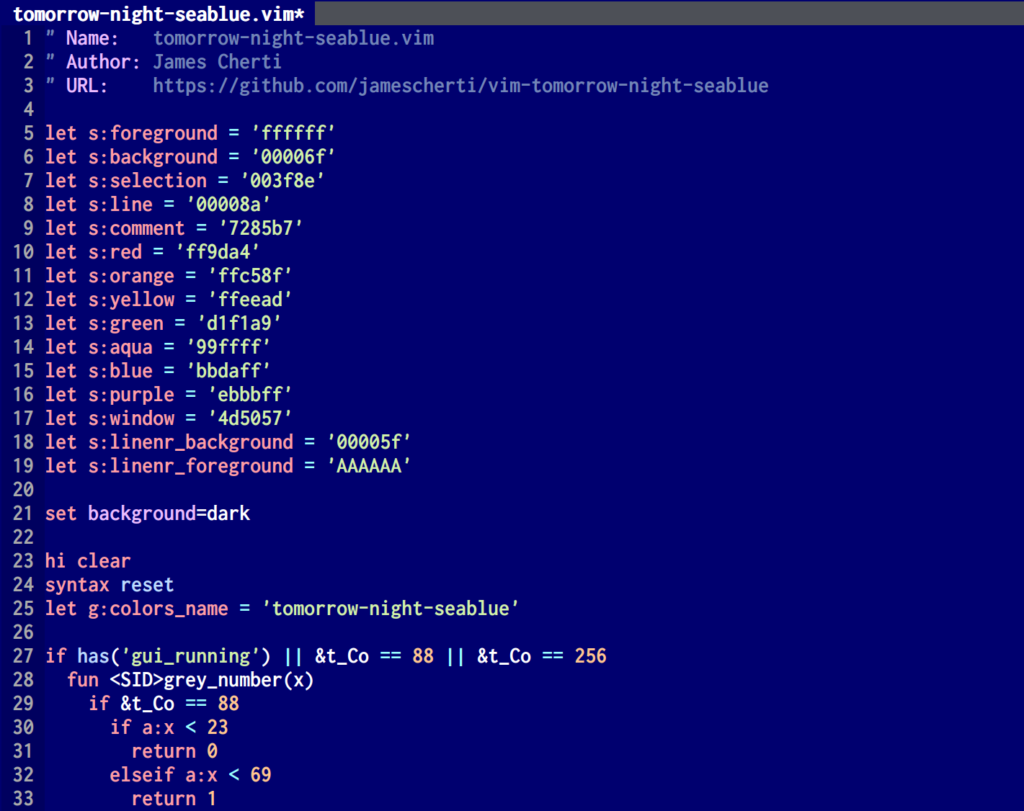
Vim theme: tomorrow-night-deepblue, a refreshing color scheme with a deep blue background

The Vim color scheme Tomorrow Night Deepblue is a beautiful deep blue variant of the Tomorrow Night color scheme, which is renowned for its elegant color palette that is pleasing to the eyes (The colorscheme was previously called tomorrow-night-seablue).

The Tomorrow Night Deepblue colorscheme features a deep blue background color that creates a calming atmosphere. The contrasting colors make it easy to distinguish between different elements of your code. The tomorrow-night-deepblue colorscheme is also a great choice for programmer who miss the blue themes that were trendy a few years ago.

Authors

(The tomorrow-night-deepblue color scheme is based on Tomorrow Night Blue by Chris Kempson.)

Installation

Vim

Installation with Vim’s built-in package manager (Vim 8 and above)

mkdir -p ~/.vim/pack/jamescherti/start
cd ~/.vim/pack/jamescherti/start
git clone --depth 1 https://github.com/jamescherti/vim-tomorrow-night-deepblue
vim -u NONE -c "helptags vim-tomorrow-night-deepblue/doc" -c q

Neovim

The theme is also compatible with Neovim. The Tomorrow Night Deepblue colorscheme can be installed in Neovim with this one-liner:

mkdir -p ~/.config/nvim/colors && cd ~/.config/nvim/colors && curl -o tomorrow-night-deepblue.vim https://raw.githubusercontent.com/jamescherti/vim-tomorrow-night-deepblue/master/colors/tomorrow-night-deepblue.vim

Activate the color scheme

:color tomorrow-night-deepblue

Links

Vim: Open documentation in a new tab for the word under the cursor (Vim help, Python, man pages, Markdown, Ansible…)

The following Vim script (VimL) function can be used to make Vim open the documentation of the word under the cursor in a new tab for various languages and tools such as Vim help (:help), Python (Pydoc), Markdown (sdcv dictionary), man pages (Vim’s built-in ‘:Man’), and Ansible (ansible-doc).

The VimL function is also extensible, meaning that you can adapt it to work with any other documentation tool. By default, the key mapping upper-case “K” can be used to open the documentation for the word under the cursor in a new tab.

" Language: Vim script
" Author: James Cherti
" License: MIT
" Description: Vim: open help/documentation in a new tab 
"              (Vim script, Python, Markdown, man pages, Ansible...).
"              Press upper-case K to open help for the word under the cursor.
" URL: https://www.jamescherti.com/vim-open-help-documentation-in-a-new-tab/

function! TabHelp(word) abort
  let l:cmd = ''

  let l:tabhelpprg = get(b:, 'tabhelpprg', '')
  if l:tabhelpprg ==# ''
    normal! K
    return
  endif

  if l:tabhelpprg[0] ==# ':'
    if stridx(l:tabhelpprg, '%s') ==# -1
      execute l:tabhelpprg
    else
      execute printf(l:tabhelpprg, fnameescape(a:word))
    endif
    return
  else
    let l:cmd = 'silent read! '
    if stridx(l:tabhelpprg, '%s') ==# -1
      let l:cmd .= l:tabhelpprg
    else
      let l:cmd .= printf(l:tabhelpprg, shellescape(a:word))
    endif
  endif

  execute 'silent tabnew help:' . fnameescape(a:word)

  setlocal modifiable
  silent normal! ggdG
  silent normal! 1Gdd
  if l:cmd !=# ''
    execute l:cmd
  endif
  silent normal! gg0
  setlocal nomodifiable
  setlocal noswapfile
  setlocal nowrap
  setlocal nonumber
  setlocal nomodified
  setlocal buftype=nofile
  setlocal bufhidden=delete
  if exists('&relativenumber')
    setlocal norelativenumber
  endif
  if exists('&signcolumn')
    setlocal signcolumn=no
  endif
  setlocal nofoldenable
  setlocal foldcolumn=0
endfunction

augroup TabHelp
  autocmd!
  autocmd FileType vim let b:tabhelpprg = ':tab help %s'
  autocmd FileType sh,zsh,csh if ! exists(':Man') | runtime ftplugin/man.vim | endif | let b:tabhelpprg = ':tab Man %s'
  autocmd FileType yaml.ansible if executable('ansible-doc') | let b:tabhelpprg = 'ansible-doc %s' | endif
  autocmd FileType markdown if executable('sdcv') | let b:tabhelpprg = 'sdcv %s' | endif
  autocmd FileType vim,sh,zsh,csh,yaml.ansible,markdown nnoremap <silent> <buffer> K :call TabHelp(expand('<cword>'))<CR>
augroup ENDCode language: Vim Script (vim)

Vim: Tango color scheme for Vim’s built-in Terminal

The following code snippet will allow you to apply the Tango Dark color scheme to the Vim’s built-in terminal and ensure that the terminal’s color scheme remains consistent, even if you change the Vim color scheme with the ‘:colorscheme’ command.

The snippet uses autocmd to ensures that the Vim terminal’s color scheme remains Tango Dark.

For more information about Vim’s built-in terminal:

  • :help terminal
" Language: Vim script
" Author: James Cherti
" License: MIT
" Description: Improve the color scheme of Vim Terminal (Tango dark theme),
"              and prevent :colorscheme from changing the terminal color scheme.
" URL: https://www.jamescherti.com/vim-tango-color-scheme-vim-terminal/

" Gnome-Terminal Tango Dark
let g:terminal_ansi_colors_black = '#2E3436'
let g:terminal_ansi_colors_darkred = '#CC0000'
let g:terminal_ansi_colors_darkgreen = '#4E9A06'
let g:terminal_ansi_colors_brown = '#C4A000'
let g:terminal_ansi_colors_darkblue = '#3465A4'
let g:terminal_ansi_colors_darkmagenta = '#75507B'  " dark purple
let g:terminal_ansi_colors_darkcyan = '#06989A'  " dark turquoise
let g:terminal_ansi_colors_lightgrey = '#D3D7CF'
let g:terminal_ansi_colors_darkgrey = '#555753'
let g:terminal_ansi_colors_red = '#EF2929'
let g:terminal_ansi_colors_green = '#8AE234'
let g:terminal_ansi_colors_yellow = '#FCE94F'
let g:terminal_ansi_colors_blue = '#729FCF'
let g:terminal_ansi_colors_magenta = '#AD7FA8'  " purple
let g:terminal_ansi_colors_cyan = '#34E2E2' " turquoise
let g:terminal_ansi_colors_white = '#EEEEEC'

" Text and background: Gnome dark
let g:terminal_ctermbg = 'black'
let g:terminal_ctermfg = 'white'
let g:terminal_statuslineterm_ctermbg = 'black'
let g:terminal_statuslineterm_ctermfg = 'white'
let g:terminal_statuslinetermnc_ctermbg = 'black'
let g:terminal_statuslinetermnc_ctermfg = 'white'
let g:terminal_guibg = '#000000'
let g:terminal_guifg = '#D0CFCC'
let g:terminal_statuslineterm_guibg = g:terminal_guibg
let g:terminal_statuslineterm_guifg = g:terminal_guifg
let g:terminal_statuslinetermnc_guibg = g:terminal_guibg
let g:terminal_statuslinetermnc_guifg = g:terminal_guifg

function! SetTerminalColorScheme() abort
  if !has('terminal')
    return
  endif

  let g:terminal_ansi_colors = [
        \ g:terminal_ansi_colors_black,
        \ g:terminal_ansi_colors_darkred,
        \ g:terminal_ansi_colors_darkgreen,
        \ g:terminal_ansi_colors_brown,
        \ g:terminal_ansi_colors_darkblue,
        \ g:terminal_ansi_colors_darkmagenta,
        \ g:terminal_ansi_colors_darkcyan,
        \ g:terminal_ansi_colors_lightgrey,
        \ g:terminal_ansi_colors_darkgrey,
        \ g:terminal_ansi_colors_red,
        \ g:terminal_ansi_colors_green,
        \ g:terminal_ansi_colors_yellow,
        \ g:terminal_ansi_colors_blue,
        \ g:terminal_ansi_colors_magenta,
        \ g:terminal_ansi_colors_cyan,
        \ g:terminal_ansi_colors_white
        \ ]

  execute printf(
        \ 'highlight Terminal ctermbg=%s ctermfg=%s guibg=%s guifg=%s',
        \ g:terminal_ctermbg, g:terminal_ctermfg, g:terminal_guibg,
        \ g:terminal_guifg
        \ )
  execute printf(
        \ 'highlight StatusLineTerm ctermbg=%s ctermfg=%s guibg=%s guifg=%s',
        \ g:terminal_statuslineterm_ctermbg, g:terminal_statuslineterm_ctermfg,
        \ g:terminal_statuslineterm_guibg, g:terminal_statuslineterm_guifg
        \ )
  execute printf(
        \ 'highlight StatusLineTermNC ctermbg=%s ctermfg=%s guibg=%s guifg=%s',
        \ g:terminal_statuslinetermnc_ctermbg, g:terminal_statuslinetermnc_ctermfg,
        \ g:terminal_statuslinetermnc_guibg, g:terminal_statuslinetermnc_guifg
        \ )
endfunction

if has('terminal')
  augroup TerminalColorScheme
    autocmd!
    autocmd ColorScheme * call SetTerminalColorScheme()
    autocmd VimEnter * call SetTerminalColorScheme()
  augroup END

  call SetTerminalColorScheme()
endifCode language: Vim Script (vim)

Vim: Enhance Vim tabs (file name only, file status, and the ability to rename tabs)

" Language: Vim script
" Author: James Cherti
" License: MIT
" Description: Enhance the tab line. The tabs will show the base name of 
"              the file and its status. Tabs can be renamed with 'TabRename'. 
" URL: https://www.jamescherti.com/vim-improve-the-tab-line-basename-of-the-file-and-status/

function! MyTabLabel(tabnr) abort
  let l:bufnr = tabpagebuflist(a:tabnr)[tabpagewinnr(a:tabnr) - 1]

  let l:modified = 0
  if getbufvar(l:bufnr, '&modified')
    let l:modified = 1
  endif

  let l:tablabel = ''
  let l:custom_tablabel = gettabvar(a:tabnr, 'tablabel', '')
  if empty(l:custom_tablabel)
    let l:bufname = bufname(l:bufnr)
    if empty(l:bufname)
      let l:tablabel = empty(&buftype) ? 'No Name' : '<' . &buftype . '>'
    else
      let l:tablabel = fnamemodify(l:bufname, ':t')
    endif
  else
    let l:tablabel .= l:custom_tablabel
  endif

  if l:modified
    let l:tablabel .= '*'
  endif

  return l:tablabel
endfunction

function! MyTabLine() abort
  let l:tabline = ''

  for l:num in range(1, tabpagenr('$'))
    let l:tabline .= (l:num != tabpagenr()) ? '%#TabLine#' : '%#TabLineSel#'
    let l:tabline .= '%' . l:num . 'T %{MyTabLabel(' . l:num . ')} '
  endfor

  let l:tabline .= '%#TabLineFill#%T%='
  let l:tabline .= repeat('%#TabLine#%999X[X]', l:num > 1)

  return l:tabline
endfunction

function! MyGuiTabLine() abort
  return MyTabLabel(tabpagenr())
endfunction

function! TabRename(tablabel) abort
  let t:tablabel = a:tablabel
  execute 'redrawtabline'
endfunction

if exists('+showtabline')
  command! -nargs=1 TabRename call TabRename(<q-args>)
  
  set tabline=%!MyTabLine()
  set guitablabel=%{MyGuiTabLine()}
endifCode language: Vim Script (vim)

Vim script: Replace the home directory with a tilde ~

The following Vim script (VimL) code snippet can be used to replace the full path of a home directory in a string with a tilde (“~”). This can be useful as a way to shorten the path to a file or directory, making it more readable.

" Language: Vim script
" Author: James Cherti
" License: MIT
" Description: A function that replaces the home directory 
"              with a tilde (e.g. '/home/user/file.txt' will 
"              be replaced with '~/file.txt').
" URL: https://www.jamescherti.com/vim-script-replace-the-home-directory-with-a-tilde/

function! ReplaceHomeWithTilde(path) abort
  let l:path = fnamemodify(a:path, ':p')
  let l:path_sep = (!exists('+shellslash') || &shellslash) ? '/' : '\'
  let l:home = fnamemodify('~', ':p')

  if l:path[0:len(l:home)-1] ==# l:home
    return '~' . l:path_sep . l:path[len(l:home):]
  elseif l:path == l:home
    return '~' . l:path_sep
  endif

  return l:path
endfunctionCode language: Vim Script (vim)

A Vim function that returns all monospaced fonts (UNIX / Linux only)

" Language: Vim script
" Author: James Cherti
" License: MIT
" Description: A function that returns all available monospaced fonts 
"              (Linux and UNIX only).
" URL: https://www.jamescherti.com/vim-a-function-that-returns-all-available-fonts-unix-linux-only

function! FontList() abort
  let l:result = []

  if has('win32') || !has('gui_running') || !executable('fc-list')
    return l:result
  endif

  " Search for monospaced fonts (spacing=100)
  let l:fclist_output = systemlist('fc-list :spacing=100')
  let l:style_var = 'style='

  for l:fclist_line in l:fclist_output
    let l:fclist_line_items = split(l:fclist_line, ':')
    let l:font_file = l:fclist_line_items[0]

    let l:list_font_names = split(l:fclist_line_items[1], ',')
    let l:font_name = trim(l:list_font_names[0])

    if len(l:fclist_line_items) <= 2
      if index(l:result, l:font_name) ==# -1
        call add(l:result, l:font_name)
      endif
      continue
    endif

    let l:font_style = l:fclist_line_items[2]
    if l:font_style[0:len(l:style_var)-1] ==# l:style_var
      for l:font_style in split(l:font_style[len(l:style_var):], ',')
        let l:font_name = l:font_name . ' ' . trim(l:font_style)
        if index(l:result, l:font_name) ==# -1
          call add(l:result, l:font_name)
        endif
      endfor
    endif
  endfor

  return l:result
endfunctionCode language: Vim Script (vim)

A Vim plugin for persisting and restoring Vim editing sessions

License

The EasySession Vim plugin offers a convenient and effortless way to persist and restore Vim editing sessions. It can significantly increase productivity and save a lot of time for users who frequently switch between different projects and those who frequently open and close the Vim editor.

In addition to its automatic session management capabilities, the EasySession Vim plugin also offers a variety of useful Vim commands that allow users to save, load, list and delete sessions manually.

Author and license

Copyright (C) 2022-2026 James Cherti.

Distributed under terms of the MIT license.

Features

  • Automatically save and restore the Vim editing session (It can be activated by setting g:easysession_auto_load and g:easysession_auto_save to 1),
  • Automatically save the current editing session when Vim is closed or when a file is saved (a few additional options are added to the session file that is generated by mksession: the font &guifont, the &background, and the color scheme).
  • Manually save the current Vim editing session: :EasySessionSave,
  • Switch to a different session: :EasySessionLoad SESSION_NAME,
  • List the available sessions: :EasySessionList,
  • Delete the current Vim session: :EasySessionDelete SESSION_NAME,
  • Rename the current Vim session: :EasySessionRename SESSION_NAME,
  • Auto-complete the Vim commands (e.g. :EasySessionLoad, :EasySessionDelete…),
  • Specify the directory where all the saved sessions are located with: let g:easysession_dir = expand('~/.my_vim_sessions').

For more information about the commands and options:

:help easysession

How to make EasySession automatically load and save the session?

Add to ~/.vimrc:

let g:easysession_auto_load = 1
let g:easysession_auto_save = 1
let g:easysession_save_guifont = 1
let g:easysession_save_colorscheme = 1

" Configure session options in Vim to include blank windows,current
" directory, folds, help windows, tab pages, Unix line endings, and use
" slashes for paths. You can also add to it: buffers,options,localoptions...
" Check `:help sessionoptions`.
set sessionoptions=blank,curdir,folds,help,tabpages,unix,slash,winsize

Installation

Installation with Vim’s built-in package manager (Vim 8 and above)

mkdir -p ~/.vim/pack/jamescherti/start
cd ~/.vim/pack/jamescherti/start
git clone --depth 1 https://github.com/jamescherti/vim-easysession
vim -u NONE -c "helptags vim-easysession/doc" -c q

Installation with a third-party plugin manager

You can also install this Vim plugin with any third-party plugin manager such as Pathogen or Vundle.

Master the HJKL navigation with the Vim plugin Hjklmode, which can help breaking the habit of moving the right hand away from the home row

Vim’s popularity is largely due to its ability to increase productivity through efficient navigation and editing techniques. One such technique is HJKL navigation, which allows using the H, J, K, and L keys to move the cursor left, down, up, and right. This method of navigation may seem strange at first, but it is actually a very efficient way to navigate through text and can greatly increase productivity when using Vim.

The Vim plugin hjklmode can be used to:

  • Learn HJKL navigation: Hjklmode forces you to learn HJKL navigation as it disables certain keys that require moving the hand away from the Touch Typing position, which can disrupt typing flow. These keys include: Backspace, Arrows, Insert, Delete, Home, End, Page Up and Page Down.
  • Add HJKL navigation to other modes than Normal Mode: Hjklmode adds the key mappings \+hjkl to Insert Mode, Command Mode, and Terminal Mode.

Hjklmode does not disable the Escape key by default. It can be disabled with the option let g:hjklmode_disable_escape = 1 . It is important to note that Hjklmode ignores the option g:hjklmode_disable_escape when Vim is executed in a terminal or on the Windows operating system.

How to make Alt+hjkl work in Terminal Mode?

Hjklmode adds key mappings for \+hjkl which allows using HJKL navigation Insert Mode, Command Mode, and Terminal Mode.

It works well in Vim GUI mode (gvim), but does not always work when Vim is executed in a terminal.

You can make the key mappings \+hjkl work by making sure that the terminal does not grab the \ key and by installing the Vim plugin: vim-fixkey.

Do you like Hjklmode?

Please star vim-hjklmode on GitHub.

Installation

Installation with Vim’s built-in package manager (Vim 8 and above)

mkdir -p ~/.vim/pack/jamescherti/start
cd ~/.vim/pack/jamescherti/start
git clone --depth 1 https://github.com/jamescherti/vim-hjklmode
vim -u NONE -c "helptags vim-hjklmode/doc" -c q

Installation with a third-party plugin manager

You can also install this Vim plugin with any third-party plugin manager such as Pathogen or Vundle.

How to enable Hjklmode by default?

Add the following variable to “~/.vimrc”:

" Disable the menu bar because it may prevent you from using the Alt key
set guioptions-=m

" Enable Hjklmode by default
let g:hjklmode_enabled = 1

" It is recommended to not disable the Escape key.
" Disabling the Escape can cause issues with macros.
let g:hjklmode_disable_escape = 0

How to enable Hjklmode manually?

:HjklmodeEnable

How can I move the cursor, press Escape or Backspace when Hjklmode is enabled?

Vim key mappings:

Key mapping Equivalent to
Ctrl-[ Escape (if you have an American English keyboard)
Ctrl-C Similar to Escape (check :help i_CTRL-C)
Ctrl-h Backspace
Ctrl-j Enter
Ctrl-m Enter
Ctrl-i Tab
Ctrl-f Page down
Ctrl-b Page up
h Left
j Down
k Up
l Right
0 (zero) Home
$ End

For more information:

  • :help motion.txt
  • :help search-commands

License

Copyright (C) 2021-2026 James Cherti. Distributed under terms of the MIT license.