outline-indent.el – A modern indentation-based folding mode for Emacs

Build Status
MELPA
MELPA Stable
License

The outline-indent Emacs package provides a minor mode for indentation-based code folding. It is fast and built directly on top of native Emacs functions.

Beyond basic folding, outline-indent includes commands to:
* Move indented blocks up and down using (outline-indent-move-subtree-up) and (outline-indent-move-subtree-down).
* Adjust block indentation levels with (outline-indent-shift-right) and (outline-indent-shift-left).
* Insert a new line matching the current indentation level via (outline-indent-insert-heading).
* Navigate backward and forward to the same indentation level with (outline-indent-backward-same-level) and (outline-indent-forward-same-level).
* Customize the folding ellipsis (e.g., replacing the default “…” with “▼”).
* Select an entire indented block using (outline-indent-select).
* Toggle visibility for the specific level under the cursor with (outline-indent-toggle-level-at-point).
* Automatically detect the major mode’s basic offset and shift width, ensuring consistent indentation rules without requiring manual configuration.

If this package enhances your workflow, please show your support by ⭐ starring outline-indent on GitHub to help more users discover its benefits.

The outline-indent package is a modern replacement for legacy packages such as origami.el and yafolding.el. (Both origami.el and yafolding.el are unmaintained, suffer from performance issues, and contain known bugs that undermine their reliability.)

Because outline-indent relies on the built-in outline-minor-mode, it benefits from active maintenance by Emacs core developers. This foundation also makes it significantly faster than alternative folding packages.
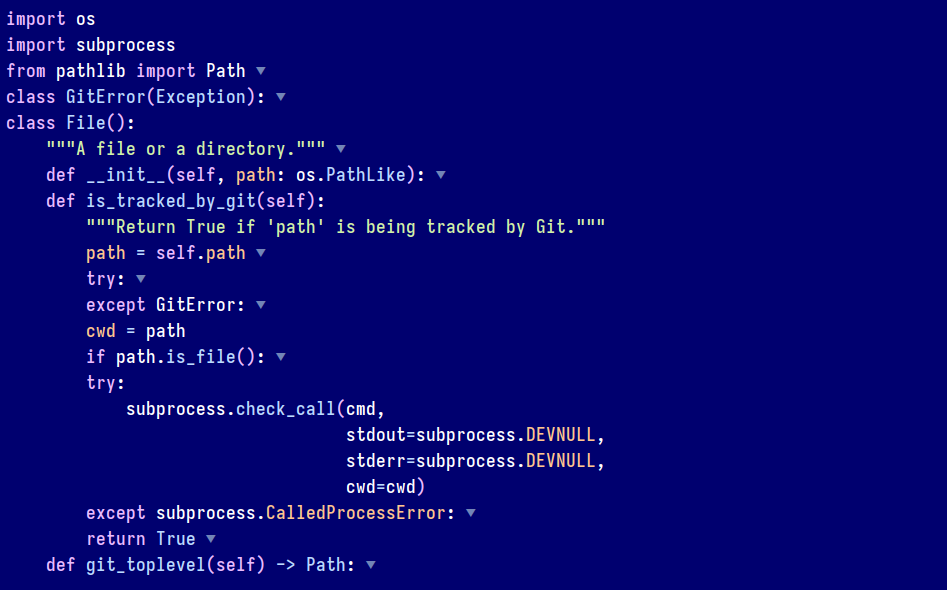

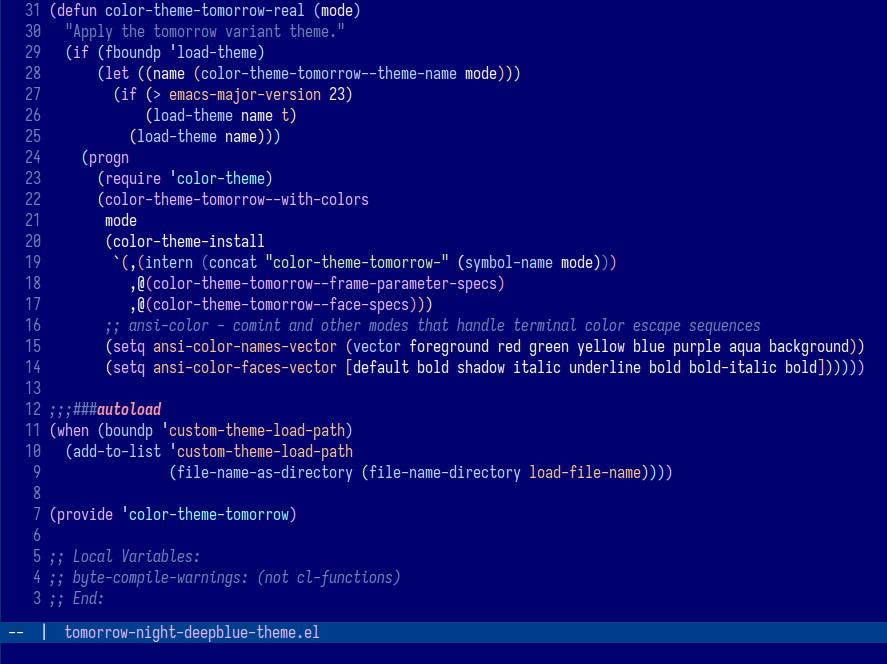
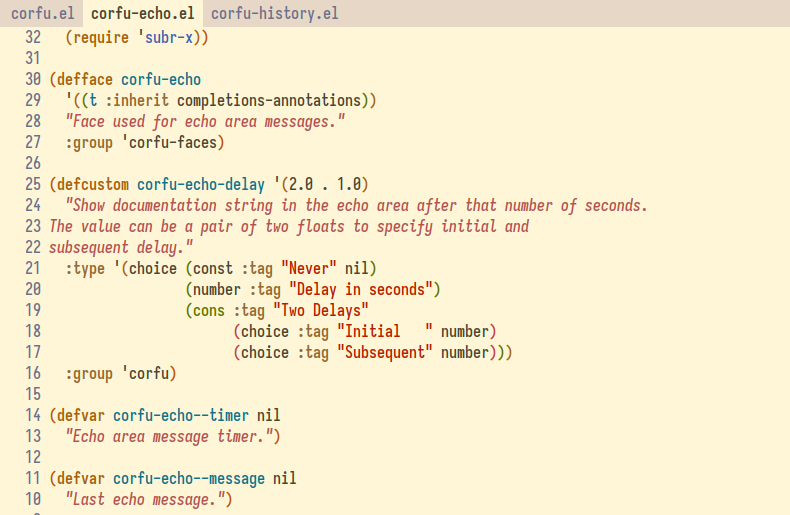
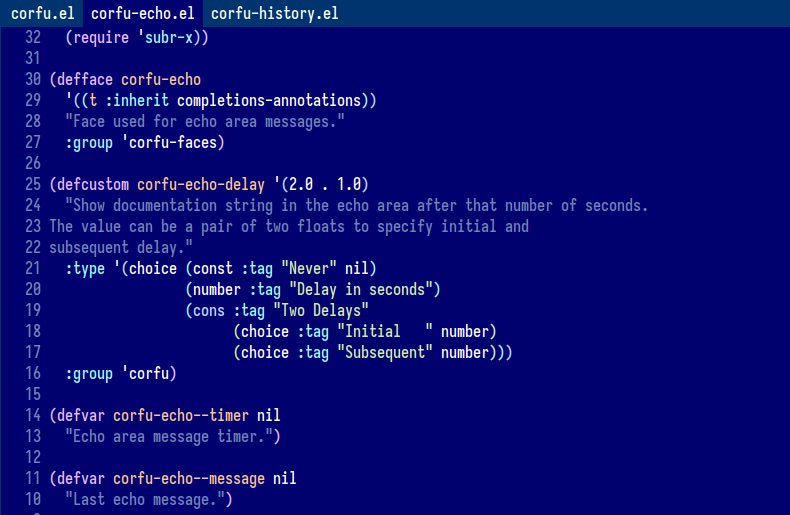
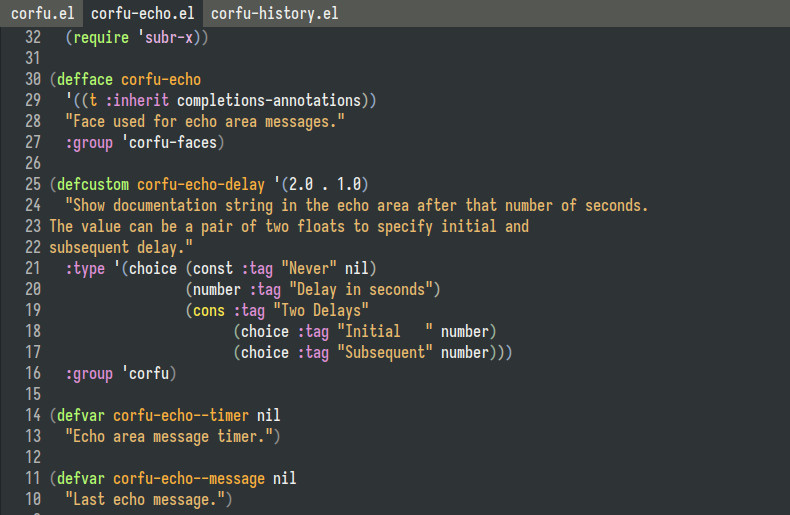
(The Emacs theme in the screenshot above is the tomorrow-night-deepblue-theme)
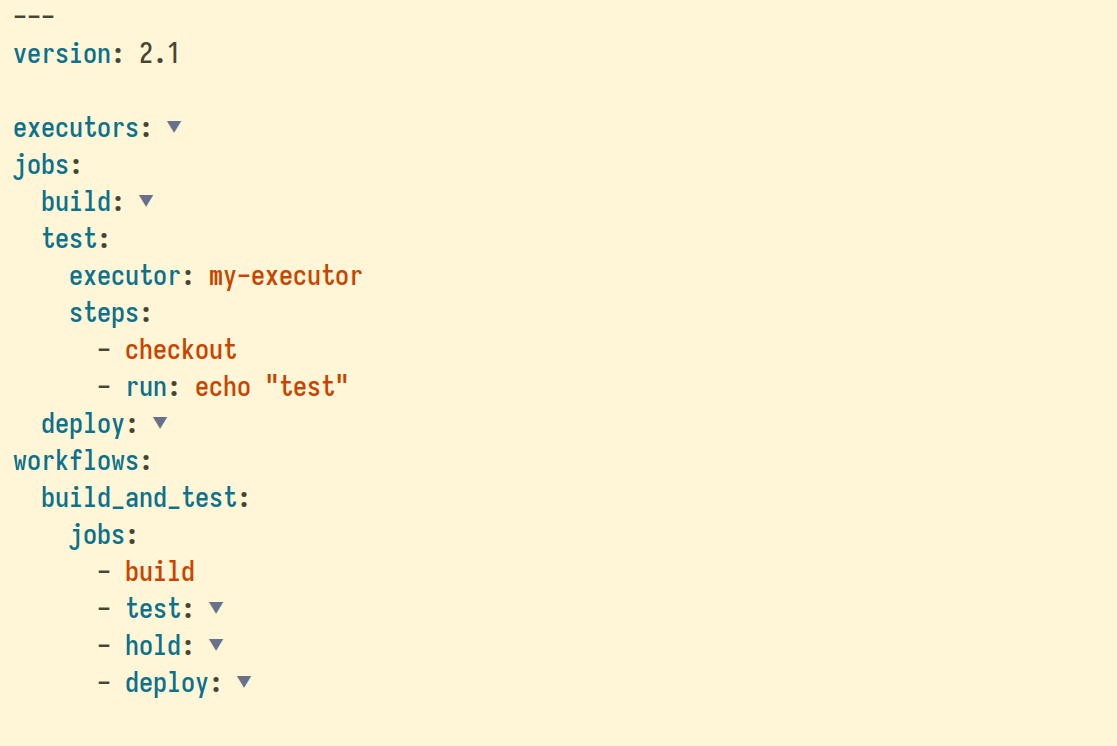
The outline-indent Emacs package offers a similar functionality to Vim’s set foldmethod=indent setting. Just as in Vim, it allows to fold and unfold code sections based on their indentation levels.

Installation

To install outline-indent from MELPA:

  1. If you haven’t already done so, add MELPA repository to your Emacs configuration.

  2. Add the following code to your Emacs init file to install outline-indent from MELPA:

(use-package outline-indent
  :commands outline-indent-minor-mode
  :custom
  (outline-indent-ellipsis " ▼"))

The following is an example of default keybindings that can be added to your configuration:

(with-eval-after-load 'outline-indent
  ;; Fold management
  (define-key outline-indent-minor-mode-map (kbd "C-c o o") 'outline-indent-open-fold)     ; Open fold at point
  (define-key outline-indent-minor-mode-map (kbd "C-c o c") 'outline-indent-close-fold)    ; Close fold at point
  (define-key outline-indent-minor-mode-map (kbd "C-c o m") 'outline-indent-close-folds)   ; Close all folds
  (define-key outline-indent-minor-mode-map (kbd "C-c o r") 'outline-indent-open-folds)    ; Open all folds
  (define-key outline-indent-minor-mode-map (kbd "C-c o O") 'outline-indent-open-fold-rec) ; Open fold recursively
  (define-key outline-indent-minor-mode-map (kbd "C-c o TAB") 'outline-indent-toggle-fold) ; Toggle fold at point
  (define-key outline-indent-minor-mode-map (kbd "C-c o t") 'outline-indent-toggle-level-at-point) ; Toggle level at point

  ;; Select, narrow, and comment
  (define-key outline-indent-minor-mode-map (kbd "C-c o v") 'outline-indent-select) ; Select
  (define-key outline-indent-minor-mode-map (kbd "C-c o s") 'outline-indent-narrow) ; Narrow
  (define-key outline-indent-minor-mode-map (kbd "C-c o ;") 'outline-indent-comment) ; Comment

  ;; Navigation at same indentation level
  (define-key outline-indent-minor-mode-map (kbd "C-c o f") 'outline-indent-forward-same-level)  ; Forward same level
  (define-key outline-indent-minor-mode-map (kbd "C-c o b") 'outline-indent-backward-same-level) ; Backward same level

  ;; Shift left or right
  (define-key outline-indent-minor-mode-map (kbd "C-c o <right>") 'outline-indent-shift-right)
  (define-key outline-indent-minor-mode-map (kbd "C-c o <left>") 'outline-indent-shift-left)

  ;; Insert heading
  (define-key outline-indent-minor-mode-map (kbd "C-c o i") 'outline-indent-insert-heading))

Activation

Manual activation

Once installed, the minor mode can be activated using:

(outline-indent-minor-mode 1)

Automatic activation using hooks

The minor mode can also be automatically activated for a certain modes. For example for Python and YAML:

;; Python
(add-hook 'python-mode-hook #'outline-indent-minor-mode)
(add-hook 'python-ts-mode-hook #'outline-indent-minor-mode)

;; YAML
(add-hook 'yaml-mode-hook #'outline-indent-minor-mode)
(add-hook 'yaml-ts-mode-hook #'outline-indent-minor-mode)

;; Haskell
(add-hook 'haskell-mode-hook #'outline-indent-minor-mode)

Usage

How to check if it is working?

Run the following function to fold all indented blocks:

(outline-indent-close-folds)

Vanilla Emacs

The following outline-indent functions manage the opening and closing of folds:
(outline-indent-open-fold): Open fold at point.
(outline-indent-close-fold): Close fold at point.
(outline-indent-close-folds): Close all folds.
(outline-indent-open-folds): Open all folds.
(outline-indent-open-fold-rec): Open fold at point recursively.
(outline-indent-toggle-fold): Open or close a fold under point.
(outline-indent-toggle-level-at-point): Toggle the visibility of the indentation level under the cursor.

You can also indent/unindent and move subtree up and down using:

  • (outline-indent-shift-right): Increase the indentation level of the current indented block.
  • (outline-indent-shift-left): Decrease the indentation level of the current indented block.
  • (outline-indent-move-subtree-down) and (outline-indent-move-subtree-up) to move the current subtree up or down.
  • (outline-insert-heading) to insert a new line with the same indentation level/depth as the current line just before the next heading that shares the same or less indentation level.

Move forward or backward to the same indentation level:
(outline-indent-forward-same-level): Move the cursor to the next heading that is at the same indentation level.
(outline-indent-backward-same-level): Move the cursor to the previous heading that is at the same indentation level.

Select and narrow:
(outline-indent-select): Select the current line and all lines indented under it.
(outline-indent-narrow): Narrow the buffer to the current line and all lines indented under it.
(outline-indent-comment): Comment the current line and all lines indented under it.

Evil mode

In Evil mode, outline-indent works out of the box if you install evil-collection, and you can use the Evil and evil-collection keyboard mappings:
– Open fold(s): zo, zO, zr
– Close fold(s): zc, zC, zM
– Toggle folds: za
– Next visible fold/heading: ]] and [[
– Move forward/backward to the same indentation level: gj and gk

You may want to set a few additional key mappings:

(with-eval-after-load 'evil
  (defun my-evil-define-key-outline-indent-minor-mode ()
    ;; Open and close folds
    (evil-define-key 'normal 'local (kbd "zo") #'outline-indent-open-fold)
    (evil-define-key 'normal 'local (kbd "zc") #'outline-indent-close-fold)

    ;; Set `M-h` and `M-l` to decrease and increase the indentation level of
    ;; indented blocks
    (evil-define-key 'normal 'local (kbd "M-h") #'outline-indent-shift-left)
    (evil-define-key 'normal 'local (kbd "M-l") #'outline-indent-shift-right)

    ;; Set `M-k` and `M-j` to move indented blocks up and down
    (evil-define-key 'normal 'local (kbd "M-k") #'outline-indent-move-subtree-up)
    (evil-define-key 'normal 'local (kbd "M-j") #'outline-indent-move-subtree-down)

    (unless (derived-mode-p 'prog-mode)
      ;; In prog-mode, [[, ]], gj, and gk provide navigation to the previous
      ;; and next function, so there is no need to override them.
      (evil-define-key 'normal 'local (kbd "]]") #'outline-indent-forward-same-level)
      (evil-define-key 'normal 'local (kbd "[[") #'outline-indent-backward-same-level)
      (evil-define-key 'normal 'local (kbd "gj") #'outline-indent-forward-same-level)
      (evil-define-key 'normal 'local (kbd "gk") #'outline-indent-backward-same-level))

    (evil-define-key 'normal 'local (kbd "gV") #'outline-indent-select)

    ;; Set C-<return> to insert a new line with the same indentation
    ;; level/depth as the current line just before the next heading
    (evil-define-key '(normal insert) 'local (kbd "C-<return>")
      (defun my-evil-outline-indent-insert-heading ()
        (interactive)
        (outline-indent-insert-heading)
        (evil-insert-state))))

  (add-hook 'outline-indent-minor-mode-hook
            #'my-evil-define-key-outline-indent-minor-mode))

Functions specific to outline-indent-minor-mode

Collapsing Sections Above a Specified Outline Level

Emacs allows collapsing all sections above a given outline level. For instance:

(outline-indent-close-level 2)

To apply this behavior automatically whenever outline-indent-minor-mode is activated:

(add-hook 'outline-indent-minor-mode-hook
          (lambda ()
            (outline-indent-close-level 2)))

This ensures that sections exceeding the specified level are initially collapsed.

Managing folds

These functions help you manage the visibility of code blocks or headings in outline-indent-minor-mode. Use them to control which sections of your document are visible or hidden:

Fold at point:
(outline-indent-open-fold): Open fold at point.
(outline-indent-close-fold): Close fold at point.

All folds:
(outline-indent-open-folds): Open all folds.
(outline-indent-close-folds): Close all folds.

Other:
(outline-indent-open-fold-rec): Open fold at point recursively.

Toggle:

  • (outline-indent-toggle-level-at-point): Toggle the visibility of the indentation level under the cursor.
  • (outline-indent-toggle-fold): Open or close a fold under point.

Selecting indented text

The current indented text can be selected using:

(outline-indent-select)

outline-indent-backward-same-level and outline-indent-forward-same-level

(By default, outline-indent-advise-outline-functions is set to t, which means that you can also use the built-in outline functions (outline-backward-same-level) and (outline-forward-same-level) as an alternative to (outline-indent-backward-same-level) and (outline-indent-forward-same-level))

To move to the next block with the same indentation level:

(outline-indent-forward-same-level)

To move to the previous block with the same indentation level:

(outline-indent-backward-same-level)

outline-indent-shift-left and outline-indent-shift-right

(By default, outline-indent-advise-outline-functions is set to t, which means that you can also use the built-in outline functions (outline-promote) and (outline-demote) as an alternative to (outline-indent-shift-left) and (outline-indent-shift-right))

These functions can be used to decrease and increase the indentation level of indented blocks.

To increase indentation:

(outline-indent-shift-right)

To decrease indentation:

(outline-indent-shift-left)

The global variable outline-indent-shift-width is used to determine the number of spaces to indent or unindent the subtree.

outline-indent-move-subtree-up and outline-indent-move-subtree-down

(By default, outline-indent-advise-outline-functions is set to t, which means that you can also use the built-in outline functions (outline-move-subtree-up) and (outline-move-subtree-down), as an alternative to (outline-indent-move-subtree-up) and (outline-indent-move-subtree-down))

These functions can be used to move the current subtree down past ARGS headlines of the same level.

To move the subtree down, use:

(outline-indent-move-subtree-down)

To move the subtree up, use:

(outline-indent-move-subtree-up)

outline-indent-insert-heading

(By default, outline-indent-advise-outline-functions is set to t, which means that you can also use the built-in outline function outline-insert-heading as an alternative to outline-indent-insert-heading)

The (outline-indent-insert-heading) function inserts a new line with the same indentation level/depth as the current line just before the next heading that shares the same or less indentation level. It finds the nearest non-empty line with the same or less indentation as the current line and inserts a new line before it.

In outline-indent-minor-mode, where most lines are treated as headings, this function is suitable for maintaining consistent indentation within the outline structure. It can be used as an alternative to outline-insert-heading to insert content at the same indentation level after the current fold.

Example usage:

(outline-indent-insert-heading)

Frequently asked questions

Maintaining blank lines between folded sections

The outline-blank-line variable can be set to t (true) to maintain blank lines between folded sections, making it easier to distinguish between folds:

(setq outline-blank-line t)

Automatically Folding All Folds on Mode Activation

The outline-indent-minor-mode mode can be configured to automatically collapse all foldable sections upon activation. This behavior may be applied selectively to specific modes (e.g., Python or YAML), or globally across all modes.

To collapse all foldable sections whenever outline-indent-minor-mode is enabled, regardless of the major mode:

(add-hook 'outline-indent-minor-mode-hook
          #'(lambda()
              (outline-indent-close-folds)))

How to Prevent Emacs from Searching Folded Sections

To prevent Emacs from searching within folded sections, set search-invisible to nil by adding the following line to your Emacs init file:

(setq-default search-invisible nil)

This setting ensures that Emacs skips invisible or folded text during searches, so hidden sections are not included in the search results.

What programming languages are supported?

The outline-indent package functions correctly with any programming language whose code is properly indented.

The author uses it daily across numerous languages, including Python, Bash, YAML, Elisp, Lua, and others.

The outline-indent provides a mapping between Emacs major modes and their corresponding indentation variables, enabling outline-indent to determine the correct indentation for a wide range of languages. Supported languages include scripting languages such as Python, Bash, Perl, Ruby, Lua, and Raku; compiled languages including C, C++, Java, Ada, Rust, Crystal, Go, Scala, Swift, Pascal, and Objective-C; web and markup languages like HTML, XML, CSS, Web templates, Pug, and PlantUML; as well as JavaScript and TypeScript in multiple variants. This ensures consistent outline and folding behavior across most commonly used programming and markup modes in Emacs.

Does outline-indent-minor-mode work with Emacs Lisp or other programming languages, and how does it differ from the built-in outline-minor-mode?

Yes, outline-indent-minor-mode functions correctly with Emacs Lisp and any other language whose code is properly indented.

Emacs Lisp (Elisp) is also supported by the built-in outline-minor-mode, which allows collapsing and expanding specific code sections based on heading levels defined by comments, def, defvar

The main difference between the two is that outline-indent-minor-mode supports multiple nested blocks based on indentation levels, whereas outline-minor-mode relies solely on explicit outline headings.

For example, outline-minor-mode can fold an entire function but cannot fold inner constructs such as if expressions or while loops.

In contrast, outline-indent-minor-mode can fold any indented block of code, including if statements, while loops, and similar nested structures.

How to make Emacs indent new lines based on previous non-blank line?

The following code snippet configures Emacs to indent based on the indentation of the previous non-blank line:

;; This ensures that pressing Enter will insert a new line and indent it.
(global-set-key (kbd "RET") #'newline-and-indent)

;; Indentation based on the indentation of the previous non-blank line.
(setq-default indent-line-function #'indent-relative-first-indent-point)

;; In modes such as `text-mode', pressing Enter multiple times removes
;; the indentation. The following fixes the issue and ensures that text
;; is properly indented using `indent-relative' or
;; `indent-relative-first-indent-point'.
(setq-default indent-line-ignored-functions '())

How to ignore certain major modes

The outline-indent package defines the variable outline-indent-ignored-modes, which specifies a list of major modes where outline-indent-minor-mode must not activate. Its default value is '(org-mode markdown-mode), since these modes provide their own indentation and structural logic that may conflict with outline-indent.

Example configuration:

;; A list of major modes where `outline-indent-minor-mode' must not activate
(setq outline-indent-ignored-modes '(org-mode markdown-mode))

Certain major modes implement native indentation logic that is tightly integrated with their document structure. These modes are excluded by default in order to preserve their intended behavior. For example, org-mode and markdown-mode already provide their own outline configuration, which functions correctly without additional indentation support.

Customization

To modify the list of ignored modes:

(setq outline-indent-ignored-modes
      '(org-mode markdown-mode text-mode))

Only symbols corresponding to major modes should be included in this list.

What other packages can be used to maintain proper indentation in indentation-sensitive programming languages?

Here are some of the packages that were recommended in the article Emacs: Maintaining proper indentation in indentation-sensitive programming languages:

Displaying vertical indentation guide bars

The indent-bars package enhances code readability by providing visual indentation guides, optimized for speed and customization.

It supports both space and tab-based indentation and offers optional tree-sitter integration, which includes features like scope focus. The appearance of the guide bars is highly customizable, allowing you to adjust their color, blending, width, position, and even apply a zigzag pattern.

To install it, add the following to your Emacs init file:

(lightemacs-use-package indent-bars
  :commands indent-bars-mode
  :custom
  ;; Setting this to nil is not reliable enough
  ;; https://github.com/jdtsmith/indent-bars?tab=readme-ov-file#stipples
  (indent-bars-prefer-character t)

  ;; When `indent-bars-prefer-character' is set to t, displaying indent bars on
  ;; blank lines causes cursor movement issues when moving downward, resulting
  ;; in abrupt shifts of the window start or cursor position.
  (indent-bars-display-on-blank-lines nil))

It can be activated using M-x indent-bars-mode or by adding the following to the Emacs configuration:

(add-hook 'prog-mode-hook #'indent-bars-mode)

What code folding packages does the author use?

The author uses three code folding packages:

  1. Indentation-based folding (Python, YAML, Haskell, etc.): outline-indent
  2. Tree-sitter-based folding: treesit-fold (The integration of Tree-sitter allows Emacs to operate on the Abstract Syntax Tree, making folding structurally accurate rather than heuristic.)
  3. The built-in outline-minor-mode for emacs-lisp-mode, markdown-mode, and conf-mode/conf-unix-mode.
  4. For all code folding modes: The kirigami package, which provides a unified interface for opening and closing folds. Code folding in Emacs has historically suffered from reliability issues; even built-in modes like outline-mode and outline-minor-mode contain bugs not yet addressed in upstream Emacs, which Kirigami fixes. Once configured, the same keys and functions enable consistent behavior across a diverse set of major and minor modes, including outline-mode, outline-minor-mode, outline-indent-minor-mode, org-mode, markdown-mode, gfm-mode, vdiff-mode, vdiff-3way-mode, hs-minor-mode, hide-ifdef-mode, vimish-fold-mode, origami-mode, yafolding-mode, folding-mode, ts-fold-mode, treesit-fold-mode

NOTE: The author prefers using outline-indent for languages like Python, despite having treesit-fold installed. The advantage of outline-indent is that it allows for infinite folding depth; it enables the folding of classes, functions within them, and even nested structures like while loops and if statements.

What are the main differences compared to treesit-fold?

The outline-indent package manages code or text folding based on indentation levels. It determines how deeply nested sections are represented and folded, depending on indentation. It is purely text-structural and does not rely on syntactic analysis; it simply interprets indentation to define hierarchical relationships between lines or sections.

The treesit-fold package, on the other hand, is built on Emacs’ Tree-sitter integration, which provides a syntactic parse tree of the buffer’s content. Folding through treesit-fold relies on the program’s actual syntax tree rather than indentation. This allows it to fold language constructs such as functions, classes, loops, or conditional blocks with semantic accuracy.

In essence, treesit-fold offers a syntax-aware folding mechanism, whereas outline-indent operates solely on indentation.

Why not use origami.el or yafolding?

The origami.el and yafolding.el package are not reliable method for folding indented code because they are:
– No longer maintained (abandoned),
– Slow,
– Known to have bugs that affect their reliability and performance.

On the other hand, outline-indent leverages the built-in outline-minor-mode, which is:
– Fast,
– Actively maintained by the Emacs developers.

Why not use folding.el?

The folding.el package is no longer maintained (abandoned) and uses markers in the buffer to annotate folds. It does not support using indentation levels to determine foldable sections.

In contrast, outline-indent uses indentation levels to determine foldable sections.

How does this compare to the built-in hideshow package?

The outline-indent.el and hs-minor-mode (Hideshow) packages in Emacs are both designed for code folding, but they operate differently.

Outline Indent:

  • Relies on indentation levels to determine foldable regions, making it effective for indentation-sensitive languages such as Python or YAML. Additional features include moving indented blocks, adjusting indentation, inserting consistent headings, customizing ellipses for folded sections, and selecting or toggling visibility of blocks.
  • Supports an unlimited number of folding levels. For example, it allows folding a function as well as nested blocks within that function, such as if statements inside while loops if they are properly indented. This makes it highly effective for working with deeply nested code structures.

Hideshow:

  • hs-minor-mode uses syntax-based folding, identifying foldable regions through regular expressions that match language constructs like functions or classes. Its functionality is simpler, offering basic hiding, showing, and toggling of code sections, and struggles with indentation-sensitive languages.
  • It generally folds a single level at a time, such as entire functions, without providing convenient access to nested blocks. This makes it less practical for languages that require deep folding, such as YAML, where multiple nested levels are common. Even in languages like Python, Hideshow can be impractical, because it allows folding classes but does not provide convenient folding for the functions within those classes for example.

Choosing between the two depends on workflow and language preference: outline-indent.el is ideal for indentation-driven code, while hs-minor-mode is better suited for code with well-defined syntactic structures and where folding a single level is sufficient.

How to view different outline-indent folds in separate windows?

You can use indirect buffers, a feature that allow multiple views of the same underlying data in separate windows.

Indirect buffers are useful when working with outline-indent folds where you might want to focus on different sections of a document simultaneously, without altering the view in other windows.

For example, one window might display a fully expanded view (original buffer), while another window (the indirect buffer) shows only specific folds or indentation levels, allowing you to compare or edit sections side by side.

To create an indirect buffer of the current buffer, you can use M-x clone-indirect-buffer-other-window or the following function:

(clone-indirect-buffer nil t)

Comments from users

  • Brandon Schneider (skarekrow): Thanks again for all the great work!

  • yep808: “Thanks for the writeup, I never thought I needed code folding in my many years of programming. But I can definitely see it being helpful in super long YAML config files. I just tried your outline-indent.el package and it works very well. Love the OOTB integration with evil-collections too.”

License

The outline-indent Emacs package has been written by James Cherti and is distributed under terms of the GNU General Public License version 3, or, at your choice, any later version.

Copyright (C) 2024-2026 James Cherti

This program is free software: you can redistribute it and/or modify it under the terms of the GNU General Public License as published by the Free Software Foundation, either version 3 of the License, or (at your option) any later version.

This program is distributed in the hope that it will be useful, but WITHOUT ANY WARRANTY; without even the implied warranty of MERCHANTABILITY or FITNESS FOR A PARTICULAR PURPOSE. See the GNU General Public License for more details.

You should have received a copy of the GNU General Public License along with this program.

Links

Other Emacs packages by the same author:

  • minimal-emacs.d: This repository hosts a minimal Emacs configuration designed to serve as a foundation for your vanilla Emacs setup and provide a solid base for an enhanced Emacs experience.
  • compile-angel.el: Speed up Emacs! This package guarantees that all .el files are both byte-compiled and native-compiled, which significantly speeds up Emacs.
  • easysession.el: Easysession is lightweight Emacs session manager that can persist and restore file editing buffers, indirect buffers/clones, Dired buffers, the tab-bar, and the Emacs frames (with or without the Emacs frames size, width, and height).
  • vim-tab-bar.el: Make the Emacs tab-bar Look Like Vim’s Tab Bar.
  • elispcomp: A command line tool that allows compiling Elisp code directly from the terminal or from a shell script. It facilitates the generation of optimized .elc (byte-compiled) and .eln (native-compiled) files.
  • tomorrow-night-deepblue-theme.el: The Tomorrow Night Deepblue Emacs theme is a beautiful deep blue variant of the Tomorrow Night theme, which is renowned for its elegant color palette that is pleasing to the eyes. It features a deep blue background color that creates a calming atmosphere. The theme is also a great choice for those who miss the blue themes that were trendy a few years ago.
  • Ultyas: A command-line tool designed to simplify the process of converting code snippets from UltiSnips to YASnippet format.
  • dir-config.el: Automatically find and evaluate .dir-config.el Elisp files to configure directory-specific settings.
  • flymake-bashate.el: A package that provides a Flymake backend for the bashate Bash script style checker.
  • flymake-ansible-lint.el: An Emacs package that offers a Flymake backend for ansible-lint.
  • inhibit-mouse.el: A package that disables mouse input in Emacs, offering a simpler and faster alternative to the disable-mouse package.
  • quick-sdcv.el: This package enables Emacs to function as an offline dictionary by using the sdcv command-line tool directly within Emacs.
  • enhanced-evil-paredit.el: An Emacs package that prevents parenthesis imbalance when using evil-mode with paredit. It intercepts evil-mode commands such as delete, change, and paste, blocking their execution if they would break the parenthetical structure.
  • stripspace.el: Ensure Emacs Automatically removes trailing whitespace before saving a buffer, with an option to preserve the cursor column.
  • persist-text-scale.el: Ensure that all adjustments made with text-scale-increase and text-scale-decrease are persisted and restored across sessions.
  • pathaction.el: Execute the pathaction command-line tool from Emacs. The pathaction command-line tool enables the execution of specific commands on targeted files or directories. Its key advantage lies in its flexibility, allowing users to handle various types of files simply by passing the file or directory as an argument to the pathaction tool. The tool uses a .pathaction.yaml rule-set file to determine which command to execute. Additionally, Jinja2 templating can be employed in the rule-set file to further customize the commands.
  • kirigami.el: The kirigami Emacs package offers a unified interface for opening and closing folds across a diverse set of major and minor modes in Emacs, including outline-mode, outline-minor-mode, outline-indent-minor-mode, org-mode, markdown-mode, vdiff-mode, vdiff-3way-mode, hs-minor-mode, hide-ifdef-mode, origami-mode, yafolding-mode, folding-mode, and treesit-fold-mode. With Kirigami, folding key bindings only need to be configured once. After that, the same keys work consistently across all supported major and minor modes, providing a unified and predictable folding experience.
  • buffer-guardian.el: Automatically saves Emacs buffers without requiring manual intervention. By default, it triggers a save when the user switches to another buffer, switches to another window or frame, Emacs loses focus, or the minibuffer is opened. Beyond standard file buffers, buffer-guardian also manages specialized editing buffers such as org-src and edit-indirect. Additional features, disabled by default, include periodic or idle-time saving of all buffers, automatic exclusion of remote, nonexistent, or large files, and support for custom exclusion rules via regular expressions or predicate functions.
Emacs: Enhancing up and down subtree movement in outline-mode and outline-minor-mode

When editing outlined files (e.g., using the built-in outline-minor-mode, or packages like outline-indent.el, outline-yaml.el, etc.), handling subtrees efficiently can significantly enhance productivity, especially when working with complex documents. If you’re familiar with outline-mode or outline-minor-mode, you might have noticed that the built-in functions for moving subtrees up and down, outline-move-subtree-up and outline-move-subtree-down:

  • Blank line exclusion: outline-move-subtree-up and outline-move-subtree-down exclude the last blank line of the subtree when the outline-blank-line variable is set to t. Setting outline-blank-line to t is worthwhile because it retains a visible blank line after the subtree and before the next heading, improving the readability of the document.
  • Cursor position reset: After moving a subtree up or down, the cursor position is often reset, which can be disruptive during editing.

Here’s how you can address these issues by using custom functions to enhance subtree movement:

(require 'outline)

(defun my-advice-outline-hide-subtree (orig-fun &rest args)
  "Advice for `outline-hide-subtree'.
This ensures that the outline is folded correctly by
outline-move-subtree-up/down, preventing it from being unable to open the fold."
  (let ((outline-blank-line
         (if (bound-and-true-p my-outline-hide-subtree-blank-line-enabled)
             my-outline-hide-subtree-blank-line
           outline-blank-line)))
    (apply orig-fun args)))

(defun my-advice-outline-move-subtree-up-down (orig-fun &rest args)
  "Move the current subtree up/down past ARGS headlines of the same level.
This function ensures the last blank line is included, even when
`outline-blank-line' is set to t. It also restores the cursor position,
addressing the issue where the cursor might be reset after the operation."
  (interactive "p")
  (let ((column (current-column))
        (outline-blank-line nil)
        (my-outline-hide-subtree-blank-line-enabled t)
        (my-outline-hide-subtree-blank-line outline-blank-line))
    (apply orig-fun (or args 1))
    (move-to-column column)))

(advice-add 'outline-hide-subtree
            :around #'my-advice-outline-hide-subtree)
(advice-add 'outline-move-subtree-up
            :around #'my-advice-outline-move-subtree-up-down)
(advice-add 'outline-move-subtree-down
            :around #'my-advice-outline-move-subtree-up-down)Code language: Lisp (lisp)

I also recommend using Ctrl-Up and Ctrl-Down key bindings for moving subtrees up and down.

(define-key outline-mode-map (kbd "C-<up>") 'outline-move-subtree-up)
(define-key outline-mode-map (kbd "C-<down>") 'outline-move-subtree-down)

(defun my-setup-outline-minor-mode-keybindings ()
    "Set up keybindings for moving subtrees in `outline-minor-mode'."
  (define-key outline-minor-mode-map (kbd "C-<up>") 'outline-move-subtree-up)
  (define-key outline-minor-mode-map (kbd "C-<down>") 'outline-move-subtree-down))
(add-hook 'outline-minor-mode-hook 'my-setup-outline-minor-mode-keybindings) Code language: Lisp (lisp)

With this setup, you will ensure that every time you use outline-move-subtree-up or outline-move-subtree-down, the last blank line of the subtree is included and the cursor position is restored.

elispcomp – Compile Emacs Lisp code from the command-line

(The author also recommends trying: compile-angel.el, an Emacs package that automatically byte-compiles and native-compiles .el Elisp libraries, transparently, without any user intervention.)

Introduction

The elispcomp command line tool allows compiling Emacs Lisp (Elisp) code directly from the terminal or from a shell script. It facilitates the generation of optimized .elc (byte-compiled) and .eln (native-compiled) files, which can significantly improve the performance of Emacs.

The command line tool executes a headless instance of Emacs and Elisp that recursively scans the specified directories, byte compiling and native compiling all the .el files that haven’t been compiled yet. It supports various configuration options, allowing you to adapt the compilation process to suit your needs.

When configured appropriately, Emacs can compile to both .elc and .eln files. However, for those who wish to automate the background compilation of .el files using a script, the elispcomp command-line tool can be beneficial in ensuring that their Emacs setup remains up-to-date without manual intervention and without starting an Emacs instance.

Installation

To get started with elispcomp, you can install it using pip:

pip install --user elispcomp

This command installs elispcomp and places the executable in your ~/.local/bin/ directory, making it easily accessible from your command line.

Requirements

  • Python 3
  • Emacs >= 28

Usage

The elispcomp command line tool is straightforward to use.

First example: To compile all .el files located in the ~/.emacs.d/lisp directory:

elispcomp ~/.emacs.d/lisp

Second example: To compile all .el files located in the ~/.emacs.d/lisp directory, and store the native-compiled files in the ~/.emacs.d/eln-cache directory:

elispcomp --eln-cache ~/.emacs.d/eln-cache ~/.emacs.d/lisp

Command line options

usage: elispcomp [--option] [N]

Recursively byte and native compile .el files.

positional arguments:
  N                     The directories to be scanned recursively by Emacs to locate the '.el'
                        files for compilation.

options:
  -h, --help            show this help message and exit
  -c ELN_CACHE, --eln-cache ELN_CACHE
                        The eln-cache directory where Emacs stores the compiled native compiled
                        code. Defaults to the default Emacs eln-cache directory.
  -e EMACS_BIN, --emacs-bin EMACS_BIN
                        Path to the Emacs binary. Defaults: emacs
  -j JOBS, --jobs JOBS  Specify the number of parallel jobs for compilation. Default: Half the
                        number of available CPUs
  -b, --disable-byte-compile, --disable-byte-comp
                        Disable byte compile. Default: enabled
  -n, --disable-native-compile, --disable-native-comp
                        Disable native compilation. Default: enabled
  -i LOAD_PATH, --load-path LOAD_PATH
                        Recursively adds the subdirectories of the specified directory to the
                        Emacs `load-path`. This option can be used multiple times to include
                        several directories.
  -a, --ensure-native-compile-available, --ensure-native-comp-available
                        Fail when native compilation is not available.

Frequently asked questions

Can’t I achieve the same result using Emacs?

Indeed, when configured appropriately, Emacs can compile to both .elc and .eln files.

The elispcomp command-line tool is an Emacs wrapper that makes it easy to compile Emacs Lisp (Elisp) code directly from the terminal or from a script. It provides options and ensures that the byte compilation and native compilation processes are truly finished before quitting.

The elispcomp command-line tool can also be used in conjunction with other tools like parallel to speed up the compilation process.

How does the author utilize elispcomp?

The author utilizes the elispcomp tool to compile multiple Emacs Lisp files across various machines and Emacs versions. With a diverse range of machines and Emacs versions in his workflow, elispcomp ensures consistent compilation results and compatibility.

Additionally, the author employs the parallel command-line tool to enhance the efficiency of the byte-compilation process. This tool allows the distribution of the compilation workload across multiple processors, significantly accelerating the process.

Is elispcomp written in Python or Elisp?

Most of what elispcomp does is written in Elisp (Emacs Lisp), including scanning directories, which is handled by the Emacs functions (byte-recompile-directory) and (native-compile-async). Python handles the command-line interface (arguments), and Emacs and the Elisp code does the rest (byte compilation, native compilation, and waiting until all the .el files are byte compiled and native compiled).

License

The elispcomp Emacs package has been written by James Cherti and is distributed under terms of the GNU General Public License version 3, or, at your choice, any later version.

Copyright (c) 2024-2026 James Cherti

This program is free software: you can redistribute it and/or modify it under the terms of the GNU General Public License as published by the Free Software Foundation, either version 3 of the License, or (at your option) any later version.

This program is distributed in the hope that it will be useful, but WITHOUT ANY WARRANTY; without even the implied warranty of MERCHANTABILITY or FITNESS FOR A PARTICULAR PURPOSE. See the GNU General Public License for more details.

You should have received a copy of the GNU General Public License along with this program. If not, see https://www.gnu.org/licenses/.

Links

Other Emacs packages by the same author:

  • minimal-emacs.d: This repository hosts a minimal Emacs configuration designed to serve as a foundation for your vanilla Emacs setup and provide a solid base for an enhanced Emacs experience.
  • compile-angel.el: Speed up Emacs! This package guarantees that all .el files are both byte-compiled and native-compiled, which significantly speeds up Emacs.
  • outline-indent.el: An Emacs package that provides a minor mode that enables code folding and outlining based on indentation levels for various indentation-based text files, such as YAML, Python, and any other indented text files.
  • vim-tab-bar.el: Make the Emacs tab-bar Look Like Vim’s Tab Bar.
  • easysession.el: Easysession is lightweight Emacs session manager that can persist and restore file editing buffers, indirect buffers/clones, Dired buffers, the tab-bar, and the Emacs frames (with or without the Emacs frames size, width, and height).
  • tomorrow-night-deepblue-theme.el: The Tomorrow Night Deepblue Emacs theme is a beautiful deep blue variant of the Tomorrow Night theme, which is renowned for its elegant color palette that is pleasing to the eyes. It features a deep blue background color that creates a calming atmosphere. The theme is also a great choice for those who miss the blue themes that were trendy a few years ago.
  • Ultyas: A command-line tool designed to simplify the process of converting code snippets from UltiSnips to YASnippet format.
  • dir-config.el: Automatically find and evaluate .dir-config.el Elisp files to configure directory-specific settings.
  • flymake-bashate.el: A package that provides a Flymake backend for the bashate Bash script style checker.
  • flymake-ansible-lint.el: An Emacs package that offers a Flymake backend for ansible-lint.
  • inhibit-mouse.el: A package that disables mouse input in Emacs, offering a simpler and faster alternative to the disable-mouse package.
  • quick-sdcv.el: This package enables Emacs to function as an offline dictionary by using the sdcv command-line tool directly within Emacs.
  • enhanced-evil-paredit.el: An Emacs package that prevents parenthesis imbalance when using evil-mode with paredit. It intercepts evil-mode commands such as delete, change, and paste, blocking their execution if they would break the parenthetical structure.
  • stripspace.el: Ensure Emacs Automatically removes trailing whitespace before saving a buffer, with an option to preserve the cursor column.
  • persist-text-scale.el: Ensure that all adjustments made with text-scale-increase and text-scale-decrease are persisted and restored across sessions.
  • pathaction.el: Execute the pathaction command-line tool from Emacs. The pathaction command-line tool enables the execution of specific commands on targeted files or directories. Its key advantage lies in its flexibility, allowing users to handle various types of files simply by passing the file or directory as an argument to the pathaction tool. The tool uses a .pathaction.yaml rule-set file to determine which command to execute. Additionally, Jinja2 templating can be employed in the rule-set file to further customize the commands.
  • kirigami.el: The kirigami Emacs package offers a unified interface for opening and closing folds across a diverse set of major and minor modes in Emacs, including outline-mode, outline-minor-mode, outline-indent-minor-mode, org-mode, markdown-mode, vdiff-mode, vdiff-3way-mode, hs-minor-mode, hide-ifdef-mode, origami-mode, yafolding-mode, folding-mode, and treesit-fold-mode. With Kirigami, folding key bindings only need to be configured once. After that, the same keys work consistently across all supported major and minor modes, providing a unified and predictable folding experience.
  • buffer-guardian.el: Automatically saves Emacs buffers without requiring manual intervention. By default, it triggers a save when the user switches to another buffer, switches to another window or frame, Emacs loses focus, or the minibuffer is opened. Beyond standard file buffers, buffer-guardian also manages specialized editing buffers such as org-src and edit-indirect. Additional features, disabled by default, include periodic or idle-time saving of all buffers, automatic exclusion of remote, nonexistent, or large files, and support for custom exclusion rules via regular expressions or predicate functions.

Emacs Evil Mode: Disabling the automatic removal of spaces after leaving Insert mode

By default, Emacs evil-mode removes newly inserted spaces when exiting insert mode. However, some users may find this disruptive to their workflow. This is particularly true for those who edit file formats where trailing spaces are significant or who simply prefer to manage whitespace manually.

To prevent the automatic removal of trailing spaces when leaving insert mode, add the following Elisp code to the Emacs init file:

(with-eval-after-load 'evil
  (defun my-evil-disable-remove-spaces ()
    "Disable automatic removal of trailing spaces in `evil-mode'."
    (setq-local evil-maybe-remove-spaces nil))

  (add-hook 'evil-insert-state-entry-hook #'my-evil-disable-remove-spaces))Code language: Lisp (lisp)

The function above sets the evil-maybe-remove-spaces variable to nil when entering insert mode, preventing the evil-maybe-remove-spaces function from deleting whitespace after leaving insert mode.

The evil-insert-state function, which Evil uses to switch to insert mode, behaves as follows:

  • When entering insert mode: It sets the evil-maybe-remove-spaces variable to t.
  • When exiting insert mode, it calls the evil-maybe-remove-spaces function, which removes trailing spaces if the evil-maybe-remove-spaces variable is set to t. Because the my-evil-disable-remove-spaces function above sets the evil-maybe-remove-spaces variable to nil when entering insert mode, it prevents the evil-maybe-remove-spaces function from deleting whitespace after leaving insert mode.

If you want to compare the behavior before and after the function above, use whitespace-mode. This mode visually highlights different types of whitespace characters, such as spaces, tabs, and newlines, making it easier to see the differences.

Customizing evil-mode with the simple piece of Elisp code above can prevent the automatic removal of trailing spaces when exiting insert mode. This adjustment allows for better control over whitespace in files.

Emacs: Customizing the Ellipsis “…” in outline-mode and outline-minor-mode to Use a More Visually Appealing Indicator for Folded Sections, Such as ” ▼”

The built-in Emacs outline-mode and outline-minor-mode allow structuring documents with collapsible sections. By default, these modes use an ellipsis (“…”) to indicate folded text. However, the default ellipsis and its face can make it hard to distinguish between folded text and regular text. This is why it can be beneficial to customize the ellipsis.

The code snippets provided in this article allow for customizing the ellipsis locally within a buffer.

Set the buffer local outline ellipsis

To apply the ellipsis locally to a buffer, the following Elisp code snippet modifies the display settings within that buffer.

The ellipsis string is displayed using the shadow face for visual consistency. Internally, a buffer-local display table is constructed (or reused if one already exists), and the selective display slot is updated to render the given ellipsis.

Here is the Emacs Lisp code snippet to achieve this:

(defun my-outline-set-buffer-local-ellipsis (ellipsis)
  "Set a buffer-local ellipsis string ELLIPSIS for outline folding display.

This function configures the current buffer to use a custom ellipsis string for
selective display, typically in `outline-mode' or `outline-minor-mode'.

The string ELLIPSIS is trimmed of trailing whitespace before use, as such
whitespace can be misleading when lines are truncated or visually wrapped. In
those cases, the trailing space may appear on a new visual line, creating the
false impression of an additional line. Deleting this apparent line can
inadvertently remove the entire folded logical line."
  (let* ((display-table (or buffer-display-table (make-display-table)))
         (face-offset (* (face-id 'shadow) (ash 1 22)))
         (value (vconcat (mapcar (lambda (c)
                                   (+ face-offset c))
                                 (string-trim-right ellipsis)))))
    (set-display-table-slot display-table 'selective-display value)
    (setq buffer-display-table display-table)))Code language: Lisp (lisp)

Here is an example of applying a buffer-local ellipsis when outline-minor-mode is enabled:

(add-hook 'outline-minor-mode-hook
          #'(lambda()
              (my-outline-set-buffer-local-ellipsis " ▼")))Code language: PHP (php)

The Elisp code above will change the outline-mode and outline-minor-mode ellipsis to:

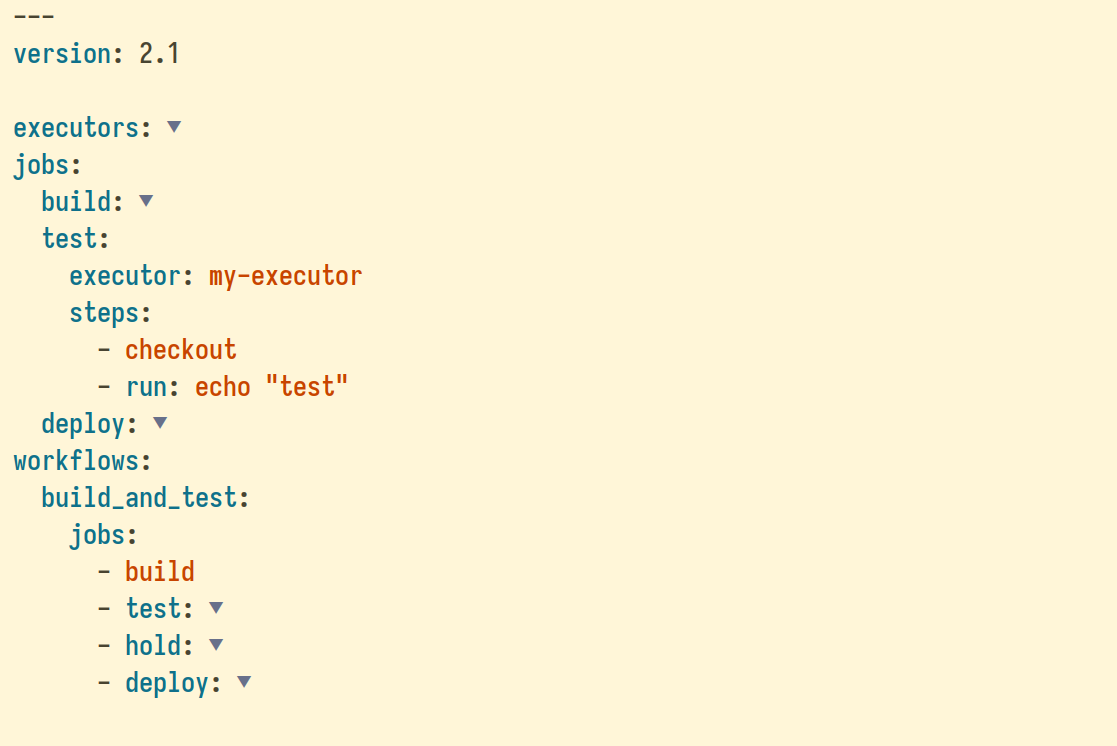
(The screenshot above shows a YAML file folded using outline-indent.el, which leverages outline-minor-mode to enable code folding, , serving as a modern replacement for deprecated packages such as origami.)

Conclusion

Customizing the ellipsis in outline-mode and outline-minor-mode is a simple yet effective way to personalize your Emacs and create a more visually appealing way to handle folds.

Emacs: YAML file code Folding and Outlining

Working with long and complex YAML files can be a daunting task. In such cases, code folding becomes an invaluable tool, allowing the collapse and expansion of sections of the file and enhancing readability and navigation. This makes it easier to focus on specific parts of the code without being overwhelmed by the entire document.

To address this need, I would like to introduce you to outline-indent.el, a minor mode for Emacs that brings code folding and outlining capabilities to Emacs, making editing YAML and other languages more efficient and enjoyable.

How to change the Ellipsis (…) to (▼)?

The code snippet in this article can be used to to change the Ellipsis to ▼.

Enabling Emacs Native Compilation and Dynamically Adjusting the Number of Elisp Files Compiled in Parallel

Recommendation: The compile-angel Emacs package automatically byte-compiles and native-compiles Emacs Lisp libraries. It speeds up Emacs by ensuring all libraries are byte-compiled and native-compiled.

Emacs has experienced a significant performance boost with the introduction of native compilation, available from version 27 and above. This feature converts Emacs Lisp code into machine-level code, enabling faster execution and enhanced responsiveness.

Speeding up compilation by using the maximum number of available CPU cores significantly reduces compilation time. However, it’s also necessary to leave a few CPU cores free to ensure the operating system runs smoothly, including the graphical user interface, shells, and other processes. The source code snippet outlined in this article is designed to effectively manage resources by allocating CPU cores for native compilation while reserving some for system operations.

Configuring native compilation and adjusting the number of parallel compilations

To configure native compilation and dynamically adjust the number of parallel compilations, add the following code snippet to early-init.el or init.el:

;; Description: Enable native compilation and dynamically adjust
;; the number of Elisp files compiled in parallel.
;;
;; Compatible with: Emacs >= 28.1 (because `num-processors' is required)
;;
;; URL: https://www.jamescherti.com/emacs-native-compilation-config-jobs/
;; License: MIT
;; Author: James Cherti

(defvar my-native-comp-reserved-cpus 2
  "Number of CPUs to reserve and not use for `native-compile'.")

(defun my-calculate-native-comp-async-jobs ()
  "Set `native-comp-async-jobs-number' based on the available CPUs."
  ;; The `num-processors' function is only available in Emacs >= 28.1
  (max 1 (- (num-processors) my-native-comp-reserved-cpus)))

(if (and (featurep 'native-compile)
         (fboundp 'native-comp-available-p)
         (native-comp-available-p))
    ;; Activate `native-compile'
    (setq native-comp-async-jobs-number (my-calculate-native-comp-async-jobs)
          native-comp-deferred-compilation t
          package-native-compile t)
  ;; Deactivate the `native-compile' feature if it is not available
  (setq features (delq 'native-compile features)))Code language: Lisp (lisp)

What does the source code snippet above do?

  • Reserves CPUs: Sets aside 2 CPUs to not be used by the native compilation feature in Emacs.
  • Calculates Available CPUs for Compilation: Determines how many CPUs can be used for compiling Emacs Lisp files by subtracting the reserved CPUs from the total count.
  • Sets Native Compilation Parameters: Configures Emacs to use the calculated number of CPUs for parallel compilation tasks.
  • Ensures Feature Availability: Activates native compilation settings only if the feature is supported and available, otherwise deactivates it.
  • Optimizes Performance: Aims to enhance Emacs performance by efficiently using system resources without overloading the system.

How to check if native compilation is available?

To check whether native compilation is supported, you can run the following Emacs Lisp code:

(message (if (and (fboundp 'native-comp-available-p)
                  (native-comp-available-p))
             "Native compilation is available"
           "Native compilation is *not* available"))
Code language: Lisp (lisp)

Conclusion

Managing system resources efficiently is key to maintaining optimal performance in Emacs, especially when using the native compilation feature. The source code snippet outlined in this article provides a dynamic method for adjusting the number of native compilation jobs according to the number of available CPUs. This enhances the responsiveness and efficiency of Emacs without overloading the system.

tomorrow-night-deepblue-theme.el – A beautiful deep blue Emacs theme

Build Status
MELPA
MELPA Stable
License

The Tomorrow Night Deepblue Emacs theme is a beautiful deep blue variant of the Tomorrow Night theme, which is renowned for its elegant color palette that is pleasing to the eyes.

The Tomorrow Night Deepblue theme features a deep blue background color that creates a calming atmosphere. The theme is also a great choice for those who miss the blue themes that were trendy a few years ago.

(Show your support by ⭐ starring tomorrow-night-deepblue-theme on GitHub to help more Emacs users discover it.)

Table of Contents

Screenshot

The theme was inspired by classic text editors such as QuickBASIC, RHIDE, and Turbo Pascal, as well as tools such as Midnight Commander which featured blue backgrounds by default. There’s something special about the early days of programming and the tools we used that brings back fond memories.

Installation

To install tomorrow-night-deepblue-theme from MELPA:

  1. If you haven’t already done so, add MELPA repository to your Emacs configuration.

  2. Add the following code to your Emacs init file to install tomorrow-night-deepblue from MELPA:

(use-package tomorrow-night-deepblue-theme
  :init
  (let ((inhibit-redisplay t))
    ;; Disable all active themes
    (mapc #'disable-theme custom-enabled-themes)
    ;; Load the tomorrow-night-deepblue theme
    (load-theme 'tomorrow-night-deepblue t)))

What are the differences between Tomorrow Night Blue and Deepblue themes?

The main differences lie in the background and a large number of additional faces, which enable support for many more modern Emacs packages. Currently, Tomorrow Night Deepblue supports over 1,170 faces (compared to 333 in the original version), featuring a background color reminiscent of classic editors. The author plans to make further changes to support even more faces. Contributions are welcome!

The background is also different. Here is the background color of the Tomorrow Night Deepblue:

And this background color or the Tomorrow Night Blue, the previous version upon which this theme is based:

Authors

The Tomorrow Night Deepblue Emacs theme has been written by James Cherti and is distributed under terms of the GNU General Public License version 3, or, at your choice, any later version.

The tomorrow-night-deepblue theme is based on Tomorrow Night Blue by Chris Kempson, Steve Purcell, and Donald Curtis.

License

This program is free software: you can redistribute it and/or modify it under the terms of the GNU General Public License as published by the Free Software Foundation, either version 3 of the License, or (at your option) any later version.

This program is distributed in the hope that it will be useful, but WITHOUT ANY WARRANTY; without even the implied warranty of MERCHANTABILITY or FITNESS FOR A PARTICULAR PURPOSE. See the GNU General Public License for more details.

You should have received a copy of the GNU General Public License along with this program.

Links

Other Emacs packages by the same author:

  • minimal-emacs.d: This repository hosts a minimal Emacs configuration designed to serve as a foundation for your vanilla Emacs setup and provide a solid base for an enhanced Emacs experience.
  • compile-angel.el: Speed up Emacs! This package guarantees that all .el files are both byte-compiled and native-compiled, which significantly speeds up Emacs.
  • easysession.el: Easysession is lightweight Emacs session manager that can persist and restore file editing buffers, indirect buffers/clones, Dired buffers, the tab-bar, and the Emacs frames (with or without the Emacs frames size, width, and height).
  • outline-indent.el: An Emacs package that provides a minor mode that enables code folding and outlining based on indentation levels for various indentation-based text files, such as YAML, Python, and other indented text files.
  • vim-tab-bar.el: Make the Emacs tab-bar Look Like Vim’s Tab Bar.
  • elispcomp: A command line tool that allows compiling Elisp code directly from the terminal or from a shell script. It facilitates the generation of optimized .elc (byte-compiled) and .eln (native-compiled) files.
  • Ultyas: A command-line tool designed to simplify the process of converting code snippets from UltiSnips to YASnippet format.
  • dir-config.el: Automatically find and evaluate .dir-config.el Elisp files to configure directory-specific settings.
  • flymake-bashate.el: A package that provides a Flymake backend for the bashate Bash script style checker.
  • flymake-ansible-lint.el: An Emacs package that offers a Flymake backend for ansible-lint.
  • inhibit-mouse.el: A package that disables mouse input in Emacs, offering a simpler and faster alternative to the disable-mouse package.
  • quick-sdcv.el: This package enables Emacs to function as an offline dictionary by using the sdcv command-line tool directly within Emacs.
  • enhanced-evil-paredit.el: An Emacs package that prevents parenthesis imbalance when using evil-mode with paredit. It intercepts evil-mode commands such as delete, change, and paste, blocking their execution if they would break the parenthetical structure.
  • stripspace.el: Ensure Emacs Automatically removes trailing whitespace before saving a buffer, with an option to preserve the cursor column.
  • persist-text-scale.el: Ensure that all adjustments made with text-scale-increase and text-scale-decrease are persisted and restored across sessions.
  • pathaction.el: Execute the pathaction command-line tool from Emacs. The pathaction command-line tool enables the execution of specific commands on targeted files or directories. Its key advantage lies in its flexibility, allowing users to handle various types of files simply by passing the file or directory as an argument to the pathaction tool. The tool uses a .pathaction.yaml rule-set file to determine which command to execute. Additionally, Jinja2 templating can be employed in the rule-set file to further customize the commands.
  • kirigami.el: The kirigami Emacs package offers a unified interface for opening and closing folds across a diverse set of major and minor modes in Emacs, including outline-mode, outline-minor-mode, outline-indent-minor-mode, org-mode, markdown-mode, vdiff-mode, vdiff-3way-mode, hs-minor-mode, hide-ifdef-mode, origami-mode, yafolding-mode, folding-mode, and treesit-fold-mode. With Kirigami, folding key bindings only need to be configured once. After that, the same keys work consistently across all supported major and minor modes, providing a unified and predictable folding experience.
  • buffer-guardian.el: Automatically saves Emacs buffers without requiring manual intervention. By default, it triggers a save when the user switches to another buffer, switches to another window or frame, Emacs loses focus, or the minibuffer is opened. Beyond standard file buffers, buffer-guardian also manages specialized editing buffers such as org-src and edit-indirect. Additional features, disabled by default, include periodic or idle-time saving of all buffers, automatic exclusion of remote, nonexistent, or large files, and support for custom exclusion rules via regular expressions or predicate functions.

vim-tab-bar.el – A Vim-Inspired Emacs Tab-Bar That Automatically Adapts to Any Theme

Build Status
MELPA
MELPA Stable
License

The vim-tab-bar package makes Emacs’s built-in tab bar look like Vim’s tab bar.

Beyond its Vim-inspired appearance, vim-tab-bar automatically adapts to the active Emacs theme, to provide a visually coherent and polished interface across different themes.

(If you like vim-tab-bar, please show your support by ⭐ starring vim-tab-bar on GitHub to help more Emacs users discover its benefits.)

For users unfamiliar with Emacs’ built-in tab-bar: Emacs’ tab-bar allows users to manage multiple independent workspaces, each comprising its own set of window layouts. This goes beyond simply organizing tabs for different tasks or projects; it enables users to switch between distinct contexts, such as coding, reading documentation, or managing emails, without losing track of their previous work. It is similar to how web browsers or other editors use tabs, but offers far greater control over workspace organization and layout.

Table of Contents

Features

  • The vim-tab-bar package ensures that tabs maintain a uniform appearance regardless of the theme used. This is also beneficial those who use themes that do not configure the tab-bar properly.
  • Group Formatting: Optionally display and format tab groups.
  • Makes the Emacs tab-bar (Emacs version >= 27.1) look in a manner reminiscent of Vim’s tabbed browsing interface:

(The screenshot above shows how the vim-tab-bar package makes the Emacs tab-bar appear)

Installation

To install vim-tab-bar from MELPA:

  1. If you haven’t already done so, add MELPA repository to your Emacs configuration.

  2. Add the following code to your Emacs init file to install vim-tab-bar from MELPA:

(use-package vim-tab-bar
  :init
  (vim-tab-bar-mode 1))

Usage

The default keybindings for Emacs’s built-in tab-bar are as follows:

  • C-x t 2: Create a new tab (tab-bar-new-tab / tab-new)
  • C-x t b RET: Switch to a buffer in a new tab (switch-to-buffer-other-tab)
  • C-x t f RET: Open a file in a new tab (find-file-other-tab)
  • C-x t d RET: Open Dired in a new tab (dired-other-tab)
  • C-x t t C-x b RET: Use the tab-bar command prefix, then run any buffer-related command (e.g., other-tab-prefix, followed by switch-to-buffer)
  • C-x t o or C-TAB: Switch to the next tab (tab-bar-switch-to-next-tab)
  • S-C-TAB: Switch to the previous tab (tab-bar-switch-to-prev-tab)
  • C-x t RET: Switch to a named tab with completion (tab-switch)

Frequently asked questions

How to Show the tab groups?

By default, tab groups are not displayed. You can make tab-bar-vim display them by setting the variable:

(setq vim-tab-bar-show-groups t)

How to Automatic hide the Vim Tab Bar?

By default, vim-tab-bar displays the Vim tab bar whenever it is enabled. To hide the tab bar when only a single tab exists, enable the following option:

;; Hide the Vim Tab Bar when only a single tab exists
(customize-set-variable 'tab-bar-show 1)

Explanation:
– If tab-bar-show is set to t (default), which is the default, automatically enable Vim tab bar when commands that create new window configurations are used, such as `tab-new’.

  • If tab-bar-show is set to a non-negative integer, display the tab bar only when the number of tabs exceeds that value. In particular, a value of 1 hides the tab bar when only a single tab exists and shows it again when additional tabs are created. When a non-negative integer is used, tab bar visibility is determined independently for each frame, depending on the number of tabs present in that frame and whether it exceeds the specified value.

  • If set to nil, keep the tab bar permanently hidden. In this case, persistent named window configurations remain available through keyboard commands such as tab-new, tab-close, tab-next, and tab-switcher.

Screenshots

The screenshots below shows how the vim-tab-bar package makes the Emacs tab-bar appear:

License

Copyright (C) 2024-2026 James Cherti

This program is free software: you can redistribute it and/or modify it under the terms of the GNU General Public License as published by the Free Software Foundation, either version 3 of the License, or (at your option) any later version.

This program is distributed in the hope that it will be useful, but WITHOUT ANY WARRANTY; without even the implied warranty of MERCHANTABILITY or FITNESS FOR A PARTICULAR PURPOSE. See the GNU General Public License for more details.

You should have received a copy of the GNU General Public License along with this program.

Links

Other Emacs packages by the same author:

  • minimal-emacs.d: This repository hosts a minimal Emacs configuration designed to serve as a foundation for your vanilla Emacs setup and provide a solid base for an enhanced Emacs experience.
  • compile-angel.el: Speed up Emacs! This package guarantees that all .el files are both byte-compiled and native-compiled, which significantly speeds up Emacs.
  • outline-indent.el: An Emacs package that provides a minor mode that enables code folding and outlining based on indentation levels for various indentation-based text files, such as YAML, Python, and other indented text files.
  • easysession.el: Easysession is lightweight Emacs session manager that can persist and restore file editing buffers, indirect buffers/clones, Dired buffers, the tab-bar, and the Emacs frames (with or without the Emacs frames size, width, and height).
  • elispcomp: A command line tool that allows compiling Elisp code directly from the terminal or from a shell script. It facilitates the generation of optimized .elc (byte-compiled) and .eln (native-compiled) files.
  • tomorrow-night-deepblue-theme.el: The Tomorrow Night Deepblue Emacs theme is a beautiful deep blue variant of the Tomorrow Night theme, which is renowned for its elegant color palette that is pleasing to the eyes. It features a deep blue background color that creates a calming atmosphere. The theme is also a great choice for those who miss the blue themes that were trendy a few years ago.
  • Ultyas: A command-line tool designed to simplify the process of converting code snippets from UltiSnips to YASnippet format.
  • flymake-bashate.el: A package that provides a Flymake backend for the bashate Bash script style checker.
  • flymake-ansible-lint.el: An Emacs package that offers a Flymake backend for ansible-lint.
  • inhibit-mouse.el: A package that disables mouse input in Emacs, offering a simpler and faster alternative to the disable-mouse package.
  • quick-sdcv.el: This package enables Emacs to function as an offline dictionary by using the sdcv command-line tool directly within Emacs.
  • enhanced-evil-paredit.el: An Emacs package that prevents parenthesis imbalance when using evil-mode with paredit. It intercepts evil-mode commands such as delete, change, and paste, blocking their execution if they would break the parenthetical structure.
  • stripspace.el: Ensure Emacs Automatically removes trailing whitespace before saving a buffer, with an option to preserve the cursor column.
  • persist-text-scale.el: Ensure that all adjustments made with text-scale-increase and text-scale-decrease are persisted and restored across sessions.
  • pathaction.el: Execute the pathaction command-line tool from Emacs. The pathaction command-line tool enables the execution of specific commands on targeted files or directories. Its key advantage lies in its flexibility, allowing users to handle various types of files simply by passing the file or directory as an argument to the pathaction tool. The tool uses a .pathaction.yaml rule-set file to determine which command to execute. Additionally, Jinja2 templating can be employed in the rule-set file to further customize the commands.
  • kirigami.el: The kirigami Emacs package offers a unified interface for opening and closing folds across a diverse set of major and minor modes in Emacs, including outline-mode, outline-minor-mode, outline-indent-minor-mode, org-mode, markdown-mode, vdiff-mode, vdiff-3way-mode, hs-minor-mode, hide-ifdef-mode, origami-mode, yafolding-mode, folding-mode, and treesit-fold-mode. With Kirigami, folding key bindings only need to be configured once. After that, the same keys work consistently across all supported major and minor modes, providing a unified and predictable folding experience.
  • buffer-guardian.el: Automatically saves Emacs buffers without requiring manual intervention. By default, it triggers a save when the user switches to another buffer, switches to another window or frame, Emacs loses focus, or the minibuffer is opened. Beyond standard file buffers, buffer-guardian also manages specialized editing buffers such as org-src and edit-indirect. Additional features, disabled by default, include periodic or idle-time saving of all buffers, automatic exclusion of remote, nonexistent, or large files, and support for custom exclusion rules via regular expressions or predicate functions.

Emacs Evil Mode: How to restore both the line and column number of a mark, not just the line number

In Emacs with Evil mode, similar to Vim, a mark represents a position in the buffer that you can set and later return to, facilitating quick navigation between different locations within a file.

Set and restore a mark

You can set a mark by pressing the m button followed by a letter. For example, pressing ma sets a mark at the current cursor position and associates it with the letter a. To restore a mark, press either the backtick (`) or the single quote (') followed by the associated letter. For instance, pressing 'a restores the cursor to the line of the mark, while pressing `a moves the cursor to the exact line and column of the mark.

How to use a single quote instead of a backtick to restore both the line and column numbers of a mark

If you prefer using the single quote (') to restore both the line and column number of a mark, I’ve made a small change to accommodate this preference. The following Elisp code ensures that the single quote (') restores both the line and column, while the backtick (`) restores only the line:

(define-key evil-motion-state-map "`" 'evil-goto-mark-line)
(define-key evil-motion-state-map "'" 'evil-goto-mark)Code language: Lisp (lisp)

Emacs: Striking through Org Mode DONE tasks

It’s always satisfying to cross something off a to-do list, almost like declaring to yourself, ‘I did it!’ That’s the feeling I wanted to bring into Emacs Org Mode.

The following Emacs Lisp (Elisp) code instructs Emacs to apply a strike-through to any task marked as DONE:

;; Enable the fontification of headlines for tasks that have been marked as
;; completed.
(setq org-fontify-done-headline t)

(custom-set-faces
 ;; Face used for todo keywords that indicate DONE items.
 '(org-done ((t (:strike-through t))))

 ;; Face used to indicate that a headline is DONE. This face is only used if
 ;; ‘org-fontify-done-headline’ is set. If applies to the part of the headline
 ;; after the DONE keyword.
 '(org-headline-done ((t (:strike-through t)))))
Code language: Lisp (lisp)

By adding strike-through for completed items, Emacs Org Mode becomes clearer and more satisfying to use.

Emacs: Functions to evaluate Elisp Code, then display the result or copy it to the clipboard

The Elisp code below introduces three functions designed to evaluate Emacs Lisp code, either under the cursor or within a selected text region. These functions can return the evaluation result, copy it to the clipboard, or display it in the minibuffer. The functions allow obtaining immediate feedback from the code evaluation.

;; License: MIT
;; Author: James Cherti
;; URL: https://www.jamescherti.com/emacs-evaluate-elisp-display-result-copy-clipboard/
;;
;; Description: The following source code snippet introduces three functions
;; designed to evaluate Emacs Lisp code, either under the cursor or within a
;; selected text region. These functions can return the evaluation result, copy
;; it to the clipboard, or display it in the minibuffer. The functions are
;; especially useful for obtaining immediate feedback from the code evaluation.

(defun my-eval-and-get-result ()
  "Evaluate Elisp code under cursor or in the active region, then return the
result. If there is a syntax error or any other error during evaluation, an
error message is displayed."
  (interactive)
  (let* ((elisp-code (if (use-region-p)
                         (buffer-substring-no-properties (region-beginning)
                                                         (region-end))
                       (buffer-substring-no-properties (line-beginning-position)
                                                       (line-end-position)))))
    (condition-case err
        (let ((result (format "%S" (eval (read elisp-code)))))
          result)
      (error (message "Error: %s" (error-message-string err)))
      nil)))

(defun my-eval-and-copy-result-to-clipboard (&optional display-result)
  "Evaluate Elisp code under cursor or in the active region, copy the result to
the clipboard. With a prefix argument, also display the result using message."
  (interactive)
  (let ((result (my-eval-and-get-result)))
    (when result
      (kill-new result)
      (when display-result
        (message "%s" result)))))

(defun my-eval-and-copy-clipboard-and-print-result ()
  "Evaluate Elisp code under cursor or in the active region, copy the result to
  the clipboard, and display the result."
  (interactive)
  (my-eval-and-copy-result-to-clipboard t))

(defun my-eval-and-print ()
  "Evaluate Elisp code under cursor or in the active region, display the
result."
  (interactive)
  (let ((result (my-eval-and-get-result)))
    (when result
      (message "%s" result))))
Code language: Lisp (lisp)

Configure Emacs org-mode to automatically add the TODO keyword to new Org Mode headings

The built-in method used by Emacs Org mode to insert new headings does not automatically prepend the inserted heading with TODO, except when C-S-<return> is pressed. I prefer using C-<return> for all headings, whether they are to-do tasks or not, to maintain my workflow efficiency. This motivated me to write the function outlined in this article.

The function below can be triggered by pressing C-<return> to insert a new Org heading. If activated while on a TODO task, it will prefix the inserted heading with TODO, effectively creating a new to-do item. Additionally, for users of evil-mode, the function transitions into insert mode.

;; Function: (my-org-insert-heading-respect-content-and-prepend-todo)
;; Author: James Cherti
;; License: MIT
;; Key binding: Ctrl-Enter
;; URL: https://www.jamescherti.com/emacs-add-todo-keyword-to-new-org-mode-headings/
;;
;; Description: The function inserts a new heading at the current cursor
;; position, and prepends it with "TODO " if activated while on a "TODO" task,
;; thus creating a new to-do item. In addition to that, for those utilizing
;; evil-mode the function transitions the user into insert mode right after the
;; "TODO " insertion.

(defun my-org-insert-heading-respect-content-and-prepend-todo ()
    "Insert a new org-mode heading respecting content and prepend it with 'TODO'.
  Additionally, ensure entry into insert state when evil-mode is active."
    (interactive)
    (let ((entry-is-todo (org-entry-is-todo-p)))
      (when (bound-and-true-p evil-mode)
        (evil-insert-state))
      (org-insert-heading-respect-content)
      (when entry-is-todo
        (just-one-space)
        (insert "TODO")
        (just-one-space))))

;; Replace the key bindings for inserting headings in Org mode
(define-key org-mode-map (kbd "C-<return>")
            'my-org-insert-heading-respect-content-and-prepend-todo)
Code language: Lisp (lisp)

Emacs: Open a Vertico/Consult or Ivy/Counsel candidate in a new tab

In this article, you will find code snippets designed to simplify the task of opening Vertico/Consult/Embark or Ivy/Counsel candidates in a new Emacs tab using tab-bar.

The generic function that opens candidates in a new tab

This function below, tab-new-func-buffer-from-other-window, is designed to open the buffer generated by a specified function (func) in the other window and subsequently create a new tab. It also ensures that the state of the original window and tab is preserved.

;; License: MIT
;; Author: James Cherti
;; URL: https://www.jamescherti.com/emacs-open-vertico-consult-ivy-counsel-candidate-new-tab/

(defun tab-new-func-buffer-from-other-window (func)
  "Open the buffer created by the FUNC function in the other window in a new tab."
  (let* ((original-tab-index (1+ (tab-bar--current-tab-index)))
         (original-window (selected-window)))
    ;; Save the state of the other window
    (other-window 1)
    (let* ((other-window (selected-window))
           (other-window-buf (current-buffer))
           (other-window-point (point))
           (other-window-view (window-start)))
      ;; Move back to the original window
      (other-window -1)

      ;; Call the specified function (e.g., embark-dwim, ivy-call...)
      (funcall func)

      ;; Switch back to the other window
      (other-window 1)
      (unless (eq (selected-window) original-window)
        (let* ((preview-buf (current-buffer)))
          ;; Create a new tab and switch to the preview buffer
          (tab-bar-new-tab)
          (switch-to-buffer preview-buf)

          ;; Go back to the original tab
          (tab-bar-select-tab original-tab-index)

          ;; Restore the state of the other window
          (select-window other-window)
          (switch-to-buffer other-window-buf)
          (goto-char other-window-point)
          (set-window-start nil other-window-view)

          ;; Switch to the original window
          (select-window original-window))))))Code language: Lisp (lisp)

Option 1: Open Vertico, Consult, and Embark candidate in a new tab (embark-dwim)

For users of Vertico/Consult/Embark, the following function utilizes the generic function to open the default Embark action buffer in a new tab:

(defun tab-new-embark-dwim ()
  "Open embark-dwim in a new tab."
  (interactive)
  (tab-new-func-buffer-from-other-window #'embark-dwim))Code language: Lisp (lisp)

You can add the following key mapping to Vertico:

(keymap-set vertico-map "C-t" #'tab-new-embark-dwim)Code language: Lisp (lisp)

For Emacs Evil users, you can also add the following mappings:

(evil-define-key '(insert normal) vertico-map (kbd "C-t") 'tab-new-embark-dwim)
Code language: Lisp (lisp)

Option 2: Open Ivy, Counsel candidates in a new tab (ivy-call)

For users of Counsel/Ivy, the following function utilizes the generic function above to open the buffer created by ivy-call in a new tab:

(defun tab-new-ivy-call ()
  "Open ivy-call in a new tab."
  (interactive)
  (tab-new-func-buffer-from-other-window #'ivy-call))Code language: Lisp (lisp)

You can add the following key mapping to ivy-minibuffer-map:

(keymap-set ivy-minibuffer-map "C-t" #'tab-new-ivy-call)Code language: Lisp (lisp)

For Emacs Evil users, you can also add the following mappings:

(evil-define-key '(insert normal) ivy-minibuffer-map (kbd "C-t") 'tab-new-ivy-call)Code language: Lisp (lisp)

Preventing Emacs from entering the debugger when a specific error occurs

Emacs provides a built-in feature called debug-on-error, which can be activated with (setq debug-on-error t). The feature determines whether Emacs should enter the debugger when an error occurs. By default, Emacs enters the debugger for all errors, which can be helpful for diagnosing issues. However, there are cases where one may want to ignore specific errors that are not critical to their workflow.

Ignoring specific errors when (setq debug-on-error t) is activated

Open the Emacs configuration file, typically located at ~/.emacs or ~/.emacs.d/init.el. Then use the debug-ignored-errors variable to make Emacs ignore a specific error:

(add-to-list 'debug-ignored-errors 'specific-error-symbol)Code language: plaintext (plaintext)

Replace 'specific-error-symbol with the actual error that the specific function might raise.

Example

Suppose you encounter the search-failed error in Emacs (Evil package) when searching for a non-existent pattern:

Debugger entered--Lisp error: (search-failed "my-pattern")
  signal(search-failed ("my-pattern"))
  evil-ex-start-search(forward nil)
  evil-ex-search-forward(nil)
  funcall-interactively(evil-ex-search-forward nil)
  command-execute(evil-ex-search-forward)Code language: plaintext (plaintext)

To make Emacs ignore the search-failed error above, the following can be used:

(add-to-list 'debug-ignored-errors 'search-failed)Code language: plaintext (plaintext)