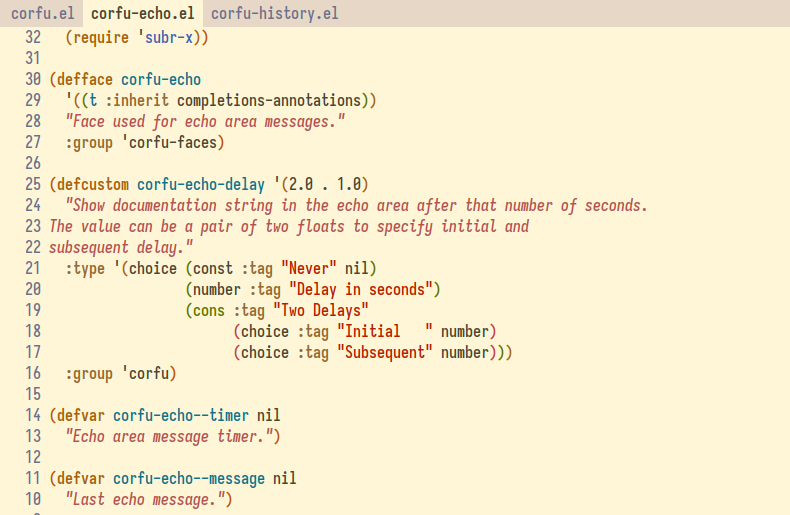
Enhancing Git Diff for Emacs Lisp: Better Git Diff of Elisp function or macro definitions

By default, the git diff algorithm compares changes in Elisp files line by line without understanding the structural semantics of Emacs Lisp files. This means that when modifications are made within functions, the diff output does not convey how those changes relate to higher-level code constructs such as functions or macros.

As a result, reviewers are presented with fragmented and often verbose diffs where the context of a change, such as which function it belongs to, is not always readily apparent. This lack of structural awareness can make it difficult to assess the purpose and impact of changes efficiently.

Git can be configured to recognize function or macro definitions explicitly, ensuring that diffs are presented at the function or macro level rather than as arbitrary line changes. Here are the steps:

Step 1 – The Git configuration for Emacs Lisp diffs

To ensure Git reads your global attributes and understands Emacs Lisp syntax, open your ~/.gitconfig file with your text editor and add the following configurations:

[core]
attributesfile = ~/.gitattributes

[diff "elisp"]
xfuncname = ^\\([^[:space:]]*def[^[:space:]]+[[:space:]]+([^()[:space:]]+)Code language: plaintext (plaintext)

The [core] section directs Git to use your global ~/.gitattributes file. The regular expression in the [diff "elisp"] section matches lines that begin with typical Emacs Lisp definition forms, such as defun, defmacro, and other def* constructs. It detects the symbol being defined, allowing Git to handle changes at the function or definition level intelligently. This configuration can also be found in the autogen.sh file, which is part of the Emacs source code.

Step 2 – Associating the Git Diff Driver with *.el files

Once the custom diff driver is defined, it needs to be associated with Elisp files. This is accomplished by adding the following line to the ~/.gitattributes file:

*.el diff=elispCode language: plaintext (plaintext)

With this setup, Git will apply the elisp diff driver to all files with the .el extension, using the custom pattern to identify function boundaries.

Conclusion

This configuration generates diffs that focus on changes within the scope of individual function and macro definitions, rather than arbitrary lines. As a result, reviews of Emacs Lisp code become more precise and contextually relevant. Reviewers can easily identify which functions were modified, without being distracted by unrelated or excessive diffs.

Related links

Emacs: stripspace.el – Automatically Remove Trailing Whitespace Before Saving a Buffer, with an Option to Preserve the Cursor Column

Build Status MELPA MELPA Stable License

Introduction

The stripspace Emacs package provides stripspace-local-mode and stripspace-global-mode, which automatically removes trailing whitespace and blank lines at the end of the buffer when saving.

(Trailing whitespace refers to any spaces or tabs that appear at the end of a line, beyond the last non-whitespace character. These characters serve no purpose in the content of the file and can cause issues with version control, formatting, or code consistency. Removing trailing whitespace helps maintain clean, readable files.)

If this enhances your workflow, please show your support by ⭐ starring stripspace.el on GitHub to help more Emacs users discover its benefits.

The stripspace Emacs package additionally provides the following features:

  • Restores the cursor column on the current line, including spaces before the cursor. This ensures a consistent editing experience and prevents unintended cursor movement when saving a buffer after removing trailing whitespace.
  • Normalizes indentation by converting leading tabs to spaces or leading spaces to tabs, without modifying tabs or spaces within the text. (Disabled by default.)
  • Restricts trailing whitespace deletion to buffers that were initially clean. When enabled, trailing whitespace is removed only if the buffer was clean before saving. (Disabled by default.)

(By default, stripspace-global-mode enables stripspace in all modes except those listed in the stripspace-global-mode-exclude-modes variable. By default, the excluded modes are: view-mode, special-mode, minibuffer-mode, comint-mode, term-mode, eshell-mode, diff-mode, org-agenda-mode, message-mode, and markdown-mode. Markdown-mode is excluded by default because trailing spaces are often used intentionally for line breaks in Markdown.)

Features

Here are the features of (stripspace-local-mode):

  • Before saving buffer: Automatically removes all trailing whitespace.
  • After saving buffer: Restores the cursor’s column position on the current line, including any spaces before the cursor. This ensures a consistent editing experience and prevents unintended cursor movement when saving a buffer and removing trailing whitespace. This behavior can be controller by the stripspace-restore-column variable (default: t).
  • Even if the buffer is narrowed, stripspace removes trailing whitespace from the entire buffer. This behavior, controlled by the stripspace-ignore-restrictions variable (default: t).
  • An optional feature stripspace-only-if-initially-clean (default: nil), which, when set to non-nil, instructs stripspace to only delete whitespace when the buffer is clean initially. The check for a clean buffer is optimized using a single regex search for trailing whitespace and another for blank lines.
  • The stripspace-verbose variable, when non-nil, shows in the minibuffer whether trailing whitespaces have been removed or, if not, provides the reason for their retention.
  • The functions for deleting whitespace are customizable, allowing the user to specify a custom function for removing trailing whitespace from the current buffer.
  • The stripspace-clean-function variable allows specifying a function for removing trailing whitespace from the current buffer. This function is called to eliminate any extraneous spaces or tabs at the end of lines. (For example, this can be set to a built-in function such as delete-trailing-whitespace (default) or whitespace-cleanup.)
  • A global mode, stripspace-global-mode, is available to enable the feature across all buffers. Users can exclude specific modes by adding them to the stripspace-global-mode-exclude-modes list. Additionally, special buffers are excluded by default because stripspace-global-mode-exclude-special-buffers is set to t. However, the author recommends using the local mode instead, which is preferred for enabling the mode selectively in specific major modes.
  • Normalize Indentation: Convert indentation tabs to spaces or spaces to tabs (Disabled by Default).

Installation

  1. If you haven’t already done so, add MELPA repository to your Emacs configuration.

  2. Add the following code to your Emacs init file to install stripspace from MELPA:

(use-package stripspace
  ;; Enable for prog-mode-hook, text-mode-hook, conf-mode-hook
  :hook ((prog-mode . stripspace-local-mode)
         (text-mode . stripspace-local-mode)
         (conf-mode . stripspace-local-mode))

  :custom
  ;; The `stripspace-only-if-initially-clean' option:
  ;; - nil to always delete trailing whitespace.
  ;; - Non-nil to only delete whitespace when the buffer is clean initially.
  ;; (The initial cleanliness check is performed when `stripspace-local-mode'
  ;; is enabled.)
  (stripspace-only-if-initially-clean nil)

  ;; Enabling `stripspace-restore-column' preserves the cursor's column position
  ;; even after stripping spaces. This is useful in scenarios where you add
  ;; extra spaces and then save the file. Although the spaces are removed in the
  ;; saved file, the cursor remains in the same position, ensuring a consistent
  ;; editing experience without affecting cursor placement.
  (stripspace-restore-column t))

(The use-package definition above uses stripspace-local-mode, which is preferred for enabling the mode selectively in specific major modes. Users who prefer to enable stripspace globally across all modes can instead enable stripspace-global-mode. Additionally, they can exclude certain major modes when stripspace-global-mode is enabled by adding those modes to stripspace-global-mode-exclude-modes. Special buffers are excluded by default because stripspace-global-mode-exclude-special-buffers is set to t.)

Frequently asked question

How to prevent stripspace from deleting trailing lines?

By default, the stripspace-clean-function variable is set to the built-in delete-trailing-whitespace, causing stripspace to remove both trailing whitespace and trailing blank lines. Trailing blank lines are empty lines at the end of a file that contain no content and appear after the last non-empty line in the buffer.

To prevent stripspace (and the delete-trailing-whitespace function) from removing trailing blank lines, set the delete-trailing-lines variable to nil.

What is the purpose of checking if the buffer’s trailing whitespace is clean? (Disabled by Default)

Checking if the buffer’s trailing whitespace clean helps prevent unintended modifications to files, preserving intentional whitespace and avoiding unnecessary edits.

For example, imagine you are submitting a merge request or pull request to a repository where some files contain trailing whitespace. If you modify just one or two lines in such a file, automatically removing all trailing spaces will cause the version control diff to display unnecessary whitespace changes throughout the file. This can make it harder for the reviewer to identify the relevant modifications, complicating the review and merge process.

Normalize Indentation: Convert Tabs to Spaces or Spaces to Tabs (Disabled by Default)

The stripspace-normalize-indentation option adjusts the buffer’s indentation to match the setting of the indent-tabs-mode variable:

  • Tabs to spaces: If indent-tabs-mode is nil, all indentation tabs in the buffer are converted to spaces.
  • Spaces to tabs: If indent-tabs-mode is t, contiguous spaces used for indentation are converted to tabs.

This feature can be enabled by setting the stripspace-convert-tabs-and-spaces option to t. (The conversion behavior can be further customized using stripspace-convert-tabs-and-spaces-function, which defaults to the built-in stripspace function.)

;; The `stripspace-normalize-indentation' option adjusts the buffer's
;; indentation to match the setting of the `indent-tabs-mode' variable:
;; - Tabs to spaces: If `indent-tabs-mode' is nil, all indentation tabs in
;;   the buffer are converted to spaces.
;; - Spaces to tabs: If `indent-tabs-mode' is t, contiguous spaces used
;;   for indentation are converted to tabs.
(setq stripspace-normalize-indentation nil)  ; Set to t to enable

How to mark a buffer’s trailing whitespace as clean if it is unclean?

When the stripspace-only-if-initially-clean variable is non-nil, stripspace deletes trailing whitespace only if the buffer is initially clean.

If the buffer is not clean, it remains marked as such, preventing trailing whitespace from being removed before saving.

To manually mark a buffer as clean, call the (stripspace-clean) function, which forces the deletion of trailing whitespace and updates the buffer’s state.

Why delete trailing whitespace? Can’t tools like Git or diff ignore it?

Tools like Git or diff can be configured to ignore trailing whitespace.

However, consistently removing trailing whitespace is still useful:

  • It prevents conflicts caused by unnecessary end-of-line spaces, ensuring that merges and collaborative work remain smooth and predictable.
  • It eliminates noise in version control systems, allowing code reviews and diffs to focus solely on meaningful changes, which saves time and reduces cognitive load.
  • It enforces intentionality in the code, so every line and character serves a purpose, making the codebase easier to understand, maintain, and debug over time.
  • It improves collaboration, as unintentional whitespace does not disrupt formatting or create frustration for other contributors.

Consistently removing trailing whitespace is not just a stylistic preference, it is a practice that directly improves readability, maintainability, and productivity.

How to remove markdown-mode from the excluded modes in stripspace-global-mode?

By default, stripspace-global-mode excludes markdown-mode by default because trailing spaces are often used intentionally for line breaks.

To allow stripspace-global-mode to remove trailing whitespace in markdown-mode as well, remove it from the list of excluded modes using:

;; Remove 'markdown-mode' from the list of modes excluded by `stripspace-global-mode'
(setq stripspace-global-mode-exclude-modes
      (delq 'markdown-mode
            stripspace-global-mode-exclude-modes))

This ensures that all other excluded modes remain unaffected while allowing stripspace-global-mode to process Markdown buffers.

Why use stripspace over the built-in delete-trailing-whitespace?

The stripspace package provides configurable modes (stripspace-global-mode and stripspace-local-mode), whereas delete-trailing-whitespace is simply a function (this built-in function is used by stripspace to remove trailing whitespace and is customizable via stripspace-cleanup-buffer-function).

Beyond removing trailing whitespace, stripspace also:

  • Restores the cursor column on the current line. (Including spaces before the cursor. This ensures a consistent editing experience and prevents unintended cursor movement when saving a buffer after removing trailing whitespace)
  • Disabled by default: Normalizes indentation by converting leading tabs to spaces or leading spaces to tabs, without modifying tabs or spaces within the text.
  • Disabled by default: Can restrict trailing whitespace deletion to buffers that were initially clean.

What are the differences between stripspace and ws-butler?

The ws-butler tracks modified lines and removes trailing whitespace only from those lines. However, it is slightly more complex, as it employs custom functions to track buffer changes, triggered by the following hooks: after-change-functions, before-save-hook, after-save-hook, before-revert-hook, after-revert-hook, and edit-server-done-hook.

In contrast, the stripspace package is lightweight. It operates solely on the before-save-hook to remove whitespace from the entire buffer using built-in Emacs functions, and on the after-save-hook to restore the cursor.

Optionally, when stripspace-local-mode is enabled, it can check if the buffer is already clean (with no whitespace) to determine whether trailing whitespace should be deleted automatically.

What are the differences between stripspace and whitespace-cleanup-mode?

The stripspace and whitespace-cleanup-mode packages are quite similar. The stripspace author wasn’t aware of whitespace-cleanup-mode when he developed stripspace.

Here are the key differences:

  • Customizations: whitespace-cleanup-mode uses the built-in whitespace-cleanup function (not all users prefer whitespace-cleanup because it deletes more than just trailing whitespace). There is no way to change this function in whitespace-cleanup-mode. On the other hand, the stripspace package defaults to the built-in delete-trailing-whitespace function, but users can assign a different function by setting stripspace-clean-function. For example, setting stripspace-clean-function to whitespace-cleanup makes stripspace behave like the whitespace-cleanup-mode package.
  • Performance: When stripspace-clean-function is set to delete-trailing-whitespace (default), stripspace function that detects whether the buffer is clean is faster than whitespace-cleanup-mode. (stripspace performs a single regex search for trailing whitespace and another for blank lines, while whitespace-cleanup-mode applies whitespace removal to the entire buffer. The performance of whitespace-cleanup-mode decreases as the buffer size increases.)

What are the differences between stripspace and trimspace?

The trimspace package only removes trailing whitespace before saving a file.

The stripspace package, however, provides additional features: it can restore the cursor column, optionally check if the buffer is clean before trimming, and customization of the whitespace removal function, etc. See the features section of the README.md for details.

Author and License

The stripspace Emacs package has been written by James Cherti and is distributed under terms of the GNU General Public License version 3, or, at your choice, any later version.

Copyright (C) 2025-2026 James Cherti

This program is free software: you can redistribute it and/or modify it under the terms of the GNU General Public License as published by the Free Software Foundation, either version 3 of the License, or (at your option) any later version. This program is distributed in the hope that it will be useful, but WITHOUT ANY WARRANTY; without even the implied warranty of MERCHANTABILITY or FITNESS FOR A PARTICULAR PURPOSE. See the GNU General Public License for more details. You should have received a copy of the GNU General Public License along with this program.

Links

Other Emacs packages by the same author:

  • minimal-emacs.d: This repository hosts a minimal Emacs configuration designed to serve as a foundation for your vanilla Emacs setup and provide a solid base for an enhanced Emacs experience.
  • compile-angel.el: Speed up Emacs! This package guarantees that all .el files are both byte-compiled and native-compiled, which significantly speeds up Emacs.
  • outline-indent.el: An Emacs package that provides a minor mode that enables code folding and outlining based on indentation levels for various indentation-based text files, such as YAML, Python, and other indented text files.
  • vim-tab-bar.el: Make the Emacs tab-bar Look Like Vim’s Tab Bar.
  • easysession.el: Easysession is lightweight Emacs session manager that can persist and restore file editing buffers, indirect buffers/clones, Dired buffers, the tab-bar, and the Emacs frames (with or without the Emacs frames size, width, and height).
  • elispcomp: A command line tool that allows compiling Elisp code directly from the terminal or from a shell script. It facilitates the generation of optimized .elc (byte-compiled) and .eln (native-compiled) files.
  • tomorrow-night-deepblue-theme.el: The Tomorrow Night Deepblue Emacs theme is a beautiful deep blue variant of the Tomorrow Night theme, which is renowned for its elegant color palette that is pleasing to the eyes. It features a deep blue background color that creates a calming atmosphere. The theme is also a great choice for those who miss the blue themes that were trendy a few years ago.
  • Ultyas: A command-line tool designed to simplify the process of converting code snippets from UltiSnips to YASnippet format.
  • dir-config.el: Automatically find and evaluate .dir-config.el Elisp files to configure directory-specific settings.
  • flymake-bashate.el: A package that provides a Flymake backend for the bashate Bash script style checker.
  • flymake-ansible-lint.el: An Emacs package that offers a Flymake backend for ansible-lint.
  • inhibit-mouse.el: A package that disables mouse input in Emacs, offering a simpler and faster alternative to the disable-mouse package.
  • quick-sdcv.el: This package enables Emacs to function as an offline dictionary by using the sdcv command-line tool directly within Emacs.
  • enhanced-evil-paredit.el: An Emacs package that prevents parenthesis imbalance when using evil-mode with paredit. It intercepts evil-mode commands such as delete, change, and paste, blocking their execution if they would break the parenthetical structure.
  • persist-text-scale.el: Ensure that all adjustments made with text-scale-increase and text-scale-decrease are persisted and restored across sessions.
  • pathaction.el: Execute the pathaction command-line tool from Emacs. The pathaction command-line tool enables the execution of specific commands on targeted files or directories. Its key advantage lies in its flexibility, allowing users to handle various types of files simply by passing the file or directory as an argument to the pathaction tool. The tool uses a .pathaction.yaml rule-set file to determine which command to execute. Additionally, Jinja2 templating can be employed in the rule-set file to further customize the commands.
  • kirigami.el: The kirigami Emacs package offers a unified interface for opening and closing folds across a diverse set of major and minor modes in Emacs, including outline-mode, outline-minor-mode, outline-indent-minor-mode, org-mode, markdown-mode, vdiff-mode, vdiff-3way-mode, hs-minor-mode, hide-ifdef-mode, origami-mode, yafolding-mode, folding-mode, and treesit-fold-mode. With Kirigami, folding key bindings only need to be configured once. After that, the same keys work consistently across all supported major and minor modes, providing a unified and predictable folding experience.
  • buffer-guardian.el: Automatically saves Emacs buffers without requiring manual intervention. By default, it triggers a save when the user switches to another buffer, switches to another window or frame, Emacs loses focus, or the minibuffer is opened. Beyond standard file buffers, buffer-guardian also manages specialized editing buffers such as org-src and edit-indirect. Additional features, disabled by default, include periodic or idle-time saving of all buffers, automatic exclusion of remote, nonexistent, or large files, and support for custom exclusion rules via regular expressions or predicate functions.

Emacs package: bufferfile – Delete or rename buffer file names with their associated buffers

Build Status MELPA MELPA Stable License

The bufferfile Emacs package provides helper functions to delete, rename, or copy buffer files:

  • bufferfile-rename: Renames the file visited by the current buffer, ensures that the destination directory exists, and updates the buffer name for all associated buffers, including clones/indirect buffers. It also ensures that buffer-local features referencing the file, such as Eglot, Flymake, Dired buffers, or the recentf list, are correctly updated to reflect the new file name.
  • bufferfile-delete: Delete the file associated with a buffer and kill all buffers visiting that file, including clones and indirect buffers. It also ensures that relevant Dired buffers are updated and the file is removed from recentf.
  • bufferfile-copy: Ensures that the destination directory exists and copies the file visited by the current buffer to a new file. It also ensures that buffer-local features referencing the file, such as Dired buffers, are correctly updated to reflect the new file name.

If this enhances your workflow, please show your support by ⭐ starring bufferfile.el on GitHub to help more Emacs users discover its benefits.

The bufferfile package overcomes limitations in Emacs’ built-in functions:

  • Emacs built-in renaming: While indirect buffers continue to reference the correct file path, their buffer names can become outdated.
  • Emacs built-in deleting: Indirect buffers are not automatically removed when the base buffer or another indirect buffer is deleted.

The bufferfile package resolves these issues by updating buffer names when a file is renamed and removing all related buffers, including indirect ones, when a file is deleted.

(To make bufferfile use version control when renaming or deleting files, you can set the variable bufferfile-use-vc to t. This ensures that file operations within bufferfile interact with the version control system, preserving history and tracking changes properly.)

Installation from MELPA

To install bufferfile from MELPA:

  1. If you haven’t already done so, add MELPA repository to your Emacs configuration.

  2. Add the following code to your Emacs init file to install bufferfile from MELPA:

(use-package bufferfile
  :commands (bufferfile-copy
             bufferfile-rename
             bufferfile-delete)
  :custom
  ;; If non-nil, display messages during file renaming operations
  (bufferfile-verbose nil)

  ;; If non-nil, enable using version control (VC) when available
  (bufferfile-use-vc nil)

  ;; Specifies the action taken after deleting a file and killing its buffer.
  (bufferfile-delete-switch-to 'parent-directory))

Usage

  • To rename the current buffer’s file and associated buffers, run: M-x bufferfile-rename (You will be prompted to enter a new name. The file will be renamed on disk, and the buffer—along with any associated buffers such as indirect buffers—will begin visiting the new file, with their buffer names updated accordingly.)

  • To delete the current buffer’s file and associated buffers, run: M-x bufferfile-delete (You will be asked to confirm the deletion. If confirmed, the file will be removed from disk, and all associated buffers, including indirect buffers, will be killed.)

  • To copy the current buffer’s file, run: M-x bufferfile-copy

Customizations

How to make Dired use bufferfile to rename files

By default, Dired’s rename operation (R) updates the file on disk but may not correctly update any buffers visiting the file, especially for renamed files with indirect (clone) buffers.

To address this, you can override Dired’s rename keybinding (R) to use bufferfile-dired-do-rename, which uses bufferfile rename functions. This ensures that all associated buffers, including indirect ones, are properly updated after the rename operation:

;; Override Dired's rename behavior to use bufferfile rename functions,
;; ensuring buffers visiting the renamed file are updated accordingly.
(with-eval-after-load 'dired
  (define-key dired-mode-map (kbd "R") #'bufferfile-dired-do-rename))

Making bufferfile use version control (VC), such as Git, when renaming or deleting files?

To make bufferfile use version control (VC) when renaming or deleting files, you can set the variable bufferfile-use-vc to t. This ensures that file operations within bufferfile interact with the version control system, preserving history and tracking changes properly.

(setq bufferfile-use-vc t)

Hook functions

The bufferfile package provides customizable hook variables that allow users to execute functions before and after renaming or deleting files. These hooks can be used to integrate additional logic, such as logging, or updating dependent buffers.

Hooks for Renaming Files

  • bufferfile-pre-rename-functions A list of functions executed before renaming a file. Each function receives three arguments:

    • previous-path: The original file path.
    • new-path: The new file path.
    • list-buffers: The list of buffers associated with the file.
  • bufferfile-post-rename-functions A list of functions executed after a file has been renamed. Each function receives the same three arguments as bufferfile-pre-rename-functions.

Hooks for Deleting Files

  • bufferfile-pre-delete-functions A list of functions executed before a file is deleted. Each function receives two arguments:

    • path: The file path to be deleted.
    • list-buffers: The list of buffers associated with the file.
  • bufferfile-post-delete-functions A list of functions executed after a file has been deleted. Each function receives the same two arguments as bufferfile-pre-delete-functions.

Frequently asked questions

What is the difference between bufferfile and the built-in Emacs rename and delete functions?

Here are the limitations of Emacs’ built-in functions:

  • Renaming: Indirect buffers point to the correct file path, but their buffer names become outdated.
  • Deleting: Indirect buffers are not removed when the base buffer or another indirect buffer is deleted.

The bufferfile package addresses these issues by ensuring that buffer names are updated when renaming a file and that all buffers, including indirect buffers, are deleted when a file is removed.

These limitations of the built-in functions motivated the development of bufferfile, which improves support for renaming and deleting buffers, including indirect buffers.

Author and License

The bufferfile Emacs package has been written by James Cherti and is distributed under terms of the GNU General Public License version 3, or, at your choice, any later version.

Copyright (C) 2024-2026 James Cherti

This program is free software: you can redistribute it and/or modify it under the terms of the GNU General Public License as published by the Free Software Foundation, either version 3 of the License, or (at your option) any later version. This program is distributed in the hope that it will be useful, but WITHOUT ANY WARRANTY; without even the implied warranty of MERCHANTABILITY or FITNESS FOR A PARTICULAR PURPOSE. See the GNU General Public License for more details. You should have received a copy of the GNU General Public License along with this program.

Testimonials

  • tinkerorb: I can’t even remember for how long I have wanted something that solves this (but I also have not lifted a single finger of my own to solve it for myself). Thank you for this package!

Links

Other Emacs packages by the same author:

  • minimal-emacs.d: This repository hosts a minimal Emacs configuration designed to serve as a foundation for your vanilla Emacs setup and provide a solid base for an enhanced Emacs experience.
  • compile-angel.el: Speed up Emacs! This package guarantees that all .el files are both byte-compiled and native-compiled, which significantly speeds up Emacs.
  • outline-indent.el: An Emacs package that provides a minor mode that enables code folding and outlining based on indentation levels for various indentation-based text files, such as YAML, Python, and other indented text files.
  • vim-tab-bar.el: Make the Emacs tab-bar Look Like Vim’s Tab Bar.
  • easysession.el: Easysession is lightweight Emacs session manager that can persist and restore file editing buffers, indirect buffers/clones, Dired buffers, the tab-bar, and the Emacs frames (with or without the Emacs frames size, width, and height).
  • elispcomp: A command line tool that allows compiling Elisp code directly from the terminal or from a shell script. It facilitates the generation of optimized .elc (byte-compiled) and .eln (native-compiled) files.
  • tomorrow-night-deepblue-theme.el: The Tomorrow Night Deepblue Emacs theme is a beautiful deep blue variant of the Tomorrow Night theme, which is renowned for its elegant color palette that is pleasing to the eyes. It features a deep blue background color that creates a calming atmosphere. The theme is also a great choice for those who miss the blue themes that were trendy a few years ago.
  • Ultyas: A command-line tool designed to simplify the process of converting code snippets from UltiSnips to YASnippet format.
  • dir-config.el: Automatically find and evaluate .dir-config.el Elisp files to configure directory-specific settings.
  • flymake-bashate.el: A package that provides a Flymake backend for the bashate Bash script style checker.
  • flymake-ansible-lint.el: An Emacs package that offers a Flymake backend for ansible-lint.
  • inhibit-mouse.el: A package that disables mouse input in Emacs, offering a simpler and faster alternative to the disable-mouse package.
  • quick-sdcv.el: This package enables Emacs to function as an offline dictionary by using the sdcv command-line tool directly within Emacs.
  • enhanced-evil-paredit.el: An Emacs package that prevents parenthesis imbalance when using evil-mode with paredit. It intercepts evil-mode commands such as delete, change, and paste, blocking their execution if they would break the parenthetical structure.
  • stripspace.el: Ensure Emacs Automatically removes trailing whitespace before saving a buffer, with an option to preserve the cursor column.
  • persist-text-scale.el: Ensure that all adjustments made with text-scale-increase and text-scale-decrease are persisted and restored across sessions.
  • pathaction.el: Execute the pathaction command-line tool from Emacs. The pathaction command-line tool enables the execution of specific commands on targeted files or directories. Its key advantage lies in its flexibility, allowing users to handle various types of files simply by passing the file or directory as an argument to the pathaction tool. The tool uses a .pathaction.yaml rule-set file to determine which command to execute. Additionally, Jinja2 templating can be employed in the rule-set file to further customize the commands.
  • kirigami.el: The kirigami Emacs package offers a unified interface for opening and closing folds across a diverse set of major and minor modes in Emacs, including outline-mode, outline-minor-mode, outline-indent-minor-mode, org-mode, markdown-mode, vdiff-mode, vdiff-3way-mode, hs-minor-mode, hide-ifdef-mode, origami-mode, yafolding-mode, folding-mode, and treesit-fold-mode. With Kirigami, folding key bindings only need to be configured once. After that, the same keys work consistently across all supported major and minor modes, providing a unified and predictable folding experience.
  • buffer-guardian.el: Automatically saves Emacs buffers without requiring manual intervention. By default, it triggers a save when the user switches to another buffer, switches to another window or frame, Emacs loses focus, or the minibuffer is opened. Beyond standard file buffers, buffer-guardian also manages specialized editing buffers such as org-src and edit-indirect. Additional features, disabled by default, include periodic or idle-time saving of all buffers, automatic exclusion of remote, nonexistent, or large files, and support for custom exclusion rules via regular expressions or predicate functions.

Emacs: persist-text-scale.el – Persist and Restore the Text Scale for All Buffers

Build Status MELPA MELPA Stable License

The persist-text-scale.el Emacs package provides persist-text-scale-mode, which ensures that all adjustments made with text-scale-increase and text-scale-decrease are persisted and restored across sessions. As a result, the text size in each buffer remains consistent, even after restarting Emacs.

This package also facilitates grouping buffers into categories, allowing buffers within the same category to share a consistent text scale. This ensures uniform font sizes when adjusting text scaling. By default:

  • Each file-visiting buffer has its own independent text scale.
  • Special buffers, identified by their buffer names, each retain their own text scale setting.
  • All Dired buffers maintain the same font size, treating Dired as a unified “file explorer” where the text scale remains consistent across different buffers.

This category-based behavior can be further customized by assigning a function to the persist-text-scale-buffer-category-function variable. The function determines how buffers are categorized by returning a category identifier (string) based on the buffer’s context. Buffers within the same category will share the same text scale.

If this enhances your workflow, please show your support by ⭐ starring persist-text-scale on GitHub to help more Emacs users discover its benefits.

Features

  • Lightweight and efficient, requiring minimal configuration.
  • Automatically saves and restores the text scale for all buffer types, including file, indirect, dired, and special buffers.
  • Periodically saves text scale data at intervals defined by persist-text-scale-autosave-interval, which can be set to nil to disable or specified in seconds to enable.
  • Provides unified text scaling across buffer categories, with fully customizable logic for categorizing buffers based on text scale. Users can customize categorization by specifying a function for the persist-text-scale-buffer-category-function variable, ensuring that groups of buffers maintain consistent text scale persistence and restoration.
  • The user can define the maximum number of retained entries using persist-text-scale-history-length.

Installation

Emacs

To install persist-text-scale from MELPA:

  1. If you haven’t already done so, add MELPA repository to your Emacs configuration.

  2. Add the following code to your Emacs init file to install persist-text-scale from MELPA:

(use-package persist-text-scale
  :custom
  ;; Time interval, in seconds, between automatic saves of text scale data.
  ;; If set to an integer value, enables periodic autosaving of persisted text
  ;; scale information at the specified interval.
  ;; If set to nil, disables timer-based autosaving entirely.
  (persist-text-scale-autosave-interval (* 7 60))
  :config
  (persist-text-scale-mode))

Alternative: Doom Emacs

Here is how to install persist-text-scale on Doom Emacs:

  1. Add to the ~/.doom.d/packages.el file:
(package! persist-text-scale)
  1. Add to ~/.doom.d/config.el:
;; TODO: Load the mode here
(after! persist-text-scale
  ;; Time interval, in seconds, between automatic saves of text scale data.
  ;; If set to an integer value, enables periodic autosaving of persisted text
  ;; scale information at the specified interval.
  ;; If set to nil, disables timer-based autosaving entirely.
  (setq persist-text-scale-autosave-interval (* 7 60))

  (persist-text-scale-mode))
  1. Run the doom sync command:
doom sync

Customizations

persist-text-scale-autosave-interval

  • Type: Integer or nil
  • Default: (* 11 60) seconds (11 minutes)

Defines the time interval, in seconds, between automatic saves of text scale data.

  • Setting an integer enables periodic autosaving at the specified interval.
  • Setting it to nil disables timer-based autosaving entirely.

This ensures that text scale adjustments are preserved automatically without requiring manual saving.

persist-text-scale-history-length

  • Type: Integer or nil
  • Default: 100

Specifies the maximum number of entries to retain. Each entry corresponds to a buffer category (e.g., file-visiting buffers, special buffers).

  • If set to an integer, older entries are deleted once the limit is reached.
  • If set to nil, cleanup is disabled and no entries are removed. (not recommended)

This helps manage memory usage and prevents the data file from growing indefinitely.

persist-text-scale-buffer-category-function

  • Type: Function or nil
  • Default: nil

Allows custom classification of buffers for text scale persistence. When provided, this function overrides the default classification.

Here is an example:

(defun my-persist-text-scale-function ()
    (let ((buffer-name (buffer-name)))
      (cond
       ((string-prefix-p "*Embark Export:" buffer-name)
        "category:embark-export")

       ((string-prefix-p "*sdcv:" buffer-name)
        "category:sdcv"))))

(setq persist-text-scale-buffer-category-function 'my-persist-text-scale-function)

The function must return one of:

  • A string or symbol representing the buffer category (for grouping purposes),
  • :ignore to exclude the buffer from persistence,
  • nil to defer to the default persist-text-scale classification.

This option provides flexibility in defining how text scale settings are grouped and applied across different types of buffers.

persist-text-scale-restore-once

  • Type: Boolean
  • Default: nil

Controls whether the text scale is restored only once per buffer.

  • When non-nil, the text scale is applied either when the buffer is first loaded or when it is displayed in a window for the first time.
  • Subsequent window changes or re-displays of the buffer do not trigger additional restorations.

If you are unsure, it is recommended to leave this option as nil to allow normal repeated restoration behavior.

persist-text-scale-handle-file-renames

  • Type: Boolean
  • Default: t

Determines whether text scale settings are preserved when a buffer’s underlying file is renamed.

  • When enabled, the buffer association is updated to the new file path, ensuring that the previously configured text scale remains applied.
  • When disabled, renaming a file resets its text scale to the default value.

These options give users control over messaging, restoration frequency, and resilience to file renames, improving both usability and reliability of text scale persistence.

persist-text-scale-fallback-to-previous-scale

  • Type: boolean
  • Default: t

The persist-text-scale-fallback-to-previous-scale option allows persist-text-scale-mode to use the last used text scale when a buffer category does not yet have a defined scale (i.e., the text scale for this category has never been changed).

This is useful if you frequently switch between buffers or modes that have not been explicitly assigned a text scale, maintaining readability without manual adjustment.

persist-text-scale-verbose

  • Type: Boolean
  • Default: nil

When enabled (t), persist-text-scale displays informative messages during text scale restoration. These messages indicate when and how the text scale was restored, which is useful for debugging or monitoring the package’s behavior.

Author and License

The persist-text-scale Emacs package has been written by James Cherti and is distributed under terms of the GNU General Public License version 3, or, at your choice, any later version.

Copyright (C) 2025-2026 James Cherti

This program is free software: you can redistribute it and/or modify it under the terms of the GNU General Public License as published by the Free Software Foundation, either version 3 of the License, or (at your option) any later version. This program is distributed in the hope that it will be useful, but WITHOUT ANY WARRANTY; without even the implied warranty of MERCHANTABILITY or FITNESS FOR A PARTICULAR PURPOSE. See the GNU General Public License for more details. You should have received a copy of the GNU General Public License along with this program.

Links

Other Emacs packages by the same author:

  • minimal-emacs.d: This repository hosts a minimal Emacs configuration designed to serve as a foundation for your vanilla Emacs setup and provide a solid base for an enhanced Emacs experience.
  • compile-angel.el: Speed up Emacs! This package guarantees that all .el files are both byte-compiled and native-compiled, which significantly speeds up Emacs.
  • outline-indent.el: An Emacs package that provides a minor mode that enables code folding and outlining based on indentation levels for various indentation-based text files, such as YAML, Python, and other indented text files.
  • vim-tab-bar.el: Make the Emacs tab-bar Look Like Vim’s Tab Bar.
  • easysession.el: Easysession is lightweight Emacs session manager that can persist and restore file editing buffers, indirect buffers/clones, Dired buffers, the tab-bar, and the Emacs frames (with or without the Emacs frames size, width, and height).
  • elispcomp: A command line tool that allows compiling Elisp code directly from the terminal or from a shell script. It facilitates the generation of optimized .elc (byte-compiled) and .eln (native-compiled) files.
  • tomorrow-night-deepblue-theme.el: The Tomorrow Night Deepblue Emacs theme is a beautiful deep blue variant of the Tomorrow Night theme, which is renowned for its elegant color palette that is pleasing to the eyes. It features a deep blue background color that creates a calming atmosphere. The theme is also a great choice for those who miss the blue themes that were trendy a few years ago.
  • Ultyas: A command-line tool designed to simplify the process of converting code snippets from UltiSnips to YASnippet format.
  • dir-config.el: Automatically find and evaluate .dir-config.el Elisp files to configure directory-specific settings.
  • flymake-bashate.el: A package that provides a Flymake backend for the bashate Bash script style checker.
  • flymake-ansible-lint.el: An Emacs package that offers a Flymake backend for ansible-lint.
  • inhibit-mouse.el: A package that disables mouse input in Emacs, offering a simpler and faster alternative to the disable-mouse package.
  • quick-sdcv.el: This package enables Emacs to function as an offline dictionary by using the sdcv command-line tool directly within Emacs.
  • enhanced-evil-paredit.el: An Emacs package that prevents parenthesis imbalance when using evil-mode with paredit. It intercepts evil-mode commands such as delete, change, and paste, blocking their execution if they would break the parenthetical structure.
  • stripspace.el: Ensure Emacs Automatically removes trailing whitespace before saving a buffer, with an option to preserve the cursor column.
  • pathaction.el: Execute the pathaction command-line tool from Emacs. The pathaction command-line tool enables the execution of specific commands on targeted files or directories. Its key advantage lies in its flexibility, allowing users to handle various types of files simply by passing the file or directory as an argument to the pathaction tool. The tool uses a .pathaction.yaml rule-set file to determine which command to execute. Additionally, Jinja2 templating can be employed in the rule-set file to further customize the commands.
  • kirigami.el: The kirigami Emacs package offers a unified interface for opening and closing folds across a diverse set of major and minor modes in Emacs, including outline-mode, outline-minor-mode, outline-indent-minor-mode, org-mode, markdown-mode, vdiff-mode, vdiff-3way-mode, hs-minor-mode, hide-ifdef-mode, origami-mode, yafolding-mode, folding-mode, and treesit-fold-mode. With Kirigami, folding key bindings only need to be configured once. After that, the same keys work consistently across all supported major and minor modes, providing a unified and predictable folding experience.
  • buffer-guardian.el: Automatically saves Emacs buffers without requiring manual intervention. By default, it triggers a save when the user switches to another buffer, switches to another window or frame, Emacs loses focus, or the minibuffer is opened. Beyond standard file buffers, buffer-guardian also manages specialized editing buffers such as org-src and edit-indirect. Additional features, disabled by default, include periodic or idle-time saving of all buffers, automatic exclusion of remote, nonexistent, or large files, and support for custom exclusion rules via regular expressions or predicate functions.

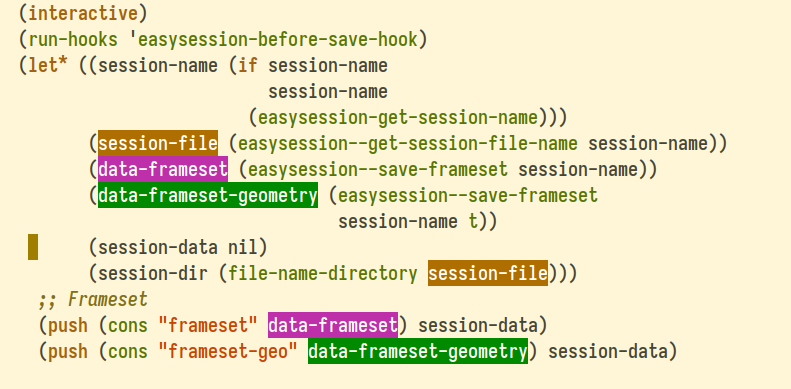
Emacs: Toggling symbol highlighting with unique colors for each symbol using built-in functions

Symbol highlighting is a useful feature for quickly identifying occurrences of a symbol in a buffer. For example, when reading an algorithm with nested loops and multiple function calls, the distinct colors for each symbol, variable, or function make it easier to identify where each is used by simply scanning the highlighted symbols. This article presents a function that simplifies toggling the highlight for the symbol at point in Emacs using the built-in hi-lock package, which provides dynamic text highlighting.

(The function provided in this article can serve as a replacement for packages like symbol-overlay or highlight-symbol if your primary goal is simply highlighting symbols. However, if you require advanced features such as jumping between occurrences, I recommend using a more full-featured package.)

The function to toggle symbol highlighting

Here is the function that enables or disables highlighting for the symbol at point:

(require 'hi-lock)  ; Built-in Emacs package

(defun simple-toggle-highlight-symbol-at-point ()
  "Toggle highlighting for the symbol at point."
  (interactive)
  (when-let* ((regexp (find-tag-default-as-symbol-regexp)))
    (if (member regexp (hi-lock--regexps-at-point))
        ;; Unhighlight symbol at point
        (hi-lock-unface-buffer regexp)
      ;; Highlight symbol at point
      (hi-lock-face-symbol-at-point))))Code language: Lisp (lisp)

One advantage of the built-in hi-lock function is that it highlights each symbol with a unique color, making it easier to distinguish between different symbols.

Here is how it works:

  1. Checking if the symbol is already highlighted: The function first retrieves a list of regular expressions corresponding to currently highlighted text in the buffer using hi-lock--regexps-at-point. It then checks whether the symbol at point is among the highlighted expressions using member.
  2. Unhighlighting the symbol: If the symbol is already highlighted, the function calls hi-lock-unface-buffer with the appropriate regular expression, removing the highlighting.
  3. Highlighting the symbol: If the symbol is not currently highlighted, the function invokes hi-lock-face-symbol-at-point, which applies highlighting to the symbol.

Usage

You can configure a key binding, such as C-c h, with the following:

(global-set-key (kbd "C-c h") #'simple-toggle-highlight-symbol-at-point)Code language: Lisp (lisp)

Alternatively, you can use the function interactively by placing the cursor on a symbol and executing:

M-x simple-toggle-highlight-symbol-at-point

(If the symbol is not highlighted, it will be highlighted. If it is already highlighted, the function will remove the highlighting.)

You can also remove a symbol highlight from the entire buffer by selecting it from the list and removing it using:

M-x hi-lock-unface-buffer

Conclusion

The simple-toggle-highlight-symbol-at-point function provides an efficient way to toggle symbol highlighting in Emacs without relying on external packages. It offers a lightweight solution for users who primarily need highlighting functionality. While it does not include advanced navigation features found in third-party packages, it serves as a simple and effective alternative for quick visual identification of symbols in a buffer.

Emacs: Highlighting Codetags Like TODO, FIXME, BUG, NOTE…

Highlighting keywords such as TODO, FIXME, NOTE, BUG, and others (often referred to as tags, codetags, or tokens) enhances workflow by making key annotations more visible. This allows developers to quickly identify tasks, warnings, and notes within the code, reducing the time spent searching for unfinished work or potential issues.

This article outlines an Elisp code that highlights these codetags.

(There are packages like hl-todo and comment-tags that can highlight these codetags for those who need a more feature-rich solution. However, they contain hundreds of lines of code, which is excessive if your only goal is to just highlight codetags. While these packages likely offer additional features, such as navigating to the next codetag, the Elisp code in this article provides a much simpler solution for those who just want to highlight them.)

Elisp code to highlight codetags

To highlight these codetags, you can use the following Emacs Lisp code:

(defvar highlight-codetags-keywords
  '(("\\<\\(TODO\\|FIXME\\|BUG\\|XXX\\)\\>" 1 font-lock-warning-face prepend)
    ("\\<\\(NOTE\\|HACK\\)\\>" 1 font-lock-doc-face prepend)))

(define-minor-mode highlight-codetags-local-mode
  "Highlight codetags like TODO, FIXME..."
  :global nil
  (if highlight-codetags-local-mode
      (font-lock-add-keywords nil highlight-codetags-keywords)
    (font-lock-remove-keywords nil highlight-codetags-keywords))

  ;; Fontify the current buffer
  (when (bound-and-true-p font-lock-mode)
    (if (fboundp 'font-lock-flush)
        (font-lock-flush)
      (with-no-warnings (font-lock-fontify-buffer)))))Code language: Lisp (lisp)

To apply codetag highlighting across all programming modes, add highlight-codetags-local-mode to the prog-mode-hook:

(add-hook 'prog-mode-hook #'highlight-codetags-local-mode)Code language: Lisp (lisp)

If you call highlight-codetags-local-mode interactively, you can toggle the highlighting of codetags on and off.

Customizations

If desired (though not required), you can further customize the Elisp code:

  • You can customize the highlighting by substituting font-lock-warning-face or font-lock-doc-face with any other face of your choice. (You can view all available faces by executing the command: M-x list-faces-display)
  • Additionally, you can add more keywords to the regular expression.
    For instance, to add the MAYBE codetag to the \\<\\(NOTE\\|HACK\\)\\> pattern, simply append \\|MAYBE before the closing parenthesis \\):
    \\<\\(NOTE\\|HACK\\|MAYBE\\)>.

Conslusion

This simple configuration enhances keyword visibility in Emacs, making it easier to track important annotations while editing source code.

Emacs: buffer-terminator.el – Safely Terminate Emacs Buffers Automatically

Build Status MELPA MELPA Stable License

The buffer-terminator Emacs package automatically and safely kills buffers, ensuring a clean and efficient workspace while enhancing the performance of Emacs by reducing open buffers, which minimizes active modes, timers, processes…

Beyond performance, buffer-terminator provides other benefits. For instance, if you occasionally need to close annoying or unused buffers, buffer-terminator can handle this automatically, eliminating the need for manual intervention. (The default configuration is suitable for most users. However, the buffer-terminator package is highly customizable. You can define specific rules for retaining or terminating buffers by modifying the buffer-terminator-rules-alist with your preferred set of rules.)

Activating (buffer-terminator-mode) safely terminates all buffers that have been inactive for longer than the duration specified by buffer-terminator-inactivity-timeout (default: 30 minutes). It checks every buffer-terminator-interval (default: 10 minutes) to determine if a buffer should be terminated.

The following buffers are not terminated by default:

  • Special buffers (These buffers are non-file buffers that: start with a space, or start and end with *, or whose major mode is derived from special-mode, or they serve as the Minibuffer).
  • Modified file-visiting buffers that have not been saved; the user must save them first.
  • Buffers currently displayed in any visible window or tab-bar tab. (This also includes buffers indirectly made visible, such as org-src source edit buffers, which cause their originating buffers to be considered visible, or markdown-mode edit-indirect buffers that reference the original Markdown file.)
  • Buffers associated with running processes.

If this package enhances your productivity, please show your support by ⭐ starring buffer-terminator on GitHub to help more users discover its benefits.

Installation from MELPA

To install buffer-terminator from MELPA:

  1. If you haven’t already done so, add MELPA repository to your Emacs configuration.
  2. Add the following code to the Emacs init file:
(use-package buffer-terminator
  :custom
  (buffer-terminator-verbose nil)

  ;; Set the inactivity timeout (in seconds) after which buffers are considered
  ;; inactive (default is 30 minutes):
  (buffer-terminator-inactivity-timeout (* 30 60)) ; 30 minutes

  ;; Define how frequently the cleanup process should run (default is every 10
  ;; minutes):
  (buffer-terminator-interval (* 10 60)) ; 10 minutes

  :config
  (buffer-terminator-mode 1))

Configuration

Verbose Mode

Enable verbose mode to log buffer cleanup events:

(setq buffer-terminator-verbose t)

Timeout for Inactivity

Set the inactivity timeout (in seconds) after which buffers are considered inactive (default is 30 minutes):

(setq buffer-terminator-inactivity-timeout (* 30 60)) ; 30 minutes

Cleanup Interval

Define how frequently the cleanup process should run (default is every 10 minutes):

(customize-set-variable 'buffer-terminator-interval (* 10 60)) ; 10 minutes

(Using customize-set-variable allows buffer-terminator-interval to update the timer dynamically, without the need to restart buffer-terminator-mode.)

Rules

By default, buffer-terminator automatically determines which buffers are safe to terminate.

However, if you need to define specific rules for keeping or terminating certain buffers, you can configure them using buffer-terminator-rules-alist.

The buffer-terminator-rules-alist variable holds instructions for keeping or terminating buffers based on their names or regular expressions. Each rule is a cons cell where the key is a symbol indicating the rule type, and the value is either string or a list of strings.

Here is an example:

(setq buffer-terminator-rules-alist
      ;; kill-buffer-name: Always kill buffers whose names match important-buffer-name1 and important-buffer-name2
      '((kill-buffer-name . ("temporary-buffer-name1"
                             "temporary-buffer-name2"))

        ;; keep-buffer-name: Always keep buffers whose names match important-buffer-name1 and important-buffer-name2
        (keep-buffer-name . ("important-buffer-name1"
                             "important-buffer-name2"))

        ;; kill-buffer-name: Always kill buffers whose names match temporary-buffer-name3
        (kill-buffer-name . "temporary-buffer-name3")

        ;; keep-buffer-name-regexp: Always keep buffers matching a regular expression
        (keep-buffer-name-regexp . ("\\` \\*Minibuf-[0-9]+\\*\\'"))

        ;; kill-buffer-name-regexp: Always kill buffers matching a regular expression
        (kill-buffer-name-regexp . "compile-angel")

        ;; Retain special buffers (DO NOT REMOVE).
        ;;
        ;; (If you choose to kill special buffers by removing the following,
        ;; ensure that the special buffers you want to keep are added
        ;; keep-buffer-name or keep-buffer-name-regexp rules above.)
        ;;
        ;; DO NOT REMOVE special buffers unless you know of what you are doing.
        (keep-buffer-property . special)

        ;; Retain process buffers.
        ;;
        ;; (Process buffers are buffers where an active process is running.
        ;; Removing the following will result in the termination of such
        ;; buffers, potentially disrupting active processes like vterm.)
        (keep-buffer-property . process)

        ;; Retain visible buffers (DO NOT REMOVE).
        ;;
        ;; Visible buffer are those currently displayed in any window.
        ;; It is generally discouraged to set this to nil, as doing so may result
        ;; in the termination of visible buffers, except for the currently active
        ;; buffer in the selected window.
        ;;
        ;; DO NOT REMOVE visible buffers unless necessary.
        (keep-buffer-property . visible)

        ;; Kill inactive buffers.
        ;; (This can be customized with `buffer-terminator-inactivity-timeout'
        ;; and `buffer-terminator-interval'.)
        (kill-buffer-property . inactive)

        ;; Call a function that decides the fate of a buffer. It returns:
        ;;   :kill    Indicates that the buffer should be killed.
        ;;   :keep    Indicates that the buffer should be kept.
        ;;   nil      Leave decision to the next rule specified
        ;;            in `buffer-terminator-rules-alist`.
        ;; (call-function . function-name)

        ;; Keep the remaining buffers that were not retained by previous rules
        (return . :keep)))

Here is another example by gavv, one of the first buffer-terminator users.

Frequently asked questions

What problem is buffer-terminator aiming to solve?

  • Some users prefer terminating inactive buffers to improve Emacs’ performance by reducing the number of open buffers. This, in turn, decreases the load from active modes, timers, and other processes associated with those buffers. Buffer-local modes and their timers consume both CPU and memory. Why keep them alive when they can be safely removed?
  • Some users prefer to keep only the buffers they actively need open, helping to declutter the buffer list. Decluttering the buffer list can also improve the performance of other packages. For example, saving and loading an easysession or desktop.el is much faster when the buffer list is reduced.
  • Some users prefer that buffers not part of an active window be automatically closed, as they are not actively needed.
  • Buffer-terminator helps users by automatically closing unnecessary buffers, eliminating the need for manual cleanup.
  • Some Emacs packages continue interacting with open buffers, even when they are buried (Reddit post: A function to periodically wipe buffers not recently shown; thoughts?).

How about modifying the quit-window function to kill buffers as soon as they are closed, instead of using buffer-terminator?

Using quit-window works if the goal is to immediately kill buffers upon closing a window, but it can lead to unintended consequences.

For instance, if a buffer is displayed in another tab or window, it will still be closed simply because one window showing it was closed. Additionally, killing buffers immediately is not always desirable. Delaying the closure preserves the state of file buffers and Dired buffers, including opened or closed headings, folds, and other buffer-specific context.

Buffer Terminator addresses these issues by performing additional checks before killing a buffer. By default, it verifies whether the buffer is visible in any other window or tab-bar tab, ensuring that buffers are only closed when truly no longer needed. Moreover, buffer-terminator does not terminate buffers immediately; a configurable delay is applied to provide a grace period, allowing users to continue working with a buffer if it is still required.

If this actually improves performance, I’d love to see some benchmarks or real-world numbers

Because each Emacs user’s configuration is unique, the performance benefits of using the buffer-terminator Emacs package depend on the number of enabled modes and active timers in that specific setup.

Leaving buffers open keeps their associated timers active, and the number of timers grows with the number of Emacs packages in use. Timers are responsible for scheduling functions to run at specific intervals or after a delay, often managing background tasks like updating buffers, fetching data, or performing periodic checks. Since each active timer triggers a function, an excessive number of timers can increase CPU usage, potentially leading to performance degradation in Emacs’ single-threaded environment.

Additionally, using buffer-terminator to reduce the buffer list can improve the performance of packages that iterate over the buffer-list function to operate on buffers. Since these packages iterate over open buffers, a shorter buffer list allows for faster execution of their operations. (For example, the built-in desktop.el package or the easysession package, which save and restore open buffers/frames, can be affected by buffer list length. If buffer-list is too long, Emacs startup may slow down, as it needs to restore a larger set of buffers.)

I prefer keeping buffers open because it is easier for me to reopen them

There is little benefit in leaving unused buffers open on the off-chance they might be needed later. If needed again, these buffers can be quickly reopened using recentf, project.el, dired, or similar tools.

How is this different from the builtin midnight-mode?

Midnight-mode does not address the problem that buffer-terminator solves, which is the safe and frequent termination of inactive buffers.

Midnight mode and clean-buffer-list are for killing buffers once a day. The Midnight option clean-buffer-list-delay-general specifies the number of days before a buffer becomes eligible for auto-killing, rather than using seconds or minutes as a timeout.

In contrast, buffer-terminator allows specifying the timeout interval in seconds (Default: 30 minutes), enabling more frequent termination of inactive buffers.

The buffer-terminator package offers additional features that are not supported by midnight and clean-buffer-list, including:

  • The buffer-terminator package is more customizable than Midnight Mode. It allows users to specify a customized list of rules using buffer-terminator-rules-alist, enabling them to determine which buffers should be killed based on factors such as inactivity, visibility, buffer name, whether it’s a file or process buffer, and other conditions.
  • Buffer-terminator does not kill visible buffers in other tabs, even if they exceed the timeout. This prevents disruptions to editing workflows. Buffer-terminator provides the option to choose whether to keep or kill specific types of buffers, such as those associated with processes or file-visiting buffers.
  • Buffer-terminator avoids relying on buffer-display-time, which is not always updated reliably. For instance, buffer-display-time may not reflect activity when switching to a window or tab displaying a specific buffer.
  • Buffer-terminator does not kill special buffers by default, whereas Midnight kills all special buffers by default unless the user tells Midnight to ignore them. Midnight’s behavior can disrupt packages like Corfu, Cape, Consult, Eglot, Flymake, and others that rely on special buffers to store data.
  • Buffer-terminator can also kill specific special buffers. It is useful, for example, if the user want to keep special buffers, but with a few exceptions: The user still want to kill Help and helpful … buffers (and maybe some other buffers related to documentation) if they weren’t used for a while.

Testimonials from users

  • ouboub: “I just did, thanks for nice package, wish I have known about it earlier…”
  • 2ck: “thank you for this package which managed to actually kill my old buffers, which midnight-mode couldn’t.”
  • JamesBrickley: “I’m really enjoying James Cherti’s Minimal-Emacs.d, Compile-Angle, Easy-Session, and Buffer-Terminator packages.”

Author and License

The buffer-terminator Emacs package has been written by James Cherti and is distributed under terms of the GNU General Public License version 3, or, at your choice, any later version.

Copyright (C) 2024-2026 James Cherti

This program is free software: you can redistribute it and/or modify it under the terms of the GNU General Public License as published by the Free Software Foundation, either version 3 of the License, or (at your option) any later version. This program is distributed in the hope that it will be useful, but WITHOUT ANY WARRANTY; without even the implied warranty of MERCHANTABILITY or FITNESS FOR A PARTICULAR PURPOSE. See the GNU General Public License for more details. You should have received a copy of the GNU General Public License along with this program.

Links

Other Emacs packages by the same author:

  • minimal-emacs.d: This repository hosts a minimal Emacs configuration designed to serve as a foundation for your vanilla Emacs setup and provide a solid base for an enhanced Emacs experience.
  • compile-angel.el: Speed up Emacs! This package guarantees that all .el files are both byte-compiled and native-compiled, which significantly speeds up Emacs.
  • outline-indent.el: An Emacs package that provides a minor mode that enables code folding and outlining based on indentation levels for various indentation-based text files, such as YAML, Python, and other indented text files.
  • easysession.el: Easysession is lightweight Emacs session manager that can persist and restore file editing buffers, indirect buffers/clones, Dired buffers, the tab-bar, and the Emacs frames (with or without the Emacs frames size, width, and height).
  • vim-tab-bar.el: Make the Emacs tab-bar Look Like Vim’s Tab Bar.
  • elispcomp: A command line tool that allows compiling Elisp code directly from the terminal or from a shell script. It facilitates the generation of optimized .elc (byte-compiled) and .eln (native-compiled) files.
  • tomorrow-night-deepblue-theme.el: The Tomorrow Night Deepblue Emacs theme is a beautiful deep blue variant of the Tomorrow Night theme, which is renowned for its elegant color palette that is pleasing to the eyes. It features a deep blue background color that creates a calming atmosphere. The theme is also a great choice for those who miss the blue themes that were trendy a few years ago.
  • Ultyas: A command-line tool designed to simplify the process of converting code snippets from UltiSnips to YASnippet format.
  • dir-config.el: Automatically find and evaluate .dir-config.el Elisp files to configure directory-specific settings.
  • flymake-bashate.el: A package that provides a Flymake backend for the bashate Bash script style checker.
  • flymake-ansible-lint.el: An Emacs package that offers a Flymake backend for ansible-lint.
  • inhibit-mouse.el: A package that disables mouse input in Emacs, offering a simpler and faster alternative to the disable-mouse package.
  • quick-sdcv.el: This package enables Emacs to function as an offline dictionary by using the sdcv command-line tool directly within Emacs.
  • enhanced-evil-paredit.el: An Emacs package that prevents parenthesis imbalance when using evil-mode with paredit. It intercepts evil-mode commands such as delete, change, and paste, blocking their execution if they would break the parenthetical structure.
  • stripspace.el: Ensure Emacs Automatically removes trailing whitespace before saving a buffer, with an option to preserve the cursor column.
  • persist-text-scale.el: Ensure that all adjustments made with text-scale-increase and text-scale-decrease are persisted and restored across sessions.
  • pathaction.el: Execute the pathaction command-line tool from Emacs. The pathaction command-line tool enables the execution of specific commands on targeted files or directories. Its key advantage lies in its flexibility, allowing users to handle various types of files simply by passing the file or directory as an argument to the pathaction tool. The tool uses a .pathaction.yaml rule-set file to determine which command to execute. Additionally, Jinja2 templating can be employed in the rule-set file to further customize the commands.
  • kirigami.el: The kirigami Emacs package offers a unified interface for opening and closing folds across a diverse set of major and minor modes in Emacs, including outline-mode, outline-minor-mode, outline-indent-minor-mode, org-mode, markdown-mode, vdiff-mode, vdiff-3way-mode, hs-minor-mode, hide-ifdef-mode, origami-mode, yafolding-mode, folding-mode, and treesit-fold-mode. With Kirigami, folding key bindings only need to be configured once. After that, the same keys work consistently across all supported major and minor modes, providing a unified and predictable folding experience.
  • buffer-guardian.el: Automatically saves Emacs buffers without requiring manual intervention. By default, it triggers a save when the user switches to another buffer, switches to another window or frame, Emacs loses focus, or the minibuffer is opened. Beyond standard file buffers, buffer-guardian also manages specialized editing buffers such as org-src and edit-indirect. Additional features, disabled by default, include periodic or idle-time saving of all buffers, automatic exclusion of remote, nonexistent, or large files, and support for custom exclusion rules via regular expressions or predicate functions.

The compile-angel Emacs package: Byte-compile and Native-compile Emacs Lisp libraries Automatically

Build Status MELPA MELPA Stable License

The compile-angel package speeds up Emacs by ensuring that all Elisp libraries are both byte-compiled and native-compiled:

  • Byte compilation reduces the overhead of loading Emacs Lisp code at runtime.
  • Native compilation improves performance by generating machine code that runs directly on the hardware, leveraging the full capabilities of the host CPU. The actual speedup varies with the characteristics of the Lisp code, but it is typically 2.5 to 5 times faster than the equivalent byte-compiled version.

For users looking to ensure a fully optimized environment, the compile-angel package is a valuable addition to the native compilation workflow. Integrating compile-angel guarantees that every .el file in your load path, including your own configuration and manually managed .el files, is properly byte and natively compiled. This ensures a consistent performance boost across the entire editor.

This package offers:

  • (compile-angel-on-load-mode): A global mode that compiles .el files when they are loaded.
  • (compile-angel-on-save-local-mode): A local mode that compiles .el files whenever the user saves them.

If this package enhances your workflow, please show your support by ⭐ starring compile-angel on GitHub to help more users discover its benefits.

Why use compile-angel?

Because you are likely running a significant amount of interpreted, slow Elisp code that Emacs did not compile automatically. Ensuring that Elisp is native-compiled significantly improves Emacs’ performance. Unfortunately, functions like package-install and package-recompile-all do not compile .el files that were not installed using package.el. Since these files are not byte-compiled, the Emacs JIT compiler does not native-compile them either, as a byte-compiled file signals the JIT compiler to perform native compilation. In contrast, compile-angel modes ensure that all loaded .el files are compiled transparently, regardless of whether they are part of a package.

Installation of compile-angel

Emacs

To install compile-angel on Emacs from MELPA:

  1. If you haven’t already done so, add MELPA repository to your Emacs configuration.

  2. Add the following code to your init file:

;; Ensure Emacs loads the most recent byte-compiled files.
(setq load-prefer-newer t)

(use-package compile-angel
  :config
  ;; Set `compile-angel-verbose' to nil to disable compile-angel messages.
  ;; (When set to nil, compile-angel won't show which file is being compiled.)
  (setq compile-angel-verbose t)

  ;; Uncomment the line below to compile automatically when an Elisp file is saved
  ;; (add-hook 'emacs-lisp-mode-hook #'compile-angel-on-save-local-mode)

  ;; The following directive prevents compile-angel from compiling your init
  ;; files. If you choose to remove this push to `compile-angel-excluded-path-suffixes'
  ;; and compile your pre/post-init files, ensure you understand the
  ;; implications and thoroughly test your code. For example, if you're using
  ;; the `use-package' macro, you'll need to explicitly add:
  ;; (eval-when-compile (require 'use-package))
  ;; at the top of your init file.
  (push "/init.el" compile-angel-excluded-path-suffixes)
  (push "/early-init.el" compile-angel-excluded-path-suffixes)

  ;; A global mode that compiles .el files when they are loaded
  ;; using `load' or `require'.
  (compile-angel-on-load-mode 1))

Doom Emacs

Here is how to install compile-angel on Doom Emacs:

  1. Add to the ~/.doom.d/packages.el file:
(package! compile-angel)
  1. Add to the top of ~/.doom.d/config.el:
;; Set `compile-angel-verbose' to nil to disable compile-angel messages.
;; (When set to nil, compile-angel won't show which file is being compiled.)
(setq compile-angel-verbose t)

;; Uncomment the line below to compile automatically when an Elisp file is saved
;; (add-hook 'emacs-lisp-mode-hook #'compile-angel-on-save-local-mode)

;; The following directive prevents compile-angel from compiling your init
;; files. If you choose to remove this push to `compile-angel-excluded-path-suffixes'
;; and compile your pre/post-init files, ensure you understand the
;; implications and thoroughly test your code. For example, if you're using
;; the `use-package' macro, you'll need to explicitly add:
;; (eval-when-compile (require 'use-package))
;; at the top of your init file.
(push "/init.el" compile-angel-excluded-path-suffixes)
(push "/early-init.el" compile-angel-excluded-path-suffixes)

;; A global mode that compiles .el files when they are loaded
(compile-angel-on-load-mode 1)
  1. Run the doom sync command:
doom sync

Spacemacs

To install compile-angel in Spacemacs, you need to distribute the configuration across three specific sections of your ~/.spacemacs file to ensure the loading order mimics the vanilla Emacs instructions.

1. Add the package

Locate the dotspacemacs-additional-packages variable and add compile-angel to the list:

   dotspacemacs-additional-packages '(
     ;; ... other packages ...
     compile-angel
   )

This ensures Spacemacs downloads and installs the package.

2. Configure pre-load variables

The variables that must be set before packages load should be placed in the dotspacemacs/user-init function.

(defun dotspacemacs/user-init ()
  "Initialization for user code:
This function is called immediately after `dotspacemacs/init', before layer configuration."

  ;; Ensure Emacs loads the most recent byte-compiled files.
  (setq load-prefer-newer t))

3. Configure the package

Place the package configuration in the dotspacemacs/user-config function.

(defun dotspacemacs/user-config ()
  "Configuration for user code:
This function is called at the very end of Spacemacs startup, after layer configuration."
  (use-package compile-angel
    :demand t
    :config
    (setq compile-angel-verbose t)

    ;; Uncomment the line below to compile automatically when an Elisp file is saved
    ;; (add-hook 'emacs-lisp-mode-hook #'compile-angel-on-save-local-mode)

    ;; The following directive prevents compile-angel from compiling your init
    ;; files. If you choose to remove this push to `compile-angel-excluded-path-suffixes'
    ;; and compile your pre/post-init files, ensure you understand the
    ;; implications and thoroughly test your code. For example, if you're using
    ;; the `use-package' macro, you'll need to explicitly add:
    ;; (eval-when-compile (require 'use-package))
    ;; at the top of your init file.
    (push "/init.el" compile-angel-excluded-path-suffixes)
    (push "/early-init.el" compile-angel-excluded-path-suffixes)

    (compile-angel-on-load-mode 1))
)

Frequently Asked Questions

Should files be compiled every time Emacs starts? How can I determine why compile-angel compiled a file?

The compile-angel-on-load-mode does not recompile packages every time Emacs starts; it only compiles a file when its .el source has changed.

To determine why an Emacs Lisp file was compiled, add the following to your init file before enabling compile-angel-on-load-mode:

(setq compile-angel-debug t)

Then restart Emacs and switch to the *compile-angel:debug* buffer. If compile-angel triggered the compilation, the buffer will indicate the reason. If you believe a file was compiled incorrectly, please consider submitting an issue including the relevant lines from the *compile-angel:debug* buffer.

What are some interesting Emacs customizations to consider alongside compile-angel?

Below are a few interesting options:

;; Ensure that quitting only occurs once Emacs finishes native compiling,
;; preventing incomplete or leftover compilation files in `/tmp`.
(setq native-comp-async-query-on-exit t)
(setq confirm-kill-processes t)

;;
;; Keep `native-comp-jit-compilation`. However, uncomment the following if Emacs
;; JIT native compilation should be disabled and completely replaced with
;; compile-angel. This can prevent redundant or repetitive background
;; compilations.
;;
;; (setq native-comp-jit-compilation nil)
;; (setq native-comp-deferred-compilation native-comp-jit-compilation) ; Deprecated

;; The following enables compilation of packages during installation;
;; compile-angel will handle it.
(setq package-native-compile t)

;;
;; The following disables compilation of packages during installation;
;; compile-angel will handle it.
;;
;; (setq package-native-compile nil)
;; (setq straight-disable-native-compile nil)  ; straight.el users
;; (setq straight-disable-compile nil)  ; straight.el users

;; -------------------------------------------------
;; Show buffer when there is a warning.
;; (NOT RECOMMENDED, except during development).
;; -------------------------------------------------
;; (setq compile-angel-verbose t)
;; (setq compile-angel-byte-compile-report-issues t)
;;
;; (setq warning-minimum-level :warning)
;; (setq byte-compile-verbose t)
;; (setq byte-compile-warnings t)
;; (setq native-comp-async-report-warnings-errors t)
;; (setq native-comp-warning-on-missing-source t)

How to exclude certain .el files from compilation in compile-angel?

You can exclude .el files from compilation by adding path suffixes to the compile-angel-excluded-path-suffixes list.

For instance, the following excludes any path that ends with suffix.el (or its variations, such as /path/ANYTHINGsuffix.el.gz or ANYTHINGsuffix.el.gz) and exactly matches paths that end with /filename.el (including their variations, like /filename.el.gz or ANYTHING/filename.el.gz).

;; Run the following before enabling `compile-angel-on-load-mode'
(push "suffix.el" compile-angel-excluded-path-suffixes)
(push "/filename.el" compile-angel-excluded-path-suffixes)

;; Run here: (compile-angel-on-load-mode)

If a path suffix in compile-angel-excluded-path-suffixes ends with .el, compile-angel will automatically exclude the .el.gz variant of that file. For instance, specifying suffix.el will also exclude suffix.el.gz.

How to exclude custom-file, recentf, savehist files?

You can exclude the custom-file, recentf, and savehist files using the following code snippet:

;; Exclude the custom-file, recentf, and savehist files
;;
;; Ensure that compile-angel is loaded using `require`, `use-package`, or
;; another package manager, as compile-angel-excluded-path-suffixes is declared after
;; the package is loaded.

;; Ensure that the value of `savehist-file` is updated before proceeding
(with-eval-after-load "savehist"
  (push (concat "/" (file-name-nondirectory savehist-file))
        compile-angel-excluded-path-suffixes))

;; Ensure that the value of `recentf-save-file` is updated before proceeding
(with-eval-after-load "recentf"
  (push (concat "/" (file-name-nondirectory recentf-save-file))
        compile-angel-excluded-path-suffixes))

;; Ensure that the value of `custom-file` is updated before proceeding
(with-eval-after-load "cus-edit"
  (when (stringp custom-file)
    (push (concat "/" (file-name-nondirectory custom-file))
          compile-angel-excluded-path-suffixes)))

;; Enable the (compile-angel-on-load-mode) mode after the above

How to enable or disable byte compilation and native compilation?

You can control whether compile-angel performs byte compilation or native compilation of your .el files by setting the following variables in your configuration:

  • compile-angel-enable-byte-compile: Set this variable to t to enable byte compilation. When enabled, compile-angel will generate .elc files for your .el files, making them load faster by converting them into bytecode. Set it to nil to disable byte compilation.
  • compile-angel-enable-native-compile: Set this variable to t to enable native compilation, which generates machine code for supported systems, further improving performance. Set it to nil to disable native compilation.

Example configuration:

;; Enable both byte compilation and native compilation (default)
(setq compile-angel-enable-byte-compile t)
(setq compile-angel-enable-native-compile t)

Excluding specific files and directories using helper functions

If you need to prevent compile-angel from compiling specific files or entire directories, you can use the provided helper functions. These functions automatically handle path expansion, symbolic link resolution, and regular expression formatting, ensuring your paths are excluded correctly.

  • Use the compile-angel-exclude-file function to exclude a single file:

    ;; This adds exact match regular expression to the
    ;; `compile-angel-excluded-path-regexps' variable
    (compile-angel-exclude-file "~/.emacs.d/init.el")
  • Use the compile-angel-exclude-directory function to exclude a directory and all of its contents:

;; It ensures the path is treated as a directory and adds a prefix match regular
;; expression to the `compile-angel-excluded-path-regexps' variable
(compile-angel-exclude-directory "~/.emacs.d/local-packages/")

NOTE: Both functions check if the expanded path differs from its file-truename (for example, if symlinks are involved in the path). If they differ, both the expanded path and the `file-truename’ are added to the exclusion list to guarantee the file or directory is consistently ignored during compilation.

What’s the point of using compile-angel? My Emacs compiles packages automatically anyway!

Emacs often skips the compilation of certain Elisp files. To verify this:

  • Install compile-angel,
  • Enable verbose mode: (setq compile-angel-verbose t)
  • Enable the mode: (compile-angel-on-load-mode)

Observe whether compile-angel compiles any Elisp files (you will see “Wrote” .elc files in the *Messages* buffer). If it does, this indicates that Emacs missed compiling those files and that compile-angel can help improve the performance of your Emacs.

Could compiling all Elisp files not be accomplished with a script? (e.g., a GNU Parallel along with Emacs’s -batch mode.)

Compiling a large number of Emacs Lisp files regardless of their actual usage is inefficient.

One of the advantages of compile-angel is that it compiles files when they are loaded, restricting the compilation process to only what is necessary and as a result significantly reducing compilation time.

Moreover, compile-angel guarantees that all relevant files are transparently both byte-compiled and native-compiled without requiring the user to invoke any scripts manually, which simplifies maintenance and reduces the risk of outdated files.

(If you are interested in compiling all Emacs Lisp files regardless of their actual usage, the author recommends trying elispcomp, which performs precisely that task. However, compile-angel offers greater efficiency.)

Why not just use the package-recompile-all function?

The package-recompile-all function is effective for recompiling files within packages, but it misses other files that are not part of a package.

In the compile-angel author’s configuration, for example, package-recompile-all skipped most of the local packages loaded using use-package with :ensure nil or require. Additionally, package-recompile-all does not compile transparently; the user must manually run it and wait for it to complete.

The compile-angel package, on the other hand, transparently compiles all packages without any user intervention. The user simply needs to enable (compile-angel-on-load-mode).

What is the impact on Emacs startup?

Compile-angel is optimized. It is fast enough that it is nearly imperceptible to the user. The author of compile-angel reports an Emacs startup time of 0.25 seconds with compile-angel enabled and 0.23 seconds without it. Feel free to share your own benchmarks.

What’s the difference between native and byte compiled?

Byte compilation translates Elisp code into an intermediate bytecode .elc that is faster to load than .el files.

Native compilation goes a step further by converting this bytecode into machine code, which is directly executed by the CPU without the need for an interpreter. Native compilation significantly improves performance.

What are some use-cases of compile-angel?

Emacs often misses the compilation of certain Elisp files.

One of the author’s primary use cases involves maintaining numerous Emacs packages, which are synchronized into ~/.emacs.d using automation scripts and rsync for testing during development. The author appreciates how compile-angel automatically compiles the files synchronized to the ~/.emacs.d directory while working on these packages.

There are many other use cases as well. For example, some Emacs users prefer storing packages locally or in GitHub repositories, periodically updating them using git pull. This approach is often adopted for packages that are no longer actively maintained, enabling users to manage them independently. In such cases, compile-angel can seamlessly handle both byte-compiling and native-compiling these packages whenever local modifications are made.

What is the difference between auto-compile and compile-angel?

Compile-angel offers more features and is more optimized than auto-compile (see details below).

The compile-angel author was previously an auto-compile user but encountered an issue where several Elisp files were not being compiled by auto-compile (see the explanation below), resulting in Emacs performance degradation due to the lack of native compilation.

The author of auto-compile has made some decisions that prevent it from guaranteeing that all .el packages are byte-compiled and native-compiled. For example, if the user deletes all the .elc files or if the .el files have never been compiled before, auto-compile won’t recompile them. Here is a quote from Jonas Bernouli, aka u/tarsius_, the auto-compile author (from this discussion):

Both [autocompile] modes only ever re-compile a source file when the respective byte code file already exists but is outdated. Otherwise they do not compile the source file. By “otherwise” I mean if:

  • The .elc exists but is newer than the corresponding .el, OR
  • The *.elc does not exist. In both cases the source file is not compiled, by design.

Here are additional features provided by compile-angel that are not available in auto-compile:

  • Compile-angel ensures that even when when the .elc file doesn’t exist, the .el source file is compiled. Auto-compile, on the other hand, requires (by design, as explained above) an existing .elc file in order to compile.
  • Compile-angel ensures that files are compiled before and/or after they are loaded, In addition to compiling the .el files loaded using load and require, also handles files that auto-compile misses, using the after-load-functions hook. This ensures that all files are byte-compiled and native-compiled.
  • Compile-angel can exclude files from compilation using regular expressions in compile-angel-excluded-path-regexps.
  • compile-angel can exclude files from compilation based on path suffixes listed in compile-angel-excluded-path-suffixes. This list contains path suffixes such as ("loaddefs.el" "/cus-load.el" "/charprop.el"), which excludes any path ending with loaddefs.el (or its variations, such as loaddefs.el.gz) and exactly matches paths ending with /cus-load.el and /charprop.el (including their variations, like /cus-load.el.gz and /charprop.el.gz). If a path in compile-angel-excluded-path-suffixes ends with .el, it will automatically exclude the corresponding .el.gz variant when Emacs is configured to load .el.gz files.
  • Compile-angel provides options to allow enabling and disabling specific functions that should be advised (load, require, etc.).
  • Compile-angel allows enabling debug mode, which allows knowing exactly what compile-angel does. Additionally, compiled files and features are stored in variables that help identify what was compiled.
  • compile-angel-on-save-mode supports compiling indirect buffers (clones).
  • compile-angel-on-load-mode compiles features that have already been loaded to make sure that they are compiled.
  • Compile-Angel can use caching to enhance performance when locating the .el file corresponding to a given feature. Auto-compile does not compile features.
  • Supports both Vanilla Emacs and Doom Emacs. For Doom Emacs, compile-angel ensures that the Doom Emacs user directory, Emacs directory, and modules directory are excluded from compilation. This is essential because .el files in these directories must not be compiled, or Doom may fail to load them correctly.
  • compile-angel-on-load-mode performs native compilation only when Emacs fails to do so. Explanation: When JIT compilation is enabled, loading a .elc file automatically triggers native compilation, making Emacs load the native-compiled version asynchronously and replacing the auto-compiled functions. (However, auto-compile disables native compilation by default, causing Emacs to skip native-compiling some files, even in save mode. When enabled, auto-compile compiles files before loading, but Emacs will still recompile them after loading the .elc file.)
  • Compile-Angel checks for unbalanced parentheses before compiling a file in save mode, without altering the cursor position, making it less intrusive than the default check-parens used by auto-compile.
  • Compile-Angel double-checks after packages are loaded to ensure that Emacs properly performs native compilation when JIT is enabled, as Emacs sometimes skips native-compiling .elc files that should be JIT compiled.
  • Prevent byte-compile-file from displaying Wrote messages in the Messages buffer unless compile-angel-verbose customization is set to t.
  • It has the ability to skip compiling features provided by Emacs core without associated Elisp files (e.g., pgtk, w32, lcms2, kqueue, emacs, mps, etc.). This includes features provided directly by C code as well as features provided by core Elisp that don’t have their own .el files. These features are excluded from compilation attempts since they have no source files to compile.

How to compile Emacs for Performance on Linux and Unix systems?

Most Linux distributions ship generic binaries compiled to run safely on a vast array of older hardware configurations. While this ensures broad compatibility, it sacrifices the speed that comes from using the specific, modern instruction sets of your processor. Compiling Emacs directly from source allows instructing the compiler to generate machine code targeted at your CPU architecture, resulting in a faster and more efficient runtime environment.

Beyond raw hardware optimization, building from source enables dropping decades of legacy compatibility layers and embracing modern desktop technologies. For example, Wayland users can configure the build to bypass old X11 display protocols in favor of a Wayland environment, ensuring smoother rendering and better system integration…

If you are interested in compiling Emacs, read: A Technical Guide to Compiling Emacs for Performance on Linux and Unix systems

Comments from users

  • Leading_Ad6415 on Reddit: “Thank you for your works. My start up time gone from ~2.5 seconds to ~1.9 seconds (~25%)”

  • drizzyhouse: “Thanks for your work on this.”

  • JamesBrickley: “I’m really enjoying James Cherti’s Minimal-Emacs.d, Compile-Angle, Easy-Session, and Buffer-Terminator packages.”

Author and License

The compile-angel Emacs package has been written by James Cherti and is distributed under terms of the GNU General Public License version 3, or, at your choice, any later version.

Copyright (C) 2024-2026 James Cherti

This program is free software: you can redistribute it and/or modify it under the terms of the GNU General Public License as published by the Free Software Foundation, either version 3 of the License, or (at your option) any later version. This program is distributed in the hope that it will be useful, but WITHOUT ANY WARRANTY; without even the implied warranty of MERCHANTABILITY or FITNESS FOR A PARTICULAR PURPOSE. See the GNU General Public License for more details. You should have received a copy of the GNU General Public License along with this program.

Links

Other Emacs packages by the same author:

  • minimal-emacs.d: This repository hosts a minimal Emacs configuration designed to serve as a foundation for your vanilla Emacs setup and provide a solid base for an enhanced Emacs experience.
  • compile-angel.el: Speed up Emacs! This package guarantees that all .el files are both byte-compiled and native-compiled, which significantly speeds up Emacs.
  • outline-indent.el: An Emacs package that provides a minor mode that enables code folding and outlining based on indentation levels for various indentation-based text files, such as YAML, Python, and other indented text files.
  • vim-tab-bar.el: Make the Emacs tab-bar Look Like Vim’s Tab Bar.
  • easysession.el: Easysession is lightweight Emacs session manager that can persist and restore file editing buffers, indirect buffers/clones, Dired buffers, the tab-bar, and the Emacs frames (with or without the Emacs frames size, width, and height).
  • elispcomp: A command line tool that allows compiling Elisp code directly from the terminal or from a shell script. It facilitates the generation of optimized .elc (byte-compiled) and .eln (native-compiled) files.
  • tomorrow-night-deepblue-theme.el: The Tomorrow Night Deepblue Emacs theme is a beautiful deep blue variant of the Tomorrow Night theme, which is renowned for its elegant color palette that is pleasing to the eyes. It features a deep blue background color that creates a calming atmosphere. The theme is also a great choice for those who miss the blue themes that were trendy a few years ago.
  • Ultyas: A command-line tool designed to simplify the process of converting code snippets from UltiSnips to YASnippet format.
  • dir-config.el: Automatically find and evaluate .dir-config.el Elisp files to configure directory-specific settings.
  • flymake-bashate.el: A package that provides a Flymake backend for the bashate Bash script style checker.
  • flymake-ansible-lint.el: An Emacs package that offers a Flymake backend for ansible-lint.
  • inhibit-mouse.el: A package that disables mouse input in Emacs, offering a simpler and faster alternative to the disable-mouse package.
  • quick-sdcv.el: This package enables Emacs to function as an offline dictionary by using the sdcv command-line tool directly within Emacs.
  • enhanced-evil-paredit.el: An Emacs package that prevents parenthesis imbalance when using evil-mode with paredit. It intercepts evil-mode commands such as delete, change, and paste, blocking their execution if they would break the parenthetical structure.
  • stripspace.el: Ensure Emacs Automatically removes trailing whitespace before saving a buffer, with an option to preserve the cursor column.
  • persist-text-scale.el: Ensure that all adjustments made with text-scale-increase and text-scale-decrease are persisted and restored across sessions.
  • pathaction.el: Execute the pathaction command-line tool from Emacs. The pathaction command-line tool enables the execution of specific commands on targeted files or directories. Its key advantage lies in its flexibility, allowing users to handle various types of files simply by passing the file or directory as an argument to the pathaction tool. The tool uses a .pathaction.yaml rule-set file to determine which command to execute. Additionally, Jinja2 templating can be employed in the rule-set file to further customize the commands.
  • kirigami.el: The kirigami Emacs package offers a unified interface for opening and closing folds across a diverse set of major and minor modes in Emacs, including outline-mode, outline-minor-mode, outline-indent-minor-mode, org-mode, markdown-mode, vdiff-mode, vdiff-3way-mode, hs-minor-mode, hide-ifdef-mode, origami-mode, yafolding-mode, folding-mode, and treesit-fold-mode. With Kirigami, folding key bindings only need to be configured once. After that, the same keys work consistently across all supported major and minor modes, providing a unified and predictable folding experience.
  • buffer-guardian.el: Automatically saves Emacs buffers without requiring manual intervention. By default, it triggers a save when the user switches to another buffer, switches to another window or frame, Emacs loses focus, or the minibuffer is opened. Beyond standard file buffers, buffer-guardian also manages specialized editing buffers such as org-src and edit-indirect. Additional features, disabled by default, include periodic or idle-time saving of all buffers, automatic exclusion of remote, nonexistent, or large files, and support for custom exclusion rules via regular expressions or predicate functions.

Must-have Emacs Packages for Efficient Software Development and Text Editing

In the pursuit of an optimized Emacs setup, I focused on enhancing defaults and minimizing the number of installed packages to maintain simplicity and efficiency: The initial step involved creating minimal-emacs.d, a project that has resonated with the Emacs community, providing a foundational template for many users’ init.el and early-init.el vanilla Emacs configuration.

Next, I experimented with hundreds of Emacs packages, carefully selecting the most valuable ones that, ideally, leverage built-in Emacs functions. (This is why I chose corfu over company, eglot over lsp-mode, and flymake over flycheck, etc.)

In this article, I will share the Emacs packages I recommend for software development and general text editing. Please share the Emacs packages you use in the comments!

Before we dive in, please consider sharing this article on your website/blog, Mastodon, Reddit, X, or your preferred social media platforms. Sharing it will help fellow Emacs users discover better ways to manage code folding.

Where can I find the third-party packages listed below?

The following Emacs packages installed whether from MELPA or ELPA.

Category: Code completion

  • corfu: A completion framework that integrates with the built-in completion system in Emacs. For example, it can complete Python code when using the eglot package and a Python language server such as Pylsp.
  • prescient: Provides smart completion suggestions based on history and context. For example, it can enable fuzzy completion with Corfu/Cape or anticipate your next input based on previous selections.
  • cape: A completion-at-point extension for various completion frameworks in Emacs, enhancing Corfu.
  • nerd-icons-corfu: Integrates Nerd Icons with the Corfu completion framework, enhancing the appearance of completion candidates.

Category: Better minibuffer

  • vertico: minimalistic vertical completion UI. (EDIT: There is also built-in alternative to vertico: fido-vertical-mode. However, the author prefers vertico because it provides more features and is faster.)
  • marginalia: Enhances the display of completion candidates in the minibuffer.
  • embark: Enhances minibuffer completion and interaction with various Emacs commands and actions.
  • consult: Provides intelligent search and navigation commands, powered by the Emacs completion function, completing-read.

Category: Software development (General)

  • apheleia: A package that runs code formatters asynchronously without moving the cursor. Apheleia supports formatting many languages. It formats code after saving, applying changes only if the buffer is unmodified, preventing latency and cursor jumps.
  • yasnippet and yasnippet-snippets: A template system for Emacs that allows for easy insertion of code snippets, improving coding efficiency. (The author is also using ultyas to share the same code snippets in Emacs and Vim and ultisnips-mode, a major mode for editing Ultisnips *.snippet files)
  • rainbow-delimiters: Provides a minor mode that highlights parentheses, brackets, and braces according to their nesting depth, with each level displayed in a distinct color. This makes it easier to identify matching delimiters, navigate code structure, and understand which statements are at a given depth.
  • Dumb-jump: A go to definition functionality for 50+ programming languages without requiring a language server. It works by using simple heuristics and regular expression searches to locate the definitions of functions, variables, and symbols across project files. Unlike more sophisticated language-aware tools, dumb-jump does not parse code semantically, which makes it lightweight and fast, but sometimes less precise (For greater precision, install a language server and enable Eglot; it will replace dumb-jump in the buffers where it is active.). It integrates with popular navigation packages like xref, allowing implementations with minimal configuration. users to jump to definitions or references.
  • eglot (built-in): An LSP client that provides features like code completion, diagnostics, formatting, and more, powered by language servers. For example, it can be used to add Python code completion using the language server Pylsp. There are many language servers available for many other programming languages. (Alternative: lsp-mode)
  • flymake (built-in): An on-the-fly syntax checking system that works well with eglot. (Alternative: flycheck)
  • paren (built-in): Matching parenthesis highlighting. (Modes: show-paren-mode or show-paren-local-mode).
  • treesit (built-in): This package provides a way to work with tree-sitter, a syntax code parser that performs syntax highlighting, code navigation, and structural editing across various programming languages.
  • highlight-symbol: Highlight occurrences of symbols in your code. (The author is now using built-in functions to toggle symbol highlighting in Emacs )

Category: Version Control

  • diff-hl: Displays version control (e.g., git, svn…) diff information in the fringe of your Emacs window. It delegates the heavy lifting to Emacs built-in vc framework, allowing it to automatically support any version control system Emacs recognizes, including Git, Mercurial, Subversion, Bazaar, Fossil, and Jujutsu (Alternative to diff-hl: git-gutter. However, git-gutter reinvents the wheel by manually constructing shell commands and arguments for various backends instead of taking advantage the native vc framework.)
  • magit: Provides a comprehensive interface to the Git version control system.
  • git-modes: Provides Emacs major modes for managing Git configuration files, such as .gitattributes, .gitconfig, and .gitignore.

Category: Indentation and whitespace

  • indent-bars: Provides indentation guide-bars.
  • dtrt-indent: Automatically adjusts indentation based on the surrounding context in code files, improving code readability.
  • stripspace: Ensures that Emacs removes trailing whitespace before saving a buffer. Ensure that the column is restored.

(Read: “Emacs: Maintaining proper indentation in indentation-sensitive programming languages“, an article that highlights Emacs packages and Elisp code snippets to enhance indentation.)

Category: Code Folding

  • outline-indent: Enables code folding based on indentation levels. This package is useful for editing indentation-based text files, such as YAML, Python, and other indented text files.
  • kirigami: The kirigami Emacs package offers a unified interface for opening and closing folds across a diverse set of major and minor modes in Emacs, including outline-mode, outline-minor-mode, outline-indent-minor-mode, org-mode, markdown-mode, vdiff-mode, vdiff-3way-mode, hs-minor-mode, hide-ifdef-mode, origami-mode, yafolding-mode, folding-mode, and treesit-fold-mode. With Kirigami, folding key bindings only need to be configured once. After that, the same keys work consistently across all supported major and minor modes, providing a unified and predictable folding experience.
  • treesit-fold: Provides intelligent code folding by using the structural understanding of the built-in tree-sitter parser. Unlike traditional folding methods that rely on regular expressions or indentation, treesit-fold uses the actual syntax tree of the code to accurately identify foldable regions such as functions, classes, comments, and documentation strings. This allows for faster and more precise folding behavior that respects the grammar of the programming language, ensuring that fold boundaries are always syntactically correct even in complex or nested code structures.
  • hideshow (built-in): Provides hs-minor-mode, a minor mode that parses buffer syntax to accurately detect the start and end of blocks. It is the best folding mode for C-style languages, or anything using braces {} and explicit block structures like sh/Bash shell scripts.
  • outline (built-in): Provides outline-mode and outline-minor-mode, which relies on hierarchical headings to determine collapsible sections. It is effective for structured text and the authors default choice for Elisp, Lisp, Markdown, Diff, and configuration files. (Related article: “Customizing the ellipsis in outline to use a more visually appealing indicator for folded sections, such as ▼“)

(Read: “Emacs: The Definitive Guide to Code Folding” to properly configure code folding in Emacs.)

Category: Session management / persist and restore

  • easysession: A lightweight Emacs session manager that can persist and restore file editing buffers, indirect buffers/clones, Dired buffers, the tab-bar, and the Emacs frames (with or without the Emacs frames size, width, and height).
  • saveplace (built-in): Persist and restore your current cursor position.
  • savehist (built-in): Persist and restore your Emacs command history.
  • persist-text-scale: Provides persist-text-scale-mode, which ensures that all adjustments made with text-scale-increase and text-scale-decrease are persisted and restored across sessions. As a result, the text size in each buffer remains consistent, even after restarting Emacs.

Category: Themes

  • ef-themes: A collection of light and dark themes for GNU Emacs whose goal is to provide colorful themes.
  • modus-themes: Highly accessible themes for GNU Emacs, conforming with the highest standard for color contrast between background and foreground values.
  • doom-themes: An megapack of popular themes, including aesthetic extensions for popular packages (e.g., Tomorrow Night/Day, Solarized, Gruvbox…).
  • tomorrow-night-deepblue-theme: A blue color theme for Emacs inspired by the Tomorrow Night color scheme.

Category: Vim emulation

  • evil: An extensible vi layer for Emacs, providing a modal editing experience similar to Vim.
  • evil-collection: A collection of Emacs packages that integrate with Evil mode to provide consistent keybindings across multiple modes.
  • evil-surround: Enhances text object handling in Evil mode, allowing for easier manipulation of surrounding characters.
  • evil-matchit: An evil-mode package that allows jumping between matching text objects, such as HTML tags, if/then/else blocks, or parentheses. It improves code navigation and editing efficiency by enabling quick movement across related elements in various programming and markup modes.
  • evil-commentary: Comment or uncomment text in Normal or Visual mode by pressing gc.
  • goto-chg: Navigate to the most recent edit in the buffer using goto-last-change or goto-last-change-reverse. Commonly used in Evil mode for the motions g; and g,, as well as for the last-change register ..
  • vim-tab-bar: Provides a tab-bar interface reminiscent of Vim.
  • evil-snipe: Provides enhanced search and jump functionality for Evil mode. (EDIT: The author replaced this package with the avy package)
  • vdiff: Provides a visual interface for comparing two versions of a file that is similar to the Vim editor. (EDIT: The author is now uses the built-in ediff package. The vdiff package suffer from performance issues, and contain known bugs that undermine their reliability.)

Category: Terminal Emulators

  • vterm: A terminal emulator for Emacs, written in C.

Category: Undo/Redo

  • undo-fu: An advanced undo/redo system that enhances the default undo behavior in Emacs.
  • undo-fu-session: Integrates with undo-fu to provide session management for undo history.

Category: Elisp

  • aggressive-indent: Automatically keeps your code indented as you type. The author mainly uses this package with Elisp.
  • compile-angel: Speed up Emacs by ensuring all libraries are byte-compiled and native-compiled. Byte-compilation reduces the overhead of loading Emacs Lisp code at runtime, while native compilation optimizes performance by generating machine code specific to your system.
  • Paredit: A minor mode that enforces balanced parentheses while editing Lisp code. (In addition to Paredit, the author uses enhanced-evil-paredit.)
  • page-break-lines-mode: Provides a minor mode that visually replaces ASCII form-feed characters (typically ^L) with horizontal lines to make page breaks easier to see, without altering the underlying text.
  • elisp-autofmt: Provides an automatic code formatter for Emacs Lisp. It includes the elisp-autofmt-mode minor mode, along with elisp-autofmt-buffer and elisp-autofmt-region commands to format the entire buffer or selection.
  • easy-escape: Improves the readability of Emacs Lisp regular expressions through syntax highlighting and character composition. Specifically, it hides double backslashes before regexp special characters ()|, renders other doubled backslashes as single ones, and highlights them with a distinct face.
  • elisp-refs: An advanced code search for Emacs Lisp. It identifies references to functions, macros, variables, specials, and symbols by parsing the code instead of relying on plain text search.
  • package-lint: Provides real-time evaluation of Emacs Lisp package metadata and formatting. It assists in identifying packaging errors, verifying required headers, and ensuring adherence to standard archive guidelines directly within the buffer.

Category: File Manager

  • dired (built-in): File manager. (EDIT: The author is also using the built-in modes dired-hide-details-mode and dired-omit-mode.)
  • nerd-icons-dired: Enhances Dired mode with icons from Nerd Fonts, improving file browsing.

Category: Org

  • org (built-in): A powerful mode for organizing notes, tasks, and project planning within Emacs.
  • org-roam: An Org mode extension that transforms Emacs into a non-hierarchical, bidirectional note-taking system (inspired by tools like Roam Research and Obsidian). It allows building a personal knowledge base by creating links between notes, visualizing the connections through a node graph, and quickly querying your database. (Alternatives: org-node and denote)
  • org-appear: Improves the visibility of Org mode elements in the buffer by automatically toggling visibility based on context.
  • toc-org: Automatically generates a table of contents for Org mode documents.
  • org-bullets: Replace org-mode leading stars with UTF-8 bullets (EDIT: The author is now using the org-ibullets fork. Another excellent alternative is org-modern)

Category: Buffers

  • bufferfile: Delete or rename buffer file names with their associated buffers.
  • buffer-terminator: A package that automatically and safely kills buffers to help maintain a clean and efficient workspace, while also improving Emacs’ performance by reducing the number of open buffers, thereby decreasing the number of active modes, timers, and other processes associated with those buffers.
  • nerd-icons-ibuffer: Enhances the built-in ibuffer interface by displaying recognizable icons next to buffer names. It uses the nerd-icons library to automatically assigns specific glyphs based on a buffer’s major mode, file extension, or underlying system process, such as displaying a Python logo for .py scripts or a folder icon for Dired views.
  • buffer-guardian: Automatically saves Emacs buffers without requiring manual intervention. By default, it triggers a save when the user switches to another buffer, switches to another window or frame, Emacs loses focus, or the minibuffer is opened. Beyond standard file buffers, buffer-guardian also manages specialized editing buffers such as org-src and edit-indirect. Additional features, disabled by default, include periodic or idle-time saving of all buffers, automatic exclusion of remote, nonexistent, or large files, and support for custom exclusion rules via regular expressions or predicate functions.

Category: Other packages

  • hyperbole: Provides a comprehensive, programmable hypertext and information management system for Emacs that allows users to link, organize, and navigate information without requiring a specialized markup language. At its core, it relies on implicit and explicit buttons, which are context-sensitive text areas that execute specific actions when activated, such as jumping to a file, opening a URL, or running a custom script. Designed to integrate deeply with the Emacs ecosystem, it enhances everyday workflows by providing tools for contact management, outliner hierarchies like the Koutliner, and global window configuration, effectively transforming standard plain text into an interconnected web of actionable data.
  • expand-region: Expands the selected region in code, making it easier to select logical blocks of code or text.
  • wgrep: Allows for in-buffer editing of grep results, improving the usability of search results. It can be used to modify the occurrences returned by the Embark package embark-export function. (Built-in alternative in Emacs >= 31: grep-change-to-grep-edit-mode which enables grep-edit-mode for editing grep buffers)
  • inhibit-mouse: Disables mouse support within Emacs, encouraging keyboard-centric navigation and editing. This can be beneficial for some users who prefer a more traditional text editor experience.
  • helpful: An enhanced alternative to the built-in help system that provides richer, context-aware information about symbols, functions, variables, and macros. In contrast to the default describe-* commands, Helpful presents a unified, navigable buffer that integrates documentation strings, source code, keybindings, references, and even interactive examples, thereby offering a more comprehensive and efficient environment for exploring Emacs internals.
  • quick-fasd: Offers fast access to files and directories based on your history and usage patterns, optimizing file navigation.
  • dir-config: Automatically find and evaluate .dir-config.el Elisp files to configure directory-specific settings.
  • which-key (built-in): Displays available keybindings in a popup, helping users learn and remember key combinations in Emacs.
  • quick-sdcv: Bring the Stardict’s dictionary functionality directly into your Emacs workflow. This will turn Emacs into a dictionary.
  • golden-ratio: Automatic resizing of Emacs windows to the golden ratio.
  • diminish: This package implements hiding or abbreviation of the mode line displays (lighters) of minor-modes.
  • gcmh: Gcmh (Garbage Collector Magic Hack) optimizes Emacs’ garbage collection behavior by adjusting the garbage collection threshold dynamically. During active use, it raises the threshold to reduce the frequency of garbage collections and minimize interruptions. When Emacs becomes idle, it lowers the threshold and triggers a collection, reclaiming memory at a convenient time.
  • project.el (built-in): A package for managing and navigating projects, providing utilities for project-based operations like searching, switching, and file management within defined project directories. (Alternative to project.el: projectile)
  • ace-window: A package for selecting a window to switch to.
  • treemacs: A file and project explorer for Emacs that provides a visually structured tree layout similar to file browsers in modern IDEs. It integrates well with various Emacs packages such as projectile, lsp-mode, evil, allowing users to navigate their project structure efficiently.
  • xclip: Enables copy and paste between Emacs running in a terminal and the system GUI clipboard.
  • flyspell-mode (built-in): An interface for spell-checking text using external programs like ispell, aspell, or hunspell for checking and correcting spelling in buffers. (Faster alternative: jinx)
  • hl-todo: highlight TODO, FIXME… (Alternatively, you can use this Elisp function that can highlight codetags such as TODO or FIXME)

Category: Miscellaneous file types

  • markdown-mode: Provides major mode support for editing Markdown files.
  • markdown-toc: Automatically generates and manages a table of contents for Markdown files, making navigation easier.
  • csv-mode: Provides a major mode that enhances the experience of editing Comma-Separated Value files. Its most impactful feature is the ability to align fields into visually distinct, vertically synchronized columns, which instantly renders dense, delimited text into a readable table format.
  • jinja2-mode: Major mode for editing Jinja2 template files with syntax highlighting and proper indentation support.
  • flymake-ansible-lint: Provides on-the-fly syntax checking for Ansible playbooks and roles, ensuring code quality.
  • flymake-bashate: Integrates bashate for syntax checking of Bash scripts in real-time within Emacs. (Emacs also offers a built-in Flymake backend for ShellCheck.)
  • combobulate: A package that provides structured editing and navigation capabilities across many programming languages. Rather than relying on conventional major modes that use fragile imperative logic and regular expressions to interpret code structure, Combobulate leverages the Emacs tree-sitter library. Tree-sitter maintains a concrete syntax tree of the source code, giving Combobulate precise and reliable insight into code structure, which allows for more accurate editing and movement operations.
  • web-mode: An emacs major mode for editing web templates aka HTML files embedding parts (CSS/JavaScript) and blocks (pre rendered by client/server side engines). It is compatible with many template engines: PHP, JSP, ASP, Django, Twig, Jinja, Mustache, ERB, FreeMarker, Velocity, Cheetah, Smarty, CTemplate, Mustache, Blade, ErlyDTL, Go Template, Dust.js, Google Closure (soy), React/JSX, Angularjs, ejs, Nunjucks…
  • php-mode: An Emacs major mode for editing PHP scripts.
  • go-mode: An Emacs major mode for editing the Go programming language.
  • nix-mode: An Emacs major mode for editing Nix expressions.
  • jenkinsfile-mode: A major mode for editing Jenkins declarative pipeline syntax.
  • hcl-mode: An Emacs major mode for editing Nix expressions.
  • crontab-mode: A major mode for crontab.
  • nginx-mode: An Emacs major mode for editing Nginx config files.
  • vimrc-mode: A major mode that enables syntax highlighting for *.vim and .vimrc files.
  • haskell-mode: A major mode for editing, developing and debugging Haskell programs.
  • lua-mode: Provides major mode support for editing Lua files. (EDIT: The author is now using the built-in lua-ts-mode.)
  • php-mode: Provides major mode support for editing PHP files. (EDIT: The author is now using the built-in php-ts-mode.)
  • dockerfile-mode: Provides syntax highlighting and editing support for Dockerfile files. (EDIT: The author is now using the built-in dockerfile-ts-mode.)
  • yaml-mode: Provides major mode support for editing YAML files, complete with syntax highlighting and formatting commands. (EDIT: The author is now using the built-in yaml-ts-mode.)

Alternative package managers

  • straight.el: This package manager focuses on stability and reproducibility by building packages directly from Git clones. It operates using a synchronous model that blocks the editor until all startup tasks are complete.
  • Elpaca: This package manager uses an asynchronous architecture that prevents the Emacs user interface from freezing during package operations. It features a robust queuing system for automatic dependency resolution, which removes the requirement for users to manually order their configuration. It provide a more flexible and modern workflow than straight.el.

Emacs: Automating Table of Contents Update for Markdown Documents (e.g., README.md)

When working with markdown files in Emacs (e.g., README.md), users may need to manually update the table of contents. Automating this process saves time and ensures that the table of contents remains consistent with the document structure. This article presents an Emacs Lisp code snippet that uses:

  • The markdown-toc package to automatically generate or refresh a table of contents,
  • A custom function (my-markdown-toc-gen-if-present) that runs before markdown files are saved. It performs the following actions:
    • Updates the table of contents if one is already present.
    • Ensures that both the window start and cursor position remain unchanged, addressing a common issue with the markdown-toc package, which can disrupt the editing flow by moving the cursor and/or changing the window start. This behavior can be frustrating, as it interrupts the user’s focus and requires them to navigate back to their original position.

The code snippet that updates the table of contents and ensures that the cursor and window start remain unchanged

The following code snippet updates the table of contents while ensuring that the cursor and window start remain unchanged:

(The table of contents will be updated only if it is already present, so it is necessary to generate it at least once using the (markdown-toc-generate-toc) function. Additionally, ensure that the markdown-mode Emacs package is installed.)

;; Author: James Cherti
;; URL: https://www.jamescherti.com/emacs-markdown-table-of-contents-update-before-save/
;; License: MIT

;; Configure the markdown-toc package
(use-package markdown-toc
  :ensure t
  :defer t
  :commands (markdown-toc-generate-toc
             markdown-toc-generate-or-refresh-toc
             markdown-toc-delete-toc
             markdown-toc--toc-already-present-p))

;; The following functions and hooks guarantee that any existing table of
;; contents remains current whenever changes are made to the markdown file,
;; while also ensuring that both the window start and cursor position remain
;; unchanged.
(defun my-markdown-toc-gen-if-present ()
    (when (markdown-toc--toc-already-present-p)
      (let* ((window (selected-window))
             (buffer-in-selected-window (eq (window-buffer window)
                                            (current-buffer)))
             (window-hscroll nil)
             (lines-before nil))
        (when buffer-in-selected-window
          (setq window-hscroll (window-hscroll))
          (setq lines-before (count-screen-lines
                              (save-excursion (goto-char (window-start))
                                              (vertical-motion 0)
                                              (point))
                              (save-excursion (vertical-motion 0)
                                              (point))
                              nil
                              window)))
        (unwind-protect
            (markdown-toc-generate-toc)
          (when buffer-in-selected-window
            (set-window-start window
                              (save-excursion
                                (vertical-motion 0)
                                (line-move-visual (* -1 lines-before))
                                (vertical-motion 0)
                                (point)))
            (set-window-hscroll window window-hscroll))))))

  (defun my-setup-markdown-toc ()
    "Setup the markdown-toc package."
    (add-hook 'before-save-hook #'my-markdown-toc-gen-if-present -100 t))

  (add-hook 'markdown-mode-hook #'my-setup-markdown-toc)
  (add-hook 'markdown-ts-mode-hook #'my-setup-markdown-toc)
  (add-hook 'gfm-mode-hook #'my-setup-markdown-toc)Code language: Lisp (lisp)

The above code snippet leverages the markdown-toc Emacs package to automate the generation of a table of contents within markdown documents. This package includes functions such as markdown-toc-generate-toc and markdown-toc-generate-or-refresh-toc, which facilitate the creation and updating of the table of contents as needed.

I implemented the my-setup-markdown-toc function to establish a hook that triggers my-markdown-toc-gen-if-present each time a markdown buffer is saved. This function guarantees that any existing table of contents remains current whenever changes are made to the markdown file, while also ensuring that both the window start and cursor position remain unchanged.

Requirement: Markdown Mode Setup

The table of contents update code snippet above will only function correctly if the markdown-mode package is installed:

(use-package markdown-mode
  :ensure t
  :defer t
  :commands (gfm-mode gfm-view-mode markdown-mode markdown-view-mode)
  :mode (("\\.markdown\\'" . markdown-mode)
         ("\\.md\\'"       . markdown-mode)
         ("README\\.md\\'" . gfm-mode))) Code language: Lisp (lisp)

Conclusion

The my-markdown-toc-gen-if-present function automates the generation of a table of contents, ensuring that markdown documents consistently remain up-to-date with minimal effort.

Emacs: Maintaining proper indentation in indentation-sensitive programming languages

As codebases grow, maintaining proper indentation becomes increasingly difficult, especially in languages like Python or YAML, where indentation is not just a matter of style but an important part of the syntax. When working with large code blocks or deeply nested structures, it’s easy to lose track of the correct indentation level, leading to errors and decreased readability. In this post, we’ll explore Emacs packages and an Elisp code snippet that can help manage indentation in these indentation-sensitive languages.

Code snippet: Indenting new lines based on previous non-blank line

The following code snippet configures Emacs to indent based on the indentation of the previous non-blank line:

;; This ensures that pressing Enter will insert a new line and indent it.
(global-set-key (kbd "RET") #'newline-and-indent)

;; Indentation based on the indentation of the previous non-blank line.
(setq-default indent-line-function #'indent-relative-first-indent-point)

;; In modes such as `text-mode', pressing Enter multiple times removes
;; the indentation. The following fixes the issue and ensures that text
;; is properly indented using `indent-relative' or
;; `indent-relative-first-indent-point'.
(setq-default indent-line-ignored-functions '())Code language: Lisp (lisp)

Emacs package: outline-indent.el (Code folding)

The outline-indent.el Emacs package provides a minor mode that enables code folding based on indentation levels for various indentation-based text files, such as YAML, Python, and any other indented text files.

To install the outline-indent from MELPA, add the following code to your Emacs init file:

(use-package outline-indent
  :ensure t
  :commands (outline-indent-minor-mode
             outline-indent-insert-heading)
  :hook ((yaml-mode . outline-indent-minor-mode)
         (yaml-ts-mode . outline-indent-minor-mode)
         (python-mode . outline-indent-minor-mode)
         (python-ts-mode . outline-indent-minor-mode))
  :custom
  (outline-indent-ellipsis " ▼ "))Code language: Lisp (lisp)

In addition to code folding, outline-indent allows:

  • Moving indented blocks up and down.
  • Indenting/unindenting to adjust indentation levels.
  • Inserting a new line with the same indentation level as the current line.
  • Move backward/forward to the indentation level of the current line.
  • Customizing the ellipsis to replace the default “…” with something more visually appealing, such as “▼”.
  • Selecting the indented block with.
  • And other features.

Emacs Package: dtrt-indent (Guessing the original indentation offset)

The dtrt-indent provides an Emacs minor mode that detects the original indentation offset used in source code files and automatically adjusts Emacs settings accordingly, making it easier to edit files created with different indentation styles.

(use-package dtrt-indent
  :ensure t
  :commands (dtrt-indent-global-mode
             dtrt-indent-mode
             dtrt-indent-adapt
             dtrt-indent-undo
             dtrt-indent-diagnosis
             dtrt-indent-highlight)
  :config
  (dtrt-indent-global-mode))Code language: Lisp (lisp)

Emacs package: indent-bars (Indentation guides)

The indent-bars Emacs package, written by JD Smith, enhances code readability by providing visual indentation guides, optimized for speed and customization. It supports both space and tab-based indentation and offers optional tree-sitter integration, which includes features like scope focus. The appearance of the guide bars is highly customizable, allowing you to adjust their color, blending, width, position, and even apply a zigzag pattern. Depth-based coloring with a customizable cyclical palette adds clarity to nested structures. The package also features fast current-depth highlighting, configurable bar changes, and the ability to display bars on blank lines. Additionally, it maintains consistent bar depth within multi-line strings and lists, and it works seamlessly in terminal environments using a vertical bar character. (Send your customizations to JD Smith, the author of indent-bars. He mentioned on Reddit that, “If you or others have customized the bar style settings, I’d be happy to add them to the examples page”.)

The indent-bars package isn’t available in any package database yet, but you can install it using straight.

  1. If you haven’t already done so, add the straight.el bootstrap code to your init file.
  2. After that, add the following code to your Emacs init file:
(use-package indent-bars
  :ensure t
  :commands indent-bars-mode
  :straight (indent-bars
             :type git
             :host github
             :repo "jdtsmith/indent-bars")
  :hook ((yaml-mode . indent-bars-mode)
         (yaml-ts-mode . indent-bars-mode)
         (python-mode . indent-bars-mode)
         (python-ts-mode . indent-bars-mode))
  :custom
  (indent-bars-prefer-character t))Code language: Lisp (lisp)

The indent-bars fancy guide bars when indent-bars-prefer-character is set to nil:

If you are using Linux or macOS (not PGTK on Linux, NS on macOS, or Windows), try setting the indent-bars-prefer-character variable to nil to make indent-bars display fancy guide bars using the :stipple face attribute (see indent-bars compatibility). On macOS, it only works if you are using the non-NS version of Emacs, known as emacs-mac-app, which can be installed from MacPorts using the emacs-mac-app or emacs-mac-app-devel package.

You can have Emacs automatically set the indent-bars-prefer-character variable to nil when the window system is PGTK or NS, where the stipple attribute is not supported and using the character is preferred, with the following Elisp code:

;; Make the indent-bars package decide when to use the stipple attribute
(setq indent-bars-prefer-character
      (if (memq initial-window-system '(pgtk ns)) t))Code language: Lisp (lisp)

Code snippet: Inserting a new line before the next line that has the same or less indentation level

(If you’re using outline-indent.el, there’s no need for the Elisp code below. You can simply use the (outline-indent-insert-heading) function.)

You can use the following function to inserts a new line just before the next line that has the same or less indentation level:

(defun my-insert-line-before-same-indentation ()
  "Insert a new line with the same indentation level as the current line.
The line is inserted just before the next line that shares the same or less
indentation level. This function finds the nearest non-empty line with the same
or less indentation as the current line and inserts a new line before it.

This function is part of the outline-indent (MELPA) Emacs package.
It was extracted from the function (outline-indent-insert-heading)
written by James Cherti and distributed under the GPL 3.0 or later license."
  (interactive)
  (let ((initial-indentation nil)
        (found-point nil))
    (save-excursion
      (beginning-of-visual-line)
      (setq initial-indentation (current-indentation))
      (while (and (not found-point) (not (eobp)))
        (forward-line 1)
        (if (and (>= initial-indentation (current-indentation))
                 (not (looking-at-p "^[ \t]*$")))
            (setq found-point (point))))
      (when (and (not found-point) (eobp))
        (setq found-point (point))))
    (when found-point
      (goto-char found-point)
      (forward-line -1)
      (end-of-line)
      (newline)
      (indent-to initial-indentation))))Code language: Lisp (lisp)

If you are an Emacs Evil mode user, here’s an additional function that switches to insert mode after inserting a new line with matching indentation:

(with-eval-after-load "evil"
  (defun my-evil-insert-line-before-same-indentation ()
    "Insert a new line with the same indentation level as the current line."
    (interactive)
    (my-insert-line-before-same-indentation)
    (evil-insert-state))

  ;; Pressing Ctrl-Enter calls my-evil-insert-line-before-same-indentation 
  (evil-define-key '(normal insert) 'global (kbd "C-<return>")
    #'my-evil-insert-line-before-same-indentation))Code language: Lisp (lisp)

Built-in feature: indent-rigidly

The indent-rigidly built-in Emacs feature (C-x TAB) allows for manual adjustment of indentation by shifting a block of text left or right. It makes it easy to adjust indentation levels interactively. This can be especially useful for fine-tuning indentation in code or text where automatic tools might not always get it right. (By the way, moving the entire block with indent-rigidly is similar to the promote/demote functions in the outline-indent.el package.)

Related links

  • Emacs documentation: Indentation
  • block-nav: Allows navigation through code based on indentation.
  • aggressive-indent: Automatically maintains proper indentation throughout your code. Works better with languages such as Elisp, C/C++, Javascript, CSS…
  • Combobulate: Combobulate enhances structured editing and movement for various programming languages by leveraging Emacs 29’s tree-sitter library. Combobulate uses tree-sitter’s concrete syntax tree for precise code analysis, resulting in more accurate movement and editing.
  • expand-region: Expand the selected region by semantic units by repeatedly pressing the key until the desired area is highlighted.
  • outline-indent.el alternative:
    • origami.el: No longer maintained, slow, and have known to have bugs that affect its reliability and performance.
    • yafolding.el: No longer maintained and slow. It does not work out of the box with Evil mode and evil-collection.
  • Indent-bars alternatives (they work, are no longer maintained):
    • indent-guide: An older indent-bars alternative that uses overlays with | characters. There are some performance concerns reported, and it is incompatible with company and other similar in-buffer modes. (indent-bars is better.)
    • highlight-indentation-mode: An indent-bars alternative that uses overlays to display indentation guides and includes a mode for showing the current indentation level. It offers partial support for guides on blank lines. (indent-bars is better.)
    • highlight-indent-guides: An indent-bars alternative that offers a highly customizable indentation highlighting, featuring options for color, style, and current depth indication. (indent-bars is better.)
    • hl-indent-scope: An indent-bars alternative that highlights indentation based on language scope, requiring specific support for each language, and uses overlays to display indentation guides. (indent-bars is better.)
    • visual-indentation-mode: An indent-bars alternative that uses full character-based alternating color indentation guides. The package is now archived. (indent-bars is better.)

Conclusion

This article has highlighted various Emacs packages and Elisp code snippets to enhance indentation management in indentation sensitive programming languages.

It took me a while to find the packages mentioned in this article, as I had to test many of them. Unfortunately, many popular packages are unmaintained, slow, or have unresolved bugs. I’ve only shared the packages that work flawlessly. For instance, while the Origami package is widely used, it’s slow, buggy, and no longer maintained. The outline-indent.el package is a more modern alternative for folding indented text, aligning with the trend of utilizing built-in Emacs features (like Corfu, Cape, Vertico, Consult…). Similarly, indent-bars provides a more refined experience than older packages like highlight-indent-guides and highlight-indentation.

If you have any other packages or Elisp code you rely on for managing indentation in sensitive languages, I’d love to hear about them.

dir-config.el – Automatically find and evaluate .dir-config.el Elisp files to configure directory-specific settings

Build Status MELPA MELPA Stable

The dir-config Emacs package automatically loads and evaluates Elisp code from a .dir-config.el file found in the buffer’s current directory or its closest parent directory. This facilitates adjusting settings or executing functions specific to the directory structure of each buffer.

For instance, you can use the dir-config package to:

  • Configure project-specific settings: Automatically set up environment variables, keybindings, or modes unique to each project.
  • Apply directory-specific customizations: Set specific behaviors or preferences for files in different directories, such as enabling or disabling certain minor modes based on security considerations. For example, you might disable linters that execute code in directories where you handle untrusted code.
  • Manage multiple environments: Switch between different coding environments or workflows by loading environment-specific configurations.

If this enhances your workflow, please show your support by ⭐ starring dir-config on GitHub to help more Emacs users discover its benefits.

Features:

  • Automatic Configuration Discovery: Searches for and loads .dir-config.el file from the directory of the current buffer or its parent directories.
  • Selective Directory Loading: Restricts the loading of configuration files to directories listed in the variable dir-config-allowed-directories, ensuring control over where configuration files are sourced from.
  • The dir-config-mode mode: Automatically loads the .dir-config.el file whenever a file or directory is opened, leveraging the find-file-hook to ensure that the dir configurations are applied.
  • The .dir-config.el file name can be changed by modifying the dir-config-file-names defcustom.

Installation

Install with straight

To install dir-config from MELPA:

  1. If you haven’t already done so, add MELPA repository to your Emacs configuration.

  2. Add the following code to your Emacs init file to install dir-config from MELPA:

(use-package dir-config
  :custom
  (dir-config-file-names '(".dir-config.el"))
  (dir-config-allowed-directories '("~/src" "~/projects"))
  :config
  (dir-config-mode))

Note:

  • The dir-config file names can be customized by modifying the dir-config-file-names variable. For instance: (setq dir-config-file-names '(".project-config.el" ".dir-config.el")) will make dir-config search for the .project-config.el file first, and if it is not found, it will then search for the .dir-config.el file’.
  • You can set (setq dir-config-verbose t) and (setq dir-config-debug t) to increase the verbosity of messages each time a file is loaded while dir-config-mode is active.

Example usage

Assuming that the dir-config package has been configured to allow loading configuration files from specific directories, such as ~/src, by setting the dir-config-allowed-directories variable:

(setq dir-config-allowed-directories '("~/src" "~/projects"))

Adding the following code to the ~/src/my_python_project/.dir-config.el file can modify the PYTHONPATH environment variable for Python buffers within its directory or one of its subdirectories (e.g., ~/src/my_python_project/my_python_project/file.py). Modifying PYTHONPATH ensures that processes executed by tools like Flycheck or Flymake have access to the Python project’s modules:

;;; .dir-config.el --- Directory config -*- no-byte-compile: t; lexical-binding: t; -*-
(when (or (derived-mode-p 'python-ts-mode) (derived-mode-p 'python-mode))
  (let ((python-path (getenv "PYTHONPATH"))
        (dir (dir-config-get-dir)))
    ;; Update the PYTHONPATH environment variable to ensure that Flycheck,
    ;; Flymake, and other subprocesses can locate the Python modules.
    (when (and dir (or (file-exists-p (expand-file-name "setup.py" dir))
                       (file-exists-p (expand-file-name "pyproject.toml" dir))))
      (setq-local process-environment (copy-sequence process-environment))
      (setenv "PYTHONPATH" (concat dir (when python-path (concat ":" python-path)))))))

It is recommended to always begin your .dir-config.el files with the following header:

;;; .dir-config.el --- Directory config -*- no-byte-compile: t; lexical-binding: t; -*-

The dir-config package allows for automatic application of specific configurations based on the directory of the files being accessed, enhancing the flexibility and customization of the Emacs environment.

Frequently Asked Questions

How to Disable .dir-locals.el

By default, Emacs loads .dir-locals.el from the current directory or its parent directories, applying project-specific settings such as indentation, compilation commands, or custom minor modes. While useful in many cases, this behavior can lead to unintended overrides.

If you prefer to disable .dir-locals.el, you can do so by setting enable-dir-local-variables to nil:

(setq enable-dir-local-variables nil)

Disabling .dir-locals.el ensures that only the .dir-config.el files managed by this package are loaded, creating a more controlled and consistent configuration environment.

How does .dir-config.el files compare to .dir-locals.el?

Here is the difference between with .dir-locals.el and the .dir-config.el files:

  • .dir-locals.el (built-in):

    • Primarily used for setting per-directory local variables (static).
    • The syntax of .dir-locals.el relies heavily on nested lists and alist structures which can quickly become difficult to read and maintain.
    • The configuration in dir-locals.el is inherently static unless dynamic behavior is explicitly added using eval. Here is an example of .dir-locals.el:
    ((nil . ((eval . (progn
                       (setq-local my-variable t)
                       (message "Hello world"))))))
    • Only a single .dir-locals.el file can be specified by modifying the dir-locals-file variable.
  • .dir-config.el (this package):

    • Loads and evaluates Emacs Lisp code (dynamic by default).
    • .dir-config.el files are easier to maintain, as they use standard Elisp code instead of nested alists.
    • Allows specifying multiple .dir-config.el file names by adding them to the dir-config-file-names list.

Wouldn’t it be better to move .dir-config.el Elisp code into Emacs init?

Dir config files (.dir-config.el) offer advantages for managing complex directory-specific configurations that require dynamic logic. They allow projects or directories to define their needs, providing flexibility to customize configurations to specific requirements.

For example, one of the author’s use cases is to use dir-config.el to enable Emacs features only in trusted directories while keeping these features disabled by default (for security reasons, some code linters need to be disabled by default because they evaluate code).

While this code could be included in the author’s init file, he prefers to keep the init file as a general editor configuration without project-specific details. Since the author uses multiple machines for various purposes, he finds it more straightforward to let the filesystem hierarchy (e.g., a Git repository or a project directory) determine the specific settings for each directory or project using .dir-config.el.

License

The dir-config Emacs package has been written by James Cherti and is distributed under terms of the GNU General Public License version 3, or, at your choice, any later version.

Copyright (C) 2023-2026 James Cherti

This program is free software: you can redistribute it and/or modify it under the terms of the GNU General Public License as published by the Free Software Foundation, either version 3 of the License, or (at your option) any later version. This program is distributed in the hope that it will be useful, but WITHOUT ANY WARRANTY; without even the implied warranty of MERCHANTABILITY or FITNESS FOR A PARTICULAR PURPOSE. See the GNU General Public License for more details. You should have received a copy of the GNU General Public License along with this program.

Links

Other Emacs packages by the same author:

  • minimal-emacs.d: This repository hosts a minimal Emacs configuration designed to serve as a foundation for your vanilla Emacs setup and provide a solid base for an enhanced Emacs experience.
  • compile-angel.el: Speed up Emacs! This package guarantees that all .el files are both byte-compiled and native-compiled, which significantly speeds up Emacs.
  • outline-indent.el: An Emacs package that provides a minor mode that enables code folding and outlining based on indentation levels for various indentation-based text files, such as YAML, Python, and other indented text files.
  • vim-tab-bar.el: Make the Emacs tab-bar Look Like Vim’s Tab Bar.
  • easysession.el: Easysession is lightweight Emacs session manager that can persist and restore file editing buffers, indirect buffers/clones, Dired buffers, the tab-bar, and the Emacs frames (with or without the Emacs frames size, width, and height).
  • elispcomp: A command line tool that allows compiling Elisp code directly from the terminal or from a shell script. It facilitates the generation of optimized .elc (byte-compiled) and .eln (native-compiled) files.
  • tomorrow-night-deepblue-theme.el: The Tomorrow Night Deepblue Emacs theme is a beautiful deep blue variant of the Tomorrow Night theme, which is renowned for its elegant color palette that is pleasing to the eyes. It features a deep blue background color that creates a calming atmosphere. The theme is also a great choice for those who miss the blue themes that were trendy a few years ago.
  • Ultyas: A command-line tool designed to simplify the process of converting code snippets from UltiSnips to YASnippet format.
  • flymake-bashate.el: A package that provides a Flymake backend for the bashate Bash script style checker.
  • flymake-ansible-lint.el: An Emacs package that offers a Flymake backend for ansible-lint.
  • inhibit-mouse.el: A package that disables mouse input in Emacs, offering a simpler and faster alternative to the disable-mouse package.
  • enhanced-evil-paredit.el: An Emacs package that prevents parenthesis imbalance when using evil-mode with paredit. It intercepts evil-mode commands such as delete, change, and paste, blocking their execution if they would break the parenthetical structure.
  • stripspace.el: Ensure Emacs Automatically removes trailing whitespace before saving a buffer, with an option to preserve the cursor column.
  • persist-text-scale.el: Ensure that all adjustments made with text-scale-increase and text-scale-decrease are persisted and restored across sessions.
  • pathaction.el: Execute the pathaction command-line tool from Emacs. The pathaction command-line tool enables the execution of specific commands on targeted files or directories. Its key advantage lies in its flexibility, allowing users to handle various types of files simply by passing the file or directory as an argument to the pathaction tool. The tool uses a .pathaction.yaml rule-set file to determine which command to execute. Additionally, Jinja2 templating can be employed in the rule-set file to further customize the commands.
  • kirigami.el: The kirigami Emacs package offers a unified interface for opening and closing folds across a diverse set of major and minor modes in Emacs, including outline-mode, outline-minor-mode, outline-indent-minor-mode, org-mode, markdown-mode, vdiff-mode, vdiff-3way-mode, hs-minor-mode, hide-ifdef-mode, origami-mode, yafolding-mode, folding-mode, and treesit-fold-mode. With Kirigami, folding key bindings only need to be configured once. After that, the same keys work consistently across all supported major and minor modes, providing a unified and predictable folding experience.
  • buffer-guardian.el: Automatically saves Emacs buffers without requiring manual intervention. By default, it triggers a save when the user switches to another buffer, switches to another window or frame, Emacs loses focus, or the minibuffer is opened. Beyond standard file buffers, buffer-guardian also manages specialized editing buffers such as org-src and edit-indirect. Additional features, disabled by default, include periodic or idle-time saving of all buffers, automatic exclusion of remote, nonexistent, or large files, and support for custom exclusion rules via regular expressions or predicate functions.

minimal-emacs.d, a Customizable Emacs init.el and early-init.el for Better Defaults and Optimized Startup

Build Status License: GPL v3

Introduction

The minimal-emacs.d project is a fast and lightweight minimal Emacs starter kit (init.el and early-init.el) that gives you full control over your configuration. It provides better defaults, an optimized startup, and a clean foundation for building your own vanilla Emacs setup.

Each setting in minimal-emacs.d is carefully chosen to answer this question: does it provide a better default that modernizes Emacs while keeping it lightweight, fast and stable?

In just a few minutes of applying what’s in this README.md file, you will have a fully functional, high-performance Emacs configuration ready for work. You will bypass hours of configuration and the heavy overhead of frameworks like Doom or Spacemacs, gaining access to optimized garbage collection, sensible defaults, and a fast startup.

NOTE: If this project helps your workflow, please consider supporting the project by ⭐ starring minimal-emacs.d on GitHub and sharing it on your website, blog, Mastodon, Reddit, X, LinkedIn, or other social media platforms so other Emacs users can discover its benefits.

Ready to start? Install minimal-emacs.d

Building the minimal-emacs.d init.el and early-init.el was the result of extensive research and testing to fine-tune the best parameters and optimizations for an Emacs configuration. (More information about the minimal-emacs.d features can be found here: Features.)

Looking for the ideal starter kit to customize Emacs?

The minimal-emacs.d project is:

  • Minimal yet effective: A solid starting point.
  • Better defaults: Improved settings for usability, UI, garbage collection, and built-in packages. (Emacs comes with many well-designed defaults, but it also retains some less-than-ideal settings, often due to historical constraints or legacy compatibility.)
  • 0 packages loaded / No forced modes: Unlike other frameworks, minimal-emacs.d does not impose modes or require packages. You have full control over which global or minor modes to enable.
  • Customizable foundation: Designed to be extended, not replaced. This README offers extensive recommendations for customizing your configuration.

The minimal-emacs.d project includes two initialization files:

  • early-init.el: Loaded early in the Emacs startup process, before the graphical interface is initialized. Introduced in Emacs 27, this file configures settings that influence startup performance and GUI behavior prior to package loading.
  • init.el: Loaded after the graphical interface is initialized. This file contains user customizations, including variable settings, package loading, mode configurations, and keybindings.

Skip to: Install minimal-emacs.d

Excluding empty lines, comments, and docstrings, the minimal-emacs.d configuration is approximately 450 lines long. It does not introduce additional functionality beyond offering improved default settings. You retain full control over which packages to install and which modes to enable.
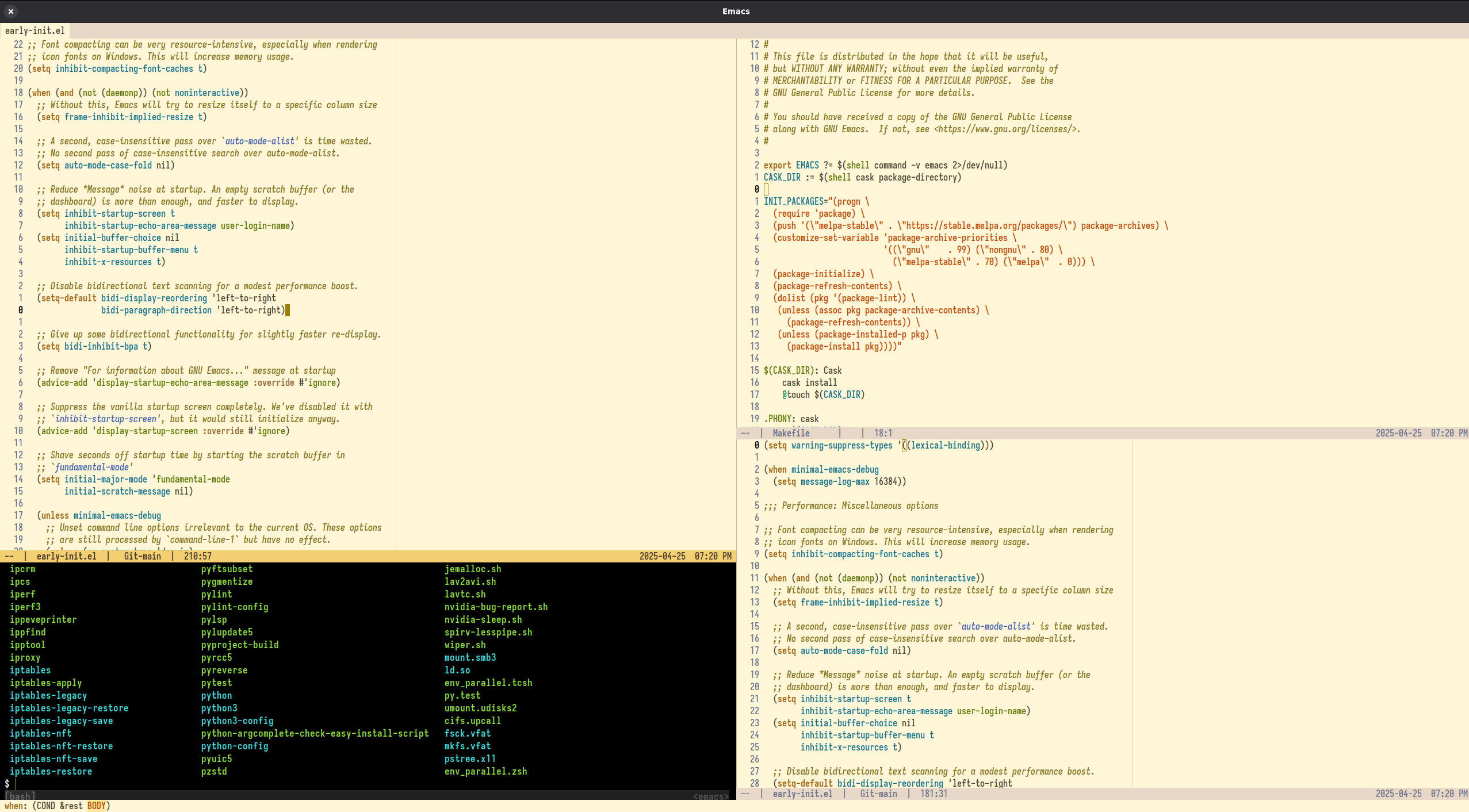
(The theme shown in the screenshot above is ef-melissa-light, which is part of the ef-themes collection available on MELPA.) (The theme shown in the screenshot above is doom-one, which is part of the doom-themes collection available on MELPA.) (The theme shown in the screenshot above is the tomorrow-night-deepblue-theme.el, available on MELPA.)
Startup Performance

The author uses minimal-emacs.d as his early-init.el and init.el, alongside 146 packages (See the packages that the author is using here). Yet, thanks to its efficient design, Emacs still starts in just 0.22 seconds:

Startup speed depends on hardware and disk speed. For consistent comparisons, test on the same computer and Emacs version. While startup time is significant, factors like native compilation are also important for long-term performance.

User Testimonials

  • DapperStatement3364: “Thank you!!! It helped me a lot. I was having some problems with my config (latency/input lag), was considering to going back to Neovim and your config solved my problems. Great documentation btw, everything is very clear and easy to follow.”
  • gnudoc on Reddit: “That’s a great learning resource. Thank you for your work on it and for sharing it!”
  • dewyke on Reddit: “Lots of good stuff in there, even for people who already have established ways of organising their configs.”
  • JamesBrickley (Shout out to this starter-kit: Minimal-Emacs ) appreciates that minimal-emacs.d provides an optimized early-init.el and init.el for fast startup times and sensible default settings. He highlights that the project includes all the essential configurations needed for a well-tuned Emacs setup, eliminating the need to sift through conflicting advice on topics like garbage collection optimization. While he has encountered similar settings before, he also discovered new optimizations he had not seen elsewhere.
  • Brandon Schneider (skarekrow): “…the minimal-emacs project is incredible. I love how documented it is as a beginner to learn from. Thank you for all the effort you’ve put into that and the other packages you maintain. It’s a huge boon to new users.”
  • Leading_Ad6415 commented on Reddit that after switching to minimal-emacs.d, their configuration execution time decreased from 3 seconds to just 1 second by simply replacing their init.el and early-init.el files with those from the project.
  • Another user commented on Reddit, highlighting how a minimal-emacs.d significantly enhanced their Emacs performance. They reported substantial startup time reductions on both their main machine (from ~2.25 to ~0.95 seconds) and an older laptop (from ~2.95 to ~1.27 seconds) while also experiencing a generally snappier performance within Emacs. The user expressed gratitude for the project, calling it fantastic.
  • Cyneox commented on Reddit, expressing gratitude for the resource and sharing their experience. They mentioned it was their fourth attempt to set up a vanilla configuration and highlighted that they had been using the repository as a foundation for their customizations over the past few days. They appreciated the absence of unexplained behavior and the clear instructions on where to place files. The user reported successful testing on both Linux and macOS, noting that everything functioned smoothly, including in the terminal.
  • Sebagabones on GitHub: “…let me say that I am loving minimal-emacs.d, it has been brilliant so far! :)”
  • Mlepnos1984 on Reddit: “I give you an A+ on documentation, the readme is great!”
  • rrajath on Reddit has been using the minimal-emacs.d config for the past several months and loves it. His previous setup used to take around 4 seconds to load, but with minimal-emacs.d, it now loads in just 1 second.
  • LionyxML on Reddit: “One of the best READMEs I’ve ever seen. Very good.”
  • cyneox on Reddit: “Still using it and loving it! Thanks for the regular updates.”
  • panchoh on GitHub: “…thank you, @jamescherti! Keep up the fantastic work you are doing!”
  • xzway on Reddit: “The minimal-emacs.d configuration is very well-designed and non-intrusive. I’m also using it to refactor my configuration.”
  • jeenajeena on Reddit: “Thank you. Plenty of inspiring settings. Worth to be read line by line.”
  • uutangohotel on Reddit: “I get a lot out of minimal-emacs.d — thank you! I use stow to manage my dotfiles in a git repo. I created a submodule in one dir for minimal-emacs.d and another for my “overrides”, e.g. post-init.el. Easy and works great.”
  • sunng on Reddit: “Nice work! I just created a nix flake to using it on my dev servers”
  • zackattackz287 on Reddit: “Congrats and thank you (and the community around minimal.d) for your work! I’ve been using it for quite a while now and I’ve not ever had any breakages when merging changes from main…”
  • utility on Reddit: “Excellent. I use this and I’m very happy with it!”
  • Karrot_Kream: “If you don’t want to use a distribution like Doom (which I don’t fwiw and I’ve been using emacs for 20-something years), then I’m a big fan of minimal-emacs a compact init.el and early-init.el that configures vanilla emacs into a good, default state. From there I would pick and choose which packages…”
  • uutangohotel: “https://github.com/jamescherti/minimal-emacs.d is a great starting point for owning your config.”
  • kleinishere: “Came here to find this. MANY upvotes. I used Doom for a couple months. Then started considering a vanilla eMacs. I started taking notes on packages I found highly recommended and interesting. Then I found this [minimal-emacs.d]. And the author has done all that work and then made it into a “let me walk through a config” including a lot of the most recommended packages and sensible configs. Gives you the lesson of building a config, knowing what’s in your config, and then being fluent in changing it. He also has more notes on his blog about the packages + more : https://www.jamescherti.com/essential-emacs-packages/ And I now feel comfortable making changes myself.”
  • microamp: “…thanks for creating and maintaining the project. It’s been my favourite starter kit for Emacs by far.”
  • dewyke: “I spent the weekend migrating to this and it’s been brilliant, thank you. “
  • NagNawed: “I love this. Great starting point, even better than some of the distros (if you are not using evil mode)…”
  • JamesBrickley: “I’m really enjoying James Cherti’s Minimal-Emacs.d, Compile-Angle, Easy-Session, and Buffer-Terminator packages.”
  • david-bakin: “This emacs-starter-kit framework is fantastic. After years … actually, decades … of just using someone else’s .emacs.d configuration and then using emacs in a limited way (only to edit text and code and doing everything else at the command line or via other tools) I am now fully transitioning to Emacs as my everything and of all the frameworks I looked at this is the one I can really understand. (And your personal support obviously is part of that.) I’m working through init.el line-by-line (having already done early-init.el) and not only am I getting a better picture of Emacs customization than I’ve ever had, I’m actually configuring Emacs the way I really like, now that I’m learning what the knobs I can turn are.”

Please share your configuration. It could serve as inspiration for other users.

Install minimal-emacs.d

  • Important: Ensure that the ~/.emacs and ~/.emacs.el files do not exist. These files cause Emacs to ignore ~/.emacs.d/init.el. This behavior is due to the way Emacs searches for initialization files (more information). Simply delete the ~/.emacs and ~/.emacs.el files avoid this issue.
  • Debug: If a package or any other functionality is not working as expected, start Emacs with emacs --debug-init to enable debug mode and obtain the backtrace.
  • Prerequisite: git

Install minimal-emacs.d into ~/.emacs.d

Execute the following command install this repository into ~/.emacs.d:

git clone --depth 1 https://github.com/jamescherti/minimal-emacs.d ~/.emacs.d

Alternative: Install minimal-emacs.d into ~/.minimal-emacs.d

To install minimal-emacs.d in a non-default directory, use the --init-directory Emacs option to specify your desired configuration path. For example, to install minimal-emacs.d in ~/.minimal-emacs.d/, follow these steps:

  1. Clone the repository into ~/.minimal-emacs.d/ using:

    git clone --depth 1 https://github.com/jamescherti/minimal-emacs.d ~/.minimal-emacs.d
  2. Start Emacs with the new configuration directory:

    emacs --init-directory ~/.minimal-emacs.d/

Update minimal-emacs.d

To keep your Emacs configuration up to date, you can pull the latest changes from the repository. Run the following command in your terminal:

git -C ~/.emacs.d pull

Customizations: Never modify init.el and early-init.el. Modify these instead…

The init.el and early-init.el files should never be modified directly because they are intended to be managed by Git during an update.

The minimal-emacs.d init files support additional customization files that are loaded at different stages of the Emacs startup process. These files allow you to further customize the initialization sequence:

  • ~/.emacs.d/pre-init.el: This file is loaded before init.el. Use it to set up variables or configurations that need to be available early in the initialization process but after early-init.el.

  • ~/.emacs.d/post-init.el: This file is loaded after init.el. It is useful for additional configurations or package setups that depend on the configurations in init.el.

  • ~/.emacs.d/pre-early-init.el: This file is loaded before early-init.el. Use it for configurations that need to be set even earlier in the startup sequence, typically affecting the initial setup of the Emacs environment.

  • ~/.emacs.d/post-early-init.el: This file is loaded after early-init.el but before init.el. It is useful for setting up configurations that depend on the early initialization but need to be set before the main initialization begins.

Always begin your pre-init.el, post-init.el, post-early-init.el, and pre-early-init.el files with the following header to prevent them from being byte-compiled and to activate lexical binding:

;;; FILENAME.el --- DESCRIPTION -*- no-byte-compile: t; lexical-binding: t; -*-

Replace FILENAME.el with the actual name and DESCRIPTION with a brief description of its purpose.

(Only if you know what you’re doing: Removing no-byte-compile: t; from your init files allows Emacs to compile them, improving load and execution speed. However, if you do so, you may need to add required dependencies. For example, if you’re using use-package, add (require 'use-package) at the top of post-init.el to ensure all necessary use-package variables and functions are loaded. The only init file where no-byte-compile: t should never be removed is early-init.el, because if this file is compiled, Emacs may load an outdated compiled version.)

Important: The examples in this README reference pre/post init files in the ~/.emacs.d/ directory, but the files pre-early-init.el, post-early-init.el, pre-init.el, and post-init.el should be placed in the same directory as init.el and early-init.el, regardless of their location.

Recommendations

Always defer package loading

All use-package declarations in this README use deferred loading, so you can safely copy and paste them into your configuration.

To ensure your configuration remains fast and responsive, always defer package loading so that libraries are initialized only when they are needed. The use-package macro makes this effortless; simply adding :commands or :bind to your package declarations automatically configures them for deferred loading.

Customizations: UI (File: pre-early-init.el)

How to enable the menu-bar, the tool-bar, dialogs, the contextual menu, and tooltips?

Note: Enabling the tool-bar or menu-bar may slightly increase your startup time.

To customize your Emacs setup to include various user interface elements, you can use the following settings in your ~/.emacs.d/pre-early-init.el:

(setq minimal-emacs-ui-features '(context-menu tool-bar menu-bar dialogs tooltips))

These settings control the visibility of dialogs, context menus, toolbars, menu bars, and tooltips.

Reducing clutter in ~/.emacs.d by redirecting files to ~/.emacs.d/var/

Emacs, by default, stores various configuration files, caches, backups, and other data in the ~/.emacs.d directory. Over time, this directory can become cluttered with numerous files, making it difficult to manage and maintain.

A common solution to this issue is installing the no-littering package; however, this package is not essential.

An alternative lightweight approach is to simply change the default ~/.emacs.d directory to ~/.emacs.d/var/, which will contain all the files that Emacs typically stores in the base directory. This can be accomplished by adding the following code to ~/.emacs.d/pre-early-init.el:

;;; Reducing clutter in ~/.emacs.d by redirecting files to ~/.emacs.d/var/
;; NOTE: This must be placed in 'pre-early-init.el'.
(setq user-emacs-directory (expand-file-name "var/" minimal-emacs-user-directory))
(setq package-user-dir (expand-file-name "elpa" user-emacs-directory))

IMPORTANT: The code above should be added to ~/.emacs.d/pre-early-init.el, not the other files, as it modifies the behavior of all subsequent init files.

Customizations: Packages (File: post-init.el)

This README.md offers guidance on installing optional external packages. While Emacs and minimal-emacs.d are fully functional without them, the recommended packages can enhance your experience and introduce additional features, which is why they are suggested.

Optimization: Native Compilation

Native compilation enhances Emacs performance by converting Elisp code into native machine code, resulting in faster execution and improved responsiveness.

  1. To check if native compilation is enabled, evaluate:

    (native-comp-available-p)

    (A non-nil result indicates that native compilation is available.)

  2. Ensure all libraries are byte-compiled and native-compiled using compile-angel.el. To install compile-angel, add the following code to the ~/.emacs.d/post-init.el file:

;; Native compilation enhances Emacs performance by converting Elisp code into
;; native machine code, resulting in faster execution and improved
;; responsiveness.
;;
;; Ensure adding the following compile-angel code at the very beginning
;; of your `~/.emacs.d/post-init.el` file, before all other packages.
(use-package compile-angel
  :demand t
  :config
  ;; The following disables compilation of packages during installation;
  ;; compile-angel will handle it.
  (setq package-native-compile nil)

  ;; Set `compile-angel-verbose' to nil to disable compile-angel messages.
  ;; (When set to nil, compile-angel won't show which file is being compiled.)
  (setq compile-angel-verbose t)

  ;; The following directive prevents compile-angel from compiling your init
  ;; files. If you choose to remove this push to `compile-angel-excluded-files'
  ;; and compile your pre/post-init files, ensure you understand the
  ;; implications and thoroughly test your code. For example, if you're using
  ;; the `use-package' macro, you'll need to explicitly add:
  ;; (eval-when-compile (require 'use-package))
  ;; at the top of your init file.
  (push "/init.el" compile-angel-excluded-files)
  (push "/early-init.el" compile-angel-excluded-files)
  (push "/pre-init.el" compile-angel-excluded-files)
  (push "/post-init.el" compile-angel-excluded-files)
  (push "/pre-early-init.el" compile-angel-excluded-files)
  (push "/post-early-init.el" compile-angel-excluded-files)

  ;; A local mode that compiles .el files whenever the user saves them.
  ;; (add-hook 'emacs-lisp-mode-hook #'compile-angel-on-save-local-mode)

  ;; A global mode that compiles .el files prior to loading them via `load' or
  ;; `require'. Additionally, it compiles all packages that were loaded before
  ;; the mode `compile-angel-on-load-mode' was activated.
  (compile-angel-on-load-mode 1))

Environment Variable Synchronization (Essential for macOS users)

On macOS, GUI applications (launched from the Finder, Dock, or Spotlight) do not inherit the user’s shell environment variables by default. This often causes errors where Emacs cannot find external tools like git, grep, pip, or language servers (LSP), even if they work perfectly in your terminal.

To fix this, add exec-path-from-shell to ~/.emacs.d/post-init.el:

(use-package exec-path-from-shell
  :if (and (or (display-graphic-p) (daemonp))
           (eq system-type 'darwin)) ; macOS only
  :demand t
  :functions exec-path-from-shell-initialize
  :config
  (dolist (var '("TMPDIR"
                 "SSH_AUTH_SOCK" "SSH_AGENT_PID"
                 "GPG_AGENT_INFO"
                 ;; "FZF_DEFAULT_COMMAND" "FZF_DEFAULT_OPTS" ; fzf
                 ;; "VIRTUAL_ENV" ; Python
                 ;; "GOPATH" "GOROOT" "GOBIN" ; Go
                 ;; "CARGO_HOME" "RUSTUP_HOME" ; Rust
                 ;; "NVM_DIR" "NODE_PATH" ; Node/JS
                 "LANG" "LC_CTYPE"))
    (add-to-list 'exec-path-from-shell-variables var))
  ;; Initialize
  (exec-path-from-shell-initialize))

File Management & History: recentf, savehist, saveplace, and auto-revert?

The recentf, savehist, saveplace, and auto-revert built-in packages are already configured by minimal-emacs.d. All you need to do is activate them by adding the following to ~/.emacs.d/post-init.el:

;; Auto-revert in Emacs is a feature that automatically updates the
;; contents of a buffer to reflect changes made to the underlying file
;; on disk.
(use-package autorevert
  :ensure nil
  :commands (auto-revert-mode global-auto-revert-mode)
  :hook
  (after-init . global-auto-revert-mode)
  :init
  ;; (setq auto-revert-verbose t)
  (setq auto-revert-interval 3)
  (setq auto-revert-remote-files nil)
  (setq auto-revert-use-notify t)
  (setq auto-revert-avoid-polling nil))

;; Recentf is an Emacs package that maintains a list of recently
;; accessed files, making it easier to reopen files you have worked on
;; recently.
(use-package recentf
  :ensure nil
  :commands (recentf-mode recentf-cleanup)
  :hook
  (after-init . recentf-mode)

  :init
  (setq recentf-auto-cleanup (if (daemonp) 300 'never))
  (setq recentf-exclude
        (list "\\.tar$" "\\.tbz2$" "\\.tbz$" "\\.tgz$" "\\.bz2$"
              "\\.bz$" "\\.gz$" "\\.gzip$" "\\.xz$" "\\.zip$"
              "\\.7z$" "\\.rar$"
              "COMMIT_EDITMSG\\'"
              "\\.\\(?:gz\\|gif\\|svg\\|png\\|jpe?g\\|bmp\\|xpm\\)$"
              "-autoloads\\.el$" "autoload\\.el$"))

  :config
  ;; A cleanup depth of -90 ensures that `recentf-cleanup' runs before
  ;; `recentf-save-list', allowing stale entries to be removed before the list
  ;; is saved by `recentf-save-list', which is automatically added to
  ;; `kill-emacs-hook' by `recentf-mode'.
  (add-hook 'kill-emacs-hook #'recentf-cleanup -90))

;; savehist is an Emacs feature that preserves the minibuffer history between
;; sessions. It saves the history of inputs in the minibuffer, such as commands,
;; search strings, and other prompts, to a file. This allows users to retain
;; their minibuffer history across Emacs restarts.
(use-package savehist
  :ensure nil
  :commands (savehist-mode savehist-save)
  :hook
  (after-init . savehist-mode)
  :init
  (setq history-length 300)
  (setq savehist-autosave-interval 600))

;; save-place-mode enables Emacs to remember the last location within a file
;; upon reopening. This feature is particularly beneficial for resuming work at
;; the precise point where you previously left off.
(use-package saveplace
  :ensure nil
  :commands (save-place-mode save-place-local-mode)
  :hook
  (after-init . save-place-mode)
  :init
  (setq save-place-limit 400))

Safety: Auto-Save

auto-save-mode (Prevent data loss in case of crashes)

Enabling auto-save-mode mitigates the risk of data loss in the event of a crash. Auto-saved data can be recovered using the recover-file or recover-session functions.

To enable autosave, add the following to ~/.emacs.d/post-init.el:

;; Enable `auto-save-mode' to prevent data loss. Use `recover-file' or
;; `recover-session' to restore unsaved changes.
(setq auto-save-default t)

;; Trigger an auto-save after 300 keystrokes
(setq auto-save-interval 300)

;; Trigger an auto-save 30 seconds of idle time.
(setq auto-save-timeout 30)

auto-save-visited-mode (Save file buffers after a few seconds of inactivity)

When auto-save-visited-mode is enabled, Emacs will auto-save file-visiting buffers after a certain amount of idle time if the user forgets to save it with save-buffer or C-x s for example.

This is different from auto-save-mode: auto-save-mode periodically saves all modified buffers, creating backup files, including those not associated with a file, while auto-save-visited-mode only saves file-visiting buffers after a period of idle time, directly saving to the file itself without creating backup files.

;; When auto-save-visited-mode is enabled, Emacs will auto-save file-visiting
;; buffers after a certain amount of idle time if the user forgets to save it
;; with save-buffer or C-x s for example.
;;
;; This is different from auto-save-mode: auto-save-mode periodically saves
;; all modified buffers, creating backup files, including those not associated
;; with a file, while auto-save-visited-mode only saves file-visiting buffers
;; after a period of idle time, directly saving to the file itself without
;; creating backup files.
(setq auto-save-visited-interval 5)   ; Save after 5 seconds if inactivity
(auto-save-visited-mode 1)

Completion System (Corfu, Vertico, Consult)

Corfu enhances in-buffer completion by displaying a compact popup with current candidates, positioned either below or above the point. Candidates can be selected by navigating up or down.

Cape, or Completion At Point Extensions, extends the capabilities of in-buffer completion. It integrates with Corfu or the default completion UI, by providing additional backends through completion-at-point-functions.

To configure corfu and cape, add the following to ~/.emacs.d/post-init.el:

;; Corfu enhances in-buffer completion by displaying a compact popup with
;; current candidates, positioned either below or above the point. Candidates
;; can be selected by navigating up or down.
(use-package corfu
  :commands (corfu-mode global-corfu-mode)

  :hook ((prog-mode . corfu-mode)
         (shell-mode . corfu-mode)
         (eshell-mode . corfu-mode))

  :custom
  ;; Hide commands in M-x which do not apply to the current mode.
  (read-extended-command-predicate #'command-completion-default-include-p)
  ;; Disable Ispell completion function. As an alternative try `cape-dict'.
  (text-mode-ispell-word-completion nil)
  (tab-always-indent 'complete)

  ;; Enable Corfu
  :config
  (global-corfu-mode))

;; Cape, or Completion At Point Extensions, extends the capabilities of
;; in-buffer completion. It integrates with Corfu or the default completion UI,
;; by providing additional backends through completion-at-point-functions.
(use-package cape
  :commands (cape-dabbrev cape-file cape-elisp-block)
  :bind ("C-c p" . cape-prefix-map)
  :init
  ;; Add to the global default value of `completion-at-point-functions' which is
  ;; used by `completion-at-point'.
  (add-hook 'completion-at-point-functions #'cape-dabbrev)
  (add-hook 'completion-at-point-functions #'cape-file)
  (add-hook 'completion-at-point-functions #'cape-elisp-block))

Vertico, Consult, Marginalia, and Embark

Vertico, Consult, and Embark collectively enhance Emacs’ completion and navigation capabilities.

Vertico provides a vertical completion interface, making it easier to navigate and select from completion candidates (e.g., when M-x is pressed).

Consult offers a suite of commands for efficient searching, previewing, and interacting with buffers, file contents, and more, improving various tasks.

Embark integrates with these tools to provide context-sensitive actions and quick access to commands based on the current selection, further improving user efficiency and workflow within Emacs. Together, they create a cohesive and powerful environment for managing completions and interactions.

Add the following to ~/.emacs.d/post-init.el to set up Vertico, Consult, and Embark:

;; Vertico provides a vertical completion interface, making it easier to
;; navigate and select from completion candidates (e.g., when `M-x` is pressed).
(use-package vertico
  ;; (Note: It is recommended to also enable the savehist package.)
  :config
  (vertico-mode))

;; Vertico leverages Orderless' flexible matching capabilities, allowing users
;; to input multiple patterns separated by spaces, which Orderless then
;; matches in any order against the candidates.
(use-package orderless
  :custom
  (completion-styles '(orderless basic))
  (completion-category-defaults nil)
  (completion-category-overrides '((file (styles partial-completion)))))

;; Marginalia allows Embark to offer you preconfigured actions in more contexts.
;; In addition to that, Marginalia also enhances Vertico by adding rich
;; annotations to the completion candidates displayed in Vertico's interface.
(use-package marginalia
  :commands (marginalia-mode marginalia-cycle)
  :hook (after-init . marginalia-mode))

;; Embark integrates with Consult and Vertico to provide context-sensitive
;; actions and quick access to commands based on the current selection, further
;; improving user efficiency and workflow within Emacs. Together, they create a
;; cohesive and powerful environment for managing completions and interactions.
(use-package embark
  ;; Embark is an Emacs package that acts like a context menu, allowing
  ;; users to perform context-sensitive actions on selected items
  ;; directly from the completion interface.
  :commands (embark-act
             embark-dwim
             embark-export
             embark-collect
             embark-bindings
             embark-prefix-help-command)
  :bind
  (("C-." . embark-act)         ;; pick some comfortable binding
   ("C-;" . embark-dwim)        ;; good alternative: M-.
   ("C-h B" . embark-bindings)) ;; alternative for `describe-bindings'

  :init
  (setq prefix-help-command #'embark-prefix-help-command)

  :config
  ;; Hide the mode line of the Embark live/completions buffers
  (add-to-list 'display-buffer-alist
               '("\\`\\*Embark Collect \\(Live\\|Completions\\)\\*"
                 nil
                 (window-parameters (mode-line-format . none)))))

(use-package embark-consult
  :hook
  (embark-collect-mode . consult-preview-at-point-mode))

;; Consult offers a suite of commands for efficient searching, previewing, and
;; interacting with buffers, file contents, and more, improving various tasks.
(use-package consult
  :bind (;; C-c bindings in `mode-specific-map'
         ("C-c M-x" . consult-mode-command)
         ("C-c h" . consult-history)
         ("C-c k" . consult-kmacro)
         ("C-c m" . consult-man)
         ("C-c i" . consult-info)
         ([remap Info-search] . consult-info)
         ;; C-x bindings in `ctl-x-map'
         ("C-x M-:" . consult-complex-command)
         ("C-x b" . consult-buffer)
         ("C-x 4 b" . consult-buffer-other-window)
         ("C-x 5 b" . consult-buffer-other-frame)
         ("C-x t b" . consult-buffer-other-tab)
         ("C-x r b" . consult-bookmark)
         ("C-x p b" . consult-project-buffer)
         ;; Custom M-# bindings for fast register access
         ("M-#" . consult-register-load)
         ("M-'" . consult-register-store)
         ("C-M-#" . consult-register)
         ;; Other custom bindings
         ("M-y" . consult-yank-pop)
         ;; M-g bindings in `goto-map'
         ("M-g e" . consult-compile-error)
         ("M-g f" . consult-flymake)
         ("M-g g" . consult-goto-line)
         ("M-g M-g" . consult-goto-line)
         ("M-g o" . consult-outline)
         ("M-g m" . consult-mark)
         ("M-g k" . consult-global-mark)
         ("M-g i" . consult-imenu)
         ("M-g I" . consult-imenu-multi)
         ;; M-s bindings in `search-map'
         ("M-s d" . consult-find)
         ("M-s c" . consult-locate)
         ("M-s g" . consult-grep)
         ("M-s G" . consult-git-grep)
         ("M-s r" . consult-ripgrep)
         ("M-s l" . consult-line)
         ("M-s L" . consult-line-multi)
         ("M-s k" . consult-keep-lines)
         ("M-s u" . consult-focus-lines)
         ;; Isearch integration
         ("M-s e" . consult-isearch-history)
         :map isearch-mode-map
         ("M-e" . consult-isearch-history)
         ("M-s e" . consult-isearch-history)
         ("M-s l" . consult-line)
         ("M-s L" . consult-line-multi)
         ;; Minibuffer history
         :map minibuffer-local-map
         ("M-s" . consult-history)
         ("M-r" . consult-history))

  ;; Enable automatic preview at point in the *Completions* buffer.
  :hook (completion-list-mode . consult-preview-at-point-mode)

  :init
  ;; Optionally configure the register formatting. This improves the register
  (setq register-preview-delay 0.5
        register-preview-function #'consult-register-format)

  ;; Optionally tweak the register preview window.
  (advice-add #'register-preview :override #'consult-register-window)

  ;; Use Consult to select xref locations with preview
  (setq xref-show-xrefs-function #'consult-xref
        xref-show-definitions-function #'consult-xref)

  ;; Aggressive asynchronous that yield instantaneous results. (suitable for
  ;; high-performance systems.) Note: Minad, the author of Consult, does not
  ;; recommend aggressive values.
  ;; Read: https://github.com/minad/consult/discussions/951
  ;;
  ;; However, the author of minimal-emacs.d uses these parameters to achieve
  ;; immediate feedback from Consult.
  ;; (setq consult-async-input-debounce 0.02
  ;;       consult-async-input-throttle 0.05
  ;;       consult-async-refresh-delay 0.02)

  :config
  (consult-customize
   consult-theme :preview-key '(:debounce 0.2 any)
   consult-ripgrep consult-git-grep consult-grep
   consult-bookmark consult-recent-file consult-xref
   consult-source-bookmark consult-source-file-register
   consult-source-recent-file consult-source-project-recent-file
   ;; :preview-key "M-."
   :preview-key '(:debounce 0.4 any))
  (setq consult-narrow-key "<"))

Enhancing undo/redo

The undo-fu package is a lightweight wrapper around Emacs’ built-in undo system, providing more convenient undo/redo functionality while preserving access to the full undo history. The undo-fu-session package complements undo-fu by enabling the saving and restoration of undo history across Emacs sessions, even after restarting.

The default undo system in Emacs has two main issues that undo-fu fixes:

  1. Redo requires two steps: To redo an action after undoing, you need to press a key twice, which can be annoying and inefficient.
  2. Accidental over-redo: When redoing, it’s easy to go too far back, past the point where you started the undo, which makes it hard to return to the exact state you wanted to restore.

To install and configure these packages, add the following to ~/.emacs.d/post-init.el:

;; The undo-fu package is a lightweight wrapper around Emacs' built-in undo
;; system, providing more convenient undo/redo functionality.
(use-package undo-fu
  :commands (undo-fu-only-undo
             undo-fu-only-redo
             undo-fu-only-redo-all
             undo-fu-disable-checkpoint)
  :config
  (global-unset-key (kbd "C-z"))
  (global-set-key (kbd "C-z") 'undo-fu-only-undo)
  (global-set-key (kbd "C-S-z") 'undo-fu-only-redo))

;; The undo-fu-session package complements undo-fu by enabling the saving
;; and restoration of undo history across Emacs sessions, even after restarting.
(use-package undo-fu-session
  :commands undo-fu-session-global-mode
  :hook (after-init . undo-fu-session-global-mode))

Changing the default theme

For instance, to switch to a another theme than the default one, add the following to the ~/.emacs.d/post-init.el file:

(let ((inhibit-redisplay t))
  ;; Disable all active themes
  (mapc #'disable-theme custom-enabled-themes)
  ;; Load the built-in theme
  (load-theme 'modus-operandi t))

(If you prefer dark themes, replace modus-operandi with modus-vivendi.)

Emacs includes several built-in themes that you can use without installing additional packages:

  • tango-dark (Face colors using the Tango palette. Dark background.)
  • tango (Face colors using the Tango palette. Light background.)
  • modus-operandi
  • modus-operandi-deuteranopia
  • modus-operandi-tinted
  • modus-operandi-tritanopia
  • modus-vivendi
  • modus-vivendi-deuteranopia
  • modus-vivendi-tinted
  • modus-vivendi-tritanopia
  • tsdh-dark (A dark theme used and created by Tassilo Horn.)
  • tsdh-light (A light Emacs theme.)
  • adwaita (Face colors similar to the default theme of Gnome 3 / Adwaita.)
  • deeper-blue (Face colors using a deep blue background.)
  • dichromacy (Face colors suitable for red/green color-blind users.)
  • leuven-dark (Face colors with a dark background.)
  • leuven (Face colors with a light background.)
  • light-blue (Face colors utilizing a light blue background.)
  • manoj-dark (Very high contrast faces with a black background.)
  • misterioso (Predominantly blue/cyan faces on a dark cyan background.)
  • wheatgrass (High-contrast green/blue/brown faces on a black background.)
  • whiteboard (Face colors similar to markers on a whiteboard.)
  • wombat (Medium-contrast faces with a dark gray background.)

(To experiment with different themes, use M-x customize-themes.)

If you’re interested in exploring third-party Emacs themes, consider the following:

  • ef-themes (available on MELPA): A collection of light and dark themes for GNU Emacs, designed to offer colorful yet highly legible options. They are aimed at users seeking something with more visual flair compared to the more minimalist modus-themes.
  • doom-themes (available on MELPA): An extensive collection of high-quality, visually appealing themes for Emacs, designed to offer a sleek and modern aesthetic, while drawing inspiration from popular community themes.
  • tomorrow-night-deepblue-theme (available on MELPA): A beautiful deep blue variant of the Tomorrow Night theme, which is renowned for its elegant color palette. It features a deep blue background color that creates a calming atmosphere. This theme is a great choice for those who miss the blue themes that were trendy a few years ago. (The theme was inspired by classic text editors such as QuickBASIC, RHIDE, and Turbo Pascal, as well as tools such as Midnight Commander.)

Configuring Vim keybindings using Evil?

Configuring Vim keybindings in Emacs can greatly enhance your editing efficiency if you are accustomed to Vim’s modal editing style. Add the following to ~/.emacs.d/post-init.el to set up Evil mode:

;; Uncomment the following if you are using undo-fu
;; (setq evil-undo-system 'undo-fu)

;; Vim emulation
(use-package evil
  :commands (evil-mode evil-define-key)
  :hook (after-init . evil-mode)

  :init
  ;; It has to be defined before evil
  (setq evil-want-integration t)
  (setq evil-want-keybinding nil)

  :custom
  ;; Make :s in visual mode operate only on the actual visual selection
  ;; (character or block), instead of the full lines covered by the selection
  (evil-ex-visual-char-range t)
  ;; Use Vim-style regular expressions in search and substitute commands,
  ;; allowing features like \v (very magic), \zs, and \ze for precise matches
  (evil-ex-search-vim-style-regexp t)
  ;; Enable automatic horizontal split below
  (evil-split-window-below t)
  ;; Enable automatic vertical split to the right
  (evil-vsplit-window-right t)
  ;; Disable echoing Evil state to avoid replacing eldoc
  (evil-echo-state nil)
  ;; Do not move cursor back when exiting insert state
  (evil-move-cursor-back nil)
  ;; Make `v$` exclude the final newline
  (evil-v$-excludes-newline t)
  ;; Allow C-h to delete in insert state
  (evil-want-C-h-delete t)
  ;; Enable C-u to delete back to indentation in insert state
  (evil-want-C-u-delete t)
  ;; Enable fine-grained undo behavior
  (evil-want-fine-undo t)
  ;; Disable wrapping of search around buffer
  (evil-search-wrap nil)
  ;; Whether Y yanks to the end of the line
  (evil-want-Y-yank-to-eol t))

(use-package evil-collection
  :after evil
  :init
  ;; It has to be defined before evil-collection
  (setq evil-collection-setup-minibuffer t)
  :config
  (evil-collection-init))

;; The goto-chg package is useful with Evil to jump directly to the most recent
;; edit location. This mirrors Vim's change navigation, allowing fast return to
;; where text was last modified without relying on the jump list or search.
;;
;; The goto-chg commands are bound to g; and g,
(use-package goto-chg
  :commands (goto-last-change
             goto-last-change-reverse))

You can also install the vim-tab-bar package to enhance the built-in Emacs tab-bar with a minimalist, Vim-inspired design that automatically adapts to the active Emacs theme. Beyond its Vim-inspired design, the vim-tab-bar package is valued by users who prioritize theme consistency, as it integrates the Emacs tab-bar with any Emacs theme, producing a visually coherent and polished interface:

;; Give Emacs tab-bar a style similar to Vim's
(use-package vim-tab-bar
  :commands vim-tab-bar-mode
  :hook (after-init . vim-tab-bar-mode))

(The screenshot above showcases how vim-tab-bar modifies the built-in Emacs tab-bar.)

The evil-surround package simplifies handling surrounding characters, such as parentheses, brackets, quotes, etc. It provides key bindings to easily add, change, or delete these surrounding characters in pairs. For instance, you can surround the currently selected text with double quotes in visual state using S" or gS":

;; The evil-surround package simplifies handling surrounding characters, such as
;; parentheses, brackets, quotes, etc. It provides key bindings to easily add,
;; change, or delete these surrounding characters in pairs. For instance, you
;; can surround the currently selected text with double quotes in visual state
;; using S" or gS".
(use-package evil-surround
  :after evil
  :commands global-evil-surround-mode
  :custom
  (evil-surround-pairs-alist
   '((?\( . ("(" . ")"))
     (?\[ . ("[" . "]"))
     (?\{ . ("{" . "}"))

     (?\) . ("(" . ")"))
     (?\] . ("[" . "]"))
     (?\} . ("{" . "}"))

     (?< . ("<" . ">"))
     (?> . ("<" . ">"))))
  :hook (after-init . global-evil-surround-mode))

You can also add the following code to enable commenting and uncommenting by pressing gcc in normal mode and gc in visual mode (thanks you to the Reddit user u/mistakenuser for this contribution, which replaces the evil-commentary package):

;; The following code enables commenting and uncommenting by pressing gcc in
;; normal mode and gc in visual mode.
(with-eval-after-load "evil"
  (evil-define-operator my-evil-comment-or-uncomment (beg end)
    "Toggle comment for the region between BEG and END."
    (interactive "<r>")
    (comment-or-uncomment-region beg end))
  (evil-define-key 'normal 'global (kbd "gc") 'my-evil-comment-or-uncomment))

Persisting and Restoring all buffers, windows/split, tab-bar, frames…

The easysession package provides a comprehensive session management for Emacs. It is capable of persisting and restoring file-visiting buffers, indirect buffers (clones), buffer narrowing, Dired buffers, window configurations, the built-in tab-bar (including tabs, their buffers, and associated windows), as well as entire Emacs frames.

With easysession, your Emacs setup is restored automatically when you restart. All files, Dired buffers, and window layouts come back as they were, so you can continue working right where you left off. While editing, you can also switch to another session, switch back, rename sessions, or delete them, giving you full control over multiple work environments.

Easysession also supports extensions, enabling the restoration of Magit buffers and the scratch buffer. Custom extensions can also be created to extend its functionality.

To configure easysession, add the following to ~/.emacs.d/post-init.el:

;; The easysession Emacs package is a session manager for Emacs that can persist
;; and restore file editing buffers, indirect buffers/clones, Dired buffers,
;; windows/splits, the built-in tab-bar (including tabs, their buffers, and
;; windows), and Emacs frames. It offers a convenient and effortless way to
;; manage Emacs editing sessions and utilizes built-in Emacs functions to
;; persist and restore frames.
(use-package easysession
  :commands (easysession-switch-to
             easysession-save-as
             easysession-save-mode
             easysession-load-including-geometry)

  :custom
  (easysession-mode-line-misc-info t)  ; Display the session in the modeline
  (easysession-save-interval (* 10 60))  ; Save every 10 minutes

  :init
  ;; Key mappings
  (global-set-key (kbd "C-c ss") #'easysession-save)
  (global-set-key (kbd "C-c sl") #'easysession-switch-to)
  (global-set-key (kbd "C-c sL") #'easysession-switch-to-and-restore-geometry)
  (global-set-key (kbd "C-c sr") #'easysession-rename)
  (global-set-key (kbd "C-c sR") #'easysession-reset)
  (global-set-key (kbd "C-c sd") #'easysession-delete)

  (if (fboundp 'easysession-setup)
      ;; The `easysession-setup' function adds hooks:
      ;; - To enable automatic session loading during `emacs-startup-hook', or
      ;;   `server-after-make-frame-hook' when running in daemon mode.
      ;; - To automatically save the session at regular intervals, and when
      ;;   Emacs exits.
      (easysession-setup)
    ;; Legacy
    ;; The depth 102 and 103 have been added to to `add-hook' to ensure that the
    ;; session is loaded after all other packages. (Using 103/102 is
    ;; particularly useful for those using minimal-emacs.d, where some
    ;; optimizations restore `file-name-handler-alist` at depth 101 during
    ;; `emacs-startup-hook`.)
    (add-hook 'emacs-startup-hook #'easysession-load-including-geometry 102)
    (add-hook 'emacs-startup-hook #'easysession-save-mode 103)))

Configuring markdown-mode (e.g., README.md syntax)

The markdown-mode package provides a major mode for Emacs for syntax highlighting, editing commands, and preview support for Markdown documents. It supports core Markdown syntax as well as extensions like GitHub Flavored Markdown (GFM).

To configure markdown-mode, add the following to ~/.emacs.d/post-init.el:

;; The markdown-mode package provides a major mode for Emacs for syntax
;; highlighting, editing commands, and preview support for Markdown documents.
;; It supports core Markdown syntax as well as extensions like GitHub Flavored
;; Markdown (GFM).
(use-package markdown-mode
  :commands (gfm-mode
             gfm-view-mode
             markdown-mode
             markdown-view-mode)
  :mode (("\\.markdown\\'" . markdown-mode)
         ("\\.md\\'" . markdown-mode)
         ("README\\.md\\'" . gfm-mode))
  :bind
  (:map markdown-mode-map
        ("C-c C-e" . markdown-do)))

This configuration sets up markdown-mode with deferred loading to improve startup performance. The :commands and :mode keywords ensure that the mode is loaded only when needed—for example, when opening .md, .markdown, or README.md files. Files named README.md are specifically associated with gfm-mode, which is for GitHub Flavored Markdown syntax. The markdown-command variable is set to "multimarkdown" to specify the Markdown processor used for previews and exports. Additionally, a keybinding (C-c C-e) is defined in markdown-mode-map to invoke markdown-do, which can be customized to perform common Markdown-related actions.

Table of contents: To generate a table of contents when editing Markdown files, add the following to your ~/.emacs.d/post-init.el:

;; Automatically generate a table of contents when editing Markdown files
(use-package markdown-toc
  :commands (markdown-toc-generate-toc
             markdown-toc-generate-or-refresh-toc
             markdown-toc-delete-toc
             markdown-toc--toc-already-present-p)
  :custom
  (markdown-toc-header-toc-title "**Table of Contents**"))

Once installed:

  • To insert a table of contents for the first time, run: M-x markdown-toc-generate-toc
  • To update an existing table of contents, run: M-x markdown-toc-generate-or-refresh-toc
  • To remove an existing table of contents, run: M-x markdown-toc-delete-toc

These commands work on any Markdown buffer and rely on properly formatted headers (e.g., #, ##) to build the table of contents.

The author also recommends reading the following article: Emacs: Automating Table of Contents Update for Markdown Documents (e.g., README.md).

Code folding

NOTE: The following article provides a comprehensive guide on installing and enabling the supported folding modes: The Definitive Guide to Code Folding in Emacs.

Kirigami: A unified interface for opening and closing folds

The kirigami package provides a unified method to fold and unfold text in Emacs across a diverse set of Emacs modes.

Supported modes include: outline-mode, outline-minor-mode, outline-indent-minor-mode, org-mode, markdown-mode, gfm-mode, vdiff-mode, vdiff-3way-mode, hide-ifdef-mode, vimish-fold-mode, TeX-fold-mode (AUCTeX), fold-this-mode, origami-mode, yafolding-mode, folding-mode, ts-fold-mode, treesit-fold-mode, and hs-minor-mode (hideshow).

With Kirigami, folding key bindings only need to be configured once. After that, the same keys work consistently across all supported major and minor modes, providing a unified and predictable experience for opening and closing folds. The available commands include:

  • kirigami-open-fold: Open the fold at point.
  • kirigami-open-fold-rec: Open the fold at point recursively.
  • kirigami-close-fold: Close the fold at point.
  • kirigami-open-folds: Open all folds in the buffer.
  • kirigami-close-folds: Close all folds in the buffer.
  • kirigami-toggle-fold: Toggle the fold at point.

To configure kirigami, add the following to ~/.emacs.d/post-init.el:

(use-package kirigami
  :commands (kirigami-open-fold
             kirigami-open-fold-rec
             kirigami-close-fold
             kirigami-toggle-fold
             kirigami-open-folds
             kirigami-close-folds-except-current
             kirigami-close-folds)

  :bind
  (("C-c z o" . kirigami-open-fold)          ; Open fold at point
   ("C-c z O" . kirigami-open-fold-rec)      ; Open fold recursively
   ("C-c z r" . kirigami-open-folds)         ; Open all folds
   ("C-c z c" . kirigami-close-fold)         ; Close fold at point
   ("C-c z m" . kirigami-close-folds)        ; Close all folds
   ("C-c z a" . kirigami-toggle-fold)))      ; Toggle fold at point

;; Uncomment the following if you are an `evil-mode' user:
;; (with-eval-after-load 'evil
;;   (define-key evil-normal-state-map "zo" 'kirigami-open-fold)
;;   (define-key evil-normal-state-map "zO" 'kirigami-open-fold-rec)
;;   (define-key evil-normal-state-map "zc" 'kirigami-close-fold)
;;   (define-key evil-normal-state-map "za" 'kirigami-toggle-fold)
;;   (define-key evil-normal-state-map "zr" 'kirigami-open-folds)
;;   (define-key evil-normal-state-map "zm" 'kirigami-close-folds))

With Kirigami, folding key bindings only need to be configured once. After that, the same keys work consistently across all supported major and minor modes, providing a unified and predictable experience for opening and closing folds.

In addition to unified interface for opening and closing folds, the kirigami package:

  • Enhances Visual Stability on Fold Opening and Closing: Preserves the cursor’s exact vertical position when expanding or collapsing headings, maintaining a constant relative distance between the cursor and the window start. This Kirigami enhancement avoids the disruptive window jump or forced re-centering commonly observed during bulk folding operations.
  • Enhances outline: Kirigami improves folding behavior in outline-mode, outline-minor-mode, markdown-mode, gfm-mode, and org-mode. It ensures that deep folds open reliably and permits closing folds even when the cursor is positioned within the content body. Additionally, it maintains window-start heading stability by automatically adjusting the scroll position to keep folded headings visible, preventing the context from disappearing when closing a fold that is partially scrolled off-screen.
  • Hooks for Folding Actions: Two hooks, kirigami-pre-action-predicates and kirigami-post-action-functions, let external code run before and after every folding operation. The pre-action hook runs just before a fold is opened or closed and can allow or block the action. The post-action hook runs once the change is complete and can be used to update UI elements or keep external packages in sync with the new folding state.

outline-minor-mode and hs-minor-mode

One of the modes that provide code folding is outline-minor-mode provides structured code folding in modes such as Emacs Lisp and Python, allowing users to collapse and expand sections based on headings or indentation levels. This feature enhances navigation and improves the management of large files with hierarchical structures.

Alternatively, hs-minor-mode offers basic code folding for blocks defined by curly braces, functions, or other language-specific delimiters. However, for more flexible folding that supports multiple nested levels, outline-minor-mode is generally the preferred choice, as it enables finer control over section visibility in deeply structured code.

For example, to enable outline-minor-mode:

;; The built-in outline-minor-mode provides structured code folding in modes
;; such as Emacs Lisp and Python, allowing users to collapse and expand sections
;; based on headings or indentation levels. This feature enhances navigation and
;; improves the management of large files with hierarchical structures.
(use-package outline
  :ensure nil
  :commands outline-minor-mode
  :hook
  (;; Use " ▼" instead of the default ellipsis "..." for folded text to make
   ;; folds more visually distinctive and readable.
   (outline-minor-mode
    .
    (lambda()
      (let* ((display-table (or buffer-display-table (make-display-table)))
             (face-offset (* (face-id 'shadow) (ash 1 22)))
             (value (vconcat (mapcar (lambda (c) (+ face-offset c)) " ▼"))))
        (set-display-table-slot display-table 'selective-display value)
        (setq buffer-display-table display-table))))))

;; Enable the mode
(add-hook 'emacs-lisp-mode-hook #'outline-minor-mode)
(add-hook 'lisp-mode-hook #'outline-minor-mode)
(add-hook 'conf-mode-hook #'outline-minor-mode)
(add-hook 'markdown-mode-hook #'outline-minor-mode)
(add-hook 'diff-mode-hook #'outline-minor-mode)

To enable hs-minor-mode, which is ideal for C-style languages and others that use braces {}:

(add-hook 'c-mode-hook #'hs-minor-mode)
(add-hook 'c++-mode-hook #'hs-minor-mode)
(add-hook 'java-mode-hook #'hs-minor-mode)
(add-hook 'sh-mode-hook #'hs-minor-mode)
(add-hook 'html-mode-hook #'hs-minor-mode)

outline-indent-minor-mode: Folding based on indentation levels

For folding based on indentation levels, the outline-indent Emacs package provides a minor mode that enables folding according to the indentation structure:

;; The outline-indent Emacs package provides a minor mode that enables code
;; folding based on indentation levels.
;; In addition to code folding, outline-indent allows:
;; - Moving indented blocks up and down
;; - Indenting/unindenting to adjust indentation levels
;; - Inserting a new line with the same indentation level as the current line
;; - Move backward/forward to the indentation level of the current line
;; - and other features.
(use-package outline-indent
  :commands outline-indent-minor-mode
  :custom
  (outline-indent-ellipsis " ▼"))

;; Python
(add-hook 'python-mode-hook #'outline-indent-minor-mode)
(add-hook 'python-ts-mode-hook #'outline-indent-minor-mode)

;; Yaml
(add-hook 'yaml-mode-hook #'outline-indent-minor-mode)
(add-hook 'yaml-ts-mode-hook #'outline-indent-minor-mode)

;; Haskell
(add-hook 'haskell-mode-hook #'outline-indent-minor-mode)
treesit-fold

It is also recommended to install treesit-fold, which provides intelligent code folding by using the structural understanding of the built-in tree-sitter parser. Unlike traditional folding methods that rely on regular expressions or indentation, treesit-fold uses the actual syntax tree of the code to accurately identify foldable regions such as functions, classes, comments, and documentation strings. This allows for faster and more precise folding behavior that respects the grammar of the programming language, ensuring that fold boundaries are always syntactically correct even in complex or nested code structures.

;; Intelligent code folding by using the structural understanding of the
;; built-in tree-sitter parser. Unlike traditional folding methods that rely on
;; regular expressions or indentation, treesit-fold uses the actual syntax tree
;; of the code to accurately identify foldable regions such as functions,
;; classes, comments, and documentation strings. This allows for faster and more
;; precise folding behavior that respects the grammar of the programming
;; language, ensuring that fold boundaries are always syntactically correct even
;; in complex or nested code structures.
(use-package treesit-fold
  :commands (treesit-fold-close
             treesit-fold-close-all
             treesit-fold-open
             treesit-fold-toggle
             treesit-fold-open-all
             treesit-fold-mode
             global-treesit-fold-mode
             treesit-fold-open-recursively
             treesit-fold-line-comment-mode)

  :custom
  (treesit-fold-line-count-show t)
  (treesit-fold-line-count-format " ▼")

  :config
  (set-face-attribute 'treesit-fold-replacement-face nil
                      :foreground "#808080"
                      :box nil
                      :weight 'bold))

;; A few examples
(add-hook 'c-ts-mode-hook #'treesit-fold-mode)
(add-hook 'c++-ts-mode-hook #'treesit-fold-mode)
(add-hook 'php-ts-mode-hook #'treesit-fold-mode)
(add-hook 'css-ts-mode-hook #'treesit-fold-mode)
(add-hook 'html-ts-mode-hook #'treesit-fold-mode)
(add-hook 'bash-ts-mode-hook #'treesit-fold-mode)

Asynchronous code formatting without cursor disruption

Apheleia is an Emacs package designed to run code formatters asynchronously without disrupting the cursor position. Code formatters like Shfmt, Black and Prettier ensure consistency and improve collaboration by automating formatting, but running them on save can introduce latency (e.g., Black takes around 200ms on an empty file) and unpredictably move the cursor when modifying nearby text.

Apheleia solves both problems across all languages, replacing language-specific packages like Blacken and prettier-js. It does this by invoking formatters in an after-save-hook, ensuring changes are applied only if the buffer remains unmodified.

To maintain cursor stability, Apheleia generates an RCS patch, applies it selectively, and employs a dynamic programming algorithm to reposition the cursor if necessary. If the formatting alters the vertical position of the cursor in the window, Apheleia adjusts the scroll position to preserve visual continuity across all displayed instances of the buffer. This allows enjoying automated code formatting without sacrificing editor responsiveness or usability.

To configure apheleia, add the following to ~/.emacs.d/post-init.el:

;; Apheleia is an Emacs package designed to run code formatters (e.g., Shfmt,
;; Black and Prettier) asynchronously without disrupting the cursor position.
(use-package apheleia
  :commands (apheleia-mode
             apheleia-global-mode)
  :hook ((prog-mode . apheleia-mode)))

Context-aware ‘go to definition’ functionality for 50+ programming languages

The dumb-jump package provides context-aware ‘go to definition’ functionality for 50+ programming languages without requiring a language server. It works by using simple heuristics and regular expression searches to locate the definitions of functions, variables, and symbols across project files.

Unlike more sophisticated language-aware tools (e.g., eglot or lsp-mode), dumb-jump' does not parse code semantically, which makes it lightweight and fast, but sometimes less precise. It integrates with popular navigation packages likexref’, allowing users to jump to definitions or references.

To configure dumb-jump, add the following to ~/.emacs.d/post-init.el:

(use-package dumb-jump
  :commands dumb-jump-xref-activate
  :init
  ;; Register `dumb-jump' as an xref backend so it integrates with
  ;; `xref-find-definitions'. A priority of 90 ensures it is used only when no
  ;; more specific backend is available.
  (add-hook 'xref-backend-functions #'dumb-jump-xref-activate 90)

  (setq dumb-jump-aggressive nil)
  ;; (setq dumb-jump-quiet t)

  ;; Number of seconds a rg/grep/find command can take before being warned to
  ;; use ag and config.
  (setq dumb-jump-max-find-time 3)

  ;; Use `completing-read' so that selection of jump targets integrates with the
  ;; active completion framework (e.g., Vertico, Ivy, Helm, Icomplete),
  ;; providing a consistent minibuffer-based interface whenever multiple
  ;; definitions are found.
  (setq dumb-jump-selector 'completing-read)

  ;; If ripgrep is available, force `dumb-jump' to use it because it is
  ;; significantly faster and more accurate than the default searchers (grep,
  ;; ag, etc.).
  (when (executable-find "rg")
    (setq dumb-jump-force-searcher 'rg)
    (setq dumb-jump-prefer-searcher 'rg)))

Efficient template expansion with snippets

The yasnippet package provides a template system that enhances text editing by enabling users to define and use snippets, which are predefined templates of code or text. The user triggers snippet expansion by pressing the Tab key after typing an abbreviation, such as if. Upon pressing Tab, YASnippet replaces the abbreviation with the corresponding full template, allowing the user to fill in placeholders or fields within the expanded snippet.

The yasnippet-snippets package with a comprehensive collection of bundled templates for numerous programming and markup languages, including C, C++, C#, Perl, Python, Ruby, SQL, LaTeX, HTML, CSS…

(NOTE: Users of UltiSnips, a popular snippet engine for Vim, can export their snippets to YASnippet format using the tool ultyas)

;; The official collection of snippets for yasnippet.
(use-package yasnippet-snippets
  :after yasnippet)

;; YASnippet is a template system designed that enhances text editing by
;; enabling users to define and use snippets. When a user types a short
;; abbreviation, YASnippet automatically expands it into a full template, which
;; can include placeholders, fields, and dynamic content.
(use-package yasnippet
  :commands (yas-minor-mode
             yas-global-mode)

  :hook
  (after-init . yas-global-mode)

  :custom
  (yas-also-auto-indent-first-line t)  ; Indent first line of snippet
  (yas-also-indent-empty-lines t)
  (yas-snippet-revival nil)  ; Setting this to t causes issues with undo
  (yas-wrap-around-region nil) ; Do not wrap region when expanding snippets
  ;; (yas-triggers-in-field nil)  ; Disable nested snippet expansion
  ;; (yas-indent-line 'fixed) ; Do not auto-indent snippet content
  ;; (yas-prompt-functions '(yas-no-prompt))  ; No prompt for snippet choices

  :init
  ;; Suppress verbose messages
  (setq yas-verbosity 0))

Spell checker

The flyspell package is a built-in Emacs minor mode that provides on-the-fly spell checking. It highlights misspelled words as you type, offering interactive corrections. In text modes, it checks the entire buffer, while in programming modes, it typically checks only comments and strings. It integrates with external spell checkers like aspell, hunspell, or ispell to provide suggestions and corrections.

NOTE: flyspell-mode can become slow when using Aspell, especially with large buffers or aggressive suggestion settings like --sug-mode=ultra. This slowdown occurs because Flyspell checks words dynamically as you type or navigate text, requiring frequent communication between Emacs and the external Aspell process. Each check involves sending words to Aspell and receiving results, which introduces overhead from process invocation and inter-process communication.

To configure flyspell, add the following to ~/.emacs.d/post-init.el:

;; The flyspell package is a built-in Emacs minor mode that provides
;; on-the-fly spell checking. It highlights misspelled words as you type,
;; offering interactive corrections. In text modes, it checks the entire buffer,
;; while in programming modes, it typically checks only comments and strings. It
;; integrates with external spell checkers like aspell, hunspell, or
;; ispell to provide suggestions and corrections.
;;
;; NOTE: flyspell-mode can become slow when using Aspell, especially with large
;; buffers or aggressive suggestion settings like --sug-mode=ultra. This
;; slowdown occurs because Flyspell checks words dynamically as you type or
;; navigate text, requiring frequent communication between Emacs and the
;; external Aspell process. Each check involves sending words to Aspell and
;; receiving results, which introduces overhead from process invocation and
;; inter-process communication.
(use-package ispell
  :ensure nil
  :commands (ispell ispell-minor-mode)
  :init
  (setq ispell-quietly t)

  ;; Set the ispell program name to aspell
  (setq ispell-program-name "aspell")

  ;; Define the "en_US" spell-check dictionary locally, telling Emacs to use
  ;; UTF-8 encoding, match words using alphabetic characters, allow apostrophes
  ;; inside words, treat non-alphabetic characters as word boundaries, and pass
  ;; -d en_US to the underlying spell-check program.
  (setq ispell-local-dictionary-alist
        '(("en_US" "[[:alpha:]]" "[^[:alpha:]]" "[']" nil ("-d" "en_US") nil utf-8)))

  ;; Configures Aspell's suggestion mode to "ultra", which provides more
  ;; aggressive and detailed suggestions for misspelled words. The language
  ;; is set to "en_US" for US English, which can be replaced with your desired
  ;; language code (e.g., "en_GB" for British English, "de_DE" for German).
  (setq ispell-extra-args '("--sug-mode=ultra"
                            "--lang=en_US"
                            ;; The --run-together flag instructs Aspell to accept
                            ;; words formed by combining two or more valid dictionary
                            ;; words without spaces, treating the resulting string as
                            ;; valid.
                            ;;
                            ;; This is excellent for source code. Code is heavily
                            ;; populated with compound variable names and technical
                            ;; terms (e.g., filepath, buffername, checkbox). This
                            ;; flag stops the spell checker from highlighting every
                            ;; combined word as an error, significantly reducing
                            ;; false positives and visual noise in your programming
                            ;; buffers.
                            "--run-together"))


  (defun my-ispell-text-mode-setup ()
    "Remove the --run-together argument from Aspell in text modes."
    (setq-local ispell-extra-args (remove "--run-together" ispell-extra-args)))

  (add-hook 'text-mode-hook #'my-ispell-text-mode-setup))

;; The flyspell package is a built-in Emacs minor mode that provides
;; on-the-fly spell checking. It highlights misspelled words as you type,
;; offering interactive corrections.
(use-package flyspell
  :ensure nil
  :commands flyspell-mode
  :hook
  ((prog-mode . flyspell-prog-mode)
   (text-mode . (lambda()
                  (if (or (derived-mode-p 'yaml-mode)
                          (derived-mode-p 'yaml-ts-mode)
                          (derived-mode-p 'ansible-mode))
                      (flyspell-prog-mode 1)
                    (flyspell-mode 1))))))

Automatic removal of trailing whitespace on save

Trailing whitespace refers to any spaces or tabs that appear after the last non-whitespace character on a line. These characters have no semantic value and can lead to unnecessary diffs in version control, inconsistent formatting, or visual clutter. Removing them improves code clarity and consistency.

The stripspace Emacs package provides stripspace-local-mode, a minor mode that automatically removes trailing whitespace and blank lines at the end of the buffer when saving.

To enable stripspace and automatically delete trailing whitespace, add the following configuration to ~/.emacs.d/post-init.el:

;; The stripspace Emacs package provides stripspace-local-mode, a minor mode
;; that automatically removes trailing whitespace and blank lines at the end of
;; the buffer when saving.
(use-package stripspace
  :commands stripspace-local-mode

  ;; Enable for prog-mode-hook, text-mode-hook, conf-mode-hook
  :hook ((prog-mode . stripspace-local-mode)
         (text-mode . stripspace-local-mode)
         (conf-mode . stripspace-local-mode))

  :custom
  ;; The `stripspace-only-if-initially-clean' option:
  ;; - nil to always delete trailing whitespace.
  ;; - Non-nil to only delete whitespace when the buffer is clean initially.
  ;; (The initial cleanliness check is performed when `stripspace-local-mode'
  ;; is enabled.)
  (stripspace-only-if-initially-clean nil)

  ;; Enabling `stripspace-restore-column' preserves the cursor's column position
  ;; even after stripping spaces. This is useful in scenarios where you add
  ;; extra spaces and then save the file. Although the spaces are removed in the
  ;; saved file, the cursor remains in the same position, ensuring a consistent
  ;; editing experience without affecting cursor placement.
  (stripspace-restore-column t))

Highlighting uncommitted changes in the buffer margin (e.g., Git changes)

The diff-hl package highlights uncommitted changes in the window margin, enabling navigation between them. Also known as source control gutter indicators, it displays added, modified, and deleted lines in real time. In Git-controlled buffers, changes can be staged and unstaged directly, providing a clear view of version-control changes without running git diff. By default, the module does not start diff-hl-mode automatically.
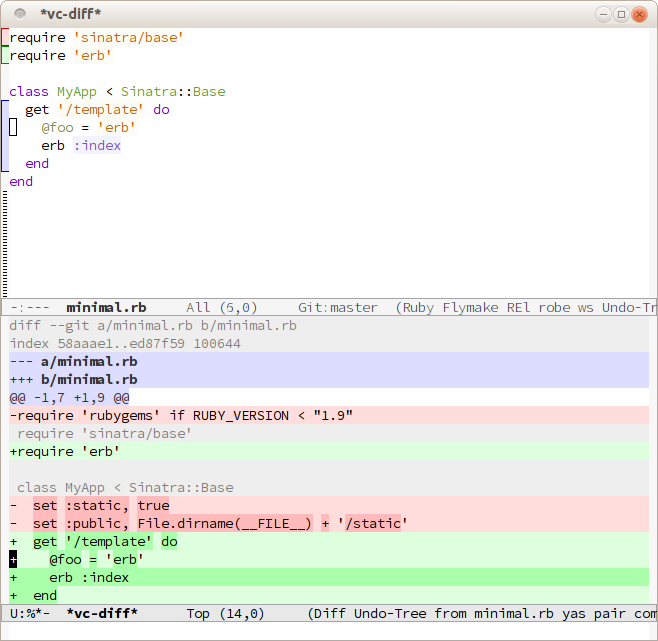
To configure the diff-hl package, add the following to your ~/.emacs.d/post-init.el:

(use-package diff-hl
  :commands (diff-hl-mode
             global-diff-hl-mode)
  :hook (prog-mode . diff-hl-mode)
  :init
  (setq diff-hl-flydiff-delay 0.4)  ; Faster
  (setq diff-hl-show-staged-changes nil)  ; Realtime feedback
  (setq diff-hl-update-async t)  ; Do not block Emacs
  (setq diff-hl-global-modes '(not pdf-view-mode image-mode)))

Configuring org-mode

Org mode is a major mode designed for organizing notes, planning, task management, and authoring documents using plain text with a simple and expressive markup syntax. It supports hierarchical outlines, TODO lists, scheduling, deadlines, time tracking, and exporting to multiple formats including HTML, LaTeX, PDF, and Markdown.

To configure org-mode, add the following to ~/.emacs.d/post-init.el:

;; Org mode is a major mode designed for organizing notes, planning, task
;; management, and authoring documents using plain text with a simple and
;; expressive markup syntax. It supports hierarchical outlines, TODO lists,
;; scheduling, deadlines, time tracking, and exporting to multiple formats
;; including HTML, LaTeX, PDF, and Markdown.
(use-package org
  :commands (org-mode org-version)
  :mode
  ("\\.org\\'" . org-mode)
  :custom
  (org-hide-leading-stars t)
  (org-startup-indented t)
  (org-adapt-indentation nil)
  (org-edit-src-content-indentation 0)
  ;; (org-fontify-done-headline t)
  ;; (org-fontify-todo-headline t)
  ;; (org-fontify-whole-heading-line t)
  ;; (org-fontify-quote-and-verse-blocks t)
  (org-startup-truncated t))

The org-appear package temporarily reveals normally hidden elements (such as emphasis markers, links, or entities) when the cursor enters them, and hides them again when the cursor leaves. To configure org-appear, add the following to ~/.emacs.d/post-init.el:

(use-package org-appear
  :commands org-appear-mode
  :hook (org-mode . org-appear-mode))

Configuring LSP Servers with Eglot (built-in)

To set up Language Server Protocol (LSP) servers using Eglot, you can configure it, add the following to ~/.emacs.d/post-init.el:

;; Set up the Language Server Protocol (LSP) servers using Eglot.
(use-package eglot
  :ensure nil
  :commands (eglot-ensure
             eglot-rename
             eglot-format-buffer))

Here is an example of how to configure Eglot to enable or disable certain options for the pylsp server in Python development. (Note that a third-party tool, python-lsp-server, must be installed):

;; Configure Eglot to enable or disable certain options for the pylsp server
;; in Python development. (Note that a third-party tool,
;; https://github.com/python-lsp/python-lsp-server, must be installed),
(add-hook 'python-mode-hook #'eglot-ensure)
(add-hook 'python-ts-mode-hook #'eglot-ensure)
(setq-default eglot-workspace-configuration
              `(:pylsp (:plugins
                        (;; Fix imports and syntax using `eglot-format-buffer`
                         :isort (:enabled t)
                         :autopep8 (:enabled t)

                         ;; Syntax checkers (works with Flymake)
                         :pylint (:enabled t)
                         :pycodestyle (:enabled t)
                         :flake8 (:enabled t)
                         :pyflakes (:enabled t)
                         :pydocstyle (:enabled t)
                         :mccabe (:enabled t)

                         :yapf (:enabled :json-false)
                         :rope_autoimport (:enabled :json-false)))))

Auto upgrade Emacs packages

The auto-package-update automates the process of updating installed packages managed by package.el. Instead of requiring users to manually invoke package-list-packages and update each package, auto-package-update can check for available updates at regular intervals, perform updates in the background, and optionally hide the results buffer or prompt before applying changes.

To configure auto-package-update, add the following to ~/.emacs.d/post-init.el:

;; This automates the process of updating installed packages
(use-package auto-package-update
  :custom
  ;; Set the number of days between automatic updates.
  ;; Here, packages will only be updated if at least 7 days have passed
  ;; since the last successful update.
  (auto-package-update-interval 7)

  ;; Suppress display of the *auto-package-update results* buffer after updates.
  ;; This keeps the user interface clean and avoids unnecessary interruptions.
  (auto-package-update-hide-results t)

  ;; Automatically delete old package versions after updates to reduce disk
  ;; usage and keep the package directory clean. This prevents the accumulation
  ;; of outdated files in Emacs's package directory, which consume
  ;; unnecessary disk space over time.
  (auto-package-update-delete-old-versions t)

  ;; Uncomment the following line to enable a confirmation prompt
  ;; before applying updates. This can be useful if you want manual control.
  ;; (auto-package-update-prompt-before-update t)

  :config
  ;; Run package updates automatically at startup, but only if the configured
  ;; interval has elapsed.
  (auto-package-update-maybe)

  ;; Schedule a background update attempt daily at 10:00 AM.
  ;; This uses Emacs' internal timer system. If Emacs is running at that time,
  ;; the update will be triggered. Otherwise, the update is skipped for that
  ;; day. Note that this scheduled update is independent of
  ;; `auto-package-update-maybe` and can be used as a complementary or
  ;; alternative mechanism.
  (auto-package-update-at-time "10:00"))

Safely terminating unused buffers

The buffer-terminator Emacs package automatically and safely kills buffers, ensuring a clean and efficient workspace while enhancing the performance of Emacs by reducing open buffers, which minimizes active modes, timers, processes…

Beyond performance, buffer-terminator provides other benefits. For instance, if you occasionally need to close annoying or unused buffers, buffer-terminator can handle this automatically, eliminating the need for manual intervention. (The default configuration is suitable for most users. However, the buffer-terminator package is highly customizable. You can define specific rules for retaining or terminating buffers by modifying the buffer-terminator-rules-alist with your preferred set of rules.)

To configure buffer-terminator, add the following to ~/.emacs.d/post-init.el:

(use-package buffer-terminator
  :custom
  ;; Enable/Disable verbose mode to log buffer cleanup events
  (buffer-terminator-verbose nil)

  ;; Set the inactivity timeout (in seconds) after which buffers are considered
  ;; inactive (default is 30 minutes):
  (buffer-terminator-inactivity-timeout (* 30 60)) ; 30 minutes

  ;; Define how frequently the cleanup process should run (default is every 10
  ;; minutes):
  (buffer-terminator-interval (* 10 60)) ; 10 minutes

  :config
  (buffer-terminator-mode 1))

(By default, buffer-terminator automatically determines which buffers are safe to terminate. However, if you need to define specific rules for keeping or terminating certain buffers, you can configure them using buffer-terminator-rules-alist.)

Treemacs, a tree layout file explorer (Sidebar file explorer)

The treemacs package is a file and project explorer for Emacs that provides a visually structured tree layout similar to file browsers in modern IDEs. It integrates well with various Emacs packages such as projectile, lsp-mode, and magit, allowing users to navigate their project structure efficiently.
To configure treemacs, add the following to ~/.emacs.d/post-init.el:

;; A file and project explorer for Emacs that displays a structured tree
;; layout, similar to file browsers in modern IDEs. It functions as a sidebar
;; in the left window, providing a persistent view of files, projects, and
;; other elements.
(use-package treemacs
  :commands (treemacs
             treemacs-select-window
             treemacs-delete-other-windows
             treemacs-select-directory
             treemacs-bookmark
             treemacs-find-file
             treemacs-find-tag)

  :bind
  (:map global-map
        ("M-0"       . treemacs-select-window)
        ("C-x t 1"   . treemacs-delete-other-windows)
        ("C-x t t"   . treemacs)
        ("C-x t d"   . treemacs-select-directory)
        ("C-x t B"   . treemacs-bookmark)
        ("C-x t C-t" . treemacs-find-file)
        ("C-x t M-t" . treemacs-find-tag))

  :init
  (with-eval-after-load 'winum
    (define-key winum-keymap (kbd "M-0") #'treemacs-select-window))

  :config
  (setq treemacs-collapse-dirs                   (if treemacs-python-executable 3 0)
        treemacs-deferred-git-apply-delay        0.5
        treemacs-directory-name-transformer      #'identity
        treemacs-display-in-side-window          t
        treemacs-eldoc-display                   'simple
        treemacs-file-event-delay                2000
        treemacs-file-extension-regex            treemacs-last-period-regex-value
        treemacs-file-follow-delay               0.2
        treemacs-file-name-transformer           #'identity
        treemacs-follow-after-init               t
        treemacs-expand-after-init               t
        treemacs-find-workspace-method           'find-for-file-or-pick-first
        treemacs-git-command-pipe                ""
        treemacs-goto-tag-strategy               'refetch-index
        treemacs-header-scroll-indicators        '(nil . "^^^^^^")
        treemacs-hide-dot-git-directory          t
        treemacs-indentation                     2
        treemacs-indentation-string              " "
        treemacs-is-never-other-window           nil
        treemacs-max-git-entries                 5000
        treemacs-missing-project-action          'ask
        treemacs-move-files-by-mouse-dragging    t
        treemacs-move-forward-on-expand          nil
        treemacs-no-png-images                   nil
        treemacs-no-delete-other-windows         t
        treemacs-project-follow-cleanup          nil
        treemacs-persist-file                    (expand-file-name ".cache/treemacs-persist" user-emacs-directory)
        treemacs-position                        'left
        treemacs-read-string-input               'from-child-frame
        treemacs-recenter-distance               0.1
        treemacs-recenter-after-file-follow      nil
        treemacs-recenter-after-tag-follow       nil
        treemacs-recenter-after-project-jump     'always
        treemacs-recenter-after-project-expand   'on-distance
        treemacs-litter-directories              '("/node_modules" "/.venv" "/.cask")
        treemacs-project-follow-into-home        nil
        treemacs-show-cursor                     nil
        treemacs-show-hidden-files               t
        treemacs-silent-filewatch                nil
        treemacs-silent-refresh                  nil
        treemacs-sorting                         'alphabetic-asc
        treemacs-select-when-already-in-treemacs 'move-back
        treemacs-space-between-root-nodes        t
        treemacs-tag-follow-cleanup              t
        treemacs-tag-follow-delay                1.5
        treemacs-text-scale                      nil
        treemacs-user-mode-line-format           nil
        treemacs-user-header-line-format         nil
        treemacs-wide-toggle-width               70
        treemacs-width                           35
        treemacs-width-increment                 1
        treemacs-width-is-initially-locked       t
        treemacs-workspace-switch-cleanup        nil)

  ;; The default width and height of the icons is 22 pixels. If you are
  ;; using a Hi-DPI display, uncomment this to double the icon size.
  ;; (treemacs-resize-icons 44)

  (treemacs-follow-mode t)
  (treemacs-filewatch-mode t)
  (treemacs-fringe-indicator-mode 'always)

  ;;(when treemacs-python-executable
  ;;  (treemacs-git-commit-diff-mode t))

  (pcase (cons (not (null (executable-find "git")))
               (not (null treemacs-python-executable)))
    (`(t . t)
     (treemacs-git-mode 'deferred))
    (`(t . _)
     (treemacs-git-mode 'simple)))

  (treemacs-hide-gitignored-files-mode nil))

;; (use-package treemacs-evil
;;   :after (treemacs evil)
;;
;; (use-package treemacs-icons-dired
;;   :hook (dired-mode . treemacs-icons-dired-enable-once)
;;
;; (use-package treemacs-tab-bar  ; treemacs-tab-bar if you use tab-bar-mode
;;   :after (treemacs)
;;   :config (treemacs-set-scope-type 'Tabs))
;;
;; (treemacs-start-on-boot)

A better Emacs help buffer

Helpful is an alternative to the built-in Emacs help that provides much more contextual information.

To configure helpful, add the following to ~/.emacs.d/post-init.el:

;; Helpful is an alternative to the built-in Emacs help that provides much more
;; contextual information.
(use-package helpful
  :commands (helpful-callable
             helpful-variable
             helpful-key
             helpful-command
             helpful-at-point
             helpful-function)
  :bind
  ([remap describe-command] . helpful-command)
  ([remap describe-function] . helpful-callable)
  ([remap describe-key] . helpful-key)
  ([remap describe-symbol] . helpful-symbol)
  ([remap describe-variable] . helpful-variable)
  :custom
  (helpful-max-buffers 7))

Efficient jumps

The avy package is a navigation framework designed for jumping directly to any visible text on the screen with minimal keystrokes. The primary benefit of avy is a substantial increase in navigational efficiency, as it minimizes keystrokes compared to iterative methods like arrow keys or standard search.

It operates by generating a dynamic, temporary mapping: upon invocation, such as with the command avy-goto-char or avy-goto-char-2, the user inputs a target character, and avy highlights all visible instances on the screen with unique key sequences. Typing the short sequence corresponding to the desired location instantly moves the point directly there.

To configure avy, add the following to ~/.emacs.d/post-init.el:

(use-package avy
  :commands (avy-goto-char
             avy-goto-char-2
             avy-next)
  :init
  (global-set-key (kbd "C-'") 'avy-goto-char-2))

The author recommends using avy-goto-char-2 (typically bound to C-'). Upon invocation, avy prompts the user to input a two-character sequence. Subsequently, all visible instances of this sequence are highlighted with unique, concise labels (e.g., single letters or numbers). The user then simply presses the key corresponding to the desired label, and avy instantly transports the cursor to that specific occurrence.

Renaming and deleting files

This bufferfile.el package provides helper functions to delete, rename, or copy buffer files:

  • bufferfile-rename: Renames the file visited by the current buffer, ensures that the destination directory exists, and updates the buffer name for all associated buffers, including clones/indirect buffers. It also ensures that buffer-local features referencing the file, such as Eglot or dired buffers, are correctly updated to reflect the new file name.
  • bufferfile-delete: Delete the file associated with a buffer and kill all buffers visiting the file, including clones/indirect buffers.
  • bufferfile-copy: Ensures that the destination directory exists and copies the file visited by the current buffer to a new file.

The functions above also ensures that any modified buffers are saved prior to executing operations like renaming, deleting, or copying.

To configure bufferfile, add the following to ~/.emacs.d/post-init.el:

(use-package bufferfile
  :commands (bufferfile-copy
             bufferfile-rename
             bufferfile-delete)
  :custom
  ;; If non-nil, display messages during file renaming operations
  (bufferfile-verbose nil)

  ;; If non-nil, enable using version control (VC) when available
  (bufferfile-use-vc nil)

  ;; Specifies the action taken after deleting a file and killing its buffer.
  (bufferfile-delete-switch-to 'parent-directory))

The bufferfile package overcomes limitations in Emacs’ built-in functions:

  • Emacs built-in renaming: While indirect buffers continue to reference the correct file path, their buffer names can become outdated.
  • Emacs built-in deleting: Indirect buffers are not automatically removed when the base buffer or another indirect buffer is deleted.

The bufferfile package resolves these issues by updating buffer names when a file is renamed and removing all related buffers, including indirect ones, when a file is deleted.

Enhancing the Elisp development experience

To enhance the Elisp development experience, add the following to ~/.emacs.d/post-init.el:

;; Enables automatic indentation of code while typing
(use-package aggressive-indent
  :commands aggressive-indent-mode
  :hook
  (emacs-lisp-mode . aggressive-indent-mode))

;; Highlights function and variable definitions in Emacs Lisp mode
(use-package highlight-defined
  :commands highlight-defined-mode
  :hook
  (emacs-lisp-mode . highlight-defined-mode))

Other optional packages that may be useful include:

;; Prevent parenthesis imbalance
(use-package paredit
  :commands paredit-mode
  :hook
  (emacs-lisp-mode . paredit-mode)
  :config
  (define-key paredit-mode-map (kbd "RET") nil))

;; For paredit+Evil mode users: enhances paredit with Evil mode compatibility
;; --------------------------------------------------------------------------
;; (use-package enhanced-evil-paredit
;;   :commands enhanced-evil-paredit-mode
;;   :hook
;;   (paredit-mode . enhanced-evil-paredit-mode))

;; Displays visible indicators for page breaks
(use-package page-break-lines
  :commands (page-break-lines-mode
             global-page-break-lines-mode)
  :hook
  (emacs-lisp-mode . page-break-lines-mode))

;; Provides functions to find references to functions, macros, variables,
;; special forms, and symbols in Emacs Lisp
(use-package elisp-refs
  :commands (elisp-refs-function
             elisp-refs-macro
             elisp-refs-variable
             elisp-refs-special
             elisp-refs-symbol))

Inhibiting the mouse

The inhibit-mouse package disables mouse input in Emacs.

This package is useful for users who want to disable the mouse to:

  • Prevent accidental clicks or cursor movements that may unexpectedly change the cursor position.
  • Reinforce a keyboard-centric workflow by discouraging reliance on the mouse for navigation.

To configure inhibit-mouse, add the following to ~/.emacs.d/post-init.el:

;; This package is useful for users who want to disable the mouse to:
;; - Prevent accidental clicks or cursor movements that may unexpectedly change
;;   the cursor position.
;; - Reinforce a keyboard-centric workflow by discouraging reliance on the mouse
;;   for navigation.
(use-package inhibit-mouse
  :config
  (if (daemonp)
      (add-hook 'server-after-make-frame-hook #'inhibit-mouse-mode)
    (inhibit-mouse-mode 1)))

NOTE: inhibit-mouse-mode allows users to disable and re-enable mouse functionality, giving them the flexibility to use the mouse when needed.

Showing the tab-bar

Configure the tab-bar-show variable to 1 to display the tab bar exclusively when multiple tabs are open:

;; Configure the `tab-bar-show` variable to 1 to display the tab bar exclusively
;; when multiple tabs are open:
(setopt tab-bar-show 1)

Offline Dictionary

The quick-sdcv.el package serves as a lightweight Emacs interface for the sdcv command-line interface, which is the console version of the StarDict dictionary application.

This package enables Emacs to function as an offline dictionary.

To enable quick-sdcv, add the following to your ~/.emacs.d/post-init.el:

(use-package quick-sdcv
  :custom
  (quick-sdcv-unique-buffers t)
  (quick-sdcv-dictionary-prefix-symbol "►")
  (quick-sdcv-ellipsis " ▼"))

Here are the main interactive functions:

  • M-x quick-sdcv-search-at-point: Searches the word around the cursor and displays the result in a buffer.
  • M-x quick-sdcv-search-input: Searches the input word and displays the result in a buffer.

Prerequisite:

  • The sdcv command. (On Linux systems, it can usually be installed by using the system’s package manager to install the sdcv package.)
  • Download dictionaries from: http://download.huzheng.org/ . Once the dictionaries are downloaded, extract them into /usr/share/stardict/dic/, or configure the variable quick-sdcv-dictionary-data-dir in the Emacs configuration to specify an alternative dictionary path.

Changing the Default Font

To customize the default font, add the following expression to your ~/.emacs.d/post-init.el:

;; Set the default font to DejaVu Sans Mono with specific size and weight
(set-face-attribute 'default nil
                    :height 130 :weight 'normal :family "DejaVu Sans Mono")
  • Modify the ':weight‘ value to control the font thickness/boldness. It must be one of the following symbols: 'ultra-heavy, 'heavy (a.k.a. 'black), 'ultra-bold (a.k.a. 'extra-bold), 'bold, 'semi-bold (a.k.a. 'demi-bold), 'medium, 'normal (a.k.a. 'regular, a.k.a. 'book), 'semi-light (a.k.a. 'demi-light), 'light, 'extra-light (a.k.a. 'ultra-light), or 'thin.
  • Modify the :height value to set the font size, where 100 corresponds to 10 pt, 130 to 13 pt, and so on.
  • Modify the :family value to specify a different font, according to your preference. You can replace it with, for example, “Iosevka Term”, “Inconsolata”, “JetBrains Mono”, “Source Code Pro”, or “Hack”. (The authors preferred font family is “Iosevka Term”, medium weight.)

On Linux, you can display a comprehensive list of all installed font families by executing the following command:

fc-list : family | sed 's/,/\n/g' | sort -u

Persisting and Restoring Text Scale

The persist-text-scale Emacs package provides persist-text-scale-mode, which ensures that all adjustments made with text-scale-increase and text-scale-decrease are persisted and restored across sessions. As a result, the text size in each buffer remains consistent, even after restarting Emacs.

This package also facilitates grouping buffers into categories, allowing buffers within the same category to share a consistent text scale. This ensures uniform font sizes when adjusting text scaling. By default:

  • Each file-visiting buffer has its own independent text scale.
  • Special buffers, identified by their buffer names, each retain their own text scale setting.
  • All Dired buffers maintain the same font size, treating Dired as a unified “file explorer” where the text scale remains consistent across different buffers.

This category-based behavior can be further customized by assigning a function to the persist-text-scale-buffer-category-function variable. The function determines how buffers are categorized by returning a category identifier (string) based on the buffer’s context. Buffers within the same category will share the same text scale.

To configure the persist-text-scale package, add the following to your ~/.emacs.d/post-init.el:

(use-package persist-text-scale
  :commands (persist-text-scale-mode
             persist-text-scale-restore)

  :hook (after-init . persist-text-scale-mode)

  :custom
  (text-scale-mode-step 1.07))

A Faster Terminal Emulator

NOTE: The vterm package requires external system dependencies, specifically cmake (>= 3.11), libtool-bin, and libvterm. Because it contains a C component, Emacs will prompt you to compile the module the first time you run it. Ensure your environment variables are correctly configured so Emacs can locate your C compiler and build tools.

The vterm package provides is an Emacs terminal emulator that provides a fully interactive shell experience within Emacs, supporting features such as color, cursor movement, and advanced terminal capabilities.

Unlike standard Emacs terminal modes, vterm utilizes the libvterm C library for high-performance emulation. This ensures accurate terminal behavior when running shell programs, text-based applications, and REPLs.

To configure the vterm package, add the following to your ~/.emacs.d/post-init.el:

;; `vterm' is an Emacs terminal emulator that provides a fully interactive shell
;; experience within Emacs, supporting features such as color, cursor movement,
;; and advanced terminal capabilities. Unlike standard Emacs terminal modes,
;; `vterm' utilizes the libvterm C library for high-performance emulation. This
;; ensures accurate terminal behavior when running shell programs, text-based
;; applications, and REPLs.
(use-package vterm
  :if (bound-and-true-p module-file-suffix)
  :commands (vterm
             vterm-send-string
             vterm-send-return
             vterm-send-key
             vterm-module-compile)

  :preface
  (when noninteractive
    ;; vterm unnecessarily triggers compilation of vterm-module.so upon loading.
    ;; This prevents that during byte-compilation (`use-package' eagerly loads
    ;; packages when compiling).
    (advice-add #'vterm-module-compile :override #'ignore))

  (defun my-vterm--setup ()
    ;; Hide the mode-line
    (setq mode-line-format nil)

    ;; Inhibit early horizontal scrolling
    (setq-local hscroll-margin 0)

    ;; Suppress prompts for terminating active processes when closing vterm
    (setq-local confirm-kill-processes nil))

  :init
  (add-hook 'vterm-mode-hook #'my-vterm--setup)

  (setq vterm-timer-delay 0.05)  ; Faster vterm
  (setq vterm-kill-buffer-on-exit t)
  (setq vterm-max-scrollback 5000))

The vterm terminal emulator can be started with M-x vterm.

Emacs server

The Emacs server allows external programs such as emacsclient to connect to a single running instance of Emacs. This makes it possible to open files in the existing session rather than starting a new Emacs process each time.

To start the Emacs server after initialization, add the following form to your ~/.emacs.d/post-init.el:

;; The Emacs server allows external programs such as `emacsclient' to connect to
;; a single running instance of Emacs. This makes it possible to open files in
;; the existing session rather than starting a new Emacs process each time.
;;
;; Once the server is running, the `emacsclient' command can be used in the
;; terminal to open files in the active Emacs session. For example, running the
;; following command opens the file in the existing Emacs frame without blocking
;; the terminal process.
;;   emacsclient -n filename.txt
;;
(use-package server
  :ensure nil
  :if (not (daemonp))
  :commands (server-running-p
             server-start)
  :hook (after-init . my-server-start)
  :preface
  (defun my-server-start ()
    "Start the Emacs server if no server process is currently active."
    (unless (server-running-p)
      (server-start))))

This configuration safely checks that Emacs is not running as a daemon and ensures that no existing server process is active, preventing conflicts.

Once the server is running, the emacsclient command can be used in the terminal to open files in the active Emacs session. For example, running emacsclient -n filename.txt opens the file in the existing Emacs frame without blocking the terminal process.

Loading the custom.el file

NOTE: The author advises against loading custom.el. Users are instead encouraged to define their configuration programmatically in files such as post-init.el. Maintaining configuration programmatically offers several advantages: it ensures reproducibility and facilitates version control. This makes it easier to understand, audit, and evolve the configuration over time.

In Emacs, customization variables modified via the UI (e.g., M-x customize) are typically stored in a separate file, commonly named custom.el. To ensure these settings are loaded during Emacs initialization, it is necessary to explicitly load this file if it exists. To accomplish this, add the following form to your ~/.emacs.d/post-init.el:

;; In Emacs, customization variables modified via the UI (e.g., M-x customize)
;; are typically stored in a separate file, commonly named 'custom.el'. To
;; ensure these settings are loaded during Emacs initialization, it is necessary
;; to explicitly load this file if it exists.
(load custom-file 'noerror 'no-message)

Which other customizations can be interesting to add?

  1. Read the following article from the same author: Essential Emacs Packages for Efficient Software Development and Text Editing

  2. You can also add the following to ~/.emacs.d/post-init.el:

;;; Enable automatic insertion and management of matching pairs of characters
;;; (e.g., (), {}, "") globally using `electric-pair-mode'.
(use-package elec-pair
  :ensure nil
  :commands (electric-pair-mode
             electric-pair-local-mode
             electric-pair-delete-pair)
  :hook (after-init . electric-pair-mode))

;; Set the fringes to match the pixel height of a character. This ensures the
;; fringe is wide enough, scaling dynamically with the current font size.
(fringe-mode (frame-char-width))

;; When Delete Selection mode is enabled, typed text replaces the selection
;; if the selection is active.
(delete-selection-mode 1)

;; Display the current line and column numbers in the mode line
(setq line-number-mode t)
(setq column-number-mode t)
(setq mode-line-position-column-line-format '("%l:%C"))

;; Display of line numbers in the buffer:
(setq-default display-line-numbers-type 'relative)
(dolist (hook '(prog-mode-hook text-mode-hook conf-mode-hook))
  (add-hook hook #'display-line-numbers-mode))

;; Set the maximum level of syntax highlighting for Tree-sitter modes
(setq treesit-font-lock-level 4)

(use-package which-key
  :ensure nil ; builtin
  :commands which-key-mode
  :hook (after-init . which-key-mode)
  :custom
  (which-key-idle-delay 1.5)
  (which-key-idle-secondary-delay 0.25)
  (which-key-add-column-padding 1)
  (which-key-max-description-length 40))

(unless (and (eq window-system 'mac)
             (bound-and-true-p mac-carbon-version-string))
  ;; Enables `pixel-scroll-precision-mode' on all operating systems and Emacs
  ;; versions, except for emacs-mac.
  ;;
  ;; Enabling `pixel-scroll-precision-mode' is unnecessary with emacs-mac, as
  ;; this version of Emacs natively supports smooth scrolling.
  ;; https://bitbucket.org/mituharu/emacs-mac/commits/65c6c96f27afa446df6f9d8eff63f9cc012cc738
  (setq pixel-scroll-precision-use-momentum nil) ; Precise/smoother scrolling
  (pixel-scroll-precision-mode 1))

;; Display the time in the modeline
(add-hook 'after-init-hook #'display-time-mode)

;; Paren match highlighting
(add-hook 'after-init-hook #'show-paren-mode)

;; Track changes in the window configuration, allowing undoing actions such as
;; closing windows.
(setq winner-boring-buffers '("*Completions*"
                                "*Minibuf-0*"
                                "*Minibuf-1*"
                                "*Minibuf-2*"
                                "*Minibuf-3*"
                                "*Minibuf-4*"
                                "*Compile-Log*"
                                "*inferior-lisp*"
                                "*Fuzzy Completions*"
                                "*Apropos*"
                                "*Help*"
                                "*cvs*"
                                "*Buffer List*"
                                "*Ibuffer*"
                                "*esh command on file*"))
(add-hook 'after-init-hook #'winner-mode)

(use-package uniquify
  :ensure nil
  :custom
  (uniquify-buffer-name-style 'reverse)
  (uniquify-separator "•")
  (uniquify-after-kill-buffer-p t))

;; Window dividers separate windows visually. Window dividers are bars that can
;; be dragged with the mouse, thus allowing you to easily resize adjacent
;; windows.
;; https://www.gnu.org/software/emacs/manual/html_node/emacs/Window-Dividers.html
(add-hook 'after-init-hook #'window-divider-mode)

;; Constrain vertical cursor movement to lines within the buffer
(setq dired-movement-style 'bounded-files)

;; Dired buffers: Automatically hide file details (permissions, size,
;; modification date, etc.) and all the files in the `dired-omit-files' regular
;; expression for a cleaner display.
(add-hook 'dired-mode-hook #'dired-hide-details-mode)

;; Hide files from dired
(setq dired-omit-files (concat "\\`[.]\\'"
                               "\\|\\(?:\\.js\\)?\\.meta\\'"
                               "\\|\\.\\(?:elc|a\\|o\\|pyc\\|pyo\\|swp\\|class\\)\\'"
                               "\\|^\\.DS_Store\\'"
                               "\\|^\\.\\(?:svn\\|git\\)\\'"
                               "\\|^\\.ccls-cache\\'"
                               "\\|^__pycache__\\'"
                               "\\|^\\.project\\(?:ile\\)?\\'"
                               "\\|^flycheck_.*"
                               "\\|^flymake_.*"))
(add-hook 'dired-mode-hook #'dired-omit-mode)

;; dired: Group directories first
(with-eval-after-load 'dired
  (let ((args "--group-directories-first -ahlv"))
    (when (or (eq system-type 'darwin) (eq system-type 'berkeley-unix))
      (if-let* ((gls (executable-find "gls")))
          (setq insert-directory-program gls)
        (setq args nil)))
    (when args
      (setq dired-listing-switches args))))

;; Enables visual indication of minibuffer recursion depth after initialization.
(add-hook 'after-init-hook #'minibuffer-depth-indicate-mode)

;; Configure Emacs to ask for confirmation before exiting
(setq confirm-kill-emacs 'y-or-n-p)

;; Enabled backups save your changes to a file intermittently
(setq make-backup-files t)
(setq vc-make-backup-files t)
(setq kept-old-versions 10)
(setq kept-new-versions 10)

;; When tooltip-mode is enabled, certain UI elements (e.g., help text,
;; mouse-hover hints) will appear as native system tooltips (pop-up windows),
;; rather than as echo area messages. This is useful in graphical Emacs sessions
;; where tooltips can appear near the cursor.
(setq tooltip-hide-delay 20)    ; Time in seconds before a tooltip disappears (default: 10)
(setq tooltip-delay 0.4)        ; Delay before showing a tooltip after mouse hover (default: 0.7)
(setq tooltip-short-delay 0.08) ; Delay before showing a short tooltip (Default: 0.1)
(tooltip-mode 1)

;; Keep unmodified buffers A/B/C at session end
(setq ediff-keep-variants t)

;; Automatically apply verified, safe file-local variables. This eliminates
;; confirmation prompts when loading files, while ensuring that unauthorized or
;; risky configurations are silently ignored.
(setq enable-local-variables :safe)

It is also recommended to read the following articles:

File types (Yaml, Dockerfile, Lua, Jinja2, CSV, Vimrc…)

The following additional file types may be enabled to extend language support beyond the core set.

These modes are optional and can be added selectively to ~/.emacs.d/post-init.el, depending on the languages and formats commonly encountered in a given workflow.

;; Support for Git files (.gitconfig, .gitignore, .gitattributes...)
(use-package git-modes
  :commands (gitattributes-mode
             gitconfig-mode
             gitignore-mode)
  :mode (("/\\.gitignore\\'" . gitignore-mode)
         ("/info/exclude\\'" . gitignore-mode)
         ("/git/ignore\\'" . gitignore-mode)
         ("/.gitignore_global\\'" . gitignore-mode)  ; jc-dotfiles

         ("/\\.gitconfig\\'" . gitconfig-mode)
         ("/\\.git/config\\'" . gitconfig-mode)
         ("/modules/.*/config\\'" . gitconfig-mode)
         ("/git/config\\'" . gitconfig-mode)
         ("/\\.gitmodules\\'" . gitconfig-mode)
         ("/etc/gitconfig\\'" . gitconfig-mode)

         ("/\\.gitattributes\\'" . gitattributes-mode)
         ("/info/attributes\\'" . gitattributes-mode)
         ("/git/attributes\\'" . gitattributes-mode)))

;; Configure built-in sgml-mode to automatically enable
;; `sgml-electric-tag-pair-mode' in `html-mode' and `mhtml-mode', providing
;; automatic insertion of matching closing tags.
(use-package sgml-mode
  :ensure nil
  :commands (sgml-mode sgml-electric-tag-pair-mode)
  :hook ((html-mode mhtml-mode) . sgml-electric-tag-pair-mode))

;; Support for YAML files.
;;
;; NOTE: Prefer the tree-sitter-based yaml-ts-mode over yaml-mode when
;; available, as it provides more accurate syntax parsing and enhanced editing
;; features.
(use-package yaml-mode
  :commands yaml-mode
  :mode (("\\.yaml\\'" . yaml-mode)
         ("\\.yml\\'" . yaml-mode)))

;; Support for Dockerfile files.
;;
;; NOTE: Prefer the tree-sitter-based dockerfile-ts-mode over dockerfile-mode
;; when available, as it provides more accurate syntax parsing and enhanced
;; editing features.
(use-package dockerfile-mode
  :commands dockerfile-mode
  :mode ("Dockerfile\\'" . dockerfile-mode))

;; Support for Gnuplot files
(use-package gnuplot
  :commands gnuplot-mode
  :mode ("\\.gp\\'" . gnuplot-mode))

;; Support for *.lua files.
;;
;; Prefer the tree-sitter-based lua-ts-mode over lua-mode when available, as it
;; provides more accurate syntax parsing and enhanced editing features.
(use-package lua-mode
  :commands lua-mode
  :mode ("\\.lua\\'" . lua-mode))

;; Jinja2 template support for files commonly used in configuration management
;; systems and web frameworks. This mode enables syntax highlighting and basic
;; editing facilities for templates written using the Jinja2 templating
;; language.
(use-package jinja2-mode
  :commands jinja2-mode
  :mode ("\\.j2\\'" . jinja2-mode))

;; CSV file support with automatic column alignment. This configuration enables
;; csv-align-mode whenever a CSV file is opened, improving readability by
;; keeping columns visually aligned according to a configurable maximum width
;; and a set of recognized field separators.
(use-package csv-mode
  :commands (csv-mode
             csv-align-mode
             csv-guess-set-separator)
  :mode ("\\.csv\\'" . csv-mode)
  :hook ((csv-mode . csv-align-mode)
         (csv-mode . csv-guess-set-separator))
  :custom
  (csv-align-max-width 100)
  (csv-separators '("," ";" " " "|" "\t")))

;; Support for Go
;;
;; NOTE: Prefer the tree-sitter-based go-ts-mode over go-mode
;; when available, as it provides more accurate syntax parsing and enhanced
;; editing features.
(use-package go-mode
  :commands go-mode
  :mode ("\\.go\\'" . go-mode))

;; Support for Rust
(use-package rust-mode
  :commands rust-mode
  :mode ("\\.rs\\'" . rust-mode)
  :custom
  (rust-indent-offset 2))

;; Major mode for editing crontab files
(use-package crontab-mode
  :commands crontab-mode
  :mode ("/crontab\\(\\.X*[[:alnum:]]+\\)?\\'"  . crontab-mode))

;; Major mode for editing Nginx configuration files
(use-package nginx-mode
  :commands nginx-mode
  :mode (("nginx\\.conf\\'" . nginx-mode)
         ("/nginx/.+\\.conf\\'" . nginx-mode)))

;; Major mode for HashiCorp Configuration Language (HCL) files
(use-package hcl-mode
  :commands hcl-mode
  :mode ("\\.hcl\\'" . hcl-mode))

;; Major mode for Nix expression language files
(use-package nix-mode
  :commands nix-mode
  :mode ("\\.nix\\'" . nix-mode))

;; Major mode for editing Fish shell scripts
(use-package fish-mode
  :commands fish-mode
  :mode ("\\.fish\\'" . fish-mode))

;; Vim configuration file support. This mode provides syntax highlighting and
;; editing support for various Vim configuration files, including vimrc, gvimrc,
;; local overrides, and project-specific configuration files.
(use-package vimrc-mode
  :commands vimrc-mode
  :mode ("\\.vim\\(rc\\)?\\'" . vimrc-mode))

;; Support for Jenkinsfile files
(use-package jenkinsfile-mode
  :commands jenkinsfile-mode
  :mode ("Jenkinsfile\\'" . jenkinsfile-mode))

;; Support for Haskell
;; (use-package haskell-mode
;;   :commands haskell-mode
;;   :mode ("\\.hs\\'" . haskell-mode))

Auto save buffers

The buffer-guardian Emacs package provides buffer-guardian-mode, a global mode that automatically saves buffers without requiring manual intervention.

By default, buffer-guardian-mode saves file-visiting buffers when:

  • Switching to another buffer.
  • Switching to another window or frame.
  • The window configuration changes (e.g., window splits).
  • The minibuffer is opened.
  • Emacs loses focus.

In addition to regular file-visiting buffers, buffer-guardian-mode also handles specialized editing buffers used for inline code blocks, such as org-src (for Org mode) and edit-indirect (commonly used for Markdown source code blocks). These temporary buffers are linked to an underlying parent buffer. Automatically saving them ensures that modifications made within these isolated code environments are correctly propagated back to the original Org or Markdown file.

To configure the buffer-guardian package, add the following to your ~/.emacs.d/post-init.el:

(use-package buffer-guardian
  :custom
  ;; When non-nil, include remote files in the auto-save process
  (buffer-guardian-inhibit-saving-remote-files t)

  ;; When non-nil, buffers visiting nonexistent files are not saved
  (buffer-guardian-inhibit-saving-nonexistent-files nil)

  ;; Save the buffer even if the window change results in the same buffer
  (buffer-guardian-save-on-same-buffer-window-change t)

  ;; Non-nil to enable verbose mode to log when a buffer is automatically saved
  (buffer-guardian-verbose nil)

  ;; Save all buffers after N seconds of user idle time. (Disabled by default)
  ;; (buffer-guardian-save-all-buffers-idle 30)

  ;; Save all buffers every N seconds. (Disabled by default)
  ;; (setq buffer-guardian-save-all-buffers-interval (* 60 30))

  :hook
  (after-init . buffer-guardian-mode))

Customizations: Before init (File: pre-init.el)

NOTE: Using straight.el or Elpaca is optional. Emacs already has a built-in package manager.

Configuring straight.el

The straight.el package is a declarative package manager for Emacs that aims to replace traditional systems like package.el by providing more precise control over package installation and management. Unlike package.el, which relies on downloading pre-built packages from ELPA archives, straight.el clones packages directly from their source repositories (typically Git), enabling reproducible and fully source-controlled package configurations.

Add the straight.el bootstrap code to ~/.emacs.d/pre-init.el:

;; Straight bootstrap
(defvar bootstrap-version)
(let ((bootstrap-file
       (expand-file-name
        "straight/repos/straight.el/bootstrap.el"
        (or (bound-and-true-p straight-base-dir)
            user-emacs-directory)))
      (bootstrap-version 7))
  (unless (file-exists-p bootstrap-file)
    (with-current-buffer
        (url-retrieve-synchronously
         "https://raw.githubusercontent.com/radian-software/straight.el/develop/install.el"
         'silent 'inhibit-cookies)
      (goto-char (point-max))
      (eval-print-last-sexp)))
  (load bootstrap-file nil 'nomessage))

(setq straight-use-package-by-default t)

;; Limit Git clone depth to a single commit when using straight.el. This
;; performs shallow clones, reducing download size the cost of full
;; repository history.
;; (setq straight-vc-git-default-clone-depth 1)

Configuring Elpaca (package manager)

NOTE: When using the :hook keyword with use-package, replace after-init and emacs-startup with elpaca-after-init. Similarly, when using add-hook, replace after-init-hook, emacs-startup-hook with elpaca-after-init-hook to ensure they execute only after Elpaca has activated all queued packages.

Elpaca is a modern, asynchronous package manager for Emacs designed to be a drop-in replacement for package.el and straight.el, with enhanced performance and flexibility. Unlike traditional Emacs package managers, Elpaca installs packages asynchronously, allowing Emacs to remain responsive during installation and updates.

Add to ~/.emacs.d/pre-early-init.el:

;; By default, minimal-emacs-package-initialize-and-refresh is set to t, which
;; makes minimal-emacs.d call the built-in package manager. Since Elpaca will
;; replace the package manager, there is no need to call it.
(setq minimal-emacs-package-initialize-and-refresh nil)

And add the Elpaca bootstrap code to ~/.emacs.d/pre-init.el:

;; Elpaca bootstrap
(defvar elpaca-installer-version 0.11)
(defvar elpaca-directory (expand-file-name "elpaca/" user-emacs-directory))
(defvar elpaca-builds-directory (expand-file-name "builds/" elpaca-directory))
(defvar elpaca-repos-directory (expand-file-name "repos/" elpaca-directory))
(defvar elpaca-order '(elpaca :repo "https://github.com/progfolio/elpaca.git"
                              :ref nil :depth 1 :inherit ignore
                              :files (:defaults "elpaca-test.el" (:exclude "extensions"))
                              :build (:not elpaca--activate-package)))
(let* ((repo  (expand-file-name "elpaca/" elpaca-repos-directory))
       (build (expand-file-name "elpaca/" elpaca-builds-directory))
       (order (cdr elpaca-order))
       (default-directory repo))
  (add-to-list 'load-path (if (file-exists-p build) build repo))
  (unless (file-exists-p repo)
    (make-directory repo t)
    (when (<= emacs-major-version 28) (require 'subr-x))
    (condition-case-unless-debug err
        (if-let* ((buffer (pop-to-buffer-same-window "*elpaca-bootstrap*"))
                  ((zerop (apply #'call-process `("git" nil ,buffer t "clone"
                                                  ,@(when-let* ((depth (plist-get order :depth)))
                                                      (list (format "--depth=%d" depth) "--no-single-branch"))
                                                  ,(plist-get order :repo) ,repo))))
                  ((zerop (call-process "git" nil buffer t "checkout"
                                        (or (plist-get order :ref) "--"))))
                  (emacs (concat invocation-directory invocation-name))
                  ((zerop (call-process emacs nil buffer nil "-Q" "-L" "." "--batch"
                                        "--eval" "(byte-recompile-directory \".\" 0 'force)")))
                  ((require 'elpaca))
                  ((elpaca-generate-autoloads "elpaca" repo)))
            (progn (message "%s" (buffer-string)) (kill-buffer buffer))
          (error "%s" (with-current-buffer buffer (buffer-string))))
      ((error) (warn "%s" err) (delete-directory repo 'recursive))))
  (unless (require 'elpaca-autoloads nil t)
    (require 'elpaca)
    (elpaca-generate-autoloads "elpaca" repo)
    (let ((load-source-file-function nil)) (load "./elpaca-autoloads"))))
(add-hook 'after-init-hook #'elpaca-process-queues)
(elpaca `(,@elpaca-order))

;; Enable 'elpaca-no-symlink-mode' on Windows, as symlink creation
;; often fails without Administrator privileges or Developer Mode.
(when (eq system-type 'windows-nt)
  (elpaca-no-symlink-mode 1))

;; Install use-package support
(elpaca elpaca-use-package
  ;; Enable use-package :ensure support for Elpaca.
  (elpaca-use-package-mode))

Frequently asked questions

Why minimal-emacs.d uses setq instead of setopt

The minimal-emacs.d configuration prioritizes an optimized, fast startup. Using setopt introduces overhead due to its type checking and function execution. For the vast majority of variables, this overhead is unnecessary during the initial startup phase.

Here is the distinction between the two Emacs Lisp functions:

  • setopt: Assigns a value, but also validates the data type against the package’s definition and executes the :set function associated with the customizable variable. The :set function specifies a function that must execute whenever the variable’s value is changed. This function is responsible for handling required side-effects, such as rebuilding internal data structures, updating hooks, toggling related minor modes, or redrawing user interface elements based on the new value.
  • setq: Directly assigns a value to a variable. It is extremely fast because it bypasses type validation and ignores any :set side-effect functions defined in the package’s defcustom declaration.

Here is an example of how a package author might write a defcustom with an expensive :set property:

;; -------------------------------------------------------------------
;; EXAMPLE: Why minimal-emacs.d uses `setq' instead of `setopt'
;; -------------------------------------------------------------------
;; NOTE: DO NOT ADD THIS CODE SNIPPET TO YOUR CONFIGURATION
;; -------------------------------------------------------------------
(defcustom my-global-visual-indicator t
  "Toggle a heavy visual indicator across all open buffers."
  :type 'boolean
  :group 'my-ui-package
  :set (lambda (symbol value)
         ;; Update the variable's value
         (set-default symbol value)

         ;; The slow part: Iterate through every open buffer
         ;; and trigger a costly visual update or cache rebuild.
         (dolist (buffer (buffer-list))
           (with-current-buffer buffer
             ;; This simulated function might parse the buffer,
             ;; apply text properties, or query a language server.
             (my-heavy-visual-update-function value)))

         ;; Force Emacs to immediately redraw all frames
         (redraw-display)))

If you use setopt to configure my-global-visual-indicator within your init.el, Emacs will execute the associated lambda function during the startup sequence. The function loops through all open buffers (including hidden or internal buffers created during initialization), runs the heavy update function, and forces a display redraw. This introduces significant latency to your load time.

When using setq, Emacs simply updates the boolean value to t or nil in memory and bypasses the lambda entirely. The entire operation takes a fraction of a millisecond.

How to debug my configuration?

During the development of your init files, the author strongly recommends adding the following line at the very beginning of your ~/.emacs.d/pre-early-init.el file:

(setq debug-on-error t)

Enabling debug-on-error at this stage allows you to catch errors that might otherwise cause Emacs to fail silently or behave unpredictably.

Customizing Scroll Recentering

By default, minimal-emacs.d sets scroll-conservatively to 20:

(setq scroll-conservatively 20)  ; Default minimal-emacs.d value

This makes Emacs recenters the window when the cursor moves past scroll-conservatively lines beyond the window edge.

You can override this in your post-init.el file. Setting it to 0 forces Emacs to recenter the point aggressively, typically positioning it in the middle of the window (NOT RECOMMENDED):

(setq scroll-conservatively 0)  ; NOT RECOMMENDED

Although this offers more surrounding context, it results in frequent and pronounced screen movement, which can disrupt navigation. A value of 0 is generally discouraged unless this behavior is explicitly desired.

A value of 101 minimizes screen movement and maintains point visibility with minimal adjustment:

(setq scroll-conservatively 101)

The main drawback of 101 is that Emacs will avoid recentering almost entirely, only adjusting the window just enough to keep point visible at the very top or very bottom of the screen. Point can stick to the top or bottom edge of the window, giving you very little context above or below, which can make editing harder if you want surrounding lines visible.

How to display Emacs startup duration?

To measure and display the time taken for Emacs to start, you can use the following Emacs Lisp function. This function will report both the startup duration and the number of garbage collections that occurred during initialization.

Add the following to your ~/.emacs.d/pre-early-init.el file:

(defun display-startup-time ()
  "Display the startup time and number of garbage collections."
  (message "Emacs init loaded in %.2f seconds (Full emacs-startup: %.2fs) with %d garbage collections."
           (float-time (time-subtract after-init-time before-init-time))
           (time-to-seconds (time-since before-init-time))
           gcs-done))

(add-hook 'emacs-startup-hook #'display-startup-time 100)

(Alternatively, you may use the built-in M-x emacs-init-time command to obtain the startup duration. However, emacs-init-time does not account for the portion of the startup process that occurs after after-init-time.)

Optimization: Disabling site-run-file and inhibit-default-init

Emacs performs a multi-stage initialization sequence that may include system-level configuration before and after user configuration. For a minimal and fully deterministic setup, these stages can be disabled.

Emacs can load two optional system-wide files:

  1. site-start.el: Executed before the user configuration. Controlled by the variable site-run-file.
  2. default.el: Executed after the user configuration. Controlled by the variable inhibit-default-init.

Both files are typically maintained by operating systems or system administrators to provide global defaults, package path adjustments, or distribution-specific behavior.

Disable site-start.el (Pre-Initialization Stage)

By default, Emacs evaluates site-start.el early in the startup process. While useful in managed environments, this introduces two disadvantages for a minimal configuration:

  • Startup overhead: Additional I/O and evaluation during the earliest phase of initialization.
  • Loss of determinism: External configuration may modify variables, alter load-path, or introduce behavior that differs across machines.

To ensure a clean and reproducible startup, disable this stage in ~/.emacs.d/pre-early-init.el:

(setq site-run-file nil)

This guarantees that no system-level configuration executes before the user configuration.

Note: On conventional GNU/Linux distributions such as Ubuntu, Fedora, or Arch Linux, site-start.el is often optional and may only introduce distribution defaults. However, on functional systems such as NixOS or Guix System, it may be required to populate essential load-path entries. Disabling it in such environments can prevent Emacs from locating required libraries.

Disable default.el (Post-Initialization Stage)

After loading the user configuration, Emacs may evaluate default.el. This file can override user-defined settings or introduce additional global behavior.

To prevent any system configuration from executing after the user initialization, add the following to pre-early-init.el:

(setq inhibit-default-init t)

Disabling both site-run-file and default.el removes system-level interference, reduces startup variability, and establishes a fully controlled initialization environment suitable for minimal and reproducible configurations.

How to get the latest version of all packages? (unstable)

By default, minimal-emacs.d is configured to prioritize packages from GNU ELPA and NonGNU ELPA repositories over MELPA, ensuring greater stability.

If you prefer to obtain the latest packages from MELPA to access new features and improvements, you can adjust the priority so that Emacs use-package retrieves the newest versions from MELPA before consulting the stable GNU and NonGNU repositories. While MELPA packages are generally regarded as less stable, actual breakages are uncommon; over the past year, only a single package (package-lint) out of 146 packages in the author’s configuration experienced a brief disruption, which was quickly resolved.

Benefit:

  • Ensures access to the most recent package versions, enabling early adoption of new features, performance improvements, and upstream bug fixes.
  • Prioritizing MELPA provides a broader selection of cutting-edge packages, including experimental or niche tools that may not yet exist in stable archives.

Drawback:

  • Exposure to potential instability, as MELPA packages are often built from the latest commits without extensive regression testing.
  • May require periodic maintenance, such as resolving dependency conflicts or adapting to API changes in packages that evolve rapidly. (actual breakages are uncommon.)

To ensure that Emacs always installs or updates to the newest versions of all packages, add the following configuration to ~/.emacs.d/post-early-init.el:

;; Obtain the latest packages from MELPA to access new features and
;; improvements. While MELPA packages are generally regarded as less stable,
;; actual breakages are uncommon; over the past year, only a single package
;; (package-lint) out of 146 packages in the minimal-emacs.d author's
;; configuration experienced a brief disruption, which was quickly resolved.
(setq package-archive-priorities '(("melpa"        . 90)
                                   ("gnu"          . 70)
                                   ("nongnu"       . 60)
                                   ("melpa-stable" . 50)))

This setup prioritizes MELPA over the stable GNU and NonGNU repositories. When multiple archives provide the same package, Emacs will choose the version from the archive with the highest priority. As a result, you will consistently receive the latest available versions from MELPA while still having access to stable GNU and NonGNU packages when MELPA does not provide them.

In the event of a package breakage, you can direct Emacs to install a package from a specific repository. For instance, to ensure that evil and evil-collection are installed from melpa-stable, add the following configuration to ~/.emacs.d/post-early-init.el:

(setq package-pinned-packages
      '((evil            . "melpa-stable")
        (evil-collection . "melpa-stable")))

Here is a comprehensive package-pinned-packages configuration to guarantee that essential packages, such as consult or corfu, are retrieved from a stable repository, while all remaining packages are obtained from MELPA according to the `package-archive-priorities’ priorities above:

(setq package-pinned-packages
      '((annalist                      . "melpa-stable")
        (ansible-doc                   . "melpa-stable")
        (apheleia                      . "melpa-stable")
        (basic-mode                    . "melpa-stable")
        (consult-dir                   . "melpa-stable")
        (corfu-prescient               . "melpa-stable")
        (dtrt-indent                   . "melpa-stable")
        (dumb-jump                     . "melpa-stable")
        (elisp-refs                    . "melpa-stable")
        (evil-collection               . "melpa-stable")
        (f                             . "melpa-stable")
        (flymake-quickdef              . "melpa-stable")
        (groovy-mode                   . "melpa-stable")
        (highlight-defined             . "melpa-stable")
        (markdown-toc                  . "melpa-stable")
        (org-appear                    . "melpa-stable")
        (package-lint-flymake          . "melpa-stable")
        (parent-mode                   . "melpa-stable")
        (php-mode                      . "melpa-stable")
        (prescient                     . "melpa-stable")
        (s                             . "melpa-stable")
        (tocus                         . "melpa-stable")
        (treesit-auto                  . "melpa-stable")
        (vertico-prescient             . "melpa-stable")
        (visual-fill-column            . "melpa-stable")
        (yasnippet-snippets            . "melpa-stable")
        (aggressive-indent             . "gnu")
        (cape                          . "gnu")
        (compat                        . "gnu")
        (consult                       . "gnu")
        (corfu                         . "gnu")
        (csv-mode                      . "gnu")
        (dash                          . "gnu")
        (diff-hl                       . "gnu")
        (diminish                      . "gnu")
        (easy-escape                   . "gnu")
        (embark                        . "gnu")
        (embark-consult                . "gnu")
        (expand-region                 . "gnu")
        (gcmh                          . "gnu")
        (indent-bars                   . "gnu")
        (marginalia                    . "gnu")
        (modus-themes                  . "gnu")
        (orderless                     . "gnu")
        (org                           . "gnu")
        (rainbow-mode                  . "gnu")
        (transient                     . "gnu")
        (vertico                       . "gnu")
        (yasnippet                     . "gnu")
        (ztree                         . "gnu")
        (eat                           . "nongnu")
        (edit-indirect                 . "nongnu")
        (evil-visualstar               . "nongnu")
        (exec-path-from-shell          . "nongnu")
        (git-modes                     . "nongnu")
        (golden-ratio                  . "nongnu")
        (goto-chg                      . "nongnu")
        (gptel                         . "nongnu")
        (lua-mode                      . "nongnu")
        (magit                         . "nongnu")
        (markdown-mode                 . "nongnu")
        (package-lint                  . "nongnu")
        (page-break-lines              . "nongnu")
        (paredit                       . "nongnu")
        (popup                         . "nongnu")
        (rainbow-delimiters            . "nongnu")
        (undo-fu                       . "nongnu")
        (undo-fu-session               . "nongnu")
        (wgrep                         . "nongnu")
        (with-editor                   . "nongnu")
        (ws-butler                     . "nongnu")
        (yaml-mode                     . "nongnu")))

How to use MELPA stable?

Note: The minimal-emacs.d author does not recommend using MELPA Stable. Use MELPA instead, which is enabled by default in the minimal-emacs.d configuration.

By default, minimal-emacs.d uses MELPA instead of MELPA Stable because MELPA Stable offers outdated packages that lack essential features. If you prefer to use MELPA Stable, you may follow the instructions below.

Here are the key differences between MELPA (the default repository used in minimal-emacs.d) and MELPA Stable:

  • MELPA (preferred) is a rolling release repository for Emacs packages, where packages are continuously updated with the latest commits from their respective development branches, delivering the most current features and bug fixes. While MELPA features the latest changes, most Emacs package developers have learned to maintain a relatively stable master branch, which contributes to MELPA’s overall stability. Furthermore, MELPA includes a broader selection of packages.
  • In contrast, MELPA Stable is a repository that hosts versioned, tagged releases of packages. However, MELPA Stable does not guarantee more reliability than MELPA, as its tagged versions may still suffer from issues like uncoordinated dependencies or incomplete testing, and updates are less frequent, often based on developer discretion rather than every new commit.

If you prefer MELPA Stable over MELPA, you can add MELPA Stable and prioritize it. To ensure packages are fetched from MELPA Stable first, add the following configuration to ~/.emacs.d/post-early-init.el:

;; This change increases MELPA Stable priority to 70, above MELPA,
;; ensuring that MELPA is preferred for package installations
;; over MELPA Stable.
;; (Note: The minimal-emacs.d author does not assign higher priority to MELPA
;; Stable than to MELPA.)
;;
;; (setq package-archive-priorities '(("gnu"          . 90)
;;                                    ("nongnu"       . 80)
;;                                    ("melpa-stable" . 70)
;;                                    ("melpa"        . 60)))

How to load a local lisp file for machine-specific configurations?

Add the following line to the end of your post-init.el file:

(minimal-emacs-load-user-init "local.el")

This allows local.el to load, enabling custom configurations specific to the machine.

(Ensure that local.el is in the same directory as post-init.el.)

How to prevent Emacs from repeatedly performing native compilation on specific Elisp files

In certain Emacs configurations, specific files may be recompiled repeatedly during startup.

Compiling /snap/emacs/current/usr/share/emacs/lisp/org/org-loaddefs.el.gz...
Compiling /snap/emacs/current/usr/share/emacs/etc/themes/modus-vivendi-theme.el...

This behavior arises because Emacs performs native compilation on specific Elisp files, and in many scenarios, it is desirable to prevent compilation of files that fail during the process.

Emacs can be configured to bypass native compilation for files whose paths match a list of regular expression patterns by setting native-comp-jit-compilation-deny-list. For example:

(let ((deny-list '("\\(?:[/\\\\]\\.dir-locals\\.el\\(?:\\.gz\\)?$\\)"
                   "\\(?:[/\\\\]modus-vivendi-theme\\.el\\(?:\\.gz\\)?$\\)"
                   "\\(?:[/\\\\][^/\\\\]+-loaddefs\\.el\\(?:\\.gz\\)?$\\)"
                   "\\(?:[/\\\\][^/\\\\]+-autoloads\\.el\\(?:\\.gz\\)?$\\)")))
  (setq native-comp-jit-compilation-deny-list deny-list)
  ;; Deprecated
  (with-no-warnings
    (setq native-comp-deferred-compilation-deny-list deny-list)
    (setq comp-deferred-compilation-deny-list deny-list)))

This deny list instructs Emacs to bypass native compilation for files matching the specified patterns, preventing unnecessary or error-prone recompilation while permitting all other files to be compiled normally.

How to load Emacs customizations?

To load customizations saved by Emacs (M-x customize), add the following code snippet to the post-init.el file. This ensures that the custom file, typically set to a separate file for user preferences, is loaded without errors or messages during startup:

(load custom-file 'noerror 'nomessage)

However, rather than relying on customizations loaded with the code above, the author recommends configuring Emacs through init files (just as you are doing by reading this README.md and customizing packages using use-package with the :custom keyword).

How to increase gc-cons-threshold?

Add the following to ~/.emacs.d/pre-early-init.el to ensure that minimal-emacs.d restores the specified amount after startup:

(setq minimal-emacs-gc-cons-threshold (* 64 1024 1024))

How to prevent Emacs from loading .dir-locals.el files?

By default, Emacs loads .dir-locals.el from the current directory or its parents and applies project-specific settings such as indentation, compilation commands, or custom minor modes. While useful in many cases, this behavior can introduce unintended overrides, inconsistencies, or even security risks when working with untrusted projects.

If you want to prevent Emacs from applying these directory-local settings, you can disable .dir-locals.el by setting enable-dir-local-variables to nil:

(setq enable-dir-local-variables nil)

How to make minimal-emacs.d use an environment variable to change ~/.emacs.d to another directory?

Add the following to the top of the ~/.emacs.d/pre-early-init.el file to make minimal-emacs.d use the MINIMAL_EMACS_USER_DIRECTORY environment variable to change ~/.emacs.d to another directory:

;; Place this at the very beginning of pre-early-init.el
(let ((previous-minimal-emacs-user-directory (expand-file-name
                                              minimal-emacs-user-directory))
      (env-dir (getenv "MINIMAL_EMACS_USER_DIRECTORY")))
  (setq minimal-emacs-user-directory (if env-dir
                                         (expand-file-name env-dir)
                                       (expand-file-name user-emacs-directory)))
  (unless (string= minimal-emacs-user-directory
                   previous-minimal-emacs-user-directory)
    ;; Load pre-early-init.el from the new directory
    (minimal-emacs-load-user-init "pre-early-init.el")))

Are post-early-init.el and pre-init.el the same file in terms of the logic?

During the execution of early-init.el (and pre-early-init.el and post-early-init.el), Emacs has not yet loaded the graphical user interface (GUI). This file is used for configurations that need to be applied before the GUI is initialized, such as settings that affect the early stages of the Emacs startup process.

Thus, post-early-init.el and pre-init.el serve different purposes and are not the same.

Why is the menu bar disabled by default?

The menu bar is disabled by default in minimal-emacs.d to provide a minimal, distraction-free environment, which many experienced users prefer.

The menu bar can be re-enabled by adding the following configuration to ~/.emacs.d/pre-early-init.el:

(setq minimal-emacs-ui-features '(menu-bar))

Other UI features can also be enabled by adding the following to ~/.emacs.d/pre-early-init.el:

(setq minimal-emacs-ui-features '(context-menu tool-bar menu-bar dialogs tooltips))

Why did the author develop minimal-emacs.d?

The author began working on it after realizing that no existing starter kit offered a truly minimal setup with the flexibility for users to choose exactly what to include in their configuration.

How to keep minimal-emacs.d pre-*.el and post-*.el files in a separate directory?

To ensure the minimal-emacs.d configuration loads post-early-init.el, pre-init.el, and post-init.el from a different directory, such as ~/.config/minimal-emacs.d/, modify the minimal-emacs-user-directory variable by adding the following to your ~/.emacs.d/pre-early-init.el file:

(setq minimal-emacs-user-directory "~/.config/minimal-emacs.d/")

This will ensure that the minimal-emacs.d configuration loads post-early-init.el, pre-init.el, and post-init.el from ~/.config/minimal-emacs.d/.

Keep in mind that if you change the minimal-emacs-user-directory, minimal-emacs.d will attempt to load the rest of the configuration from that directory (e.g., ~/.config/minimal-emacs/post-early-init.el, ~/.config/minimal-emacs/pre-init.el and ~/.config/minimal-emacs/post-init.el, etc.).

How to make minimal-emacs.d install packages in the early-init phase instead of the init phase?

NOTE: Running package initialization and installation during the early-init phase is NOT RECOMMENDED because this stage occurs before the GUI system, windowing, and comprehensive error-handling buffers are fully initialized. When package-install or package-refresh-contents triggers a failure—such as a TLS handshake error or a lost network connection—Emacs cannot yet render a graphical window to display the backtrace or warning. This results in a “silent” hang or a crash that provides no visual feedback to the user, forcing a pivot to a terminal to inspect standard output. Furthermore, many packages expect a fully functional frame and loaded user environment to configure themselves correctly; forcing them to load during early-init bypasses the intentional separation designed to let you set up UI-independent variables before the package system and GUI logic complicate the startup sequence.

To install and load packages during the early-init phase, add the following to post-early-init.el:

;; THIS IS NOT RECOMMENDED
;;
;; Running package initialization and installation during the early-init phase
;; is NOT RECOMMENDED because this stage occurs before the GUI system,
;; windowing, and comprehensive error-handling buffers are fully initialized.
;; When package-install or `package-refresh-contents` triggers a failure—such as
;; a TLS handshake error or a lost network connection—Emacs cannot yet render a
;; graphical window to display the backtrace or warning. This results in a
;; "silent" hang or a crash that provides no visual feedback to the user,
;; forcing a pivot to a terminal to inspect standard output. Furthermore, many
;; packages expect a fully functional frame and loaded user environment to
;; configure themselves correctly; forcing them to load during early-init
;; bypasses the intentional separation designed to let you set up UI-independent
;; variables before the package system and GUI logic complicate the startup
;; sequence.
;;
;; File: `post-early-init.el'

(setq minimal-emacs-package-initialize-and-refresh nil)

;; If you want to ignore the warning:
;; "Warning (package): Unnecessary call to package-initialize in init file."
;; Uncomment the following setq:
;; (setq warning-suppress-types '((package)))

;; Initialize packages in the early-init phase instead of init
(when (bound-and-true-p minimal-emacs-package-initialize-and-refresh)
  ;; Initialize and refresh package contents again if needed
  (package-initialize)
  (unless (package-installed-p 'use-package)
    (unless (seq-empty-p package-archive-contents)
      (package-refresh-contents))
    (package-install 'use-package))
  (require 'use-package))

;; TODO: Add your use-package packages here

How to compile Emacs for Performance on Linux and Unix systems?

Most Linux distributions ship generic binaries compiled to run safely on a vast array of older hardware configurations. While this ensures broad compatibility, it sacrifices the speed that comes from using the specific, modern instruction sets of your processor. Compiling Emacs directly from source allows instructing the compiler to generate machine code targeted at your CPU architecture, resulting in a faster and more efficient runtime environment.

Beyond raw hardware optimization, building from source enables dropping decades of legacy compatibility layers and embracing modern desktop technologies. For example, Wayland users can configure the build to bypass old X11 display protocols in favor of a Wayland environment, ensuring smoother rendering and better system integration…

If you are interested in compiling Emacs, read: A Technical Guide to Compiling Emacs for Performance on Linux and Unix systems

How to prevent Emacs from writing custom setting amd maintain a version controller configuration?

If you want to maintain a strictly version-controlled, declarative configuration, you should prevent the Emacs customization interface from automatically appending custom-set-variables blocks to your files.

;; Prevent Emacs from writing custom settings to any file
(with-eval-after-load 'cus-edit
  (advice-add 'custom-save-all :override #'ignore))

Minimal-emacs.d configurations from users

Features

The minimal-emacs.d base provides a sensible foundation for your personal configuration. It addresses common pain points in vanilla Emacs to provide a responsive and clean environment from the start, without forcing a specific workflow.

Fast Initialization and Performance

  • Optimized File Handlers: Defers garbage collection during startup to reduce load times, restoring it to a standard threshold once Emacs is ready.
  • Process Throughput: Increases the chunk size for reading from processes to speed up external tool interactions.
  • Compiled File Preference: Instructs Emacs to prioritize loading newer byte-compiled files.
  • Optimized Text Rendering: Disables font compacting during startup to reduce memory usage and speed up initialization.
  • Silent Boot Sequence: Removes the GNU Emacs startup message, unsets OS-irrelevant command line options, and defers toolbar setup.

Native Compilation and Byte Compilation

  • Out-of-the-Box Optimization: Configures default settings for native and byte compilation.
  • Quiet Compilation: Suppresses warnings and errors during async native compilation to prevent popup interruptions.

Interface Defaults

  • Minimal UI: Disables the startup screen, menu bar, tool bar, and scroll bars by default to maximize screen space.
  • Smart Rendering: Stops rendering cursors and region highlights in non-focused windows. Prevents Emacs from automatically resizing frames on setting adjustments.
  • Typographic Defaults: Renders underlines at the descent line, replaces truncation markers with an ellipsis (“…”), and disables the visible bell.
  • Focused Minibuffer: Enables recursive minibuffers and restricts the cursor from entering read-only prompt areas.

Package and File Management

  • Repository Prioritization: Configures archives and sets explicit priorities for GNU ELPA, NonGNU ELPA, and MELPA.
  • Centralized Artifacts: Routes auto-save and backup files to dedicated subdirectories within the Emacs configuration folder. Enables versioned backups.
  • Auto-Revert: Refreshes buffers when the underlying file changes on disk. (Disabled by default.)
  • Session Memory: Saves cursor positions across sessions, maintains recent file history, and persists the minibuffer history. (Disabled by default.)

Precision Editing and UX Enhancements

  • Predictable Scrolling: Configures conservative scrolling to eliminate default half-screen jumps.
  • Modern Formatting Standards: Enforces a POSIX-compliant final newline on save, disables double-space sentence endings, and triggers smart indentation only on newlines and backspaces.
  • Sensible Tab Management: Defaults to spaces with a tab width. Configures the tab key to indent first, then complete.
  • Fast Interactions: Configures prompts to accept “y” or “n” instead of “yes” or “no”.

Developer Experience

  • Optional Built-in Package Defaults: Configures optimized settings for built-in packages like Eglot, recentf, savehist, and auto-save without enabling them by default.
  • Git Integration: Sets version control to use the --histogram diff algorithm and automatically follow file renames in logs.

Buffer, Directory, and Window Management

  • Modern Splits: Favors vertical window splits over horizontal ones.
  • Ediff Optimization: Configures Ediff to use a single frame and split windows horizontally.
  • Dired Mastery: Enables dired-dwim-target for easier file operations between panes. Auto-updates Dired buffers and cleans up deleted directories silently.
  • Window Dividers: Uses minimalistic window dividers and sets default fringe widths.

Security, Stability, and Customizable Initialization

  • Safety Checks: Verifies successful configuration load and warns of conflicts with legacy ~/.emacs files.
  • Drop-In Customization: Supports loading modular configuration files (pre-early-init.el, post-early-init.el, pre-init.el, and post-init.el) to hook into different stages of the startup process.
  • Strict TLS Verification: Enforces strict SSL/TLS certificate checks and raises the minimum encryption strength for GnuTLS.
  • Encrypted Auth Sources: Prefers GPG-encrypted authentication files (~/.authinfo.gpg) and directs the GPG agent to use the minibuffer for passphrase entry.

Author and license

The minimal-emacs.d project has been written by James Cherti and is distributed under terms of the GNU General Public License version 3, or, at your choice, any later version.

Copyright (C) 2024-2026 James Cherti

This program is free software: you can redistribute it and/or modify it under the terms of the GNU General Public License as published by the Free Software Foundation, either version 3 of the License, or (at your option) any later version.

This program is distributed in the hope that it will be useful, but WITHOUT ANY WARRANTY; without even the implied warranty of MERCHANTABILITY or FITNESS FOR A PARTICULAR PURPOSE. See the GNU General Public License for more details.

You should have received a copy of the GNU General Public License along with this program (in the .LICENSE file).

Links

Contribution from the minimal-emacs.d community:

  • Sunng’s minimal-emacs.d Nix flake: A Nix flake that enables reproducible deployment of minimal-emacs.d, allowing the Emacs configuration to be pinned, built, and installed through Nix.

Other Emacs packages by the same author:

  • compile-angel.el: Speed up Emacs! This package guarantees that all .el files are both byte-compiled and native-compiled, which significantly speeds up Emacs.
  • outline-indent.el: An Emacs package that provides a minor mode that enables code folding and outlining based on indentation levels for various indentation-based text files, such as YAML, Python, and other indented text files.
  • easysession.el: Easysession is lightweight Emacs session manager that can persist and restore file editing buffers, indirect buffers/clones, Dired buffers, the tab-bar, and the Emacs frames (with or without the Emacs frames size, width, and height).
  • vim-tab-bar.el: Make the Emacs tab-bar Look Like Vim’s Tab Bar.
  • elispcomp: A command line tool that allows compiling Elisp code directly from the terminal or from a shell script. It facilitates the generation of optimized .elc (byte-compiled) and .eln (native-compiled) files.
  • tomorrow-night-deepblue-theme.el: The Tomorrow Night Deepblue Emacs theme is a beautiful deep blue variant of the Tomorrow Night theme, which is renowned for its elegant color palette that is pleasing to the eyes. It features a deep blue background color that creates a calming atmosphere. The theme is also a great choice for those who miss the blue themes that were trendy a few years ago.
  • Ultyas: A command-line tool designed to simplify the process of converting code snippets from UltiSnips to YASnippet format.
  • dir-config.el: Automatically find and evaluate .dir-config.el Elisp files to configure directory-specific settings.
  • flymake-bashate.el: A package that provides a Flymake backend for the bashate Bash script style checker.
  • flymake-ansible-lint.el: An Emacs package that offers a Flymake backend for ansible-lint.
  • inhibit-mouse.el: A package that disables mouse input in Emacs, offering a simpler and faster alternative to the disable-mouse package.
  • quick-sdcv.el: This package enables Emacs to function as an offline dictionary by using the sdcv command-line tool directly within Emacs.
  • enhanced-evil-paredit.el: An Emacs package that prevents parenthesis imbalance when using evil-mode with paredit. It intercepts evil-mode commands such as delete, change, and paste, blocking their execution if they would break the parenthetical structure.
  • stripspace.el: Ensure Emacs Automatically removes trailing whitespace before saving a buffer, with an option to preserve the cursor column.
  • persist-text-scale.el: Ensure that all adjustments made with text-scale-increase and text-scale-decrease are persisted and restored across sessions.
  • pathaction.el: Execute the pathaction command-line tool from Emacs. The pathaction command-line tool enables the execution of specific commands on targeted files or directories. Its key advantage lies in its flexibility, allowing users to handle various types of files simply by passing the file or directory as an argument to the pathaction tool. The tool uses a .pathaction.yaml rule-set file to determine which command to execute. Additionally, Jinja2 templating can be employed in the rule-set file to further customize the commands.
  • kirigami.el: The kirigami Emacs package offers a unified interface for opening and closing folds across a diverse set of major and minor modes in Emacs, including outline-mode, outline-minor-mode, outline-indent-minor-mode, org-mode, markdown-mode, vdiff-mode, vdiff-3way-mode, hs-minor-mode, hide-ifdef-mode, origami-mode, yafolding-mode, folding-mode, and treesit-fold-mode. With Kirigami, folding key bindings only need to be configured once. After that, the same keys work consistently across all supported major and minor modes, providing a unified and predictable folding experience.
  • buffer-guardian.el: Automatically saves Emacs buffers without requiring manual intervention. By default, it triggers a save when the user switches to another buffer, switches to another window or frame, Emacs loses focus, or the minibuffer is opened. Beyond standard file buffers, buffer-guardian also manages specialized editing buffers such as org-src and edit-indirect. Additional features, disabled by default, include periodic or idle-time saving of all buffers, automatic exclusion of remote, nonexistent, or large files, and support for custom exclusion rules via regular expressions or predicate functions.

easysession.el – Easily persist and restore your Emacs editing sessions

Build Status MELPA MELPA Stable License

The easysession Emacs package provides a comprehensive session management for Emacs. It is capable of persisting and restoring file-visiting buffers, indirect buffers (clones), buffer narrowing, Dired buffers, window configurations, the built-in tab-bar (including tabs, their buffers, and associated windows), as well as entire Emacs frames (frame name, size, position, etc.).

With easysession, your Emacs setup is restored automatically when you restart. All files, Dired buffers, and window layouts come back as they were, so you can continue working right where you left off. While editing, you can also switch to another session, switch back, rename sessions, or delete them, giving you full control over multiple work environments.

Easysession also supports extensions, enabling the restoration of Magit buffers and the scratch buffer. Custom extensions can also be created to extend its functionality.

If this package enhances your workflow, please show your support by ⭐ starring EasySession on GitHub to help more users discover its benefits.

Key features include:

  • Quickly switch between sessions while editing with or without disrupting the frame geometry.
  • Capture the full Emacs workspace state: file buffers, indirect buffers and clones, buffer narrowing, Dired buffers, window layouts and splits, the built-in tab-bar with its tabs and buffers, and Emacs frames with optional position and size restoration.
  • Built from the ground up with an emphasis on speed, minimalism, and predictable behavior, even in large or long-running Emacs setups.
  • Supports both standard Emacs sessions and Emacs running in daemon mode.
  • Never lose context with automatic session persistence. (Enable easysession-save-mode to save the active session at regular intervals defined by easysession-save-interval and again on Emacs exit.)
  • Comprehensive command set for session management: switch sessions instantly with easysession-switch-to, save with easysession-save, delete with easysession-delete, and rename with easysession-rename.
  • Highly extensible architecture that allows custom handlers for non-file buffers, making it possible to restore complex or project-specific buffers exactly as needed.
  • Fine-grained control over file restoration by selectively excluding individual functions from find-file-hook during session loading via easysession-exclude-from-find-file-hook.
  • Clear visibility of the active session through modeline integration or a lighter.
  • Built-in predicate to determine whether the current session qualifies for automatic saving.
  • Save and unload the currently loaded session using easysession-unload.
  • Exact restoration of narrowed regions in both base and indirect buffers, ensuring each buffer reopens with the same visible scope as when it was saved.
  • Optional scratch buffer persistence via the extensions/easysession-scratch.el extension, preserving notes and experiments across restarts.
  • Optional Magit state restoration via the extensions/easysession-magit.el extension, keeping version control workflows intact.

Installation

To install easysession from MELPA:

  1. If you haven’t already done so, add MELPA repository to your Emacs configuration.

  2. Add the following code to your Emacs init file to install easysession from MELPA:

(use-package easysession
  ;; ':demand t' ensures the package is loaded immediately upon startup
  :demand t

  :config
  ;; Key mappings
  (global-set-key (kbd "C-c sl") #'easysession-switch-to) ; Load session
  (global-set-key (kbd "C-c ss") #'easysession-save) ; Save session
  (global-set-key (kbd "C-c sL") #'easysession-switch-to-and-restore-geometry)
  (global-set-key (kbd "C-c sr") #'easysession-rename)
  (global-set-key (kbd "C-c sR") #'easysession-reset)
  (global-set-key (kbd "C-c su") #'easysession-unload)
  (global-set-key (kbd "C-c sd") #'easysession-delete)

  ;; Save every 10 minutes
  (setq easysession-save-interval (* 10 60))

  ;; Save the current session when using `easysession-switch-to'
  (setq easysession-switch-to-save-session t)

  ;; Do not exclude the current session when switching sessions
  (setq easysession-switch-to-exclude-current nil)

  ;; Display the active session name in the mode-line lighter.
  ;; (setq easysession-save-mode-lighter-show-session-name t)

  ;; Optionally, the session name can be shown in the modeline info area:
  ;; (setq easysession-mode-line-misc-info t)
  ;; non-nil: Make `easysession-setup' load the session automatically.
  ;; (nil: session is not loaded automatically; the user can load it manually.)
  (setq easysession-setup-load-session t)

  ;; The `easysession-setup' function adds hooks:
  ;; - To enable automatic session loading during `emacs-startup-hook', or
  ;;   `server-after-make-frame-hook' when running in daemon mode.
  ;; - To save the session at regular intervals, and when Emacs exits.
  (easysession-setup))

Extensions

Extension: easysession-scratch (Persist and restore the scratch buffer)

This extension makes EasySession persist and restore the scratch buffer.

To enable easysession-scratch-mode, add the following to your configuration:

(with-eval-after-load 'easysession
  (require 'easysession-scratch)
  (easysession-scratch-mode 1))

Extension: easysession-magit (Persist and restore Magit buffers)

This extension enables EasySession to persist and restore Magit buffers.

To activate easysession-magit-mode, add the following to your Emacs configuration:

(with-eval-after-load 'easysession
  (require 'easysession-magit)
  (easysession-magit-mode 1))

Usage

It is recommended to use the following functions:

  • easysession-switch-to to switch to another session,
  • easysession-save to save the current session as the current name or another name.

Customization

How to persist and restore global variables?

To persist and restore global variables in Emacs, you can use the built-in savehist Emacs package. This package is designed to save and restore minibuffer histories, but it can also be configured to save other global variables:

(use-package savehist
  :ensure nil
  :hook
  (after-init . savehist-mode)
  :config
  (add-to-list 'savehist-additional-variables 'kill-ring)
  (add-to-list 'savehist-additional-variables 'mark-ring)
  (add-to-list 'savehist-additional-variables 'search-ring)
  (add-to-list 'savehist-additional-variables 'regexp-search-ring))

(Each element added to savehist-additional-variables is a variable that will be persisted across Emacs sessions that use savehist.)

The easysession package can leverage savehist save the restore the current session name:

(add-to-list 'savehist-additional-variables 'easysession--current-session-name)

How to make the current session name appear in the mode-line?

You can display the current session name in the mode line by setting the following variable to t:

(setq easysession-mode-line-misc-info t)

How to display the session name in the tab bar?

To add the active session name to the built-in tab-bar-mode tab bar, configure tab-bar-format to include tab-bar-format-global and append the session name formatting structure to global-mode-string:

(setq tab-bar-format '(tab-bar-format-tabs
                       tab-bar-format-align-right
                       tab-bar-format-global))

(add-to-list 'global-mode-string '(:eval (easysession-mode-line-session-name-format)) 'append)

How to create an empty session setup

To set up a minimal environment when easysession creates a new session, you can define a function that closes all other tabs, deletes all other windows, and switches to the scratch buffer. The following Emacs Lisp code demonstrates how to achieve this:

(add-hook 'easysession-new-session-hook #'easysession-reset)

NOTE: The easysession-new-session-hook functions are called when the user switches to a non-existent session using the easysession-switch-to function.

How to prevent EasySession from saving when switching sessions

By default, the easysession-switch-to function saves the current session before switching to another session.

This behavior can be modified by setting the variable easysession-switch-to-save-session to nil, which prevents the session from being saved automatically when switching.

Here is how to disable saving before switching:

;; Do not save the current session when switching to another session
(setq easysession-switch-to-save-session nil)

Here is how to enable saving before switching (default behavior):

;; Save the current session when switching to another session
(setq easysession-switch-to-save-session t)

How to configure easysession-save-mode to automatically save only the “main” session and let me manually save others?

To set up easysession-save-mode to automatically save only the “main” session and allow you to manually save other sessions, add the following code to your configuration:

(defun my-easysession-only-main-saved ()
  "Only save the main session."
  (when (string= "main" (easysession-get-current-session-name))
    t))
(setq easysession-save-mode-predicate 'my-easysession-only-main-saved)

Passing the session name to Emacs via an environment variable

To pass a session name to Emacs through an environment variable, for instance:

EMACS_SESSION_NAME="my-session-name" emacs

The corresponding Elisp code to restore the session is:

(add-hook 'emacs-startup-hook
          #'(lambda ()
              (let* ((env-session-name (getenv "EMACS_SESSION_NAME"))
                     (session-name (if (string-empty-p env-session-name)
                                       "main"
                                     env-session-name)))
                (easysession-set-current-session-name session-name)
                (easysession-load-including-geometry)))
          102)

This Elisp code adds a function to the emacs-startup-hook that automatically restores a session. It retrieves the value of the EMACS_SESSION_NAME environment variable and falls back to "main" if the variable is unset or empty. Before switching sessions, it sets easysession-frameset-restore-geometry to t to ensure that the frame layout is also restored.

How to make EasySession kill all buffers, frames, and windows before loading a session?

Here is how to configure EasySession to kill all buffers, frames, and windows before loading a session:

;; Make EasySession kill all buffers, frames, and windows before loading a
;; session
(add-hook 'easysession-before-load-hook #'easysession-reset)

Optionally, the easysession-reset function can be configured to automatically save all buffers without prompting the user:

;; Automatically save all buffers without prompting the user
(add-hook 'easysession-before-reset-hook #'(lambda()
                                             (save-some-buffers t)))

How to create custom load and save handlers for non-file-visiting buffers

Note: The code below is provided for illustrative purposes to show how to create a custom EasySession extension. To persist and restore the scratch buffer, use the easysession-scratch extension (extensions/easysession-scratch.el) instead of the example below.

EasySession is customizable. Users can implement their own handlers to manage non-file-visiting buffers, enabling the creation of custom functions for restoring buffers.

Here is a simple example to persist and restore the scratch buffer:

(easysession-define-handler
 "scratch"

 ;; Load
 #'(lambda (session-data)
     "Load SESSION-DATA."
     (dolist (item session-data)
       (let ((buffer-name (car item)))
         (when (string= buffer-name "*scratch*")
           (let* ((buffer (get-scratch-buffer-create))
                  (buffer-data (cdr item))
                  (buffer-string (when buffer-data
                                   (assoc-default 'buffer-string buffer-data))))
             (when (and buffer buffer-string)
               (with-current-buffer buffer
                 (erase-buffer)
                 (insert buffer-string))))))))

 ;; Save
 #'(lambda(buffers)
     "Save the BUFFERS buffer."
     (easysession-save-handler-dolist-buffers
      buffers
      (let ((buffer-name (buffer-name)))
        (when (string= buffer-name "*scratch*")
          (cons buffer-name
                (list
                 (cons 'buffer-string
                       (buffer-substring-no-properties (point-min)
                                                       (point-max))))))))))

The code above enables EasySession to go beyond the default handlers, which support regular and indirect buffers, by also persisting and restoring the *scratch* buffer.

How to start afresh after loading too many buffers

To reset EasySession by killing all buffers, frames, and windows, effectively simulating a fresh Emacs start, use M-x easysession-reset.

How to kill all buffers when changing a session?

By default, EasySession keeps existing buffers open when you switch sessions. If you prefer to start with a clean environment for each session, you can configure the package to kill all buffers before loading the new context.

To do this, register a function in easysession-before-load-hook that invokes easysession-kill-all-buffers:

(defun my-easysession-kill-all-buffers ()
  "Kill all buffers before switching sessions."
  (easysession-kill-all-buffers))

(add-hook 'easysession-before-load-hook #'my-easysession-kill-all-buffers)

Even though easysession-kill-all-buffers does not terminate internal or system buffers, it still removes all open user buffers. If any of these buffers are part of the new session being loaded, they will need to be reopened and reinitialized. This can lead to unnecessary disk I/O, slower session loading, and loss of in-memory buffer state.

A safer and more efficient alternative is to use the buffer-terminator Emacs package. It allows precise control over which buffers should be closed when switching sessions, while leaving others intact if they are likely to be reused.

How to save the session and close frames without quitting emacs --daemon

Note: This is intended for environments using emacs --daemon or emacs --fg-daemon, where the Emacs process persists independently of client frames.

EasySession operates effectively when Emacs runs in daemon mode. The easysession-save-session-and-close-frames function implements a controlled routine to simulate a termination without stopping the Emacs daemon:

(defun my-easysession-save-buffers-kill-emacs ()
  "Handle quitting Emacs with daemon-aware frame management."
  (interactive)
  (if (daemonp)
      (easysession-save-sesssion-and-close-frames)
    (save-buffers-kill-emacs)))

(global-set-key (kbd "C-q") #'my-easysession-save-buffers-kill-emacs)

(when (daemonp)
  (global-set-key (kbd "C-x C-c") #'my-easysession-save-buffers-kill-emacs))

The easysession-save-sesssion-and-close-frames function persists modified buffers, saves the EasySession state, and deletes all active frames. (The Emacs daemon’s internal terminal frame is preserved to ensure the daemon remains resident.)

From the perspective of EasySession, this is functionally equivalent to an application shutdown: the session is fully saved and unloaded. When a new frame is later initialized by the Emacs daemon, EasySession restores the state as if the process had been freshly started.

How to only persist and restore visible buffers

By default, all file-visiting buffers, Dired buffers, and indirect buffers are persisted and restored as part of a session.

To restrict session persistence and restoration to buffers that are actually visible, configure easysession-buffer-list-function to use the easysession-visible-buffer-list function:

;; Restrict session persistence and restoration to buffers that are visible
;; A buffer is included if it satisfies any of the following:
;; - It is currently displayed in a visible window.
;; - It is associated with a visible tab in tab-bar-mode, if enabled.
(setq easysession-buffer-list-function 'easysession-visible-buffer-list)

If you want specific buffers to always be included regardless of their visibility status, add their names to the easysession-visible-buffer-list-include-names variable:

(add-to-list 'easysession-visible-buffer-list-include-names "my-important-buffer")

How to edit session files directly

To manually inspect or modify a saved session, you can use M-x easysession-edit. By default, this opens the session file in emacs-lisp-mode.

If you prefer to open the session file in read-only mode to prevent accidental modifications, configure the following:

(setq easysession-edit-read-only t)

How to format the saved session file for readability

Session data is written in a compact format by default to save disk space. To make the session file formatted and easier for humans to read, enable pretty printing:

(setq easysession-save-pretty-print t)

How to disable the new session confirmation prompt

By default, EasySession prompts for confirmation before creating a new session when you type a name that doesn’t exist yet. To disable this and create new sessions instantly, set:

(setq easysession-confirm-new-session nil)

How to conditionally load sessions at startup

You can restrict automatic session restoration to specific environments (such as graphical frames only) by assigning a predicate function. Note that this must be set before calling (easysession-setup).

(setq easysession-setup-load-predicate (lambda () (display-graphic-p)))

How to ensure restored buffers are properly fontified

Sometimes, restored buffers may remain unfontified (missing syntax highlighting) until you provide input, especially if redisplay-skip-fontification-on-input is active. To force immediate fontification upon loading, enable:

(setq easysession-fontify t)

How to handle local variables and same-file warnings silently

EasySession is configured by default to silently restore file buffers without pausing the background process for interactive prompts. You can modify this behavior if you prefer to be prompted:

;; :safe evaluates safe variables and ignores unsafe ones (default)
;; t prompts the user if any are unsafe
(setq easysession-enable-local-variables :safe)

;; t silently keeps both buffers if they resolve to the same target (default)
;; nil prompts the user
(setq easysession-suppress-same-file-warnings t)

How to suppress messages

To keep the echo area completely clean and suppress standard EasySession messages (like “Session Saved”), set:

(setq easysession-quiet t)

How to persist and restore text scale?

The persist-text-scale Emacs package provides persist-text-scale-mode, which ensures that all adjustments made with text-scale-increase and text-scale-decrease are persisted and restored across sessions. As a result, the text size in each buffer remains consistent, even after restarting Emacs. This package also facilitates grouping buffers into categories, allowing buffers within the same category to share a consistent text scale. This ensures uniform font sizes when adjusting text scaling.

How does the author use easysession?

The author uses easysession by setting up each session to represent a distinct project or a specific “view” on a particular project, including various tabs (built-in tab-bar), window splits, dired buffers, and file buffers. This organization allows for the creation of dedicated environments for different tasks or aspects of a project, such as development, debugging, specific issue, and documentation. The author switches between projects and views of the same projects multiple times a day, and easysession helps significantly by allowing quick transitions between them.

How to reduce the number of buffers in my session, regularly

If your Emacs session tends to accumulate buffers over time, and you would like Emacs to automatically clean up unused and inactive ones, the author recommends trying the buffer-terminator package. This package safely and automatically kills inactive buffers, helping maintain a cleaner workspace and potentially improving Emacs performance by reducing the number of active modes, timers, and background processes associated with open buffers.

What does ‘EasySession supports restoring indirect buffers’ mean?

Try the following:

  1. Open a file,
  2. Open an indirect buffer in another window with M-x clone-indirect-buffer-other-window,
  3. Creating a new tab using M-x tab-new,
  4. Open a second indirect buffer in the new tab with M-x clone-indirect-buffer-other-window.

EasySession can persist and restore all original and indirect buffers exactly as they were, maintaining their buffer names and their status as either original or indirect, including buffers located in different tabs.

What does EasySession offer that desktop.el doesn’t?

Easysession.el provides a reliable and modern alternative to desktop.el.

While desktop.el is a foundational session management tool for Emacs, it has several limitations:

  • It primarily saves Emacs’ state on exit and restores it on startup, making it difficult to switch between different session files during an editing session.
  • desktop.el does not restores buffer narrowing, which is the restriction of a buffer to display and edit only a specific portion of its contents.
  • The desktop.el package does not allow the user to easily choose whether to load sessions with or without modifying the Emacs frame geometry. This last feature is important in easysession because it allows switching between sessions without the annoyance of changing the window position or size.
  • The desktop.el package saves and restores major modes and important global variables, which can prevent some packages from initializing correctly. For example, the vdiff package may stop working after comparing two files and reloading Emacs and the desktop.el session. This issue has also occurred with a few other packages.
  • The desktop.el package can be bulky and slow in operation.
  • The desktop.el package lacks support for saving and restoring indirect buffers (clones). Indirect buffers are secondary buffers that share the same content as an existing buffer but can have different point positions, narrowing, folds, and other buffer-local settings. This allows users to view and edit the same file or text content in multiple ways simultaneously without duplicating the actual data. There are third-party packages, such as desktop+, that extend desktop.el to restore indirect buffers. However, packages like desktop+ are still based on desktop.el and can cause the issues described above.
  • Although desktop.el can operate in daemon mode, users have occasionally encountered issues such as sessions failing to save automatically when the last client frame is closed, and unpredictable behavior when multiple frames are opened or closed. EasySession addresses these challenges by ensuring reliable session saving and restoration across all frames and client connections, delivering consistent and dependable session management in both interactive and daemon workflows.
  • In desktop.el, explicitly set frame names are typically lost because the default configuration filters out the name parameter to prevent freezing titles that should update dynamically. EasySession addresses this by implementing a conditional filtering mechanism. Rather than ignoring frame names unconditionally, it uses a custom filter function to inspect the explicit-name parameter of each frame. When a frame has been manually named using a command like set-frame-name, Emacs marks that name as explicit. EasySession detects this flag during the save process and ensures that the custom name is preserved in the session file.

In contrast, easysession offers enhanced functionality:

  • It supports saving and loading various buffer types, including indirect buffers (clones), and buffer narrowing.
  • It allows users to load or save different sessions while actively editing, without the need to restart Emacs.
  • EasySession provides full support for both standard Emacs sessions and Emacs running in daemon mode.
  • It excels in speed and efficiency, enabling seamless session management within Emacs.

Why not just improve and submit patches to desktop.el?

It is preferable for EasySession to remain a third-party plugin, as this provides more flexibility for implementing new features. EasySession relies on the same built-in functions as desktop.el (e.g., frameset) but includes additional features that enhance the experience of persisting and restoring sessions. EasySession is also customizable, allowing users to implement their own handlers to persist and restore new types of non-file-visiting buffers.

Why not use one of the other third-party session packages?

Several packages exist for session management, including minimal-session-saver, save-visited-files, sesman, and psession. However, these packages have notable limitations:

  • None of them can restore indirect buffers (clones). Indirect buffers, which can be created using clone-indirect-buffer, are secondary buffers that share the same content as an existing buffer but can have different point positions, narrowing, folds, and other buffer-local settings. This allows users to view and edit the same file or text content in multiple ways simultaneously without duplicating the actual data.
  • Neither restores buffer narrowing, which is the restriction of a buffer to display and edit only a specific portion of its contents.
  • The minimal-session-saver and save-visited-files packages are no longer maintained and cannot restore the frameset and the tab-bar.
  • Sesman is designed to implement some IDE features in Emacs.
  • Psession cannot switch between sessions quickly, with or without modifying the the Emacs frame geometry. This last feature is important in easysession because it allows switching between sessions without the annoyance of changing the window position or size.

Easysession can persist and restore file editing buffers, indirect buffers/clones, Dired buffers, buffer narrowing, the tab-bar, and the Emacs frames (with or without the Emacs frames geometry). It is similar to Vim or Neovim sessions because it loads and restores your editing environment, including buffers, windows, tabs, and other settings, allowing you to resume work exactly where you left off.

Other packages focus more on managing activities rather than full session management, such as activities.el. Here is how activities.el and EasySession differ:

  • EasySession is designed for loading, saving, and switching entire sessions, while Activities focuses on managing “activities” and allows for multiple activities within a single session.
  • EasySession supports restoring indirect buffers that were created with M-x clone-indirect-buffer-other-window, whereas Activities does not. However, since Activities relies on Emacs bookmarks to save and restore buffers, the behavior depends entirely on the buffer’s major mode bookmark handler. For example, when used with org-bookmark-heading, Org-mode indirect buffers are properly saved and restored.
  • EasySession allows you to choose whether to restore the geometry (position, width, and height) of your frames.
  • EasySession relies on Emacs built-in functions for saving and restoring frames and tab-bar tabs (the built-in frameset package). Activities uses the built-in bookmark system to save and restore buffers and tabs.
  • Both EasySession and Activities are customizable. In EasySession, users can define custom handlers to manage non-file-backed buffers, allowing the creation of specialized functions for restoring them. In Activities, bookmarks can be used to achieve similar customizations.
  • EasySession persists and restores all frames and tabs. Activities, by design, operates differently: Its scope is limited to a single frame (without referencing tabs) or to a single tab when tab-bar-mode is active; it does not span multiple frames or tabs. Each buffer is managed through its major mode’s bookmark handler, which handles details such as indirect buffers and narrowing.
  • Activities is fundamentally limited to bookmarkable buffers by design, whereas EasySession is architected for extensibility and can reliably support arbitrary buffer types. (e.g., EasySession supports Magit buffers through the easysession-magit extension.)

Testimonials from users

  • spartanOrk: “I use it and I love it and thank you ❤️”

  • RaxelPepi on Reddit: “Ty for the hard work, this program is crucial to my Emacs and the least I can do is say thanks!”

  • emreyolcu on GitHub: “Thanks for developing EasySession! I’ve looked for a long time for a session management package that did everything I wanted, and EasySession is close to perfect for me.”

  • tdavey on Reddit: “Let me simply say that I love this package. It was easy to learn; the docs are very good. It is actively maintained. The author is indefatigable. Easysession works superbly with tab-bar-mode and tab-line-mode, both of which are essential to my workflow. The fact that it can restore indirect buffer clones is huge.”

  • UnitaryInverse on Reddit: “I have started using easysession more and more on my Spacemacs setup and it great! I can have a “lab notes” setup, a coding/simulation setup (I’m a physicist), a course planning setup for the courses I teach, and a personal setup all in one. Each one with custom windows setup so I spend SO MUCH less time splitting and moving windows. What a great package.”

  • ghostlou1043 on GitHub: “Thank you for writing such a useful Emacs package. I think many people will use daemons more because of this package.”

  • Hungariantoast on Reddit: “I have a single raylib-experiments repository that I have been writing a bunch of separate, miniature gamedev projects in. This package has made the process of creating, managing, and restoring each of those little coding sessions such a breeze. Thanks for writing it.”

  • ghoseb on GitHub: “Thanks a lot for your amazing packages! Easysession works great 🎉”

  • hapst3r on GitHub: “…thank you so much for this package. I am in the process of setting it up and I can foresee a huge productivity boost once I will have it setup.”

  • Mijail Guillemard (Email): “Thanks a lot for easysession.el, it is definitely more useful than other desktop*.el packages. The workflow I now have with Emacs has drastically improved with easysession.”

  • JamesBrickley: “I’m really enjoying James Cherti’s Minimal-Emacs.d, Compile-Angle, Easy-Session, and Buffer-Terminator packages.”

  • dewyke: “Thank you for this package, it has made such a difference to me! I have to shut my laptop down at the end of each day and having almost everything just restore automagically when I boot it again is fantastic!”

  • tdavey on Reddit:

    Easysession is essential to my workflow. I rely heavily on tab-bar mode and
    tab-line mode to organize my work, e.g., one tab-bar tab per project. My typical
    Emacs session includes ~20 tab-bar tabs and ~70 buffers.
    
    Upon restarting Emacs, Easysession restores everything, and I mean everything.
    Many of my buffers are indirect clones. Easysession restores them. And many of
    these clones are narrowed, for zooming in on a section of code or an Org-mode
    tree. Easysession restores the narrowed state too.
    
    This is huge. I know of no other desktop package for Emacs that restores
    indirect buffers AND their narrowed state.
    
    Easysession can also restore earmuff buffers, like Magit status, the Org Agenda,
    and *Packages*, as long your init files initialize them first. I load
    easysession at the end of my Emacs start-up to make sure that Easysession will
    put everything I need in their designated tabs, including the special earmuff
    buffers
    
    Mr. Cherti, thanks so much for this package and its continuing development. In
    my opinion it should replace the native desktop.el and be included in Emacs
    itself...

License

The easysession Emacs package has been written by James Cherti and is distributed under terms of the GNU General Public License version 3, or, at your choice, any later version.

Copyright (C) 2024-2026 James Cherti

This program is free software: you can redistribute it and/or modify it under the terms of the GNU General Public License as published by the Free Software Foundation, either version 3 of the License, or (at your option) any later version.

This program is distributed in the hope that it will be useful, but WITHOUT ANY WARRANTY; without even the implied warranty of MERCHANTABILITY or FITNESS FOR A PARTICULAR PURPOSE. See the GNU General Public License for more details.

You should have received a copy of the GNU General Public License along with this program.

Links

Other Emacs packages by the same author:

  • minimal-emacs.d: This repository hosts a minimal Emacs configuration designed to serve as a foundation for your vanilla Emacs setup and provide a solid base for an enhanced Emacs experience.
  • compile-angel.el: Speed up Emacs! This package guarantees that all .el files are both byte-compiled and native-compiled, which significantly speeds up Emacs.
  • outline-indent.el: An Emacs package that provides a minor mode that enables code folding and outlining based on indentation levels for various indentation-based text files, such as YAML, Python, and other indented text files.
  • vim-tab-bar.el: Make the Emacs tab-bar Look Like Vim’s Tab Bar.
  • elispcomp: A command line tool that allows compiling Elisp code directly from the terminal or from a shell script. It facilitates the generation of optimized .elc (byte-compiled) and .eln (native-compiled) files.
  • tomorrow-night-deepblue-theme.el: The Tomorrow Night Deepblue Emacs theme is a beautiful deep blue variant of the Tomorrow Night theme, which is renowned for its elegant color palette that is pleasing to the eyes. It features a deep blue background color that creates a calming atmosphere. The theme is also a great choice for those who miss the blue themes that were trendy a few years ago.
  • Ultyas: A command-line tool designed to simplify the process of converting code snippets from UltiSnips to YASnippet format.
  • dir-config.el: Automatically find and evaluate .dir-config.el Elisp files to configure directory-specific settings.
  • flymake-bashate.el: A package that provides a Flymake backend for the bashate Bash script style checker.
  • flymake-ansible-lint.el: An Emacs package that offers a Flymake backend for ansible-lint.
  • inhibit-mouse.el: A package that disables mouse input in Emacs, offering a simpler and faster alternative to the disable-mouse package.
  • quick-sdcv.el: This package enables Emacs to function as an offline dictionary by using the sdcv command-line tool directly within Emacs.
  • enhanced-evil-paredit.el: An Emacs package that prevents parenthesis imbalance when using evil-mode with paredit. It intercepts evil-mode commands such as delete, change, and paste, blocking their execution if they would break the parenthetical structure.
  • stripspace.el: Ensure Emacs Automatically removes trailing whitespace before saving a buffer, with an option to preserve the cursor column.
  • persist-text-scale.el: Ensure that all adjustments made with text-scale-increase and text-scale-decrease are persisted and restored across sessions.
  • pathaction.el: Execute the pathaction command-line tool from Emacs. The pathaction command-line tool enables the execution of specific commands on targeted files or directories. Its key advantage lies in its flexibility, allowing users to handle various types of files simply by passing the file or directory as an argument to the pathaction tool. The tool uses a .pathaction.yaml rule-set file to determine which command to execute. Additionally, Jinja2 templating can be employed in the rule-set file to further customize the commands.
  • kirigami.el: The kirigami Emacs package offers a unified interface for opening and closing folds across a diverse set of major and minor modes in Emacs, including outline-mode, outline-minor-mode, outline-indent-minor-mode, org-mode, markdown-mode, vdiff-mode, vdiff-3way-mode, hs-minor-mode, hide-ifdef-mode, origami-mode, yafolding-mode, folding-mode, and treesit-fold-mode. With Kirigami, folding key bindings only need to be configured once. After that, the same keys work consistently across all supported major and minor modes, providing a unified and predictable folding experience.
  • buffer-guardian.el: Automatically saves Emacs buffers without requiring manual intervention. By default, it triggers a save when the user switches to another buffer, switches to another window or frame, Emacs loses focus, or the minibuffer is opened. Beyond standard file buffers, buffer-guardian also manages specialized editing buffers such as org-src and edit-indirect. Additional features, disabled by default, include periodic or idle-time saving of all buffers, automatic exclusion of remote, nonexistent, or large files, and support for custom exclusion rules via regular expressions or predicate functions.

outline-indent – Indentation based Folding and Outlining in Emacs

Build Status MELPA MELPA Stable License

The outline-indent Emacs package provides a minor mode for indentation-based code folding. It is fast and built directly on top of native Emacs functions.

Beyond basic folding, outline-indent includes commands to:

  • Move indented blocks up and down using (outline-indent-move-subtree-up) and (outline-indent-move-subtree-down).
  • Adjust block indentation levels with (outline-indent-shift-right) and (outline-indent-shift-left).
  • Insert a new line matching the current indentation level via (outline-indent-insert-heading).
  • Navigate backward and forward to the same indentation level with (outline-indent-backward-same-level) and (outline-indent-forward-same-level).
  • Customize the folding ellipsis (e.g., replacing the default “…” with “▼”).
  • Select an entire indented block using (outline-indent-select).
  • Toggle visibility for the specific level under the cursor with (outline-indent-toggle-level-at-point).
  • Automatically detect the major mode’s basic offset and shift width, ensuring consistent indentation rules without requiring manual configuration.

If this package enhances your workflow, please show your support by ⭐ starring outline-indent on GitHub to help more users discover its benefits.

The outline-indent package is a modern replacement for legacy packages such as origami.el and yafolding.el. (Both origami.el and yafolding.el are unmaintained, suffer from performance issues, and contain known bugs that undermine their reliability.)

Because outline-indent relies on the built-in outline-minor-mode, it benefits from active maintenance by Emacs core developers. This foundation also makes it significantly faster than alternative folding packages.

(The Emacs theme in the screenshot above is the tomorrow-night-deepblue-theme)

The outline-indent Emacs package offers a similar functionality to Vim’s set foldmethod=indent setting. Just as in Vim, it allows to fold and unfold code sections based on their indentation levels.

Installation

To install outline-indent from MELPA:

  1. If you haven’t already done so, add MELPA repository to your Emacs configuration.

  2. Add the following code to your Emacs init file to install outline-indent from MELPA:

(use-package outline-indent
  :commands outline-indent-minor-mode
  :custom
  (outline-indent-ellipsis " ▼"))

The following is an example of default keybindings that can be added to your configuration:

;; Fold management
(define-key outline-indent-minor-mode-map (kbd "C-c o o") 'outline-indent-open-fold)     ; Open fold at point
(define-key outline-indent-minor-mode-map (kbd "C-c o c") 'outline-indent-close-fold)    ; Close fold at point
(define-key outline-indent-minor-mode-map (kbd "C-c o m") 'outline-indent-close-folds)   ; Close all folds
(define-key outline-indent-minor-mode-map (kbd "C-c o r") 'outline-indent-open-folds)    ; Open all folds
(define-key outline-indent-minor-mode-map (kbd "C-c o O") 'outline-indent-open-fold-rec) ; Open fold recursively
(define-key outline-indent-minor-mode-map (kbd "C-c o TAB") 'outline-indent-toggle-fold) ; Toggle fold at point
(define-key outline-indent-minor-mode-map (kbd "C-c o t") 'outline-indent-toggle-level-at-point) ; Toggle level at point

;; Select, narrow, and comment
(define-key outline-indent-minor-mode-map (kbd "C-c o v") 'outline-indent-select) ; Select
(define-key outline-indent-minor-mode-map (kbd "C-c o s") 'outline-indent-narrow) ; Narrow
(define-key outline-indent-minor-mode-map (kbd "C-c o ;") 'outline-indent-comment) ; Comment

;; Navigation at same indentation level
(define-key outline-indent-minor-mode-map (kbd "C-c o f") 'outline-indent-forward-same-level)  ; Forward same level
(define-key outline-indent-minor-mode-map (kbd "C-c o b") 'outline-indent-backward-same-level) ; Backward same level

;; Shift left or right
(define-key outline-indent-minor-mode-map (kbd "C-c o <right>") 'outline-indent-shift-right)
(define-key outline-indent-minor-mode-map (kbd "C-c o <left>") 'outline-indent-shift-left)

;; Insert heading
(define-key outline-indent-minor-mode-map (kbd "C-c o i") 'outline-indent-insert-heading)

Activation

Manual activation

Once installed, the minor mode can be activated using:

(outline-indent-minor-mode)

Automatic activation using hooks

The minor mode can also be automatically activated for a certain modes. For example for Python and YAML:

;; Python
(add-hook 'python-mode-hook #'outline-indent-minor-mode)
(add-hook 'python-ts-mode-hook #'outline-indent-minor-mode)

;; YAML
(add-hook 'yaml-mode-hook #'outline-indent-minor-mode)
(add-hook 'yaml-ts-mode-hook #'outline-indent-minor-mode)

;; Haskell
(add-hook 'haskell-mode-hook #'outline-indent-minor-mode)

Usage

How to check if it is working?

Run the following function to fold all indented blocks:

(outline-indent-close-folds)

Vanilla Emacs

The following outline-indent functions manage the opening and closing of folds:

  • (outline-indent-open-fold): Open fold at point.
  • (outline-indent-close-fold): Close fold at point.
  • (outline-indent-close-folds): Close all folds.
  • (outline-indent-open-folds): Open all folds.
  • (outline-indent-open-fold-rec): Open fold at point recursively.
  • (outline-indent-toggle-fold): Open or close a fold under point.
  • (outline-indent-toggle-level-at-point): Toggle the visibility of the indentation level under the cursor.

You can also indent/unindent and move subtree up and down using:

  • (outline-indent-shift-right): Increase the indentation level of the current indented block.
  • (outline-indent-shift-left): Decrease the indentation level of the current indented block.
  • (outline-indent-move-subtree-down) and (outline-indent-move-subtree-up) to move the current subtree up or down.
  • (outline-insert-heading) to insert a new line with the same indentation level/depth as the current line just before the next heading that shares the same or less indentation level.

Move forward or backward to the same indentation level:

  • (outline-indent-forward-same-level): Move the cursor to the next heading that is at the same indentation level.
  • (outline-indent-backward-same-level): Move the cursor to the previous heading that is at the same indentation level.

Select and narrow:

  • (outline-indent-select): Select the current line and all lines indented under it.
  • (outline-indent-narrow): Narrow the buffer to the current line and all lines indented under it.
  • (outline-indent-comment): Comment the current line and all lines indented under it.

Evil mode

In Evil mode, outline-indent works out of the box if you install evil-collection, and you can use the Evil and evil-collection keyboard mappings:

  • Open fold(s): zo, zO, zr
  • Close fold(s): zc, zC, zM
  • Toggle folds: za
  • Next visible fold/heading: ]] and [[
  • Move forward/backward to the same indentation level: gj and gk

You may want to set a few additional key mappings:

(with-eval-after-load "evil"
  (defun my-evil-define-key-outline-indent-minor-mode ()
    ;; Open and close folds
    (evil-define-key 'normal 'local (kbd "zo") #'outline-indent-open-fold)
    (evil-define-key 'normal 'local (kbd "zc") #'outline-indent-close-fold)

    ;; Set `M-h` and `M-l` to decrease and increase the indentation level of
    ;; indented blocks
    (evil-define-key 'normal 'local (kbd "M-h") #'outline-indent-shift-left)
    (evil-define-key 'normal 'local (kbd "M-l") #'outline-indent-shift-right)

    ;; Set `M-k` and `M-j` to move indented blocks up and down
    (evil-define-key 'normal 'local (kbd "M-k") #'outline-indent-move-subtree-up)
    (evil-define-key 'normal 'local (kbd "M-j") #'outline-indent-move-subtree-down)

    (unless (derived-mode-p 'prog-mode)
      ;; In prog-mode, [[, ]], gj, and gk provide navigation to the previous
      ;; and next function, so there is no need to override them.
      (evil-define-key 'normal 'local (kbd "]]") #'outline-indent-forward-same-level)
      (evil-define-key 'normal 'local (kbd "[[") #'outline-indent-backward-same-level)
      (evil-define-key 'normal 'local (kbd "gj") #'outline-indent-forward-same-level)
      (evil-define-key 'normal 'local (kbd "gk") #'outline-indent-backward-same-level))

    (evil-define-key 'normal 'local (kbd "gV") #'outline-indent-select)

    ;; Set C-<return> to insert a new line with the same indentation
    ;; level/depth as the current line just before the next heading
    (evil-define-key '(normal insert) 'local (kbd "C-<return>")
      (defun my-evil-outline-indent-insert-heading ()
        (interactive)
        (outline-indent-insert-heading)
        (evil-insert-state))))

  (add-hook 'outline-indent-minor-mode-hook
            #'my-evil-define-key-outline-indent-minor-mode))

Functions specific to outline-indent-minor-mode

Collapsing Sections Above a Specified Outline Level

Emacs allows collapsing all sections above a given outline level. For instance:

(outline-indent-close-level 2)

To apply this behavior automatically whenever outline-indent-minor-mode is activated:

(add-hook 'outline-indent-minor-mode-hook
          (lambda ()
            (outline-indent-close-level 2)))

This ensures that sections exceeding the specified level are initially collapsed.

Managing folds

These functions help you manage the visibility of code blocks or headings in outline-indent-minor-mode. Use them to control which sections of your document are visible or hidden:

Fold at point:

  • (outline-indent-open-fold): Open fold at point.
  • (outline-indent-close-fold): Close fold at point.

All folds:

  • (outline-indent-open-folds): Open all folds.
  • (outline-indent-close-folds): Close all folds.

Other:

  • (outline-indent-open-fold-rec): Open fold at point recursively.

Toggle:

  • (outline-indent-toggle-level-at-point): Toggle the visibility of the indentation level under the cursor.
  • (outline-indent-toggle-fold): Open or close a fold under point.

Selecting indented text

The current indented text can be selected using:

(outline-indent-select)

outline-indent-backward-same-level and outline-indent-forward-same-level

(By default, outline-indent-advise-outline-functions is set to t, which means that you can also use the built-in outline functions (outline-backward-same-level) and (outline-forward-same-level) as an alternative to (outline-indent-backward-same-level) and (outline-indent-forward-same-level))

To move to the next block with the same indentation level:

(outline-indent-forward-same-level)

To move to the previous block with the same indentation level:

(outline-indent-backward-same-level)

outline-indent-shift-left and outline-indent-shift-right

(By default, outline-indent-advise-outline-functions is set to t, which means that you can also use the built-in outline functions (outline-promote) and (outline-demote) as an alternative to (outline-indent-shift-left) and (outline-indent-shift-right))

These functions can be used to decrease and increase the indentation level of indented blocks.

To increase indentation:

(outline-indent-shift-right)

To decrease indentation:

(outline-indent-shift-left)

The global variable outline-indent-shift-width is used to determine the number of spaces to indent or unindent the subtree.

outline-indent-move-subtree-up and outline-indent-move-subtree-down

(By default, outline-indent-advise-outline-functions is set to t, which means that you can also use the built-in outline functions (outline-move-subtree-up) and (outline-move-subtree-down), as an alternative to (outline-indent-move-subtree-up) and (outline-indent-move-subtree-down))

These functions can be used to move the current subtree down past ARGS headlines of the same level.

To move the subtree down, use:

(outline-indent-move-subtree-down)

To move the subtree up, use:

(outline-indent-move-subtree-up)

outline-indent-insert-heading

(By default, outline-indent-advise-outline-functions is set to t, which means that you can also use the built-in outline function outline-insert-heading as an alternative to outline-indent-insert-heading)

The (outline-indent-insert-heading) function inserts a new line with the same indentation level/depth as the current line just before the next heading that shares the same or less indentation level. It finds the nearest non-empty line with the same or less indentation as the current line and inserts a new line before it.

In outline-indent-minor-mode, where most lines are treated as headings, this function is suitable for maintaining consistent indentation within the outline structure. It can be used as an alternative to outline-insert-heading to insert content at the same indentation level after the current fold.

Example usage:

(outline-indent-insert-heading)

Frequently asked questions

Maintaining blank lines between folded sections

The outline-blank-line variable can be set to t (true) to maintain blank lines between folded sections, making it easier to distinguish between folds:

(setq outline-blank-line t)

Automatically Folding All Folds on Mode Activation

The outline-indent-minor-mode mode can be configured to automatically collapse all foldable sections upon activation. This behavior may be applied selectively to specific modes (e.g., Python or YAML), or globally across all modes.

To collapse all foldable sections whenever outline-indent-minor-mode is enabled, regardless of the major mode:

(add-hook 'outline-indent-minor-mode-hook
          #'(lambda()
              (outline-indent-close-folds)))

How to Prevent Emacs from Searching Folded Sections

To prevent Emacs from searching within folded sections, set search-invisible to nil by adding the following line to your Emacs init file:

(setq-default search-invisible nil)

This setting ensures that Emacs skips invisible or folded text during searches, so hidden sections are not included in the search results.

What programming languages are supported?

The outline-indent package functions correctly with any programming language whose code is properly indented.

The author uses it daily across numerous languages, including Python, Bash, YAML, Elisp, Lua, and others.

The outline-indent provides a mapping between Emacs major modes and their corresponding indentation variables, enabling outline-indent to determine the correct indentation for a wide range of languages. Supported languages include scripting languages such as Python, Bash, Perl, Ruby, Lua, and Raku; compiled languages including C, C++, Java, Ada, Rust, Crystal, Go, Scala, Swift, Pascal, and Objective-C; web and markup languages like HTML, XML, CSS, Web templates, Pug, and PlantUML; as well as JavaScript and TypeScript in multiple variants. This ensures consistent outline and folding behavior across most commonly used programming and markup modes in Emacs.

Does outline-indent-minor-mode work with Emacs Lisp or other programming languages, and how does it differ from the built-in outline-minor-mode?

Yes, outline-indent-minor-mode functions correctly with Emacs Lisp and any other language whose code is properly indented.

Emacs Lisp (Elisp) is also supported by the built-in outline-minor-mode, which allows collapsing and expanding specific code sections based on heading levels defined by comments, def, defvar

The main difference between the two is that outline-indent-minor-mode supports multiple nested blocks based on indentation levels, whereas outline-minor-mode relies solely on explicit outline headings.

For example, outline-minor-mode can fold an entire function but cannot fold inner constructs such as if expressions or while loops.

In contrast, outline-indent-minor-mode can fold any indented block of code, including if statements, while loops, and similar nested structures.

How to make Emacs indent new lines based on previous non-blank line?

The following code snippet configures Emacs to indent based on the indentation of the previous non-blank line:

;; This ensures that pressing Enter will insert a new line and indent it.
(global-set-key (kbd "RET") #'newline-and-indent)

;; Indentation based on the indentation of the previous non-blank line.
(setq-default indent-line-function #'indent-relative-first-indent-point)

;; In modes such as `text-mode', pressing Enter multiple times removes
;; the indentation. The following fixes the issue and ensures that text
;; is properly indented using `indent-relative' or
;; `indent-relative-first-indent-point'.
(setq-default indent-line-ignored-functions '())

How to ignore certain major modes

The outline-indent package defines the variable outline-indent-ignored-modes, which specifies a list of major modes where outline-indent-minor-mode must not activate. Its default value is '(org-mode markdown-mode), since these modes provide their own indentation and structural logic that may conflict with outline-indent.

Example configuration:

;; A list of major modes where `outline-indent-minor-mode' must not activate
(setq outline-indent-ignored-modes '(org-mode markdown-mode))

Certain major modes implement native indentation logic that is tightly integrated with their document structure. These modes are excluded by default in order to preserve their intended behavior. For example, org-mode and markdown-mode already provide their own outline configuration, which functions correctly without additional indentation support.

Customization

To modify the list of ignored modes:

(setq outline-indent-ignored-modes
      '(org-mode markdown-mode text-mode))

Only symbols corresponding to major modes should be included in this list.

What other packages can be used to maintain proper indentation in indentation-sensitive programming languages?

Here are some of the packages that were recommended in the article Emacs: Maintaining proper indentation in indentation-sensitive programming languages:

Displaying vertical indentation guide bars

The indent-bars package enhances code readability by providing visual indentation guides, optimized for speed and customization.

It supports both space and tab-based indentation and offers optional tree-sitter integration, which includes features like scope focus. The appearance of the guide bars is highly customizable, allowing you to adjust their color, blending, width, position, and even apply a zigzag pattern.

To install it, add the following to your Emacs init file:

(lightemacs-use-package indent-bars
  :commands indent-bars-mode
  :custom
  ;; Setting this to nil is not reliable enough
  ;; https://github.com/jdtsmith/indent-bars?tab=readme-ov-file#stipples
  (indent-bars-prefer-character t)

  ;; When `indent-bars-prefer-character' is set to t, displaying indent bars on
  ;; blank lines causes cursor movement issues when moving downward, resulting
  ;; in abrupt shifts of the window start or cursor position.
  (indent-bars-display-on-blank-lines nil))

It can be activated using M-x indent-bars-mode or by adding the following to the Emacs configuration:

(add-hook 'prog-mode-hook #'indent-bars-mode)

What code folding packages does the author use?

The author uses three code folding packages:

  1. Indentation-based folding (Python, YAML, Haskell, etc.): outline-indent
  2. Tree-sitter-based folding: treesit-fold (The integration of Tree-sitter allows Emacs to operate on the Abstract Syntax Tree, making folding structurally accurate rather than heuristic.)
  3. The built-in outline-minor-mode for emacs-lisp-mode, markdown-mode, and conf-mode/conf-unix-mode.
  4. For all code folding modes: The kirigami package, which provides a unified interface for opening and closing folds. Code folding in Emacs has historically suffered from reliability issues; even built-in modes like outline-mode and outline-minor-mode contain bugs not yet addressed in upstream Emacs, which Kirigami fixes. Once configured, the same keys and functions enable consistent behavior across a diverse set of major and minor modes, including outline-mode, outline-minor-mode, outline-indent-minor-mode, org-mode, markdown-mode, gfm-mode, vdiff-mode, vdiff-3way-mode, hs-minor-mode, hide-ifdef-mode, vimish-fold-mode, origami-mode, yafolding-mode, folding-mode, ts-fold-mode, treesit-fold-mode

NOTE: The author prefers using outline-indent for languages like Python, despite having treesit-fold installed. The advantage of outline-indent is that it allows for infinite folding depth; it enables the folding of classes, functions within them, and even nested structures like while loops and if statements.

What are the main differences compared to treesit-fold?

The outline-indent package manages code or text folding based on indentation levels. It determines how deeply nested sections are represented and folded, depending on indentation. It is purely text-structural and does not rely on syntactic analysis; it simply interprets indentation to define hierarchical relationships between lines or sections.

The treesit-fold package, on the other hand, is built on Emacs’ Tree-sitter integration, which provides a syntactic parse tree of the buffer’s content. Folding through treesit-fold relies on the program’s actual syntax tree rather than indentation. This allows it to fold language constructs such as functions, classes, loops, or conditional blocks with semantic accuracy.

In essence, treesit-fold offers a syntax-aware folding mechanism, whereas outline-indent operates solely on indentation.

Why not use origami.el or yafolding?

The origami.el and yafolding.el package are not reliable method for folding indented code because they are:

  • No longer maintained (abandoned),
  • Slow,
  • Known to have bugs that affect their reliability and performance.

On the other hand, outline-indent leverages the built-in outline-minor-mode, which is:

  • Fast,
  • Actively maintained by the Emacs developers.

Why not use folding.el?

The folding.el package is no longer maintained (abandoned) and uses markers in the buffer to annotate folds. It does not support using indentation levels to determine foldable sections.

In contrast, outline-indent uses indentation levels to determine foldable sections.

How does this compare to the built-in hideshow package?

The outline-indent.el and hs-minor-mode (Hideshow) packages in Emacs are both designed for code folding, but they operate differently.

Outline Indent:

  • Relies on indentation levels to determine foldable regions, making it effective for indentation-sensitive languages such as Python or YAML. Additional features include moving indented blocks, adjusting indentation, inserting consistent headings, customizing ellipses for folded sections, and selecting or toggling visibility of blocks.
  • Supports an unlimited number of folding levels. For example, it allows folding a function as well as nested blocks within that function, such as if statements inside while loops if they are properly indented. This makes it highly effective for working with deeply nested code structures.

Hideshow:

  • hs-minor-mode uses syntax-based folding, identifying foldable regions through regular expressions that match language constructs like functions or classes. Its functionality is simpler, offering basic hiding, showing, and toggling of code sections, and struggles with indentation-sensitive languages.
  • It generally folds a single level at a time, such as entire functions, without providing convenient access to nested blocks. This makes it less practical for languages that require deep folding, such as YAML, where multiple nested levels are common. Even in languages like Python, Hideshow can be impractical, because it allows folding classes but does not provide convenient folding for the functions within those classes for example.

Choosing between the two depends on workflow and language preference: outline-indent.el is ideal for indentation-driven code, while hs-minor-mode is better suited for code with well-defined syntactic structures and where folding a single level is sufficient.

How to view different outline-indent folds in separate windows?

You can use indirect buffers, a feature that allow multiple views of the same underlying data in separate windows.

Indirect buffers are useful when working with outline-indent folds where you might want to focus on different sections of a document simultaneously, without altering the view in other windows.

For example, one window might display a fully expanded view (original buffer), while another window (the indirect buffer) shows only specific folds or indentation levels, allowing you to compare or edit sections side by side.

To create an indirect buffer of the current buffer, you can use M-x clone-indirect-buffer-other-window or the following function:

(clone-indirect-buffer nil t)

Comments from users

  • Brandon Schneider (skarekrow): Thanks again for all the great work!

  • yep808: “Thanks for the writeup, I never thought I needed code folding in my many years of programming. But I can definitely see it being helpful in super long YAML config files. I just tried your outline-indent.el package and it works very well. Love the OOTB integration with evil-collections too.”

License

The outline-indent Emacs package has been written by James Cherti and is distributed under terms of the GNU General Public License version 3, or, at your choice, any later version.

Copyright (C) 2024-2026 James Cherti

This program is free software: you can redistribute it and/or modify it under the terms of the GNU General Public License as published by the Free Software Foundation, either version 3 of the License, or (at your option) any later version.

This program is distributed in the hope that it will be useful, but WITHOUT ANY WARRANTY; without even the implied warranty of MERCHANTABILITY or FITNESS FOR A PARTICULAR PURPOSE. See the GNU General Public License for more details.

You should have received a copy of the GNU General Public License along with this program.

Links

Other Emacs packages by the same author:

  • minimal-emacs.d: This repository hosts a minimal Emacs configuration designed to serve as a foundation for your vanilla Emacs setup and provide a solid base for an enhanced Emacs experience.
  • compile-angel.el: Speed up Emacs! This package guarantees that all .el files are both byte-compiled and native-compiled, which significantly speeds up Emacs.
  • easysession.el: Easysession is lightweight Emacs session manager that can persist and restore file editing buffers, indirect buffers/clones, Dired buffers, the tab-bar, and the Emacs frames (with or without the Emacs frames size, width, and height).
  • vim-tab-bar.el: Make the Emacs tab-bar Look Like Vim’s Tab Bar.
  • elispcomp: A command line tool that allows compiling Elisp code directly from the terminal or from a shell script. It facilitates the generation of optimized .elc (byte-compiled) and .eln (native-compiled) files.
  • tomorrow-night-deepblue-theme.el: The Tomorrow Night Deepblue Emacs theme is a beautiful deep blue variant of the Tomorrow Night theme, which is renowned for its elegant color palette that is pleasing to the eyes. It features a deep blue background color that creates a calming atmosphere. The theme is also a great choice for those who miss the blue themes that were trendy a few years ago.
  • Ultyas: A command-line tool designed to simplify the process of converting code snippets from UltiSnips to YASnippet format.
  • dir-config.el: Automatically find and evaluate .dir-config.el Elisp files to configure directory-specific settings.
  • flymake-bashate.el: A package that provides a Flymake backend for the bashate Bash script style checker.
  • flymake-ansible-lint.el: An Emacs package that offers a Flymake backend for ansible-lint.
  • inhibit-mouse.el: A package that disables mouse input in Emacs, offering a simpler and faster alternative to the disable-mouse package.
  • quick-sdcv.el: This package enables Emacs to function as an offline dictionary by using the sdcv command-line tool directly within Emacs.
  • enhanced-evil-paredit.el: An Emacs package that prevents parenthesis imbalance when using evil-mode with paredit. It intercepts evil-mode commands such as delete, change, and paste, blocking their execution if they would break the parenthetical structure.
  • stripspace.el: Ensure Emacs Automatically removes trailing whitespace before saving a buffer, with an option to preserve the cursor column.
  • persist-text-scale.el: Ensure that all adjustments made with text-scale-increase and text-scale-decrease are persisted and restored across sessions.
  • pathaction.el: Execute the pathaction command-line tool from Emacs. The pathaction command-line tool enables the execution of specific commands on targeted files or directories. Its key advantage lies in its flexibility, allowing users to handle various types of files simply by passing the file or directory as an argument to the pathaction tool. The tool uses a .pathaction.yaml rule-set file to determine which command to execute. Additionally, Jinja2 templating can be employed in the rule-set file to further customize the commands.
  • kirigami.el: The kirigami Emacs package offers a unified interface for opening and closing folds across a diverse set of major and minor modes in Emacs, including outline-mode, outline-minor-mode, outline-indent-minor-mode, org-mode, markdown-mode, vdiff-mode, vdiff-3way-mode, hs-minor-mode, hide-ifdef-mode, origami-mode, yafolding-mode, folding-mode, and treesit-fold-mode. With Kirigami, folding key bindings only need to be configured once. After that, the same keys work consistently across all supported major and minor modes, providing a unified and predictable folding experience.
  • buffer-guardian.el: Automatically saves Emacs buffers without requiring manual intervention. By default, it triggers a save when the user switches to another buffer, switches to another window or frame, Emacs loses focus, or the minibuffer is opened. Beyond standard file buffers, buffer-guardian also manages specialized editing buffers such as org-src and edit-indirect. Additional features, disabled by default, include periodic or idle-time saving of all buffers, automatic exclusion of remote, nonexistent, or large files, and support for custom exclusion rules via regular expressions or predicate functions.