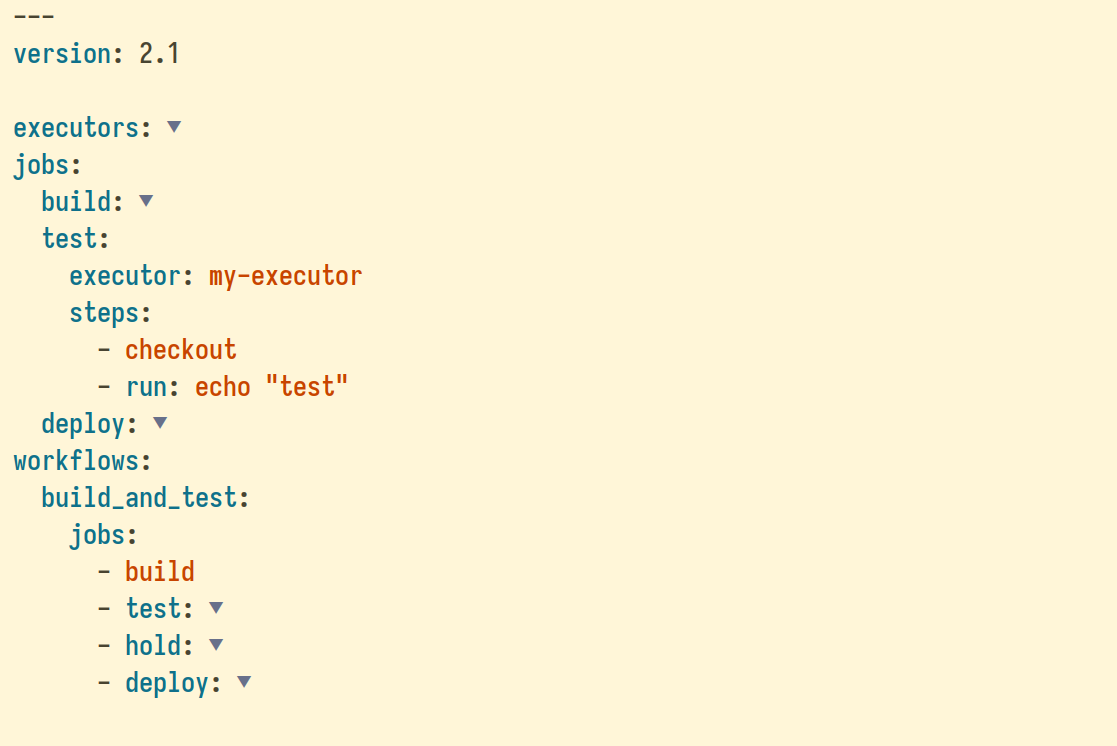
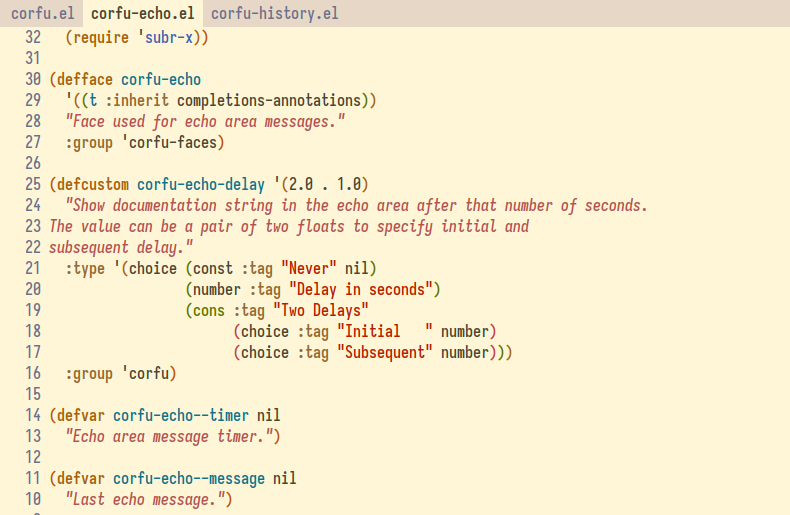
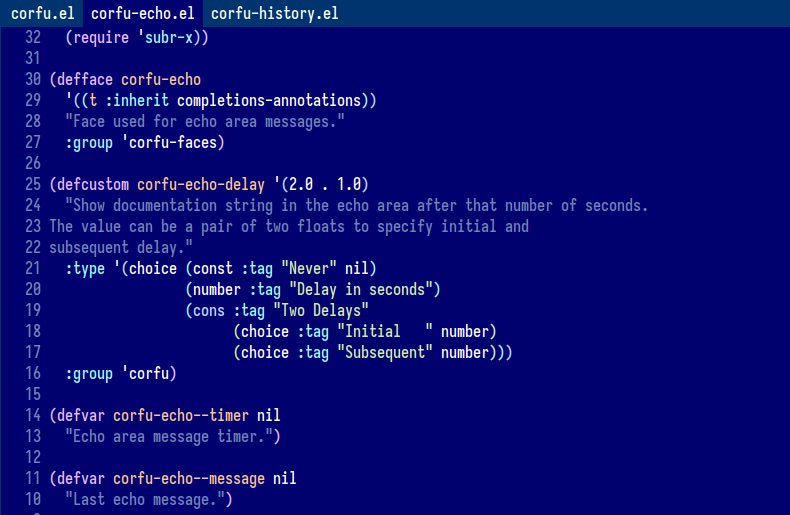
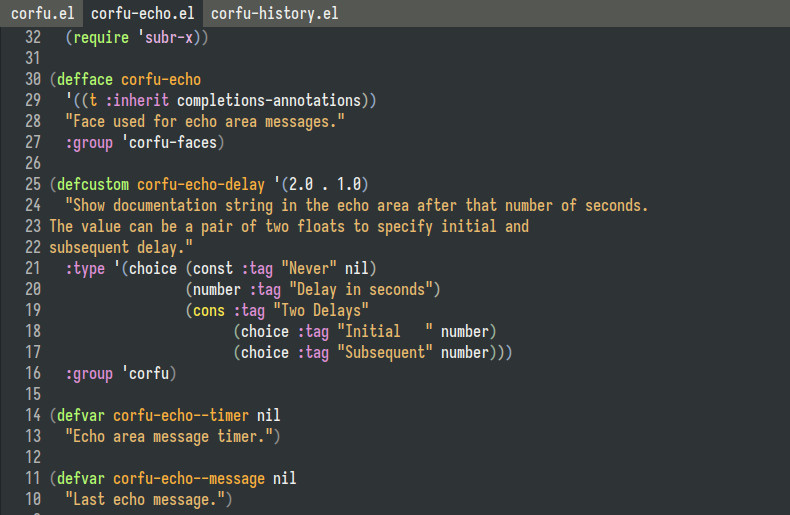
The outline-indent Emacs package provides a minor mode for indentation-based code folding. It is fast and built directly on top of native Emacs functions.
Beyond basic folding, outline-indent includes commands to:
* Move indented blocks up and down using (outline-indent-move-subtree-up) and (outline-indent-move-subtree-down).
* Adjust block indentation levels with (outline-indent-shift-right) and (outline-indent-shift-left).
* Insert a new line matching the current indentation level via (outline-indent-insert-heading).
* Navigate backward and forward to the same indentation level with (outline-indent-backward-same-level) and (outline-indent-forward-same-level).
* Customize the folding ellipsis (e.g., replacing the default “…” with “▼”).
* Select an entire indented block using (outline-indent-select).
* Toggle visibility for the specific level under the cursor with (outline-indent-toggle-level-at-point).
* Automatically detect the major mode’s basic offset and shift width, ensuring consistent indentation rules without requiring manual configuration.
If this package enhances your workflow, please show your support by ⭐ starring outline-indent on GitHub to help more users discover its benefits.
The outline-indent package is a modern replacement for legacy packages such as origami.el and yafolding.el. (Both origami.el and yafolding.el are unmaintained, suffer from performance issues, and contain known bugs that undermine their reliability.)
Because outline-indent relies on the built-in outline-minor-mode, it benefits from active maintenance by Emacs core developers. This foundation also makes it significantly faster than alternative folding packages.
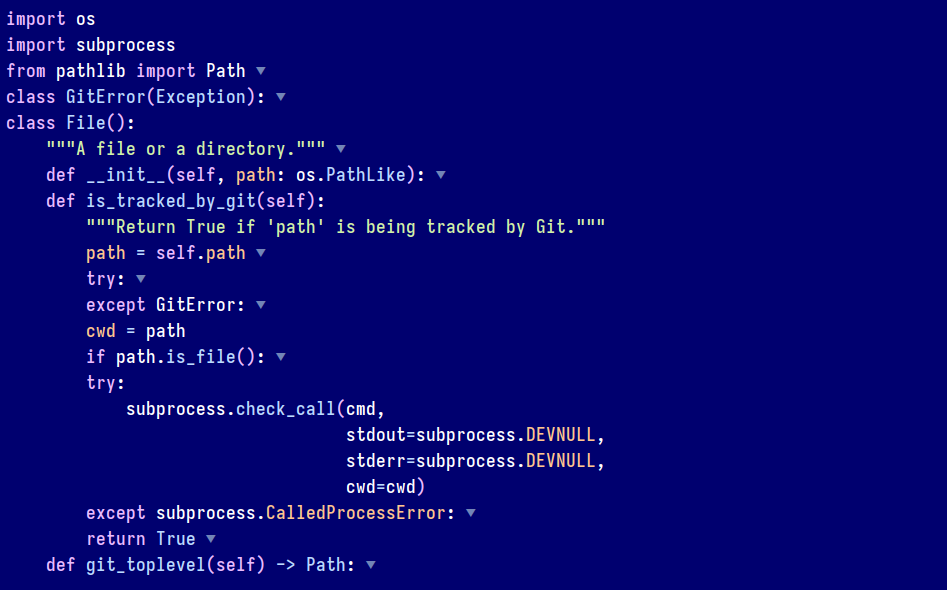
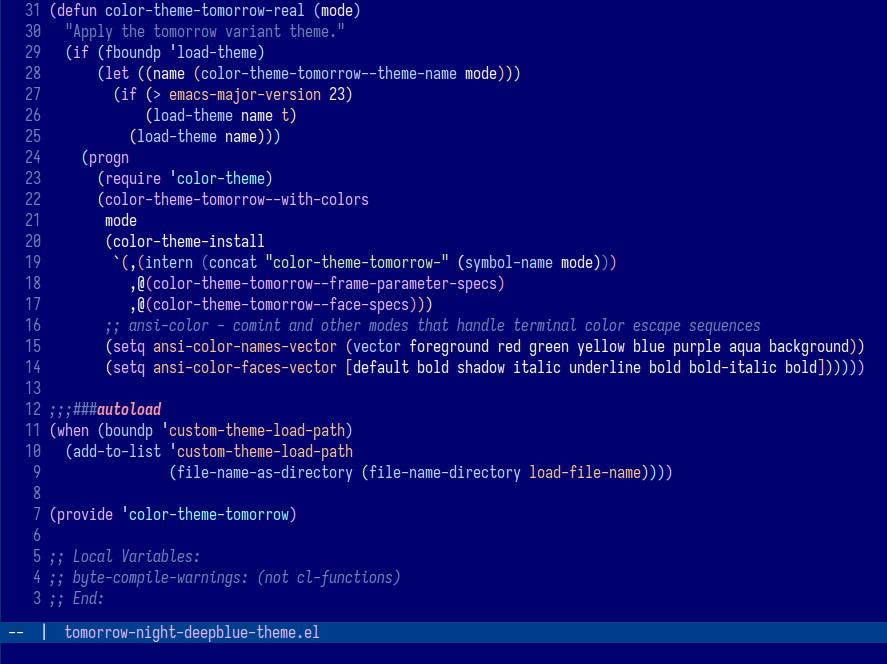
(The Emacs theme in the screenshot above is the tomorrow-night-deepblue-theme)
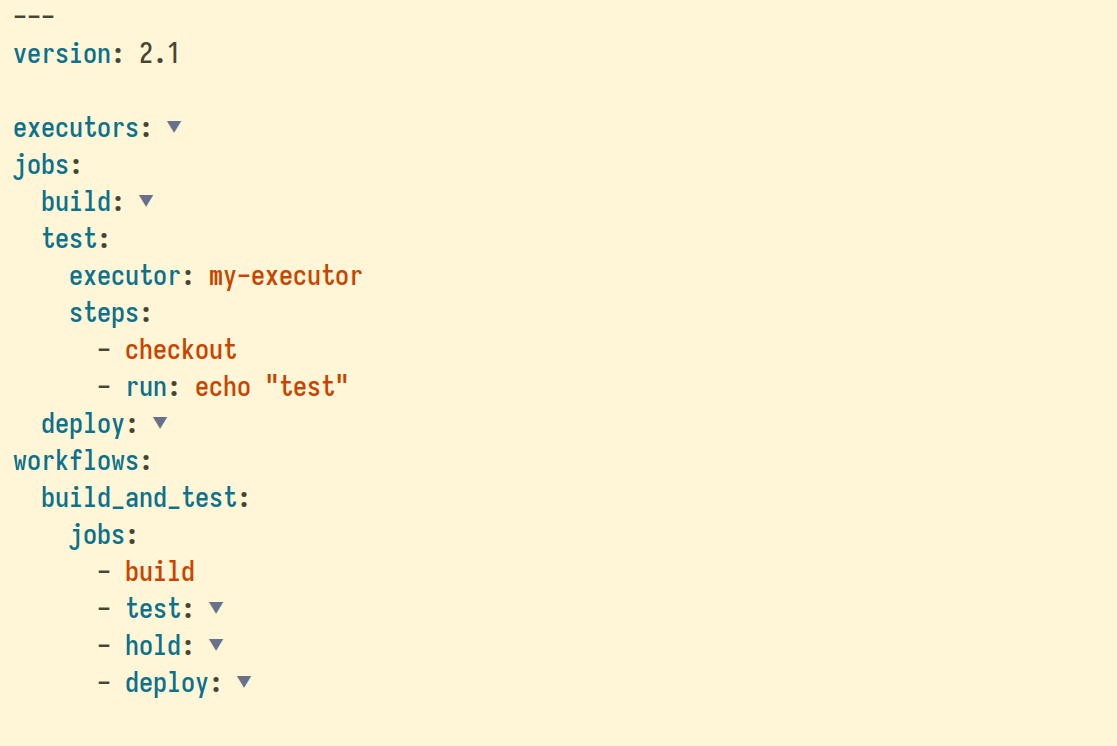
The outline-indent Emacs package offers a similar functionality to Vim’s set foldmethod=indent setting. Just as in Vim, it allows to fold and unfold code sections based on their indentation levels.
Installation
To install outline-indent from MELPA:
-
If you haven’t already done so, add MELPA repository to your Emacs configuration.
-
Add the following code to your Emacs init file to install outline-indent from MELPA:
(use-package outline-indent
  :commands outline-indent-minor-mode
  :custom
  (outline-indent-ellipsis " ▼"))
The following is an example of default keybindings that can be added to your configuration:
(with-eval-after-load 'outline-indent
  ;; Fold management
  (define-key outline-indent-minor-mode-map (kbd "C-c o o") 'outline-indent-open-fold)     ; Open fold at point
  (define-key outline-indent-minor-mode-map (kbd "C-c o c") 'outline-indent-close-fold)    ; Close fold at point
  (define-key outline-indent-minor-mode-map (kbd "C-c o m") 'outline-indent-close-folds)   ; Close all folds
  (define-key outline-indent-minor-mode-map (kbd "C-c o r") 'outline-indent-open-folds)    ; Open all folds
  (define-key outline-indent-minor-mode-map (kbd "C-c o O") 'outline-indent-open-fold-rec) ; Open fold recursively
  (define-key outline-indent-minor-mode-map (kbd "C-c o TAB") 'outline-indent-toggle-fold) ; Toggle fold at point
  (define-key outline-indent-minor-mode-map (kbd "C-c o t") 'outline-indent-toggle-level-at-point) ; Toggle level at point

  ;; Select, narrow, and comment
  (define-key outline-indent-minor-mode-map (kbd "C-c o v") 'outline-indent-select) ; Select
  (define-key outline-indent-minor-mode-map (kbd "C-c o s") 'outline-indent-narrow) ; Narrow
  (define-key outline-indent-minor-mode-map (kbd "C-c o ;") 'outline-indent-comment) ; Comment

  ;; Navigation at same indentation level
  (define-key outline-indent-minor-mode-map (kbd "C-c o f") 'outline-indent-forward-same-level)  ; Forward same level
  (define-key outline-indent-minor-mode-map (kbd "C-c o b") 'outline-indent-backward-same-level) ; Backward same level

  ;; Shift left or right
  (define-key outline-indent-minor-mode-map (kbd "C-c o <right>") 'outline-indent-shift-right)
  (define-key outline-indent-minor-mode-map (kbd "C-c o <left>") 'outline-indent-shift-left)

  ;; Insert heading
  (define-key outline-indent-minor-mode-map (kbd "C-c o i") 'outline-indent-insert-heading))
Activation
Manual activation
Once installed, the minor mode can be activated using:
(outline-indent-minor-mode 1)
Automatic activation using hooks
The minor mode can also be automatically activated for a certain modes. For example for Python and YAML:
;; Python
(add-hook 'python-mode-hook #'outline-indent-minor-mode)
(add-hook 'python-ts-mode-hook #'outline-indent-minor-mode)

;; YAML
(add-hook 'yaml-mode-hook #'outline-indent-minor-mode)
(add-hook 'yaml-ts-mode-hook #'outline-indent-minor-mode)

;; Haskell
(add-hook 'haskell-mode-hook #'outline-indent-minor-mode)
Usage
How to check if it is working?
Run the following function to fold all indented blocks:
(outline-indent-close-folds)
Vanilla Emacs
The following outline-indent functions manage the opening and closing of folds:
– (outline-indent-open-fold): Open fold at point.
– (outline-indent-close-fold): Close fold at point.
– (outline-indent-close-folds): Close all folds.
– (outline-indent-open-folds): Open all folds.
– (outline-indent-open-fold-rec): Open fold at point recursively.
– (outline-indent-toggle-fold): Open or close a fold under point.
– (outline-indent-toggle-level-at-point): Toggle the visibility of the indentation level under the cursor.
You can also indent/unindent and move subtree up and down using:
(outline-indent-shift-right): Increase the indentation level of the current indented block.(outline-indent-shift-left): Decrease the indentation level of the current indented block.(outline-indent-move-subtree-down)and(outline-indent-move-subtree-up)to move the current subtree up or down.(outline-insert-heading)to insert a new line with the same indentation level/depth as the current line just before the next heading that shares the same or less indentation level.
Move forward or backward to the same indentation level:
– (outline-indent-forward-same-level): Move the cursor to the next heading that is at the same indentation level.
– (outline-indent-backward-same-level): Move the cursor to the previous heading that is at the same indentation level.
Select and narrow:
– (outline-indent-select): Select the current line and all lines indented under it.
– (outline-indent-narrow): Narrow the buffer to the current line and all lines indented under it.
– (outline-indent-comment): Comment the current line and all lines indented under it.
Evil mode
In Evil mode, outline-indent works out of the box if you install evil-collection, and you can use the Evil and evil-collection keyboard mappings:
– Open fold(s): zo, zO, zr
– Close fold(s): zc, zC, zM
– Toggle folds: za
– Next visible fold/heading: ]] and [[
– Move forward/backward to the same indentation level: gj and gk
You may want to set a few additional key mappings:
(with-eval-after-load 'evil
  (defun my-evil-define-key-outline-indent-minor-mode ()
    ;; Open and close folds
    (evil-define-key 'normal 'local (kbd "zo") #'outline-indent-open-fold)
    (evil-define-key 'normal 'local (kbd "zc") #'outline-indent-close-fold)

    ;; Set `M-h` and `M-l` to decrease and increase the indentation level of
    ;; indented blocks
    (evil-define-key 'normal 'local (kbd "M-h") #'outline-indent-shift-left)
    (evil-define-key 'normal 'local (kbd "M-l") #'outline-indent-shift-right)

    ;; Set `M-k` and `M-j` to move indented blocks up and down
    (evil-define-key 'normal 'local (kbd "M-k") #'outline-indent-move-subtree-up)
    (evil-define-key 'normal 'local (kbd "M-j") #'outline-indent-move-subtree-down)

    (unless (derived-mode-p 'prog-mode)
      ;; In prog-mode, [[, ]], gj, and gk provide navigation to the previous
      ;; and next function, so there is no need to override them.
      (evil-define-key 'normal 'local (kbd "]]") #'outline-indent-forward-same-level)
      (evil-define-key 'normal 'local (kbd "[[") #'outline-indent-backward-same-level)
      (evil-define-key 'normal 'local (kbd "gj") #'outline-indent-forward-same-level)
      (evil-define-key 'normal 'local (kbd "gk") #'outline-indent-backward-same-level))

    (evil-define-key 'normal 'local (kbd "gV") #'outline-indent-select)

    ;; Set C-<return> to insert a new line with the same indentation
    ;; level/depth as the current line just before the next heading
    (evil-define-key '(normal insert) 'local (kbd "C-<return>")
      (defun my-evil-outline-indent-insert-heading ()
        (interactive)
        (outline-indent-insert-heading)
        (evil-insert-state))))

  (add-hook 'outline-indent-minor-mode-hook
            #'my-evil-define-key-outline-indent-minor-mode))
Functions specific to outline-indent-minor-mode
Collapsing Sections Above a Specified Outline Level
Emacs allows collapsing all sections above a given outline level. For instance:
(outline-indent-close-level 2)
To apply this behavior automatically whenever outline-indent-minor-mode is activated:
(add-hook 'outline-indent-minor-mode-hook
          (lambda ()
            (outline-indent-close-level 2)))
This ensures that sections exceeding the specified level are initially collapsed.
Managing folds
These functions help you manage the visibility of code blocks or headings in outline-indent-minor-mode. Use them to control which sections of your document are visible or hidden:
Fold at point:
– (outline-indent-open-fold): Open fold at point.
– (outline-indent-close-fold): Close fold at point.
All folds:
– (outline-indent-open-folds): Open all folds.
– (outline-indent-close-folds): Close all folds.
Other:
– (outline-indent-open-fold-rec): Open fold at point recursively.
Toggle:
(outline-indent-toggle-level-at-point): Toggle the visibility of the indentation level under the cursor.(outline-indent-toggle-fold): Open or close a fold under point.
Selecting indented text
The current indented text can be selected using:
(outline-indent-select)
outline-indent-backward-same-level and outline-indent-forward-same-level
(By default, outline-indent-advise-outline-functions is set to t, which means that you can also use the built-in outline functions (outline-backward-same-level) and (outline-forward-same-level) as an alternative to (outline-indent-backward-same-level) and (outline-indent-forward-same-level))
To move to the next block with the same indentation level:
(outline-indent-forward-same-level)
To move to the previous block with the same indentation level:
(outline-indent-backward-same-level)
outline-indent-shift-left and outline-indent-shift-right
(By default, outline-indent-advise-outline-functions is set to t, which means that you can also use the built-in outline functions (outline-promote) and (outline-demote) as an alternative to (outline-indent-shift-left) and (outline-indent-shift-right))
These functions can be used to decrease and increase the indentation level of indented blocks.
To increase indentation:
(outline-indent-shift-right)
To decrease indentation:
(outline-indent-shift-left)
The global variable outline-indent-shift-width is used to determine the number of spaces to indent or unindent the subtree.
outline-indent-move-subtree-up and outline-indent-move-subtree-down
(By default, outline-indent-advise-outline-functions is set to t, which means that you can also use the built-in outline functions (outline-move-subtree-up) and (outline-move-subtree-down), as an alternative to (outline-indent-move-subtree-up) and (outline-indent-move-subtree-down))
These functions can be used to move the current subtree down past ARGS headlines of the same level.
To move the subtree down, use:
(outline-indent-move-subtree-down)
To move the subtree up, use:
(outline-indent-move-subtree-up)
outline-indent-insert-heading
(By default, outline-indent-advise-outline-functions is set to t, which means that you can also use the built-in outline function outline-insert-heading as an alternative to outline-indent-insert-heading)
The (outline-indent-insert-heading) function inserts a new line with the same indentation level/depth as the current line just before the next heading that shares the same or less indentation level. It finds the nearest non-empty line with the same or less indentation as the current line and inserts a new line before it.
In outline-indent-minor-mode, where most lines are treated as headings, this function is suitable for maintaining consistent indentation within the outline structure. It can be used as an alternative to outline-insert-heading to insert content at the same indentation level after the current fold.
Example usage:
(outline-indent-insert-heading)
Frequently asked questions
Maintaining blank lines between folded sections
The outline-blank-line variable can be set to t (true) to maintain blank lines between folded sections, making it easier to distinguish between folds:
(setq outline-blank-line t)
Automatically Folding All Folds on Mode Activation
The outline-indent-minor-mode mode can be configured to automatically collapse all foldable sections upon activation. This behavior may be applied selectively to specific modes (e.g., Python or YAML), or globally across all modes.
To collapse all foldable sections whenever outline-indent-minor-mode is enabled, regardless of the major mode:
(add-hook 'outline-indent-minor-mode-hook
          #'(lambda()
              (outline-indent-close-folds)))
How to Prevent Emacs from Searching Folded Sections
To prevent Emacs from searching within folded sections, set search-invisible to nil by adding the following line to your Emacs init file:
(setq-default search-invisible nil)
This setting ensures that Emacs skips invisible or folded text during searches, so hidden sections are not included in the search results.
What programming languages are supported?
The outline-indent package functions correctly with any programming language whose code is properly indented.
The author uses it daily across numerous languages, including Python, Bash, YAML, Elisp, Lua, and others.
The outline-indent provides a mapping between Emacs major modes and their corresponding indentation variables, enabling outline-indent to determine the correct indentation for a wide range of languages. Supported languages include scripting languages such as Python, Bash, Perl, Ruby, Lua, and Raku; compiled languages including C, C++, Java, Ada, Rust, Crystal, Go, Scala, Swift, Pascal, and Objective-C; web and markup languages like HTML, XML, CSS, Web templates, Pug, and PlantUML; as well as JavaScript and TypeScript in multiple variants. This ensures consistent outline and folding behavior across most commonly used programming and markup modes in Emacs.
Does outline-indent-minor-mode work with Emacs Lisp or other programming languages, and how does it differ from the built-in outline-minor-mode?
Yes, outline-indent-minor-mode functions correctly with Emacs Lisp and any other language whose code is properly indented.
Emacs Lisp (Elisp) is also supported by the built-in outline-minor-mode, which allows collapsing and expanding specific code sections based on heading levels defined by comments, def, defvar…
The main difference between the two is that outline-indent-minor-mode supports multiple nested blocks based on indentation levels, whereas outline-minor-mode relies solely on explicit outline headings.
For example, outline-minor-mode can fold an entire function but cannot fold inner constructs such as if expressions or while loops.
In contrast, outline-indent-minor-mode can fold any indented block of code, including if statements, while loops, and similar nested structures.
How to make Emacs indent new lines based on previous non-blank line?
The following code snippet configures Emacs to indent based on the indentation of the previous non-blank line:
;; This ensures that pressing Enter will insert a new line and indent it.
(global-set-key (kbd "RET") #'newline-and-indent)

;; Indentation based on the indentation of the previous non-blank line.
(setq-default indent-line-function #'indent-relative-first-indent-point)

;; In modes such as `text-mode', pressing Enter multiple times removes
;; the indentation. The following fixes the issue and ensures that text
;; is properly indented using `indent-relative' or
;; `indent-relative-first-indent-point'.
(setq-default indent-line-ignored-functions '())
How to ignore certain major modes
The outline-indent package defines the variable outline-indent-ignored-modes, which specifies a list of major modes where outline-indent-minor-mode must not activate. Its default value is '(org-mode markdown-mode), since these modes provide their own indentation and structural logic that may conflict with outline-indent.
Example configuration:
;; A list of major modes where `outline-indent-minor-mode' must not activate
(setq outline-indent-ignored-modes '(org-mode markdown-mode))
Certain major modes implement native indentation logic that is tightly integrated with their document structure. These modes are excluded by default in order to preserve their intended behavior. For example, org-mode and markdown-mode already provide their own outline configuration, which functions correctly without additional indentation support.
Customization
To modify the list of ignored modes:
(setq outline-indent-ignored-modes
      '(org-mode markdown-mode text-mode))
Only symbols corresponding to major modes should be included in this list.
What other packages can be used to maintain proper indentation in indentation-sensitive programming languages?
Here are some of the packages that were recommended in the article Emacs: Maintaining proper indentation in indentation-sensitive programming languages:
Displaying vertical indentation guide bars
The indent-bars package enhances code readability by providing visual indentation guides, optimized for speed and customization.
It supports both space and tab-based indentation and offers optional tree-sitter integration, which includes features like scope focus. The appearance of the guide bars is highly customizable, allowing you to adjust their color, blending, width, position, and even apply a zigzag pattern.
To install it, add the following to your Emacs init file:
(lightemacs-use-package indent-bars
  :commands indent-bars-mode
  :custom
  ;; Setting this to nil is not reliable enough
  ;; https://github.com/jdtsmith/indent-bars?tab=readme-ov-file#stipples
  (indent-bars-prefer-character t)

  ;; When `indent-bars-prefer-character' is set to t, displaying indent bars on
  ;; blank lines causes cursor movement issues when moving downward, resulting
  ;; in abrupt shifts of the window start or cursor position.
  (indent-bars-display-on-blank-lines nil))
It can be activated using M-x indent-bars-mode or by adding the following to the Emacs configuration:
(add-hook 'prog-mode-hook #'indent-bars-mode)
What code folding packages does the author use?
The author uses three code folding packages:
- Indentation-based folding (Python, YAML, Haskell, etc.): outline-indent
- Tree-sitter-based folding: treesit-fold (The integration of Tree-sitter allows Emacs to operate on the Abstract Syntax Tree, making folding structurally accurate rather than heuristic.)
- The built-in
outline-minor-modeforemacs-lisp-mode,markdown-mode, andconf-mode/conf-unix-mode. - For all code folding modes: The kirigami package, which provides a unified interface for opening and closing folds. Code folding in Emacs has historically suffered from reliability issues; even built-in modes like
outline-modeandoutline-minor-modecontain bugs not yet addressed in upstream Emacs, which Kirigami fixes. Once configured, the same keys and functions enable consistent behavior across a diverse set of major and minor modes, includingoutline-mode,outline-minor-mode,outline-indent-minor-mode,org-mode,markdown-mode,gfm-mode,vdiff-mode,vdiff-3way-mode,hs-minor-mode,hide-ifdef-mode,vimish-fold-mode,origami-mode,yafolding-mode,folding-mode,ts-fold-mode,treesit-fold-mode…
NOTE: The author prefers using outline-indent for languages like Python, despite having treesit-fold installed. The advantage of outline-indent is that it allows for infinite folding depth; it enables the folding of classes, functions within them, and even nested structures like while loops and if statements.
What are the main differences compared to treesit-fold?
The outline-indent package manages code or text folding based on indentation levels. It determines how deeply nested sections are represented and folded, depending on indentation. It is purely text-structural and does not rely on syntactic analysis; it simply interprets indentation to define hierarchical relationships between lines or sections.
The treesit-fold package, on the other hand, is built on Emacs’ Tree-sitter integration, which provides a syntactic parse tree of the buffer’s content. Folding through treesit-fold relies on the program’s actual syntax tree rather than indentation. This allows it to fold language constructs such as functions, classes, loops, or conditional blocks with semantic accuracy.
In essence, treesit-fold offers a syntax-aware folding mechanism, whereas outline-indent operates solely on indentation.
Why not use origami.el or yafolding?
The origami.el and yafolding.el package are not reliable method for folding indented code because they are:
– No longer maintained (abandoned),
– Slow,
– Known to have bugs that affect their reliability and performance.
On the other hand, outline-indent leverages the built-in outline-minor-mode, which is:
– Fast,
– Actively maintained by the Emacs developers.
Why not use folding.el?
The folding.el package is no longer maintained (abandoned) and uses markers in the buffer to annotate folds. It does not support using indentation levels to determine foldable sections.
In contrast, outline-indent uses indentation levels to determine foldable sections.
How does this compare to the built-in hideshow package?
The outline-indent.el and hs-minor-mode (Hideshow) packages in Emacs are both designed for code folding, but they operate differently.
Outline Indent:
- Relies on indentation levels to determine foldable regions, making it effective for indentation-sensitive languages such as Python or YAML. Additional features include moving indented blocks, adjusting indentation, inserting consistent headings, customizing ellipses for folded sections, and selecting or toggling visibility of blocks.
- Supports an unlimited number of folding levels. For example, it allows folding a function as well as nested blocks within that function, such as if statements inside while loops if they are properly indented. This makes it highly effective for working with deeply nested code structures.
Hideshow:
- hs-minor-mode uses syntax-based folding, identifying foldable regions through regular expressions that match language constructs like functions or classes. Its functionality is simpler, offering basic hiding, showing, and toggling of code sections, and struggles with indentation-sensitive languages.
- It generally folds a single level at a time, such as entire functions, without providing convenient access to nested blocks. This makes it less practical for languages that require deep folding, such as YAML, where multiple nested levels are common. Even in languages like Python, Hideshow can be impractical, because it allows folding classes but does not provide convenient folding for the functions within those classes for example.
Choosing between the two depends on workflow and language preference: outline-indent.el is ideal for indentation-driven code, while hs-minor-mode is better suited for code with well-defined syntactic structures and where folding a single level is sufficient.
How to view different outline-indent folds in separate windows?
You can use indirect buffers, a feature that allow multiple views of the same underlying data in separate windows.
Indirect buffers are useful when working with outline-indent folds where you might want to focus on different sections of a document simultaneously, without altering the view in other windows.
For example, one window might display a fully expanded view (original buffer), while another window (the indirect buffer) shows only specific folds or indentation levels, allowing you to compare or edit sections side by side.
To create an indirect buffer of the current buffer, you can use M-x clone-indirect-buffer-other-window or the following function:
(clone-indirect-buffer nil t)
Comments from users
-
Brandon Schneider (skarekrow): Thanks again for all the great work!
-
yep808: “Thanks for the writeup, I never thought I needed code folding in my many years of programming. But I can definitely see it being helpful in super long YAML config files. I just tried your outline-indent.el package and it works very well. Love the OOTB integration with evil-collections too.”
License
The outline-indent Emacs package has been written by James Cherti and is distributed under terms of the GNU General Public License version 3, or, at your choice, any later version.
Copyright (C) 2024-2026 James Cherti
This program is free software: you can redistribute it and/or modify it under the terms of the GNU General Public License as published by the Free Software Foundation, either version 3 of the License, or (at your option) any later version.
This program is distributed in the hope that it will be useful, but WITHOUT ANY WARRANTY; without even the implied warranty of MERCHANTABILITY or FITNESS FOR A PARTICULAR PURPOSE. See the GNU General Public License for more details.
You should have received a copy of the GNU General Public License along with this program.
Links
- outline-indent @GitHub
- outline-indent @MELPA
- Article: outline-indent – Indentation based Folding and Outlining in Emacs
Other Emacs packages by the same author:
- minimal-emacs.d: This repository hosts a minimal Emacs configuration designed to serve as a foundation for your vanilla Emacs setup and provide a solid base for an enhanced Emacs experience.
- compile-angel.el: Speed up Emacs! This package guarantees that all .el files are both byte-compiled and native-compiled, which significantly speeds up Emacs.
- easysession.el: Easysession is lightweight Emacs session manager that can persist and restore file editing buffers, indirect buffers/clones, Dired buffers, the tab-bar, and the Emacs frames (with or without the Emacs frames size, width, and height).
- vim-tab-bar.el: Make the Emacs tab-bar Look Like Vim’s Tab Bar.
- elispcomp: A command line tool that allows compiling Elisp code directly from the terminal or from a shell script. It facilitates the generation of optimized .elc (byte-compiled) and .eln (native-compiled) files.
- tomorrow-night-deepblue-theme.el: The Tomorrow Night Deepblue Emacs theme is a beautiful deep blue variant of the Tomorrow Night theme, which is renowned for its elegant color palette that is pleasing to the eyes. It features a deep blue background color that creates a calming atmosphere. The theme is also a great choice for those who miss the blue themes that were trendy a few years ago.
- Ultyas: A command-line tool designed to simplify the process of converting code snippets from UltiSnips to YASnippet format.
- dir-config.el: Automatically find and evaluate .dir-config.el Elisp files to configure directory-specific settings.
- flymake-bashate.el: A package that provides a Flymake backend for the bashate Bash script style checker.
- flymake-ansible-lint.el: An Emacs package that offers a Flymake backend for ansible-lint.
- inhibit-mouse.el: A package that disables mouse input in Emacs, offering a simpler and faster alternative to the disable-mouse package.
- quick-sdcv.el: This package enables Emacs to function as an offline dictionary by using the sdcv command-line tool directly within Emacs.
- enhanced-evil-paredit.el: An Emacs package that prevents parenthesis imbalance when using evil-mode with paredit. It intercepts evil-mode commands such as delete, change, and paste, blocking their execution if they would break the parenthetical structure.
- stripspace.el: Ensure Emacs Automatically removes trailing whitespace before saving a buffer, with an option to preserve the cursor column.
- persist-text-scale.el: Ensure that all adjustments made with text-scale-increase and text-scale-decrease are persisted and restored across sessions.
- pathaction.el: Execute the pathaction command-line tool from Emacs. The pathaction command-line tool enables the execution of specific commands on targeted files or directories. Its key advantage lies in its flexibility, allowing users to handle various types of files simply by passing the file or directory as an argument to the pathaction tool. The tool uses a .pathaction.yaml rule-set file to determine which command to execute. Additionally, Jinja2 templating can be employed in the rule-set file to further customize the commands.
- kirigami.el: The kirigami Emacs package offers a unified interface for opening and closing folds across a diverse set of major and minor modes in Emacs, including
outline-mode,outline-minor-mode,outline-indent-minor-mode,org-mode,markdown-mode,vdiff-mode,vdiff-3way-mode,hs-minor-mode,hide-ifdef-mode,origami-mode,yafolding-mode,folding-mode, andtreesit-fold-mode. With Kirigami, folding key bindings only need to be configured once. After that, the same keys work consistently across all supported major and minor modes, providing a unified and predictable folding experience. - buffer-guardian.el: Automatically saves Emacs buffers without requiring manual intervention. By default, it triggers a save when the user switches to another buffer, switches to another window or frame, Emacs loses focus, or the minibuffer is opened. Beyond standard file buffers, buffer-guardian also manages specialized editing buffers such as org-src and edit-indirect. Additional features, disabled by default, include periodic or idle-time saving of all buffers, automatic exclusion of remote, nonexistent, or large files, and support for custom exclusion rules via regular expressions or predicate functions.